
NotebookLM caps each notebook at 50 sources on the free plan, and large files often stop with a "too large to import" error. Both limits tend to hit mid-project, right when your research is growing fastest.
The good news: there are clean ways around both. This guide covers NotebookLM's real upload and file size limits in 2026, three practical ways to fit in more files, fixes for the most common import errors, and a private Mac alternative for when you are working with far more than 50 documents.
Here is what we cover:
- NotebookLM's file size and source limits in 2026 (free vs paid)
- How many files and PDFs you can upload
- Quick ways to upload more than 50 sources
- Fixes for the "too large to import" and "error uploading source" messages
- Where the workarounds fall short
- A private Mac alternative for thousands of files: Elephas
For the bigger picture, this sits alongside our what is NotebookLM guide and the full source limits breakdown.
Quick answer
- NotebookLM lets you upload 50 sources per notebook on the free plan. Each source can be up to 500,000 words or 200MB, whichever you hit first. There is no PDF page limit.
- To upload more than 50 files, split your research across several notebooks, merge related PDFs into one file before uploading, or paste long content in as text.
- Paid plans raise the source cap to 100 (Plus), 300 (Pro), or 600 (Ultra), but the 200MB and 500,000-word per-source caps stay the same on every tier.
- A file fails to import when it goes over 500,000 words or 200MB, or when it is a copy-protected PDF. Shrink, split, or unlock the file and try again.
- For confidential files, a private Mac alternative like Elephas keeps your data on your device. Pricing starts at $19 a month with a free trial.
Is Gemini Notebook the Same as NotebookLM?
Yes. Google renamed NotebookLM to Gemini Notebook on July 16, 2026. Same tool, same plans, same limits: only the name and the address changed, and old notebooklm.google.com links redirect to notebook.google.com automatically. Google's reason for the change is simple: it wants one Gemini brand across all of its AI products. Every number on this page was re-checked against Google's help pages in August 2026. This guide uses both names.
How Many Files Can You Upload to NotebookLM?
On the free plan you can upload 50 sources per notebook, and you can create up to 100 notebooks.
Each source holds up to 500,000 words or 200MB, with no page limit on PDFs. Paid plans raise the source cap but keep the same per-file ceiling.
| Plan | Sources / notebook | Notebooks | Per-source cap |
|---|---|---|---|
| Free | 50 | 100 | 500,000 words or 200MB |
| Plus | 100 | 200 | 500,000 words or 200MB |
| Pro | 300 | 500 | 500,000 words or 200MB |
| Ultra | 600 | 500 | 500,000 words or 200MB |
The takeaway: a higher plan gives you more sources, not bigger ones. A single file over 200MB or 500,000 words will not import on any tier. As of June 2026.
NotebookLM Plans: Quick Comparison
NotebookLM has four tiers since the 2026 Google AI update. This is the side-by-side that matters for uploads, checked against Google's help pages in September 2026.
| Plan | Price | Notebooks | Sources / notebook | Usage budget |
|---|---|---|---|---|
| Free | $0 | 100 | 50 | Standard |
| Plus (Google AI Plus) | $4.99/mo | 200 | 100 | 2x standard |
| Pro (Google AI Pro) | $19.99/mo | 500 | 300 | 4x standard |
| Ultra 20TB (Google AI Ultra) | $99.99/mo | 500 | 500 | 5x or 20x Pro |
| Ultra 30TB (Google AI Ultra) | $199.99/mo | 500 | 600 | 5x or 20x Pro |
The per-source cap is 500,000 words or 200MB on every tier, and the engine is Gemini 3 across all plans.
The free plan is fine for small projects. Heavy document loads or long chat sessions hit these walls fast.
Pro at $19.99/mo removes most of the friction for heavy users. Ultra, from $99.99/mo, targets power users who need the highest limits. For a tier-by-tier read, see is Pro worth it and the free plan guide.
NotebookLM File Size Limit Explained
The hard ceiling is 500,000 words or 200MB per source, whichever comes first. PDFs have no page limit, only the word count counts.
Three smaller caps hide inside a single source, and no plan raises them: a Google Slides source can hold at most 100 slides, a Google Sheets source is read up to 100,000 tokens, and copy-protected PDFs will not import on any tier.
This is the same on free and paid plans, so a giant file is a giant file no matter what you pay.
NotebookLM sets clear caps on file count and size. For the full set of caps, see our source limits guide.
The free version caps you at 50 sources per notebook. Each source can hold up to 500,000 words or 200MB for uploaded files.
This is plenty for most research projects and fits substantial documents like reports or research papers.
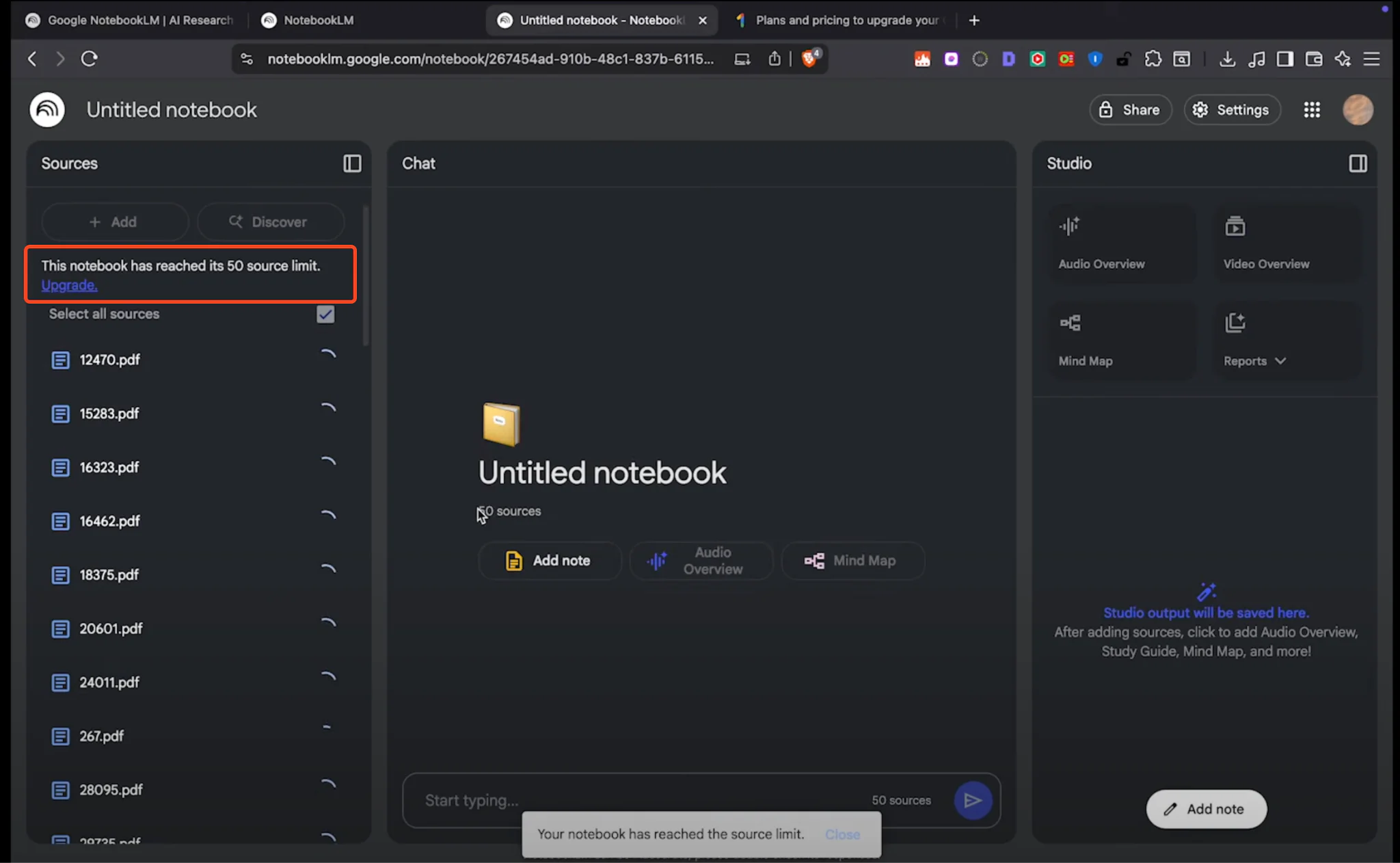
Free version limits:
- 50 sources maximum per notebook
- 500,000 words per source file
- 200MB file size limit for uploads
- 100 notebooks total allowed
- No page limit on PDFs, only the word count matters

NotebookLM Plus Offers a Step Up ($4.99/mo)
NotebookLM Plus doubles your source capacity to 100 sources per notebook for $4.99 a month. It doubles your usage budget and gives early access to new features. Plus users can create up to 200 notebooks total.
NotebookLM Pro Offers Serious Power ($19.99/mo)
NotebookLM Pro lets you upload up to 300 sources per notebook, six times the free version. The per-file size limits stay the same at 500,000 words or 200MB.
This tier costs $19.99 per month and is bundled with the Google AI Pro subscription. It includes 500 total notebooks and four times the free usage budget for chat, audio and video overviews, and Deep Research.
NotebookLM Ultra for Power Users (from $99.99/mo)
NotebookLM Ultra is the highest tier, from $99.99 a month, with the 30TB option at $200. It offers up to 600 sources per notebook and the highest usage limits.
Ultra users get a usage budget 5x or 20x higher than Pro and the most Cinematic Video Overviews. It also removes watermarks from slide decks and infographics.

Why These Limits Exist
These caps exist because of processing constraints. The system needs serious computing power to read and index every source you upload. Large document sets slow down responses and can make the tool unreliable.
The model has fixed memory boundaries that cannot handle unlimited information at once. These limits keep NotebookLM fast and stable for everyone.
"This File Is Too Large to Import" and Upload Errors
A file is rejected when it is over 500,000 words or 200MB, or when it is a copy-protected PDF. Image-only PDFs with no readable text can also fail. Here is how to clear the common errors.
- Too large to import: split the document into parts under 500,000 words, or compress a heavy PDF so it falls under 200MB.
- Error uploading source: check the file type is supported, the PDF is not copy-protected, and the YouTube video is public with captions.
- Scanned PDF will not read: NotebookLM now runs OCR on images and scans, but a low-quality scan can still fail. Re-scan at higher quality or run OCR first.
- Slow upload: very large files take longer to process. Smaller, split files import faster and more reliably.
Complete NotebookLM Limits Breakdown
Here is every limit you will run into. Knowing these numbers helps you plan a project. For how the 5-hour refresh works, see the usage limits guide.
Usage Limits
Since September 2, 2026, NotebookLM (now Gemini Notebook) no longer gives you a fixed number of chats or overviews per day. It uses compute-based usage limits instead. Google says the limit factors in prompt complexity, chat length, the number of sources, and the features you use.
Your usage budget refreshes every 5 hours, up to a weekly limit. Chat, Audio and Video Overviews, reports, and Deep Research all draw from the same budget, so a long chat across a full notebook uses more of it than a short question.
| Plan | Usage budget |
|---|---|
| Free | Standard limits |
| Plus | 2x standard |
| Pro | 4x standard |
| Ultra | 5x or 20x Pro, depending on your Ultra tier |
When you run out, NotebookLM tells you when features come back. On the web you can choose Generate later for Studio outputs like Video Overviews, and they are created once your budget refreshes. There is no way to buy extra usage on the free plan.
Notebook Quantity Limits
How many notebooks you can create depends on your plan:
- Free plan: 100 notebooks total across your account
- Plus plan: 200 notebooks total
- Pro plan: 500 notebooks total
- Ultra plan: 500 notebooks total
Once you hit your notebook limit, delete an old notebook before creating a new one. These caps are total across your account, not per project. Running many notebooks at once? Here are some organization tips.
Source and File Size Limits
Every plan shares the same per-source limits:
- Words per source: 500,000 maximum
- File size: 200MB maximum for uploaded files
- PDF pages: no page limit (only word count matters)
- Sources per notebook: 50 (Free), 100 (Plus), 300 (Pro), 600 (Ultra)
Long documents like textbooks or legal filings may need splitting before upload if they pass 500,000 words.
Supported File Types
NotebookLM supports Google Docs, Slides, and Sheets, PDFs, Word docs, text and Markdown, web URLs, YouTube links, audio, images, and CSV files. As of June 2026.
Supported formats:
- Google Docs
- Google Slides
- Google Sheets
- PDF files
- Microsoft Word (.docx)
- Text files (.txt)
- Markdown files (.md)
- Web URLs
- YouTube videos (public with captions)
- Audio files (MP3, WAV, M4A, AAC, OGG, OPUS, and more)
- Images, including scans, read with OCR
- CSV files
NOT supported formats:
- FLAC audio files
- WebM video files
- ePub ebooks (convert to PDF first)
- Copy-protected PDFs
- Private YouTube videos
- Videos without speech or captions
- Image-only PDFs with no readable text (OCR may still miss low-quality scans)
Audio and Video Limits
When uploading audio, keep these rules in mind:
- Audio files must contain clear speech
- Heavy background noise or overlapping voices may cause a fail
- No time limit on length, but the transcription must stay under 500,000 words
- Supported audio includes MP3, WAV, M4A, AAC, OGG, OPUS, and many others
- FLAC and WebM are not supported
For YouTube videos:
- Videos must be public with captions enabled
- Only the text transcript is imported, not the video itself
- Videos uploaded under 72 hours ago may not be available yet
- If a video is deleted or made private, the source auto-deletes within 30 days
Processing Time Limits
There is no official per-document time limit, but larger files take longer to process. Files over 200MB or 500,000 words fail to import. Copy-protected PDFs also fail during upload.
How to Upload More Than 50 Files to NotebookLM
Three methods get you past the 50-source cap without paying: split your research across multiple notebooks, merge related files before uploading, or paste long content in as text. Each has trade-offs, covered below.
Method 1: Create Multiple Notebooks

The simplest approach splits your research across several themed notebooks. Each notebook gets its own 50-source slot, which gives you more room while keeping things organized.
Create separate notebooks for different parts of your topic. Organize by time period, subject, or document type. This turns the source cap into an organizing system rather than a barrier.
Benefits of multiple notebooks:
- Each notebook gets its own 50-source allocation
- Better organization for large projects
- Easier navigation through related documents
- Less processing load per notebook
Notebooks cannot link to each other, so keep brief notes in each one that reference related content elsewhere.
Method 2: Combine Files Before Upload

Merge related documents into single files before uploading to stretch your source slots. This works well for PDFs and text files on similar topics.
Use any PDF merging tool to combine several research papers or reports into one document. You stay under the source cap while keeping all the material in one notebook.
File combination tips:
- Merge related PDFs into one document
- Combine text files toward the 500,000-word cap
- Group similar document types before upload
- Build one master document from several short sources
Method 3: Paste Content as Text

Copy and paste content straight into NotebookLM as text sources when an upload is not possible. This works well for web content and video transcripts.
Manual transfer tips:
- Copy YouTube transcripts as dedicated text sources
- Paste web articles into new text sources
- Move email or message threads in as text
- Convert handwritten notes to digital text first
Where the Workarounds Fall Short

Even if you squeeze 60 or 70 files in by merging, that is still not many for serious research. Merging brings its own problems: wrong citations and mixed-up topics that turn a tidy project into a mess.
- Time-consuming: converting and merging files takes a while and often needs extra tools.
- Lost organization: original file names and structure disappear once you merge everything.
- Broken citations: the system can no longer point to where a fact originally came from.
- Mixed topics: different subjects blur together in merged files.
- Same hard caps: the underlying memory limits do not change no matter how you organize.
- Poor for big projects: these fixes break down once you have many documents.
- Formatting mess: merging creates messy layouts that are hard to read.
A Private Alternative for Thousands of Files: Elephas
If you regularly have far more than 50 documents, or your files are confidential, Elephas is a privacy-first AI knowledge assistant for Mac. You chat with your own documents like NotebookLM, but the files stay on your machine and there is no upload cap.
Elephas has a Super Brain knowledge base that reads YouTube URLs, webpages, documents, Excel, JSON, and CSV. It also connects to Apple Notes, Notion, Obsidian, Roam, and Bear. See our full Elephas vs NotebookLM comparison for details.
- No cap on file uploads or document count.
- Reads documents, PDFs, YouTube URLs, webpages, Excel, CSV, and JSON.
- Works offline using built-in local LLM models, so processing happens on device and your data is not sent anywhere.
- Or bring your own key for ChatGPT 5.5, Claude Opus 4.7, Gemini, and others (sensitive details redacted before sending), and pick which model answers your work.
- Writing tools: grammar fixes, rewrite modes, continue writing, and style match.
Smart Redaction for cloud privacy
Most tools send your raw text straight to the cloud model. Elephas does not. When you use a cloud provider like ChatGPT, Claude, or Gemini through your own API key, Smart Redaction first removes personal and sensitive details, names, emails, phone numbers, and other identifiers, and replaces them with placeholders. Only the cleaned text leaves your Mac.
The real details are restored locally in your final answer, so the cloud provider never sees them, and Elephas keeps zero data retention. Smart Redaction works on every Elephas plan, including the free one.


| Feature | NotebookLM | Elephas |
|---|---|---|
| File limits | Free: 50 sources, Paid: up to 600 per notebook | No upload cap, works with thousands of documents |
| Supported formats | PDFs, Google Docs, text, web links, audio, images, CSV | Documents, PDFs, YouTube URLs, webpages, Excel, CSV, JSON |
| Privacy | Files processed on Google servers | On-device processing, built-in local LLM models, Smart Redaction for cloud (sensitive details redacted before sending) |
| Pricing | Free, paid from $4.99/mo | $19/month start, free trial |
The Bottom Line on NotebookLM Upload Limits
NotebookLM's 50-source free cap and 200MB per-file limit can slow real research. The workarounds, splitting and merging, help a little but cost you time, citations, and clean organization.
If you constantly hit those limits or handle confidential files, Elephas reads thousands of documents on your Mac with no upload cap. It runs offline with built-in local LLM models, and keeps your original file structure intact. Pricing starts at $19 a month with a free trial.