
Before you start
- Appearance settings apply to this computer only.
Steps
1
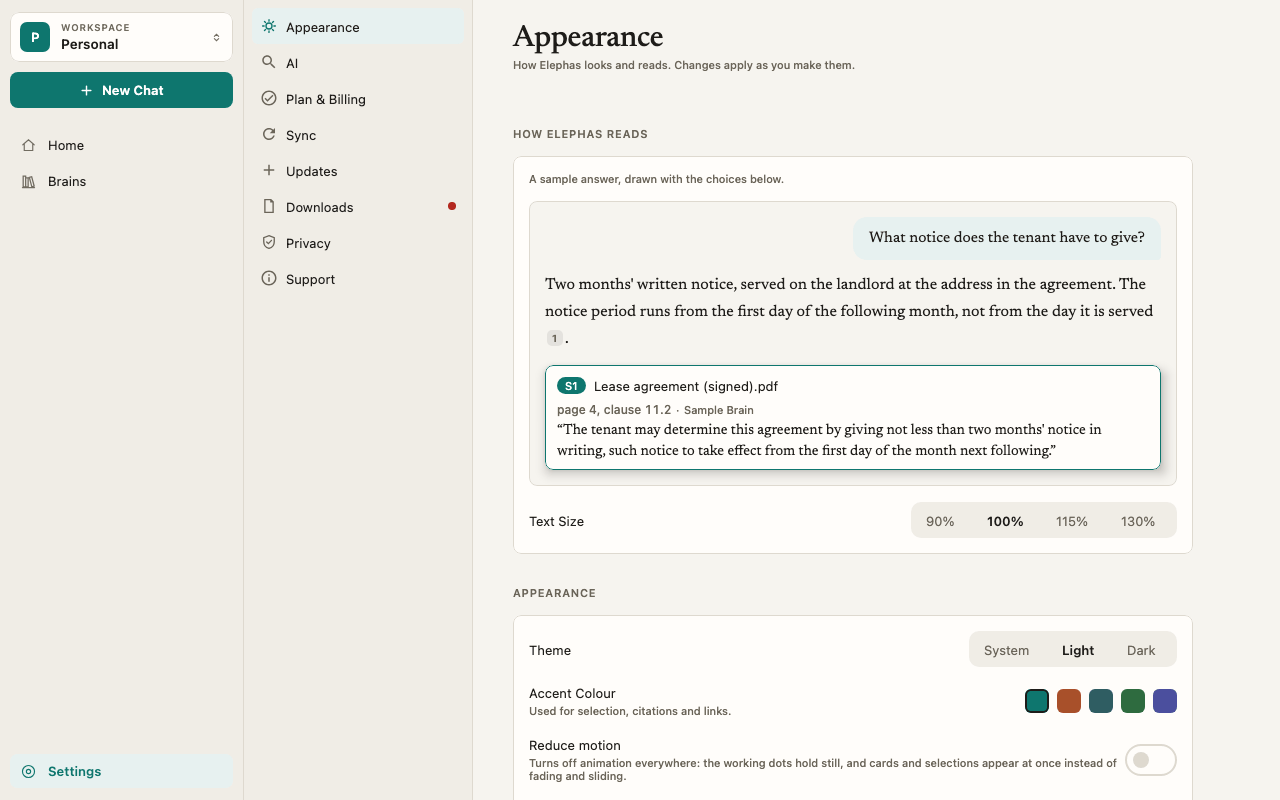
Open Settings › Appearance
Click Settings in the sidebar, or press ⌘, on Mac or Ctrl+, on Windows, then choose Appearance.
2
Choose a text size
Under How Elephas Reads, pick a Text Size: 90%, 100%, 115% or 130%. The sample answer above it, with a citation and its source card, is redrawn at the size you pick, so you can judge it by eye.
3
Choose a theme
Under Appearance, set Theme to System, Light or Dark. System follows your Mac or Windows setting and is the default.
4
Choose an accent color
Click a swatch next to Accent Colour: Terracotta (the default), Ink, Moss or Indigo. The accent is used for selection, citations and links.
5
Turn on Reduce motion, if you like
Switch on Reduce motion to turn off animation everywhere. The working dots hold still, and cards and selections appear at once instead of fading and sliding.
Change text size with the keyboard
You can change text size from anywhere in Elephas, without opening Settings. The same commands are in the View menu.
Each press moves one step through 90%, 100%, 115% and 130%.
How it works
- Text size changes text, not controls. Buttons, icons and the window layout keep their size, so larger text does not crowd the screen.
- Your choices are remembered and apply every time you open Elephas.
- The accent colors are fixed presets. Each one is checked for readable contrast in both light and dark themes, which is why there is no custom color picker.
- Reduce motion is off by default. Elephas does not read your system’s reduce motion setting. Turn it on here if you want it.
Troubleshooting
Elephas does not switch to dark mode at night
Elephas does not switch to dark mode at night
Check that Theme is set to System, and that your Mac or Windows is set to switch automatically. If Theme is Light or Dark, Elephas stays on that theme.
Text is too small or too large
Text is too small or too large
Press ⌘0 on Mac or Ctrl+0 on Windows to go back to 100%. Elephas’s text size works on top of your system’s display scaling, so if everything is small, also check your display settings.
The Bigger Text shortcut does nothing
The Bigger Text shortcut does nothing
The largest size is 130% and the smallest is 90%. If you are already at the end of the range, the shortcut has no further effect.