
Open and close Settings
- Mac
- Windows
- Click Settings at the bottom of the sidebar, or
- choose Elephas › Settings…, or press ⌘, (Command and comma).
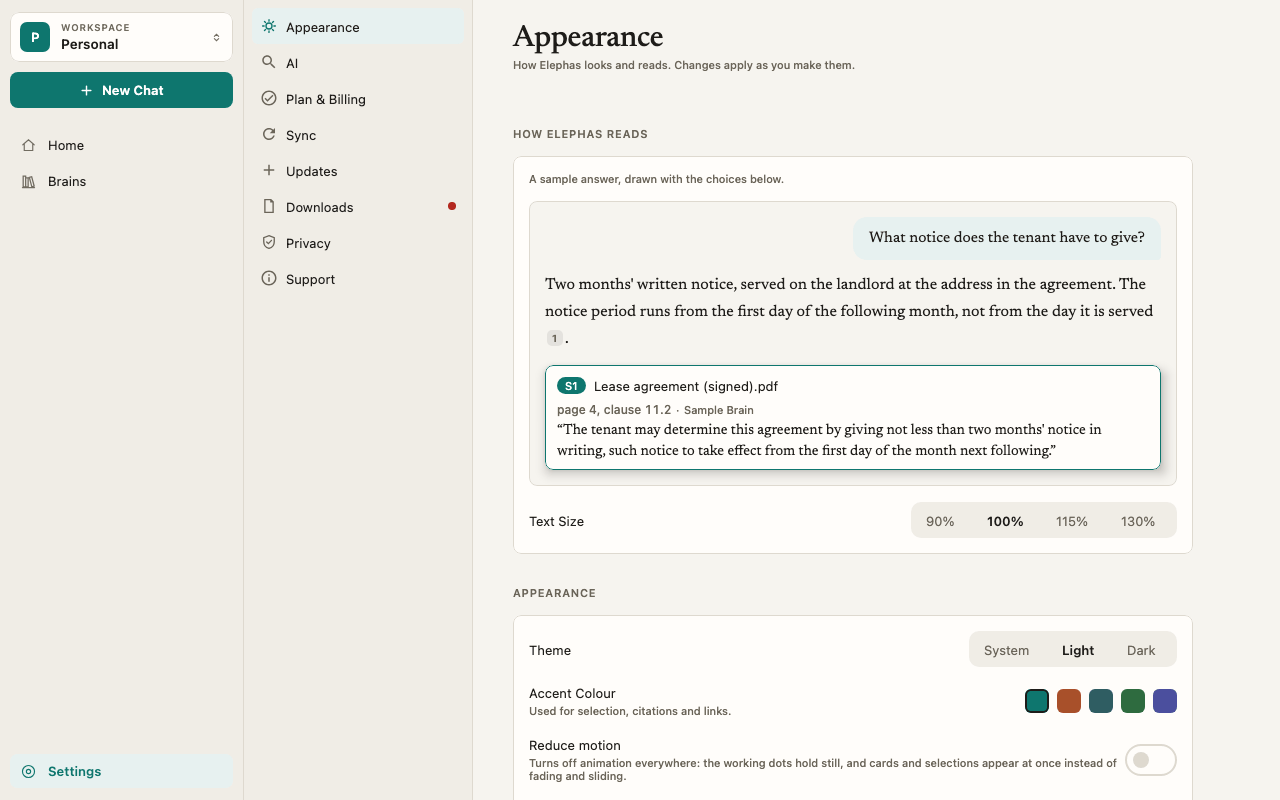
The panes
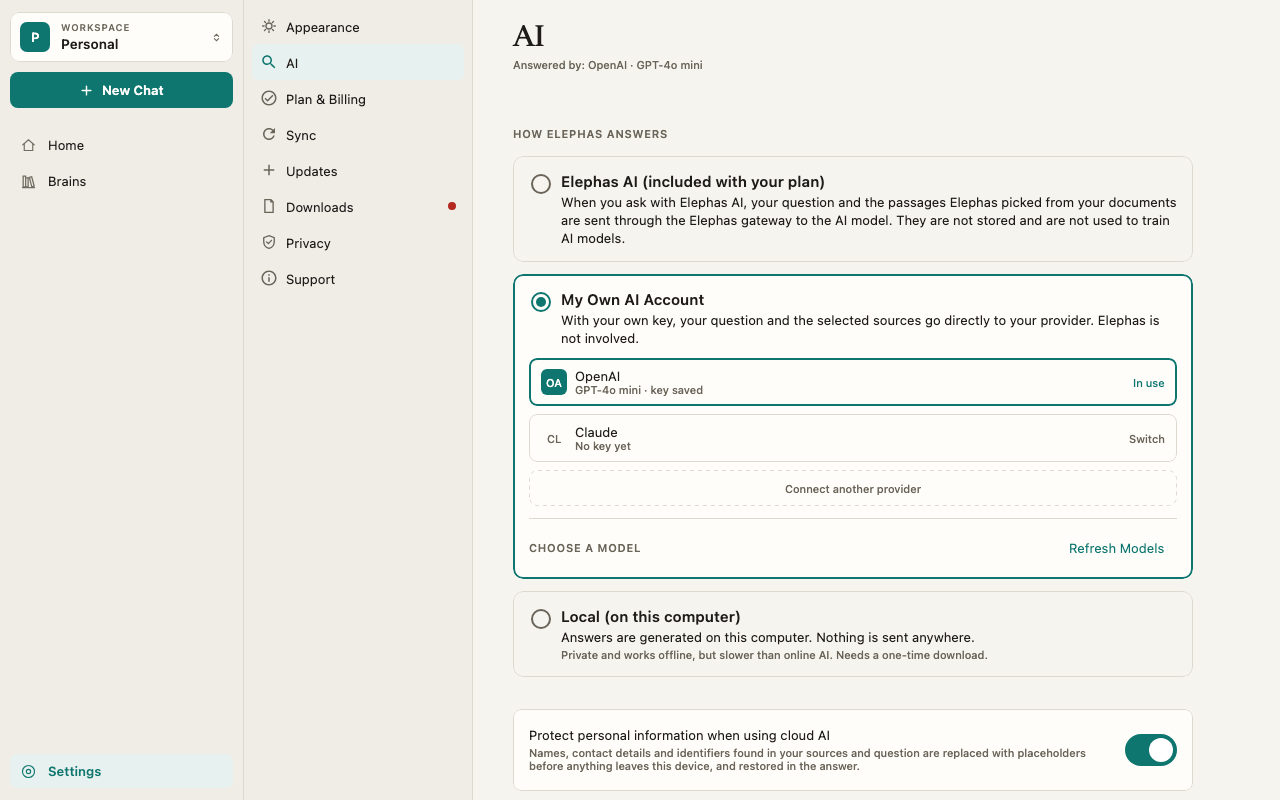
Each pane shows a one-line summary under its name. On the AI pane, that line tells you which AI and model are in use right now.
The AI pane and your privacy
The AI pane decides where your question and the matching passages from your documents go when you ask. You control where AI runs:- Elephas AI (included with your plan) works with no setup.
- My own AI account sends requests directly to the provider you already use, with your key.
- Local (on this computer) runs a model on your computer.
The Downloads dot
If something Elephas needs is missing, a dot appears next to Downloads in the pane list, and a banner may say Some features are unavailable until Elephas finishes downloading what it needs. Open Downloads to see what is missing and fix it. See manage downloads.Team Settings
If you are in a Team workspace, team administration is not in Settings. It is under Team Settings in the sidebar: members, devices, Team Brains, the AI policy, security and audit, recovery, and billing. Everyone in the Team sees the row. What you can change depends on your role. See teams overview and team roles and permissions.Shortcuts
See all keyboard shortcuts.
Troubleshooting
A setting did not stick after restarting
A setting did not stick after restarting
Elephas saves your settings in a file in its data folder. If that folder cannot be written to, settings may not be kept. Check your disk is not full, then restart Elephas. See Elephas won’t start.
I can't find a setting for my Team
I can't find a setting for my Team
Team settings live under Team Settings in the sidebar, not in Settings. Some can only be changed by the Team Owner. See Team AI policy.