
Revoking from Settings › Sync needs Personal Sync, part of the Professional plan. For accounts without Sync, see “If you don’t use Sync” below.
Before you start
- Use a different computer that syncs. A computer cannot revoke itself, so it has no Revoke button on its own row.
- You cannot revoke your last synced computer. Removing it would leave nothing able to read your synced data. See Sync recovery.
- The computer you remove does not need to be online. The one you revoke from does.
Steps
1
Open Settings › Sync on another computer
On Mac, choose Elephas › Settings… or press ⌘,. On Windows, choose File › Settings… or press Ctrl+,. Then choose Sync.
2
Find the computer in Devices
Each row shows the computer’s name, Mac or Windows, and its state, such as Syncing or Signed in, not syncing. Click Refresh if the list looks out of date.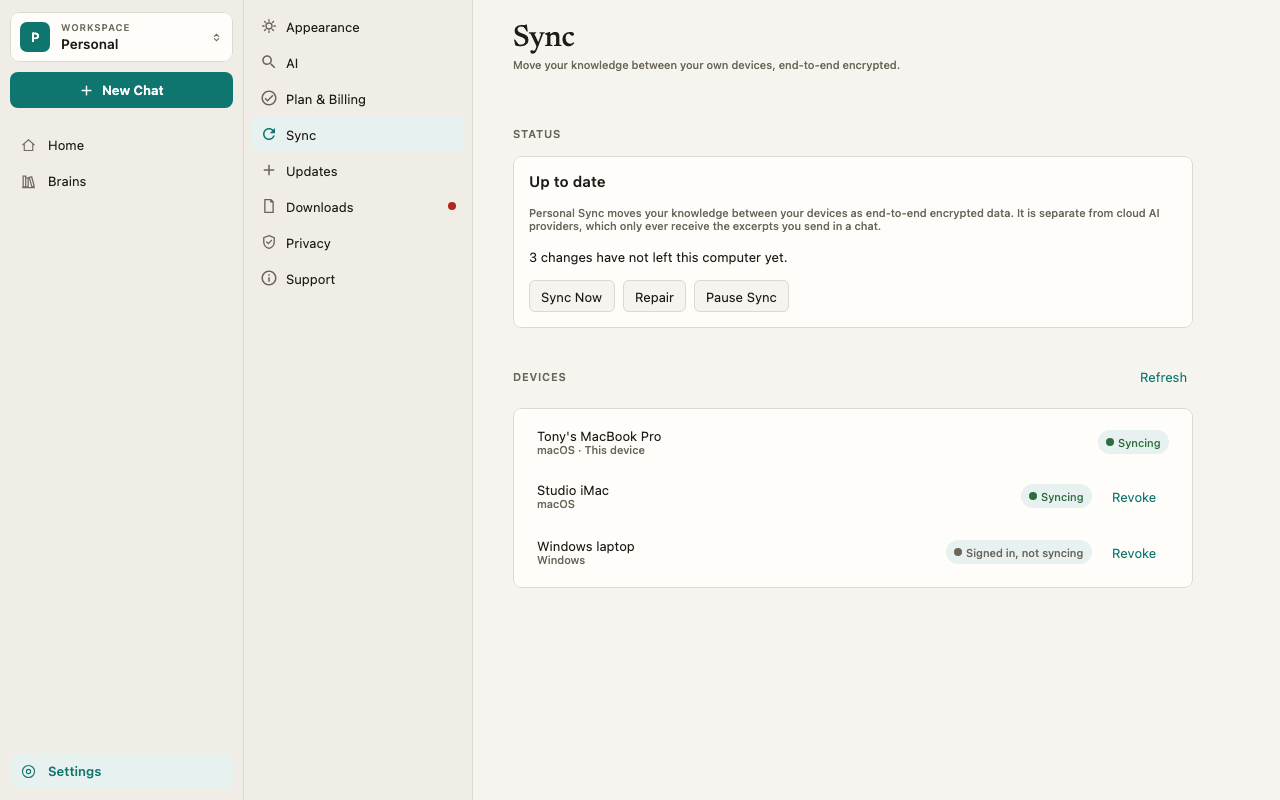
3
Click Revoke
Click Revoke on the computer’s row.
4
Confirm
The Revoke This Device? dialog says: “Revoking cuts off all future access. Data already synced to that device cannot be remotely erased.” Click Revoke Device.
If the computer was lost or stolen
- Revoke it now, from another synced computer, using the steps above. From that moment it cannot fetch anything new or send changes, and the encryption keys move on without it.
- Secure your Elephas account. Anyone who can sign in to your account can use it on a device. Change how you sign in, for example your password, on the Elephas sign-in page.
- Protect the computer itself. Use Find My (Mac) or Find my device (Windows) to locate or lock it. Revoking does not erase data that was already on it.
- Check Security History in Settings › Sync. It lists device approvals, rejections and revocations, so you can spot anything you did not do.
If you don’t use Sync
On Personal, a free trial, or a Professional account without Sync, the computers on your account are listed in Settings › Plan & Billing › Devices. You move your account to another computer from that computer, with Use This Device Instead. In the confirm dialog, tick That device is lost or stolen. Do not let it take the account back. if it was lost or stolen. See Move to a new computer.What happens next
- On the revoked computer, Sync stops. Its Brains, files and chats stay on it, readable by whoever can use that computer and its user account. It shows “This device was removed from your account. AI cannot be used on it.” For a device that was syncing, the Sync pane says: “This computer was revoked from sync.”
- On your other computers, Elephas creates new encryption keys and shares them only with the remaining approved computers. Anything new is out of the revoked computer’s reach.
- On your account, the revoked computer’s place is free, so you can add another computer.
- A revoked computer does not come back. It cannot rejoin Sync or take your account back as it is.
Troubleshooting
I lost my only synced computer
I lost my only synced computer
Your synced data cannot be recovered without an approved computer. See Sync recovery.
The revoke failed
The revoke failed
Check your connection, click Refresh, and try again. See Sync troubleshooting.