
Personal Sync is part of the Professional plan. See Plans and pricing.
Before you start
- Plan: Professional. On other plans the Sync pane says Sync is part of the Professional plan.
- Account: sign in to your Elephas account in Settings › Plan & Billing. If you are not signed in, the Sync pane says: “Sign in to Elephas in Settings › Plan & Billing to turn on Sync.”
- Already syncing elsewhere? If Sync is already on for your account on another computer, do not use these steps. Follow Add a computer instead.
- Time and connection: the first upload sends everything in your Personal workspace. A large library takes a while, so start on a reliable connection.
Steps
1
Open Settings › Sync
On Mac, choose Elephas › Settings… or press ⌘,. On Windows, choose File › Settings… or press Ctrl+,. Then choose Sync.
2
Read what will leave this computer
The Turn On Sync card says: “Brains, documents, and chat history will leave this device as end-to-end encrypted data. Search indexes, AI keys, and app settings stay local.”Below it is the warning that there is no password reset and no recovery. Read it before you go on. See “The no-recovery acknowledgement” below.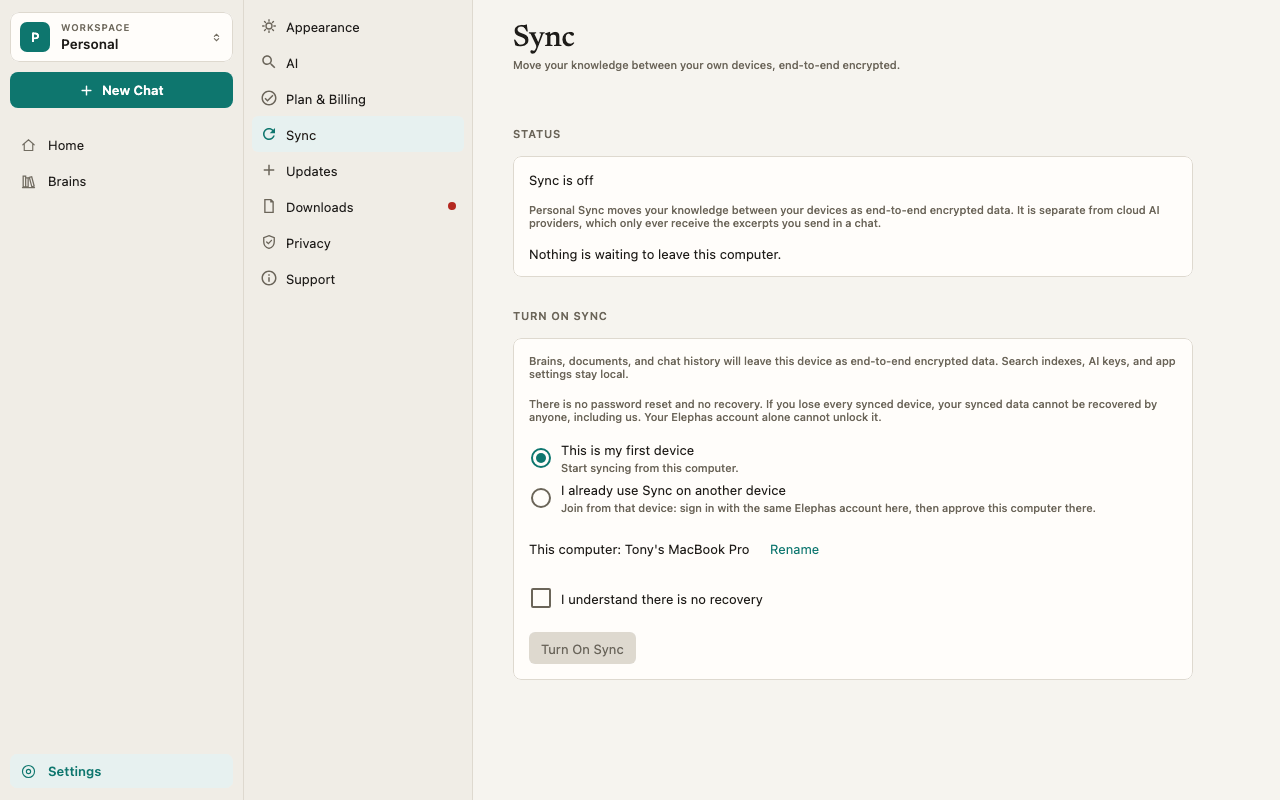
3
Choose This is my first device
Select This is my first device (“Start syncing from this computer.”).
4
Check the computer's name
The card shows This computer: followed by a name taken from your computer. Your other devices list this computer by that name. To change it, click Rename.
5
Confirm there is no recovery
Tick I understand there is no recovery.
6
Click Turn On Sync
Elephas shows its progress: Preparing…, Enrolling this device…, Registering encryption keys…, then Publishing the first encrypted baseline….When it finishes, the status reads Syncing… and then Up to date, and the Devices list shows this computer.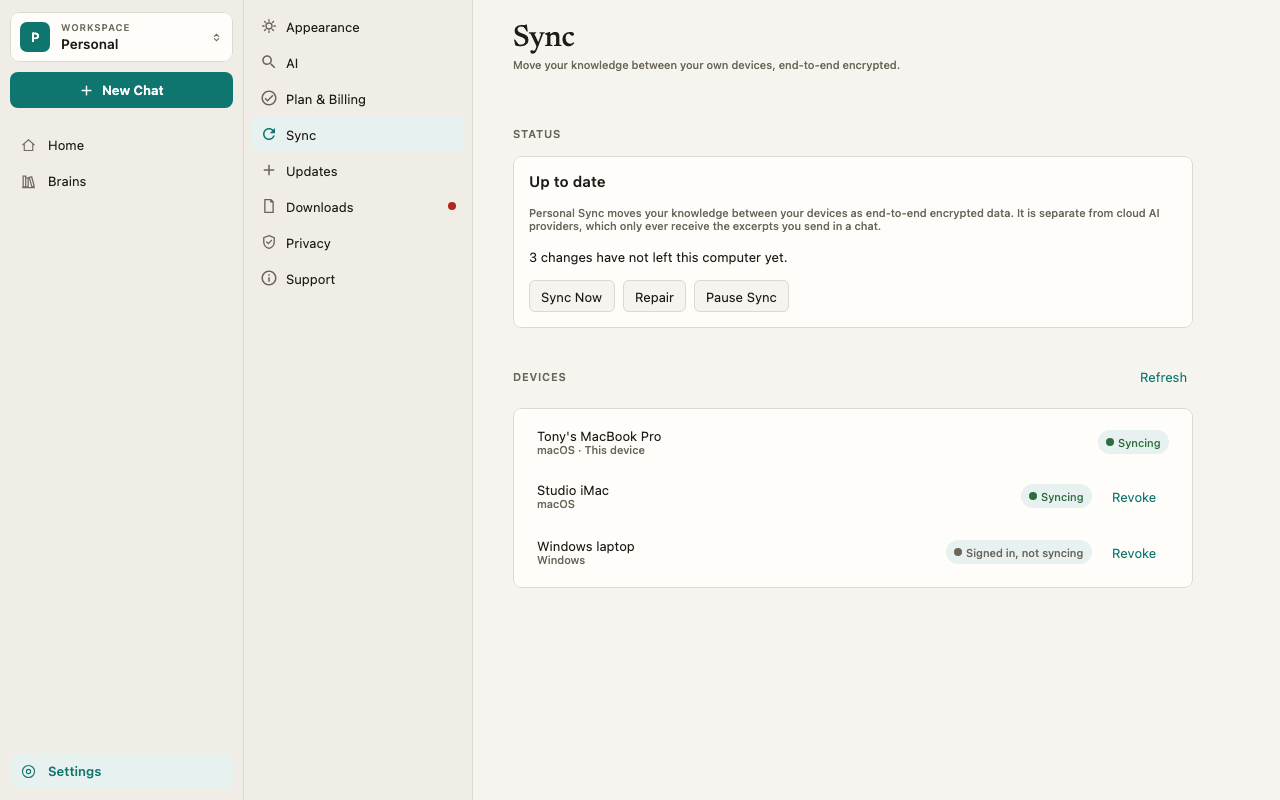
The no-recovery acknowledgement
Before Sync can start, Elephas asks you to accept this:There is no password reset and no recovery. If you lose every synced device, your synced data cannot be recovered by anyone, including Elephas. Your Elephas account alone cannot unlock it.This is the cost of end-to-end encryption. The keys that unlock your synced data are created on your computer and stay on your approved devices. Elephas never holds a copy, so it cannot open your data, and it cannot restore it for you either. In practice:
- Add a second computer soon. As long as one approved computer survives, your synced data is safe. See Add a computer.
- Keep your original files. Sync is not a backup of the files on your disk. See Sync recovery.
What happens next
- The first upload is a snapshot. Elephas uploads your current Brains, documents and chats, not your past edit history. Until the upload finishes, the Sync pane says how many changes “have not left this computer yet”. When it is done: Nothing is waiting to leave this computer.
- New changes sync on their own. Add a file, rename a Brain or ask a question, and the change is encrypted and sent in the background. Sync Now sends and fetches right away. Pause Sync stops it. See Turn off Sync.
- Your computer gets a place on your account. Turning on Sync counts as one of your plan’s devices. See Device limits.
- AI is unaffected. Sync does not change which AI answers your questions or what is sent to it. See What data is sent to AI.
Troubleshooting
Sync is already on for this account
Sync is already on for this account
Elephas says: “Sync is already on for this account. Approve this device from one of your synced devices.” Choose I already use Sync on another device instead. See Add a computer.
Setup stopped part way
Setup stopped part way
Quit and reopen Elephas, then open Settings › Sync. An interrupted setup can be continued from where it stopped. If it still fails, see Sync troubleshooting.