
Before you start
- You need an internet connection to fetch the page. Once it is saved, it stays readable offline.
- The page must be public. Elephas cannot sign in to sites, so pages behind a login, a paywall or a cookie wall usually cannot be read.
- In a Team workspace, you need a role on the Team Brain that lets you add files.
Steps
1
Open the Brain
Click the Brain in the sidebar, or open it from the Brains page.
2
Choose Add Web Page
Click Add, then Web Page…. You can also choose File › Add Web Page…, or press ⇧⌘O on Mac or Ctrl+Shift+O on Windows.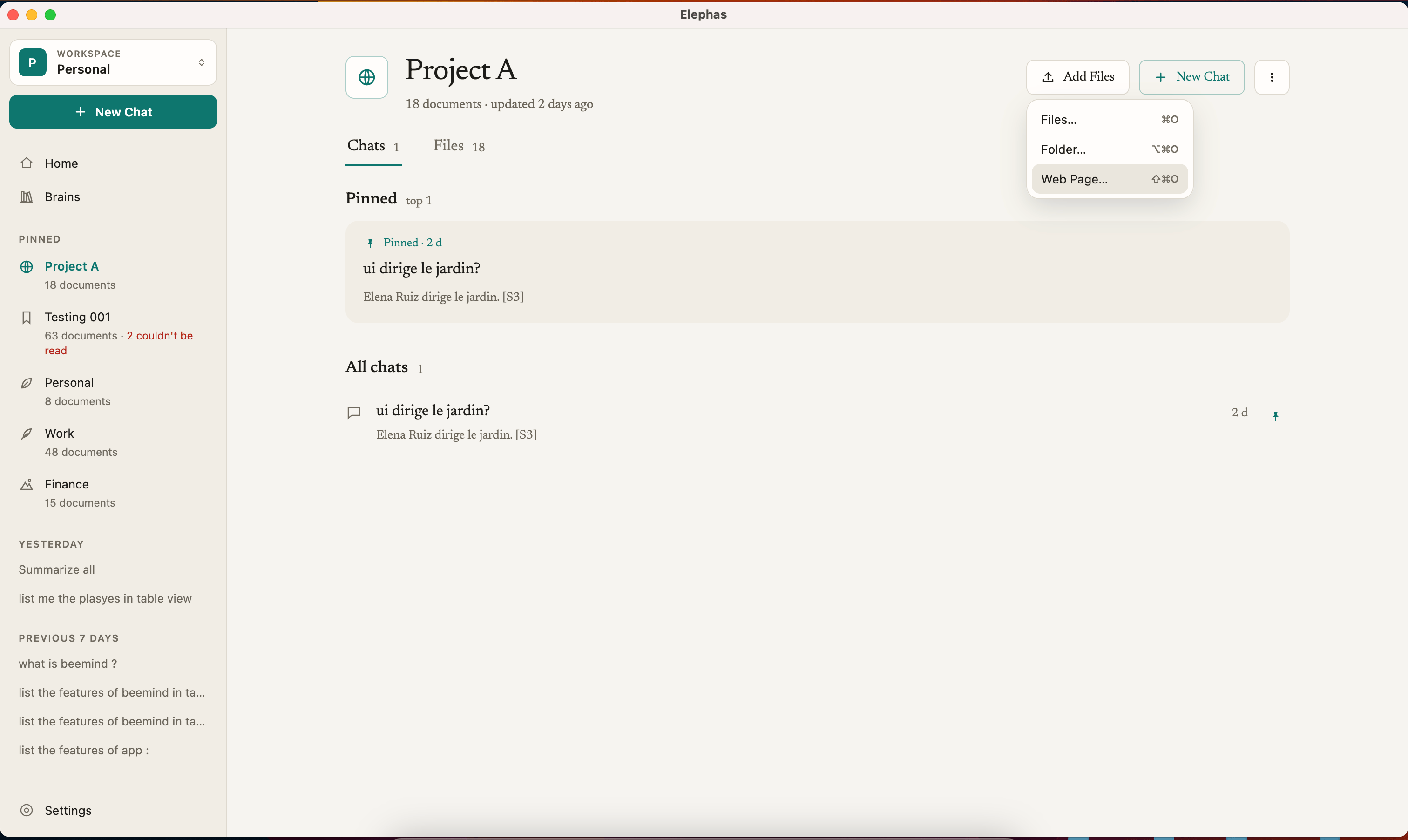
3
Paste the address
In Web address, paste the full address, starting with
https:// or http://, for example https://example.com/article. Click Add or press Return (Mac) or Enter (Windows). Press Escape or click Cancel to close the form.4
Wait for it to be fetched
The form shows Fetching… while the page downloads. Then the page appears in the Brain’s list, named after the page’s title, and gets ready like any other document.
How it works
Elephas saves a copy, once
Elephas downloads the page once and keeps that copy. The copy is what gets indexed, what your citations open, and what syncs if you use Personal Sync. Elephas never fetches the page again on its own, so your answers do not change because a website changed. To pick up a newer version of the page, add the same address to the same Brain again. If the page changed, Elephas adds it as a new version of the same document. If it did not change, nothing happens. See update documents.What Elephas reads
- The page’s main text and headings. Menus, headers, footers, sidebars and scripts are left out.
- If the address points to a PDF, Elephas saves and reads it as a PDF, with page numbers in its citations.
- Only the one page you entered. Elephas does not follow links or crawl the rest of the site.
Limits
Privacy
Fetching the page is a normal web request from your computer to that website. It sends no cookies and no sign-in details. After that, reading and indexing happen on your computer. Asking about the page works like any other document: see what data is sent to AI.Troubleshooting
For more, see file import errors.