
Before you start
- Check the system requirements. More memory and a fast SSD make large imports noticeably quicker.
- Leave free disk space of at least the size of the files you plan to add, plus room for the index. See Disk usage.
The numbers that matter
There is no fixed limit on the number of Brains or on the total number of documents in your library.
If you ask across more than 25,000 documents at once, Elephas tells you how many your scope holds and asks you to narrow it by choosing specific documents. See ask specific documents.
Steps
Add a large library
1
Split it into Brains first
Create one Brain per client, matter, project or subject before you import. Smaller, focused Brains give sharper answers than one Brain that holds everything. See create and manage Brains.
2
Add folders, not thousands of loose files
Use Add Files › Folder… (⌥⌘O on Mac, Ctrl+Alt+O on Windows) or drag a folder onto the Brain. A folder over 25,000 files is refused as a whole, so add its subfolders separately.
3
Start asking while the rest finishes
You can ask as soon as the first files are ready. The rest keep going in the background, and Elephas tells you when indexing finishes.
4
Check the Error tab
When it is done, open the Brain’s Error tab to see any files that could not be read, and why. See file import errors.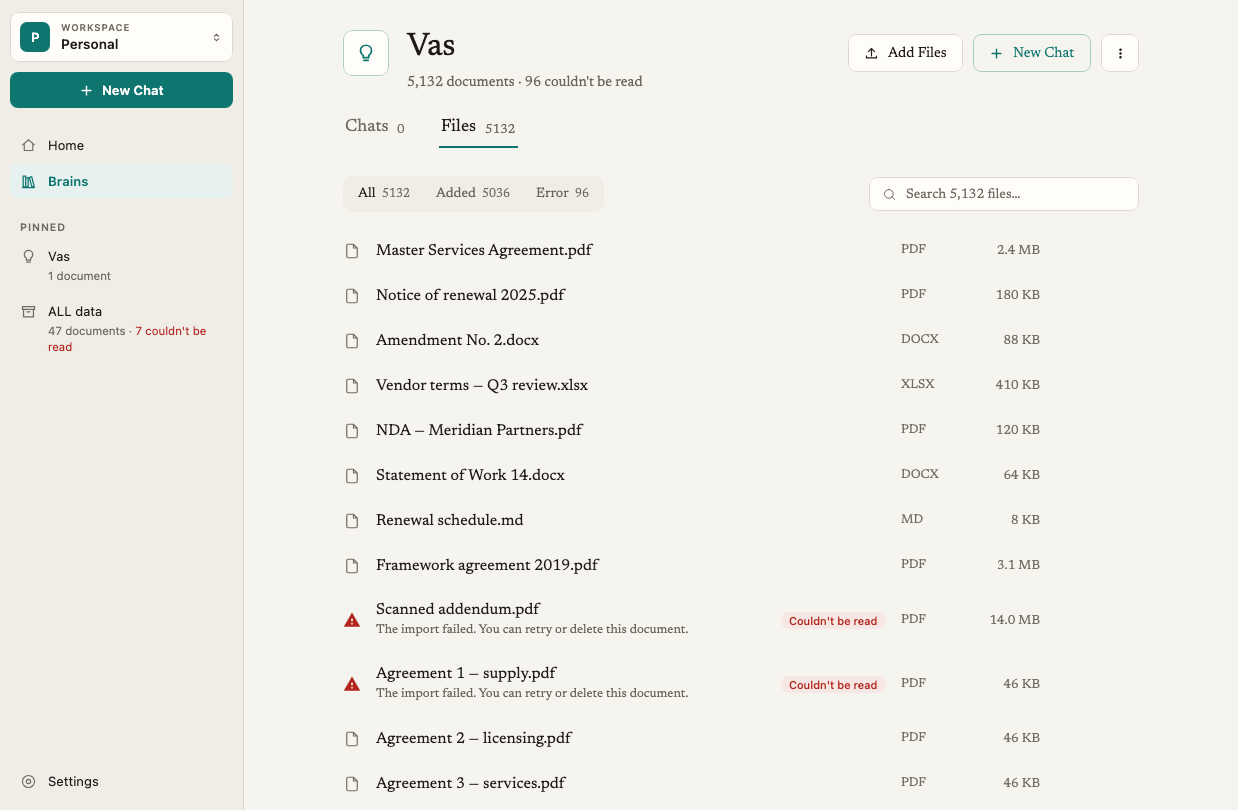
How it works
Indexing time
Each file is copied, read, split into passages and indexed twice: once for meaning and once for exact words. What takes longest:- Scanned PDFs and images. OCR reads every page as a picture, which takes far longer than reading a text PDF.
- Very large spreadsheets and presentations. These are read whole.
- Background work after import. Elephas may keep working on ready documents for a while, shown as Recognising text…, Protecting… or Summarising… on the row. Documents are searchable during these steps.
Disk usage
Elephas keeps its own copy of every file you add, so your Brains keep working even if you move or delete the originals. Plan for:- The copies: about the same size as the files you add.
- Older versions: text from earlier versions is kept so old citations stay accurate.
- Extracted text and the search index: in Elephas’s encrypted database.
- Downloaded components: about 50 MB, plus several GB if you use Local AI.
Memory
Every file is read on your computer. A very large file can need more memory than Elephas can safely use. When that happens, only that file fails, with This file has more content than Elephas can safely read. The rest of your import carries on. Split the file and add the parts.Answers in a large library
Elephas finds the passages that best match your question, not every document in scope. In a large scope, a broad question can miss a document that a focused question would find.- Ask the one or two Brains that hold the answer, not everything.
- Name the document, or add it as a source with Choose Brains & files. See ask specific documents.
- For “find every mention of” questions, keep the scope as small as you can.
Troubleshooting
This folder holds too many files to add at once
This folder holds too many files to add at once
The folder has more than 25,000 files. Add its subfolders one at a time, or move the files you need into a smaller folder.
At most 25,000 can be searched at once
At most 25,000 can be searched at once
Elephas shows how many documents your scope holds, and that at most 25,000 can be searched at once. Ask fewer Brains, or add specific documents as sources with Choose Brains & files.
Imports fail when my disk is nearly full
Imports fail when my disk is nearly full
Elephas needs room for its copy of each file and its index. Free up space on the drive that holds your user folder, then click Retry on the files that failed. See file import errors.