
Before you start
- Add a few documents to a Brain and let them finish getting ready. See Add files and folders.
- Ask needs a way to answer: Elephas AI, your own API key or Local AI, set in Settings › AI. See Choose how Elephas answers.
- The first time you ask, Elephas offers a free trial. See Quick start.
Steps
1
Start a chat
Click New Chat at the top of the sidebar, press ⌘N on Mac or Ctrl+N on Windows, or choose Chat › New Chat. The sidebar is shown on every page.You can also start from where you are:
- On a Brain’s page, New Chat starts a chat with that Brain chosen.
- On Home, click Ask on a Brain card under Continue Working.
- On a file, use Ask This Document.
2
Choose what to ask about
The box at the bottom shows what the answer may come from as chips, one per Brain. Elephas picks the Brains you last used in this workspace. If you have only one Brain, it is chosen for you.To change it, click Choose Brains & files and tick the Brains you want. You can choose up to 8 Brains for one question. To narrow the question to particular files, pick them from the same menu. See Ask about specific documents only.If nothing is chosen, the box says Nothing chosen yet. Choose a Brain or file to ask about. and you can’t send.
3
Type your question and send it
A new chat shows What do you want to know?, a line Answers come from followed by your chosen Brains, and three Tips for asking well. The tips are plain text and change with each new chat.Type in Ask anything about your documents… and press Return (Enter on Windows) to send. Press Shift+Return (Shift+Enter) for a new line.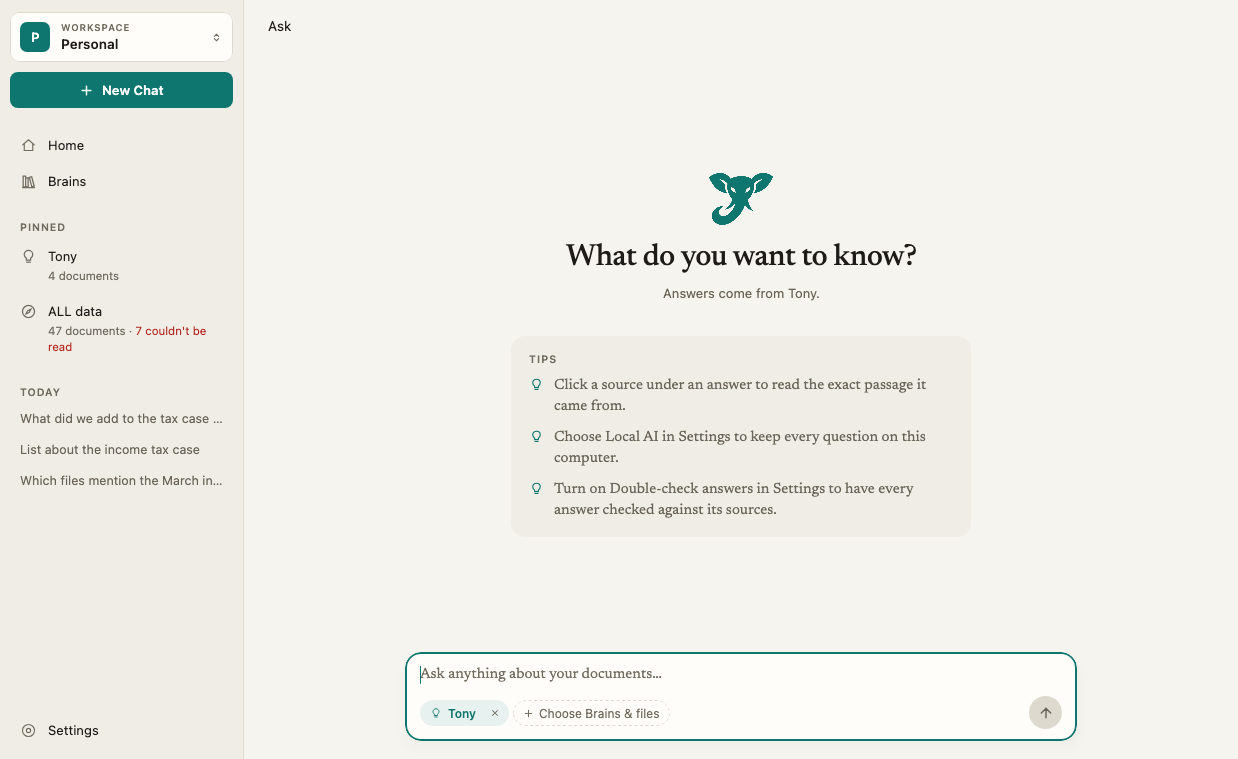
4
Follow the progress panel
A progress panel appears under your question while Elephas works. Its title shows the stage: Looking through your files, Reading closely, Writing your answer, and Double-checking your answer when Double-check is on. Step pills (Inspect, Read, Summarise, and Check when Double-check is on) and one live line, such as “Reading” followed by a file name, show what is happening.When it is done, the panel reads Answered from N sources (or Answered, no quotes linked). Click Show Steps to see what Elephas did, for example “Looked through 12 files, read 4”. If something goes wrong, the panel reads Couldn’t finish.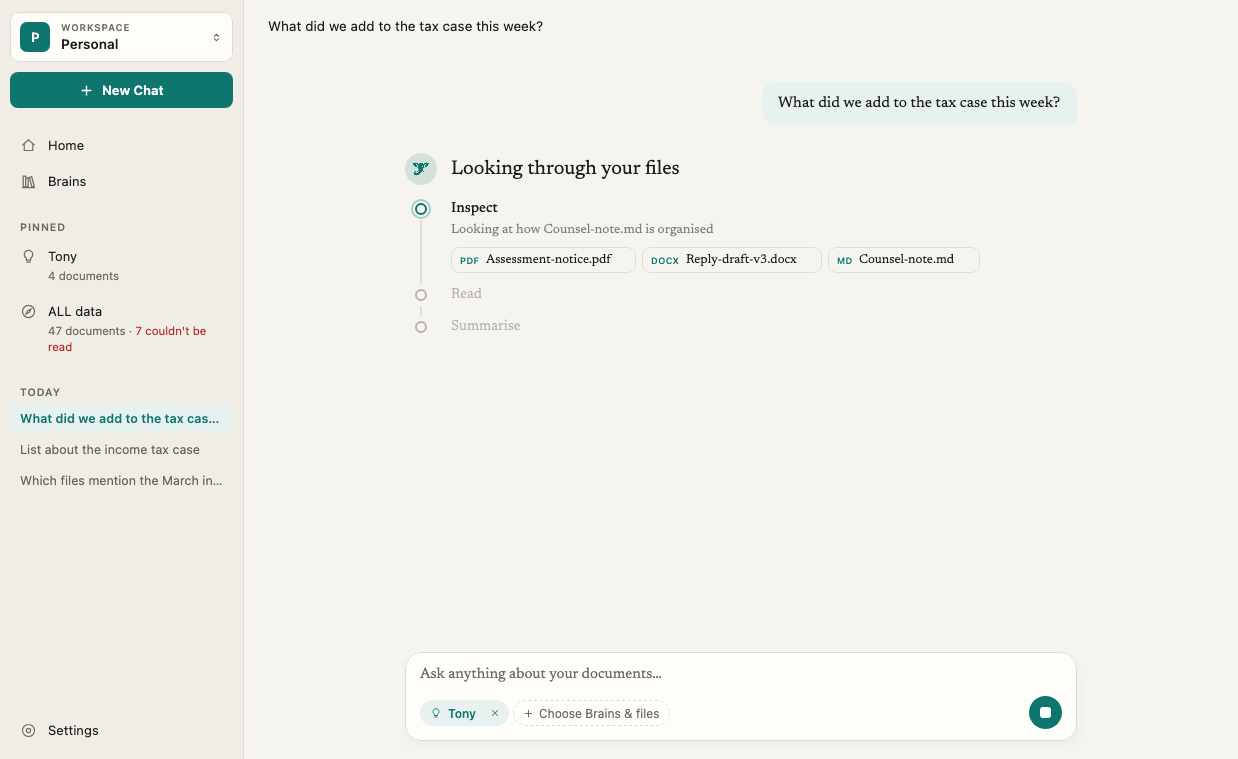
5
Read the answer and check the sources
The answer appears with source cards above it, one per file, and an N sources button under it. With Elephas AI or your own API key, the finished answer appears all at once. With Local AI, it appears as it is written.Click a source card or the N sources button to read the exact passages. Numbers inside the answer text appear only if Settings › AI › Show inline citations is on. See Check every answer with citations.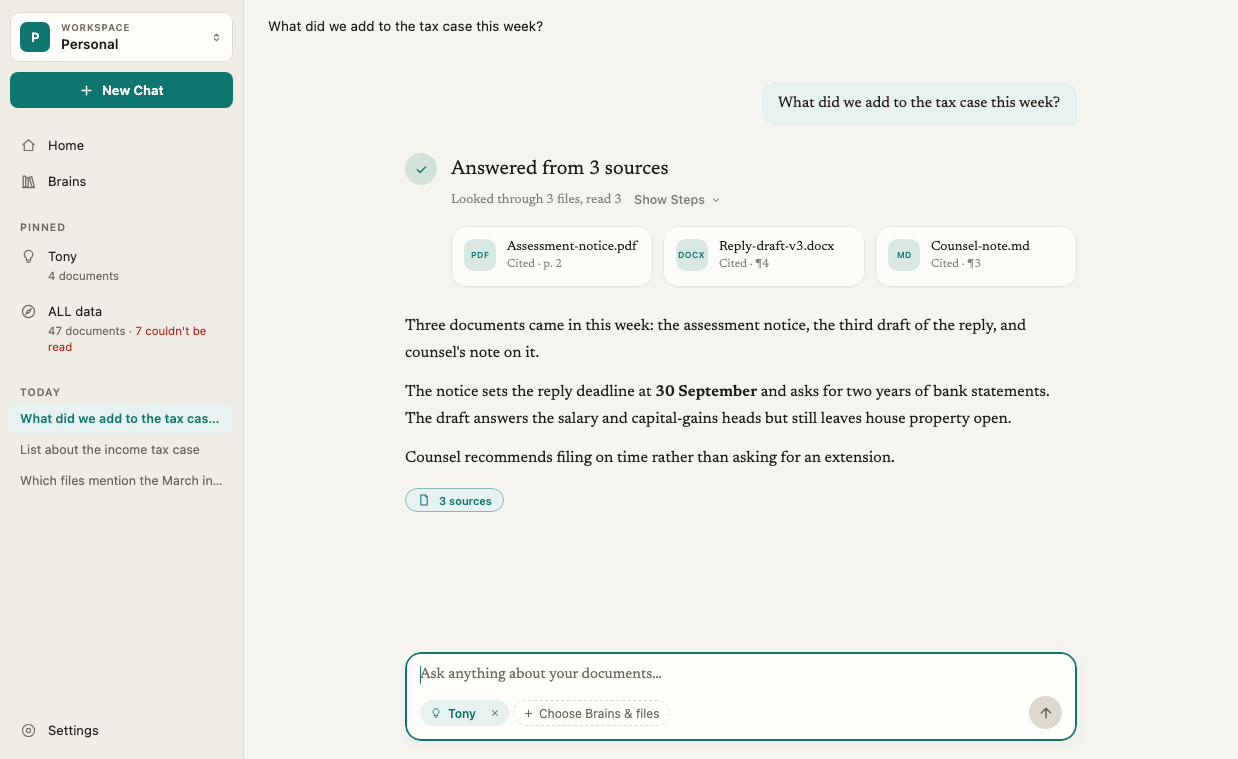
6
Follow up
Type your next question in the same chat. Elephas keeps the last few messages of the conversation in mind, so “And what about the renewal date?” works after a question about a contract. Start a new chat with New Chat when you change topic.
Your first question and the free trial
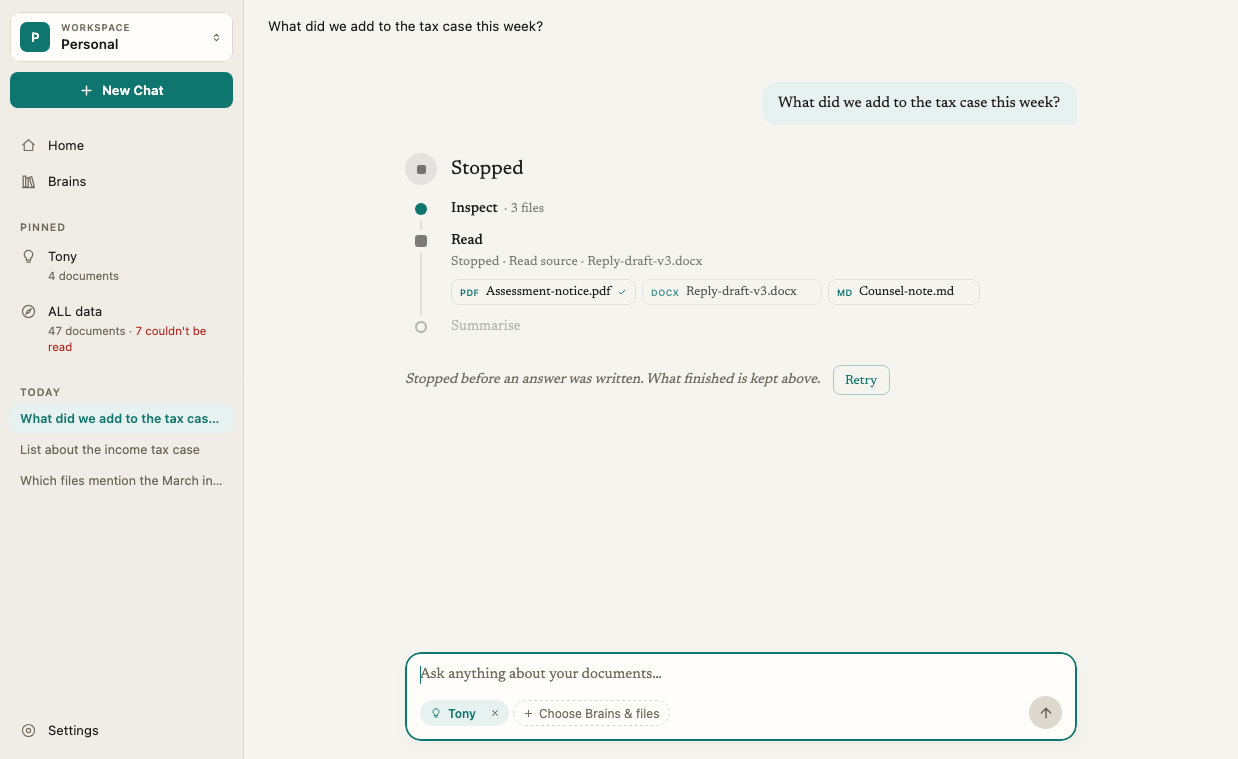
If you have no AI set up yet, your first question shows Start your free trial to get this answer, with Start Free Trial and Not Now. No card is needed, nothing is charged, and your question is kept. See Free trial.Stop an answer
While Elephas works, the Send button turns into a square Stop button. Any of these stops the answer:- Click Stop.
- Press Escape while the cursor is in the question box.
- Press ⌘. (Command and period) on Mac or Ctrl+. on Windows, or choose Chat › Stop Answer.
Under each answer
- N sources opens the Sources panel for that answer.
- Try Again asks again and adds the new answer below. The old answer stays.
- The ⋯ menu has Copy, and Double-check This Answer on answers that weren’t double-checked. That asks again with checking on, as a new answer below.
How it works
- Answers come only from what you chose. Ask searches the Brains and files in the chips and nothing else. It never browses the web and never reads Brains you did not choose. See Why Elephas says an answer isn’t in your documents.
- Searching happens on your computer. Elephas finds the matching passages in its local index. Indexing happens on your computer. Always.
- What goes to the AI depends on your setting. With Elephas AI or your own API key, your question, a few recent chat messages and the matching passages are sent to get the answer. With Local AI, nothing is sent to an AI provider. See What data is sent to AI.
- Answers can be double-checked. Turn on Double-check answers in Settings › AI to check every sentence against your sources before the answer is shown. It is off by default, slower, uses more of your AI allowance, and isn’t used with Local AI.
- One question at a time per workspace. If another chat in the same workspace is still being answered, Ask says Another question is still being answered in this workspace. Wait for it, or stop it.
- Questions can be up to 8,000 characters long.
Troubleshooting
I can't send my question
I can't send my question
Check three things. The question box must have text in it. At least one Brain or file must be chosen. If you use Local AI, it must be ready: Send stays off while the model is downloading or starting. See Local AI troubleshooting.
Ask says Configure AI to start asking
Ask says Configure AI to start asking
Elephas does not have a way to answer yet. Click Open Settings and choose an option under How Elephas answers. See Choose how Elephas answers.
Ask says No Brains to ask yet
Ask says No Brains to ask yet
You don’t have a Brain yet. Click Go to Brains, create a Brain and add documents first. See Add files and folders.
The answer says it didn't find anything
The answer says it didn't find anything
The passages Elephas found don’t support an answer. Check that the right Brains are chosen and that your files finished getting ready. See Why Elephas says an answer isn’t in your documents.