
Before you start
- Know how to ask a question and how to narrow it to specific documents.
- Some patterns read whole documents. They take longer and work best with Elephas AI or your own API key. See How it works.
Question patterns
Find a fact
Ask directly, in your document’s own terms.- “What is the notice period in the lease?”
- “Who is the data protection contact in the supplier agreement?”
Point at a place
If you know where the answer is, say so. Elephas recognizes pages, page ranges, lines, section names and Bates numbers, and reads that exact place.- “What does page 4 of the lease say?”
- “Summarize pages 10 to 14 of the annual report.”
- “What’s under ‘Payment terms’ in the services agreement?”
- “What does the Termination section say?”
- “Show me Bates ABC000123.”
Look up an exact number or code
Invoice numbers, case numbers, part numbers and other codes are searched for exactly, not by meaning.- “Which documents mention INV-20431?”
- “What do the notes say about case 2024-CV-118?”
Find every mention
Ask for “all” or “every” to get an exhaustive search. Elephas tells you how much it covered, and which pages it couldn’t read.- “Find every reference to the indemnity cap.”
- “List all the places where Dr. Patel is mentioned.”
Summarize or outline
Ask for a summary, an outline or the gist. Elephas reads the whole document or section rather than a few passages.- “Summarize this report in five bullet points.”
- “Give me an outline of the thesis, chapter by chapter.”
- “Walk me through the onboarding handbook.”
Compare
Name both sides. Narrowing the scope to the two files helps.- “Compare the termination clauses in the 2023 and 2024 contracts.”
- “How do the two vendor proposals differ on price and support hours?”
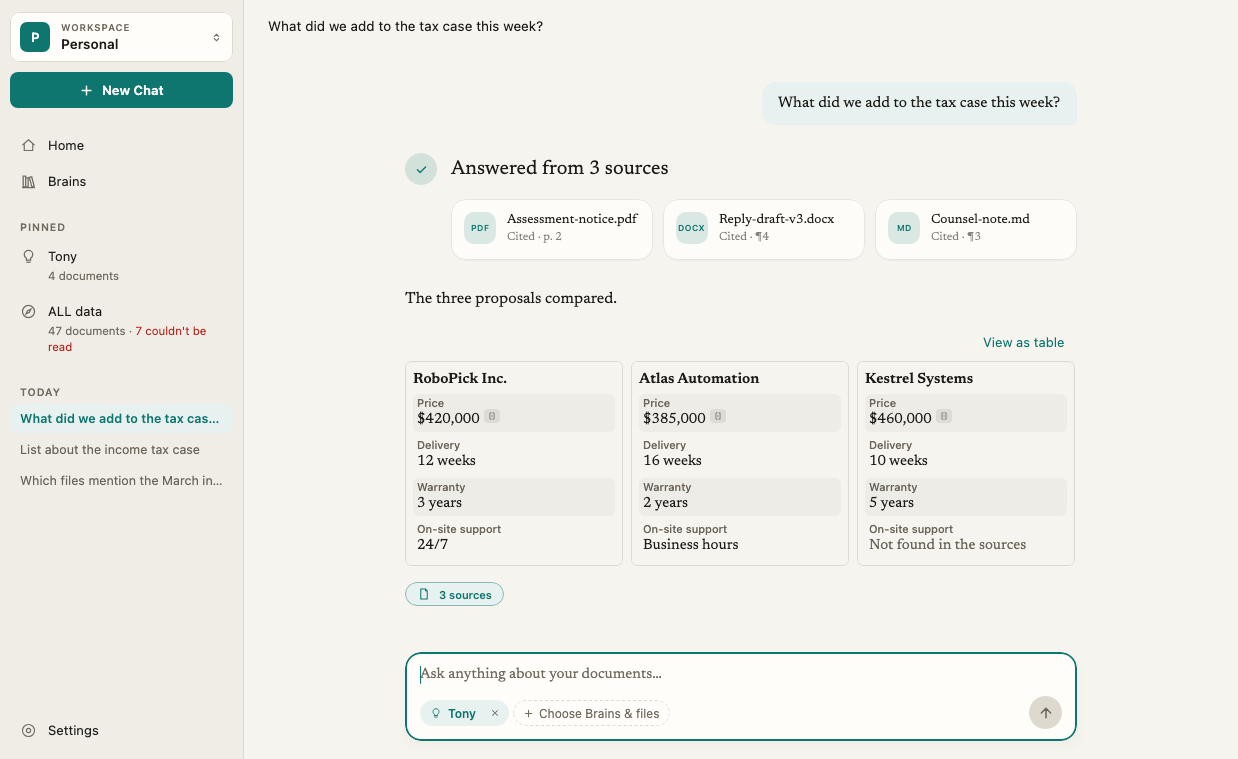
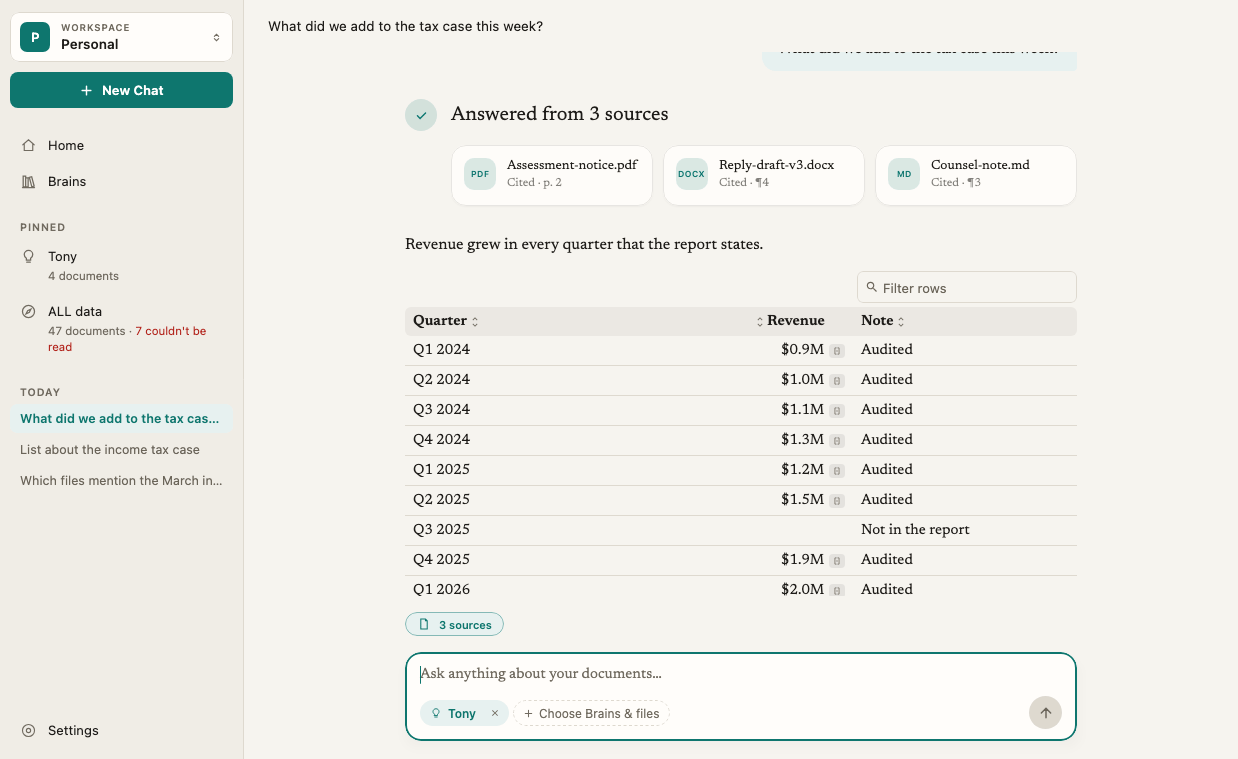
Extract into a list or table
Say what columns you want.- “List every payment date and amount in the lease as a table.”
- “Extract all action items from the meeting notes, with the owner of each.”
Ask in your own language
You can ask in English, German, Spanish, French, Hindi, Tamil, Japanese or Chinese, about documents in any of them. Asking in the document’s own language finds the most. See Search your documents in other languages.Build a timeline
- “Build a timeline of the project from the meeting notes, with dates.”
- “What happened, in order, between the first complaint and the settlement?”
Steps for a better answer
1
Narrow the scope
If you know which files hold the answer, pick them in Choose Brains & files. A smaller scope is faster and the answer is easier to check. See Ask about specific documents only.
2
Use the document's words
“Limitation of liability” finds more in a contract than “how much can they sue us for”.
3
Follow up in the same chat
Elephas keeps the last few messages in mind. “And in the 2024 version?” works after a question about the 2023 contract.
4
Answer Elephas's question
If your question could mean more than one thing, for example two files with the same name, Elephas asks which one you mean and lists the choices. Click one to continue.
5
Check the citations
Open the N sources button under the answer, or click a source card, to read the passages. If something looks off, ask a follow-up, click Try Again, or choose Double-check This Answer from the answer’s ⋯ menu. See Check every answer with citations.
How it works
- Some questions read whole documents. Summaries, outlines, “find every” and “walk me through” questions make Elephas read far more of your documents. While it works, Ask may say This question reads whole sources, so it may use noticeably more of your AI allowance than usual. With your own API key, your provider bills that extra reading. See AI usage and credits.
- Local AI answers in one pass. With Local AI, the model on your computer answers from the passages Elephas found, without reading further on its own. It suits focused questions over a few documents. Keep the scope small. If the local model can’t take everything, Ask says Too much context for the local model. Try a shorter question or fewer Brains. See Choose how Elephas answers.
- Double-check important answers. Turn on Settings › AI › Double-check answers to check every sentence against your sources before the answer is shown. It is slower, uses more of your AI allowance, and isn’t used with Local AI.
- Elephas answers from your documents, not general knowledge. A question your files don’t cover gets an honest “not found”. See Why Elephas says an answer isn’t in your documents.
Troubleshooting
The answer missed something I know is there
The answer missed something I know is there
Name the document or the page, or ask for “every mention”. Check the Sources panel for documents listed as couldn’t be read. See Why Elephas says an answer isn’t in your documents.
A summary stopped before the end
A summary stopped before the end
Very large documents can hit the limit for one answer. Ask Elephas to summarize one part at a time, for example “Summarize chapters 1 to 3”.
Answers are slow
Answers are slow
Whole-document questions take longer. With Local AI, a smaller model and a smaller scope are faster. See Choose a local model.