
Before you start
- Elephas is installed and open. Your first Brain, My Documents, is created for you when you add files in the welcome guide.
- Brains belong to the workspace you are in. Brains you create in your Personal workspace stay there. In a Team workspace, Team Brains are created and shared by the Team Owner or an Admin. See Team Brains.
Steps
Create a Brain
1
Choose New Brain
Press ⌘B on Mac or Ctrl+B on Windows. You can also click New Brain on Home or on the Brains page, or choose File › New Brain.
2
Name it
Type a name in the New Brain dialog and click Create, or press Return (Mac) or Enter (Windows). Names can be up to 120 characters. Two Brains can share a name, but distinct names make them easier to pick in Ask.
3
Add your documents
The new Brain opens. Drag your files onto the page, or click Add Files and choose Files…, Folder… or Web Page…. See add files and folders.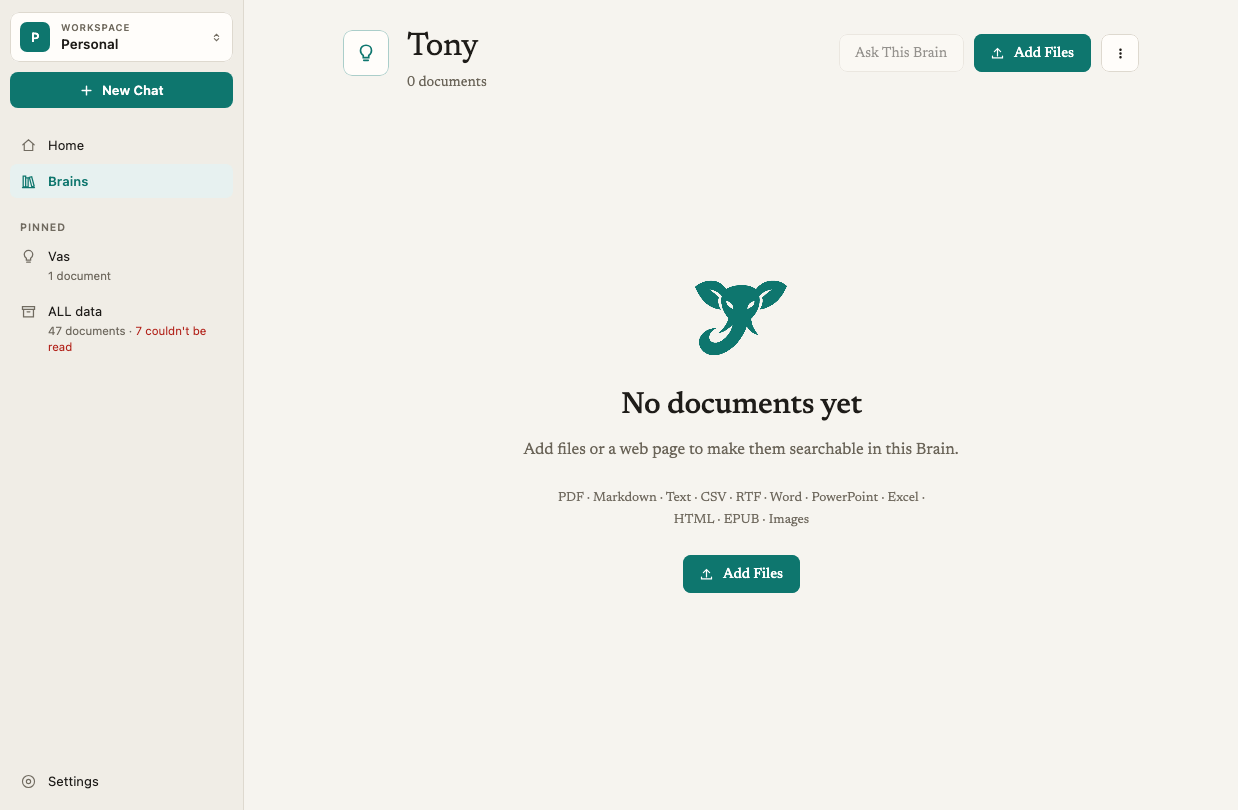
Rename, pin or delete a Brain
- Open the Brains page (⌘2 on Mac, Ctrl+2 on Windows).
- Hover over the Brain’s card and click its … menu, or right-click the card.
- Choose Pin (or Unpin), Rename or Delete.
Sort the Brains page
Click Sort at the top of the Brains page and choose one of:
Elephas remembers your choice. Pinned Brains are not affected by the sort.
How it works
Pinned Brains
Pinned Brains appear under Pinned in the sidebar, so you can open them in one click. You can pin up to 5 Brains. If you try to pin a sixth, Elephas shows You can pin up to 5 Brains. Unpin one to pin another. To unpin from the sidebar, right-click the pinned Brain and choose Unpin.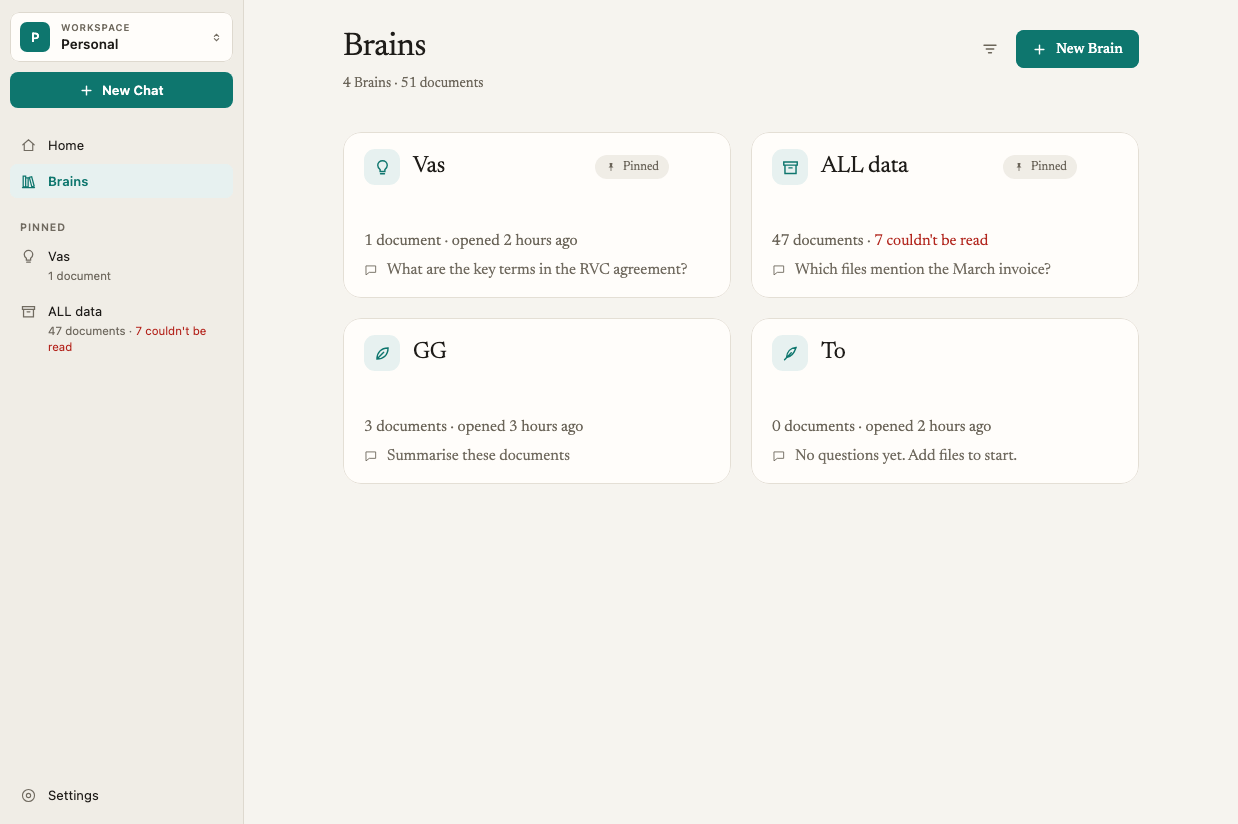
What a Brain is for
Ask answers only from the Brains you select. Keeping each client, matter or project in its own Brain means an answer about one never draws on another’s documents. That is the difference from a generic chatbot: answers come from your documents, not the internet. You can ask up to 8 Brains at once. See ask questions about your documents. Each Brain also has its own Protected Names list in its More menu, for client names and code names that should always be hidden before cloud AI. See Protected Names.Deleting a Brain
When you delete a Brain, Elephas asks Delete “name”? This cannot be undone. Deleting removes the Brain, Elephas’s copies of its documents, their extracted text and their search index from your computer. A large Brain can take a while. The dialog shows Deleting “name” and its N documents… until it finishes.- Your original files are not touched. Elephas works from its own copies, so the files in your Documents folder, Downloads or Desktop stay where they are.
- Past chats stay. Chats that used the Brain keep their answers. Citations to its documents show Source no longer available.
- With Personal Sync on, the deletion also reaches your other devices.
Keyboard shortcuts
See all keyboard shortcuts.
Troubleshooting
Enter a name for this Brain
Enter a name for this Brain
The name is empty. Type at least one character. If you see Brain names can be at most 120 characters., shorten the name.
This Brain is not here
This Brain is not here
The Brain you had open is not in the workspace you are in. It may have been deleted, or it may belong to another workspace. Switch workspace with the Workspace switcher in the sidebar, or open Brains to see the ones that are here.
I can't add files to a Team Brain
I can't add files to a Team Brain
Your role on that Team Brain lets you read it, not add to it. Dragging files over it shows You can’t add files to and the Brain’s name. Ask the Team Owner, an Admin or a Manager of the Brain to change your role. See team troubleshooting.