
Before you start
- Sign in, and have an Elephas trial or plan. All three options need one. See Plans and pricing.
- In a Team workspace, the Team Owner’s AI policy decides what is allowed. See Team AI policy.
Compare the options
Indexing happens on your computer. Always. Your files and your library are never uploaded to any AI, whichever option you choose. See What data is sent to AI.
Steps
1
Open Settings › AI
Press ⌘, on Mac or Ctrl+, on Windows, then click AI. Under How Elephas answers, each option is a card that says in one line where your question and sources go.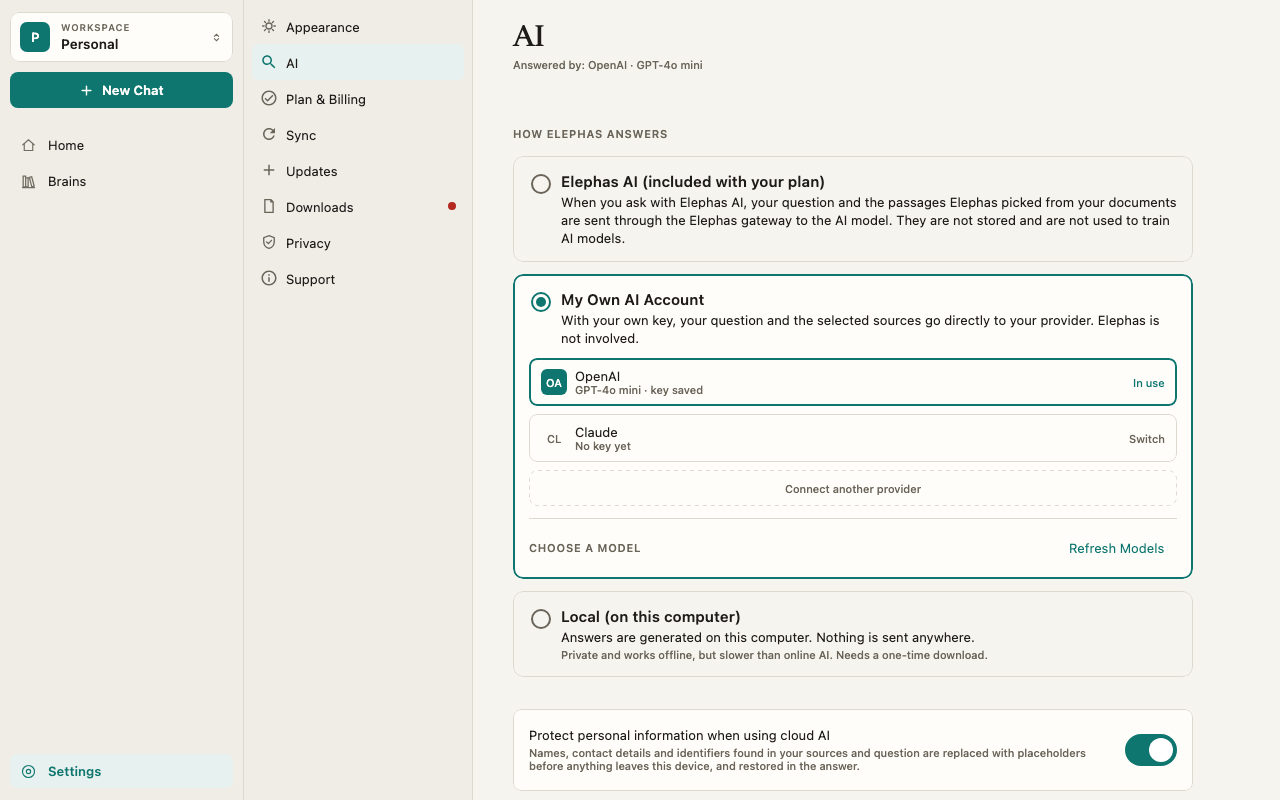
2
Click the option you want
- Elephas AI (included with your plan) works right away, or after a one-time Activate Elephas AI on this device. See Elephas AI.
- My own AI account opens your list of providers. Choosing an account switches to it. See Use your own API key.
- Local (on this computer) asks to download a model the first time, for example Download Qwen 4B, 2.6 GB?. Until you click Download, your previous option stays in use. See Run Local AI.
3
Check which AI answers
Settings › AI shows the current choice as a subtitle: Answered by: Elephas AI, Answered by: My Own AI Account or Answered by: This computer. This is the only place it is shown. Ask itself doesn’t name the AI.
How it works
Which option to choose
- Choose Elephas AI if you want good answers with no setup and no separate bill.
- Choose your own API key if you already pay for an AI provider, want a specific model, or want your data to go straight to a provider you have an agreement with. Elephas is not in the path.
- Choose Local AI for documents that should not leave your computer at all, or for working without internet. Answers are slower and simpler.
Two more switches in Settings › AI
- Double-check answers checks every sentence against your sources before the answer is shown. It is off by default, slower, uses more of your AI allowance, and isn’t used with Local AI. It applies to this computer only. See Check every answer with citations.
- Show inline citations puts small numbers in the answer text that link to each passage. It is off by default. Sources are listed above and under every answer either way.
Switching never deletes anything
Switching away from your own key keeps the key in your system keychain. Switching away from Local AI keeps the model on your computer. Come back at any time without setting up again.The plan check for your own key and Local AI
Your own key and Local AI need an Elephas trial or plan. Elephas checks your plan online before using them. A passed check lasts up to 60 minutes and is cleared when you restart Elephas. The check sends only a device ID, never your key, questions or documents. If Elephas can’t reach its service when a check is due, Ask says Elephas could not confirm your plan right now. Check your connection and try again. See Use Elephas offline.In a Team workspace
Team questions use Elephas AI under the Team’s AI policy, or Local AI if the policy allows it. Your own API key is never used for Team content, even if it is your current setting. See Team AI policy.Troubleshooting
Local (on this computer) is greyed out
Local (on this computer) is greyed out
The card says Not enough free memory on this computer. Your computer can’t run even the smallest local model. Use Elephas AI or your own key. See Local AI troubleshooting.
Ask says my own key and the on-device model are paused
Ask says my own key and the on-device model are paused
Your trial or plan has ended, or you are signed out. Your key, models and Brains are unchanged. Choose a plan in Settings › Plan & Billing. See When your plan ends.
My Elephas AI allowance is used up
My Elephas AI allowance is used up
Switch to your own API key or Local AI to keep asking, or wait for the reset date. See AI allowance used up.