
Turn reports off or on
1
Open Settings › Privacy
Open Settings and choose Privacy.
2
Use the switch
Under Usage and error reports, turn Send anonymous usage and error reports off or on.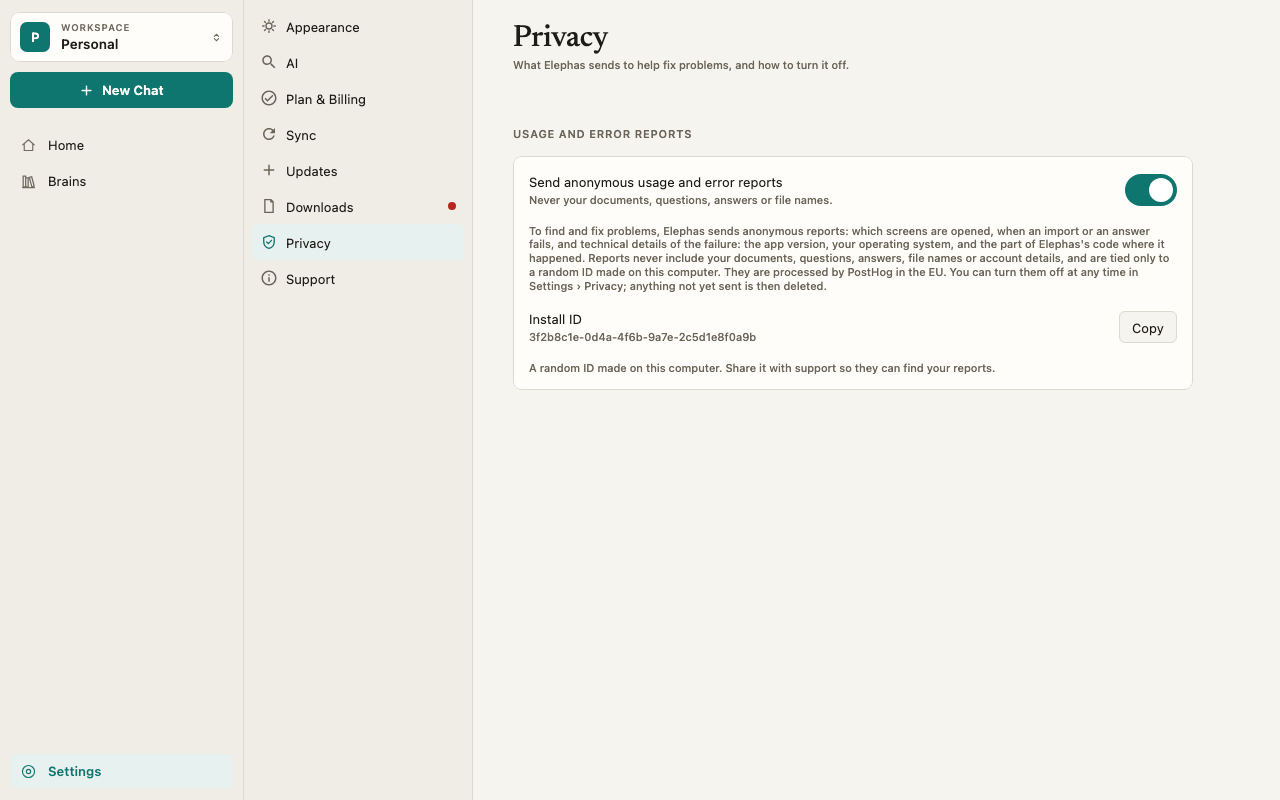
How it works
What is sent
In the app, What’s sent explains it in short: which screens are opened, when an import or an answer fails, and technical details of the failure, such as the app version, your operating system, and the part of Elephas’s code where it happened. In more detail, reports can include:- Usage events, such as the app opening, a screen being viewed, a setup step finishing, a Brain being created, documents being added (counts only), a question being answered (which AI mode, how long it took, whether it had sources), the AI mode or provider you chose, and trial or plan screens being opened.
- Error reports when something fails, freezes for more than five seconds, or crashes: an error code, the location in Elephas’s code, a shortened and cleaned error message, and the last lines of the app’s own log.
- Technical context: app version, operating system and version, processor type, language setting, memory and free disk space ranges, and rough size ranges such as how many Brains and documents you have. Counts are grouped into ranges, not exact numbers.
What is never sent
Reports never include your documents, questions, answers, file names or paths, Brain names, or account details such as your email address. They contain no API keys.The Install ID
Reports are tied only to a random ID made on your computer. It is not linked to your Elephas account. You can see it under Install ID in Settings › Privacy, and copy it with Copy. Share it with support if you want them to find your reports. If no ID exists yet, it shows Not created yet.Where reports go
Reports are processed by PostHog in the EU. They are only sent from official release builds of Elephas.Reports are separate from support
The log file you can attach to a support email is not sent automatically. In Settings › Support, Log file opens its location so you can attach it yourself: “A record of what the app did, with no document text in it. Attach it to your email.” See Contact support.Troubleshooting
The Install ID says Not created yet
The Install ID says Not created yet
The ID is made when an official release build of Elephas starts. Restart Elephas. If you are on a test or preview build, it may stay empty, because those builds send no reports.
Support asked for my Install ID
Support asked for my Install ID
Open Settings › Privacy, click Copy next to Install ID, and paste it into your email.