
Available in Team workspaces. Only the Owner can change the policy. Owners and Admins can view usage and set caps.
Before you start
- You are the Team Owner. Admins and Members can open AI Policy but cannot save changes: “Only the Team Owner can change the AI policy.”
- An internet connection. The policy is stored on the Elephas server and applies to every member’s computer.
Steps
1
Open AI Policy
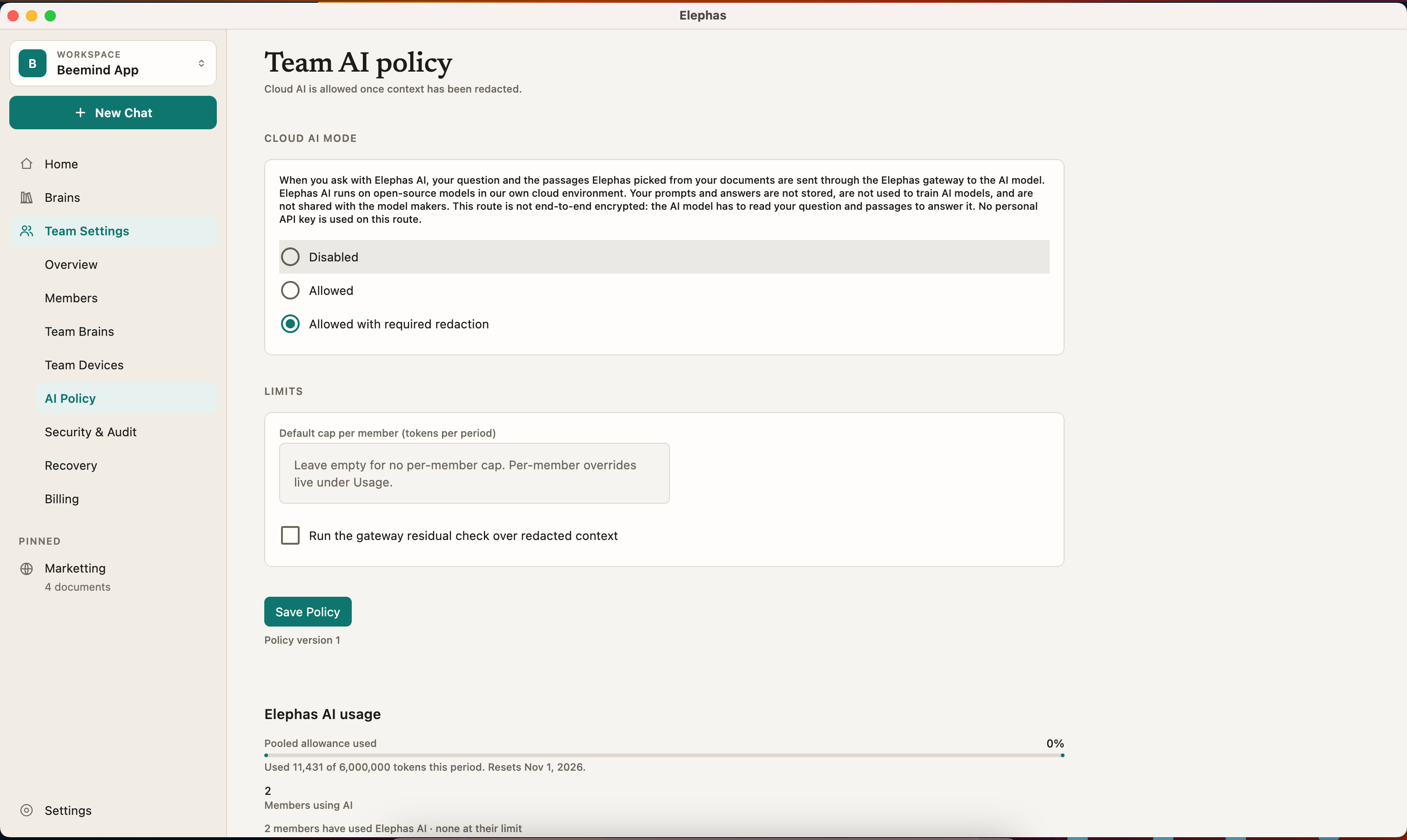
Go to Team Settings › AI Policy.
2
Choose a Cloud AI mode
Under Cloud AI mode, pick Disabled, Allowed or Allowed with required redaction. The modes are explained below.
3
Set a default cap (optional)
Under Limits, enter a number in Default cap per member (tokens per period). Leave it empty for no cap.
4
Save
Click Save Policy. Elephas confirms “Policy saved.” and shows the new policy version.
How it works
The three modes
When a member asks with cloud AI turned off, they see: “Your Team’s policy has cloud AI turned off, so this request was not sent.”
Personal information protection in a Team
In a Team workspace, the Owner’s policy decides whether personal details are replaced before cloud AI, not each member’s own setting. Under Allowed, questions and passages are sent without that step. Under Allowed with required redaction, it always runs. See Personal information protection for the kinds of details it hides, and What data is sent to AI for what leaves the computer. There is also a box, Run the gateway residual check over redacted context. It asks the Elephas gateway to run an extra check on the already-redacted text.Where Team AI runs
Team cloud AI always goes through the Elephas gateway. Personal API keys never apply in a Team workspace, even for the Owner, and even if you saved a key in your Personal workspace. The gateway does not store prompts or answers. They are not used to train AI models, and they are not shared with the model makers for training. The AI Policy screen names the model provider. With Local AI, a model on the member’s own computer answers, and the question and passages are not sent to any AI provider. See Run Local AI.Usage and caps
Team cloud AI draws from one pooled allowance for the whole Team, sized by the number of paid seats. Owners and Admins see who used how much in the Elephas AI usage panel on the AI Policy screen.- The default cap applies to every member.
- To give one person a different limit, enter it in Cap (tokens) on their row and click Set Cap. Remove Cap clears it.
- A member who reaches their cap sees: “You’ve reached the limit your Team set for you.” Caps reset with each usage period.
Troubleshooting
The policy changed on the server since you loaded it
The policy changed on the server since you loaded it
Someone saved a change at the same time. The screen reloads the current policy. Review it and save again.
Members see a refusal about redaction
Members see a refusal about redaction
“Your Team’s policy requires redaction before cloud AI, and no redaction engine is available on this device, so nothing was sent.” The member’s computer may still be downloading what it needs. See Personal information protection. Or switch the mode to Allowed, or ask members to use Local AI.
Your Team's AI policy just changed
Your Team's AI policy just changed
The policy changed while a member was asking. They can ask again and the new policy applies.
FAQ
Can a member use their own OpenAI or Claude key in the Team?
Can a member use their own OpenAI or Claude key in the Team?
No. Team workspaces never use personal API keys. A member’s key keeps working in their own Personal workspace.
Can I turn cloud AI off for one client's Brain only?
Can I turn cloud AI off for one client's Brain only?
No. The policy covers the whole Team workspace. For one sensitive matter, members can switch to Local AI.
Does the Team usage come out of my Personal plan?
Does the Team usage come out of my Personal plan?
No. Team questions use the Team’s pooled allowance only, and Personal questions use your Personal plan.