
Available in Team workspaces. Owners and Admins create Team Brains. See Roles and permissions.
Before you start
- You are in your Team workspace. Switch with the Workspace switcher at the top of the sidebar.
- To create a Team Brain, you are the Owner or an Admin.
- To share one, you are the Owner, an Admin, or that Brain’s Manager.
- The people you share with have joined the Team. See Invite members.
Steps
Create a Team Brain
1
Open Team Brains
Go to Team Settings › Team Brains. In a Team workspace, New Brain (⌘B on Mac, Ctrl+B on Windows) opens this screen too.
2
Name it
Under New Team Brain, type a Brain name, for example “Client Files” or “Smith v. Jones”.
3
Create it
Click Create Team Brain. You become its first Manager. The row shows “Ready. Open it from Brains to add files.” once it is set up, which usually takes seconds.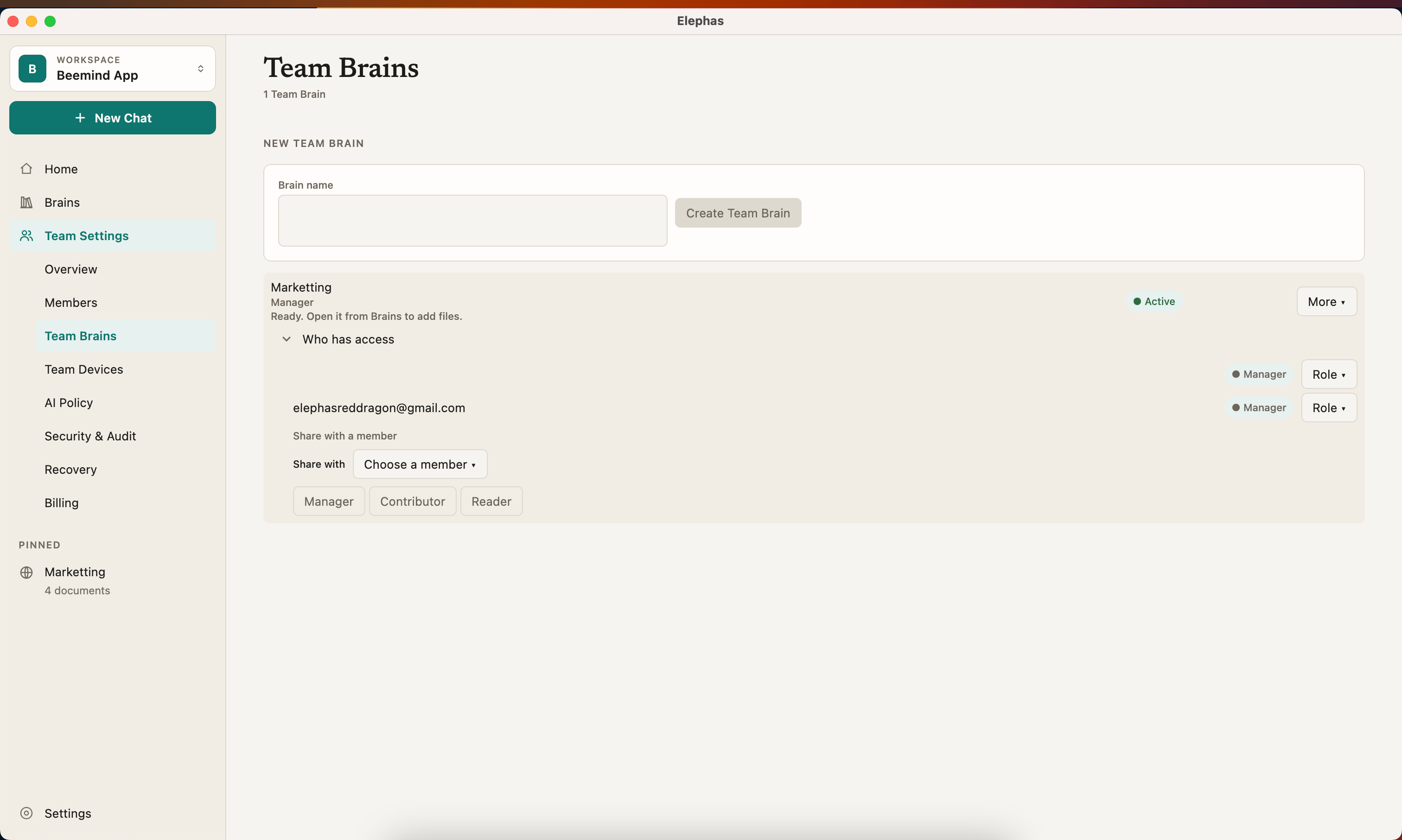
4
Add your documents
Open the Brain from Brains and add your files. See Add files and folders.
Share a Team Brain
1
Open who has access
In Team Settings › Team Brains, open Who has access under the Brain’s row.
2
Pick a person
Under Share with a member, choose someone in Choose a member….
3
Choose their role
Click Manager, Contributor or Reader. Elephas confirms the share and delivers their key in the background.
Archive, restore or delete
Use the menu on the Brain’s row:- Archive hides the Brain from day-to-day use. Owners, Admins and the Brain’s Managers can archive it, and Restore brings it back.
- Delete Permanently removes the Brain for everyone. Only the Owner can do this, and it cannot be undone.
How it works
Brain roles
Team roles do not give Brain access. An Owner or Admin who is not on a Brain’s list can see its name in Team Brains, but cannot open its documents.
Personal Brains and Team Brains
Your Personal Brains never move into the Team, and you can’t ask a Personal Brain and a Team Brain in the same question. To share documents from a Personal Brain, add the files again to a Team Brain.
Keys and new people
Every Team Brain is end-to-end encrypted with its own key. When you share a Brain, a Manager’s computer delivers the key to the new person’s approved computers. The row can show “Ready. Delivering the key to another device or member in the background…” while that happens. A Brain appears under Brains on their computer once its key arrives. The server never receives a Team Brain’s name or its key.Troubleshooting
Waiting for the identity provider to confirm this Brain
Waiting for the identity provider to confirm this Brain
New Team Brains are confirmed by the sign-in service. “This usually takes seconds; it is retried in the background until it succeeds.” If it stays stuck, Owners and Admins can click Retry Stuck Provisioning.
No other active members yet
No other active members yet
You can only share with people who have joined. Invite them from Members first. See Invite members.