
Before you start
- You need a 64-bit (x64) PC with Windows 10 version 22H2 or Windows 11. See system requirements.
- You need an internet connection. The first time you open Elephas, it downloads about 50 MB of on-device components.
- You do not need an account to install. You sign in later, when you ask your first question.
Steps
1
Open the Microsoft Store listing
Go to elephas.app and choose Download for Windows, or open the Elephas AI listing directly.
2
Install Elephas
Install Elephas from the listing and wait for the Store to finish.
3
Open Elephas
Open the Start menu and choose Elephas.
4
Let Elephas finish setting up
The welcome screen appears and Elephas starts downloading its on-device components. A small line at the bottom of the window shows Getting Elephas ready and a percentage. You can keep going while it downloads. See first-run downloads.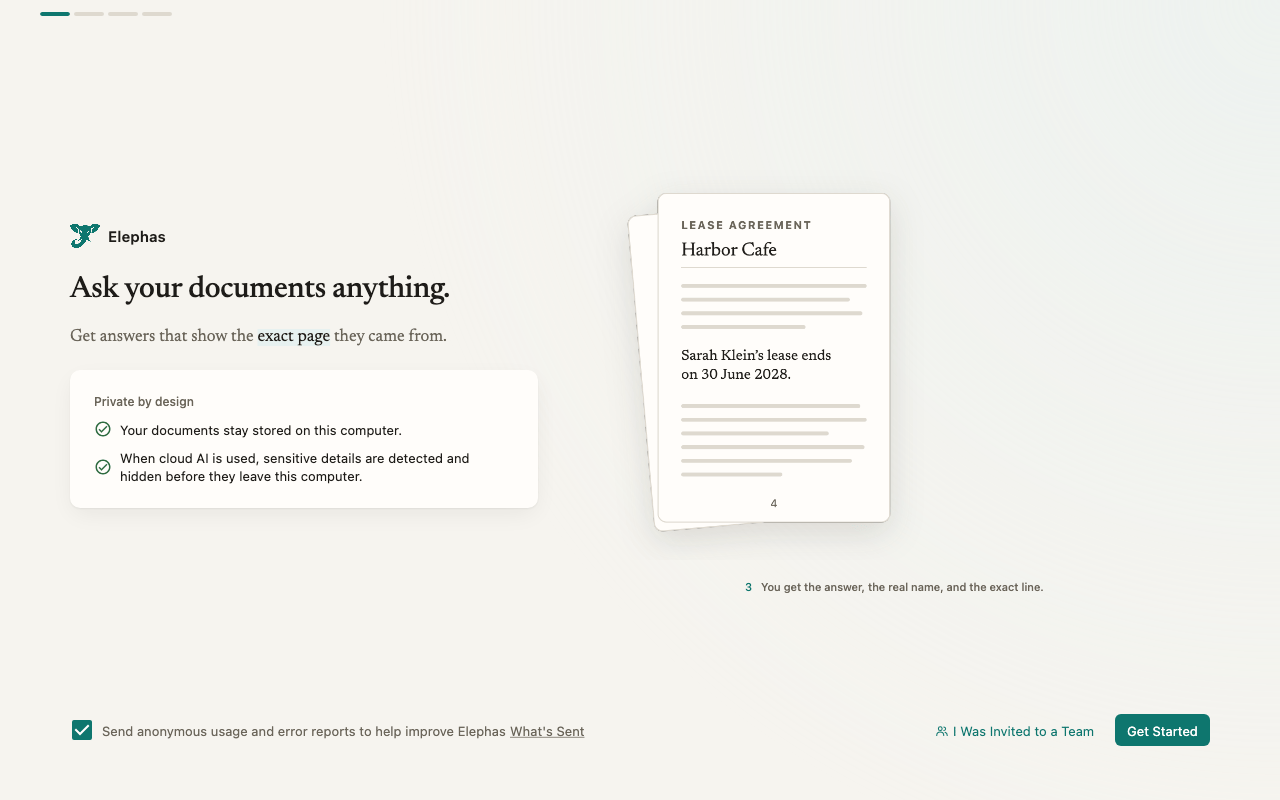
How it works
- Your library is separate from the app. Your documents stay stored in your user profile. The search index and your chats are kept in an encrypted database. Downloaded components are kept in your local app data folder so they do not roam with your profile on managed networks. See where your data is stored.
- Updates come from the Microsoft Store. The Store installs them. A bar in Elephas tells you when a new version is available there. See Update Elephas.
- Uninstalling deletes your local data. Windows removes the data folders with the app. Anything you never synced is lost. See Uninstall Elephas.
Troubleshooting
Your organization blocks the Microsoft Store
Your organization blocks the Microsoft Store
Some work PCs block the Store or only allow approved software. Ask your IT team to approve Elephas. Administrators can also pre-load the on-device components for every user; see first-run downloads.
Elephas does not open after installing
Elephas does not open after installing
Check that your PC is 64-bit and running Windows 10 22H2 or Windows 11. Then see Elephas won’t open after installing.