
Before you start
- You need an Apple Silicon Mac (M1 or later) with macOS 14 Sonoma or later. See system requirements.
- You need an internet connection. The first time you open Elephas, it downloads about 50 MB of on-device components.
- You do not need an account to install. You sign in later, when you ask your first question.
Steps
1
Download Elephas
Go to elephas.app and download Elephas for Mac. Your browser saves a file ending in
.dmg to your Downloads folder.2
Open the DMG
Double-click the
.dmg file. A Finder window opens with the Elephas icon and a shortcut to your Applications folder.3
Drag Elephas to Applications
Drag the Elephas icon onto the Applications folder. Wait for the copy to finish, then eject the disk image (click the eject button next to it in the Finder sidebar).
4
Open Elephas
Open your Applications folder and double-click Elephas. macOS may ask whether you are sure you want to open an app downloaded from the internet. Click Open.
5
Let Elephas finish setting up
The welcome screen appears and Elephas starts downloading its on-device components. A small line at the bottom of the window shows Getting Elephas ready and a percentage. You can keep going while it downloads. See first-run downloads.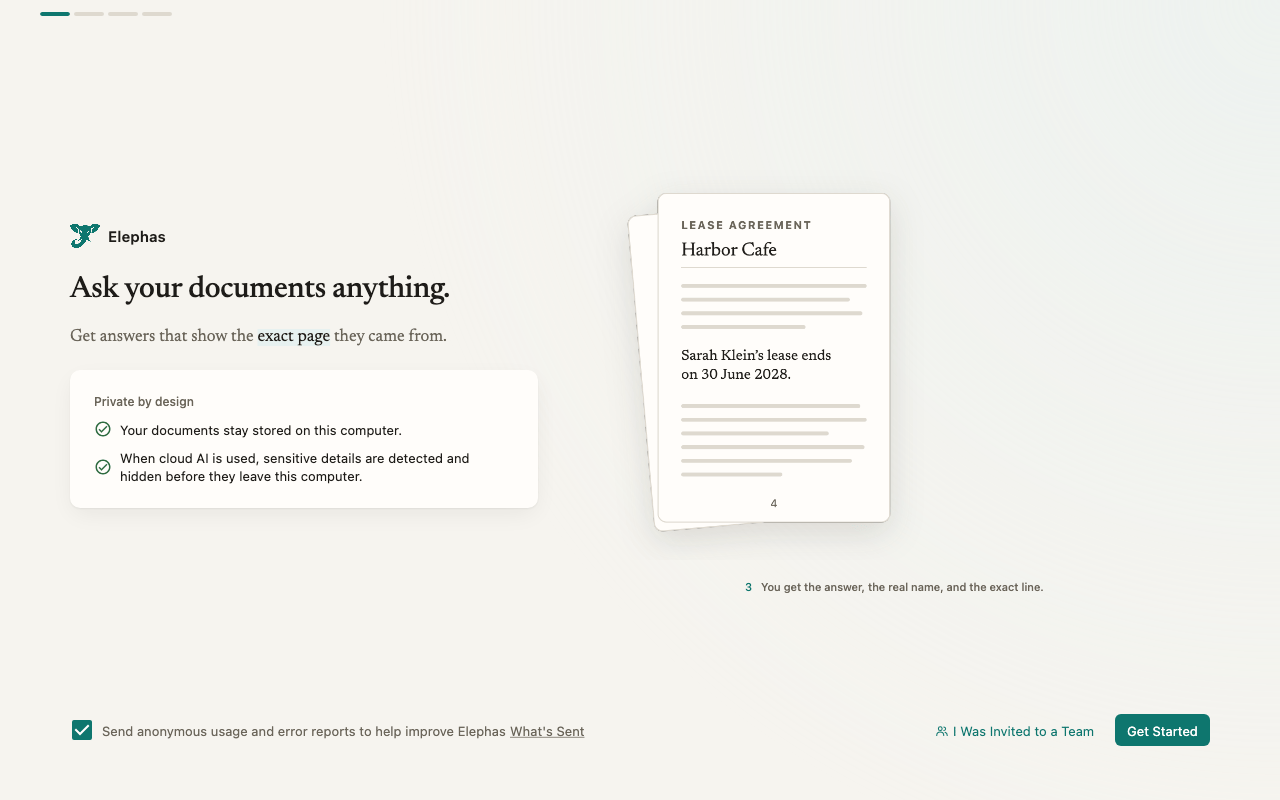
What happens next
Elephas walks you through adding a few documents and asking your first question. Follow the quick start. Elephas keeps your library in your user folder, not inside the app. Replacing or updating the app does not touch your documents or chats. Updates arrive inside the app, so you do not need to download a new DMG each time.Troubleshooting
macOS says Elephas cannot be opened
macOS says Elephas cannot be opened
This usually means macOS could not verify the app, or you opened it straight from the DMG. Make sure you dragged Elephas into Applications first, then open it from there. For more fixes, see Elephas won’t open after installing.
macOS says you can't use this version of Elephas
macOS says you can't use this version of Elephas
This message appears on Macs older than macOS 14. Elephas needs macOS 14 Sonoma or later. Update macOS from System Settings › General › Software Update, then open Elephas again.
Setup stops with a download error
Setup stops with a download error
Check your internet connection. If you are on a hotel or office Wi-Fi that asks you to sign in, sign in through your browser first, then click Try again. See first-run download failed.
FAQ
Do I need an administrator password to install?
Do I need an administrator password to install?
Copying an app into the Applications folder may ask for an administrator password, depending on how your Mac is set up. Elephas itself does not need administrator rights to run.
Can I install Elephas next to classic Elephas?
Can I install Elephas next to classic Elephas?
See moving from classic Elephas before you install.