
Available in Team workspaces, for Owners and Admins.
Before you start
- You are the Team Owner or an Admin, on a computer that is already approved.
- For approvals: you know who is joining, and ideally you can talk to them by phone or in person.
Steps
Approve a new computer
1
Open Team Devices
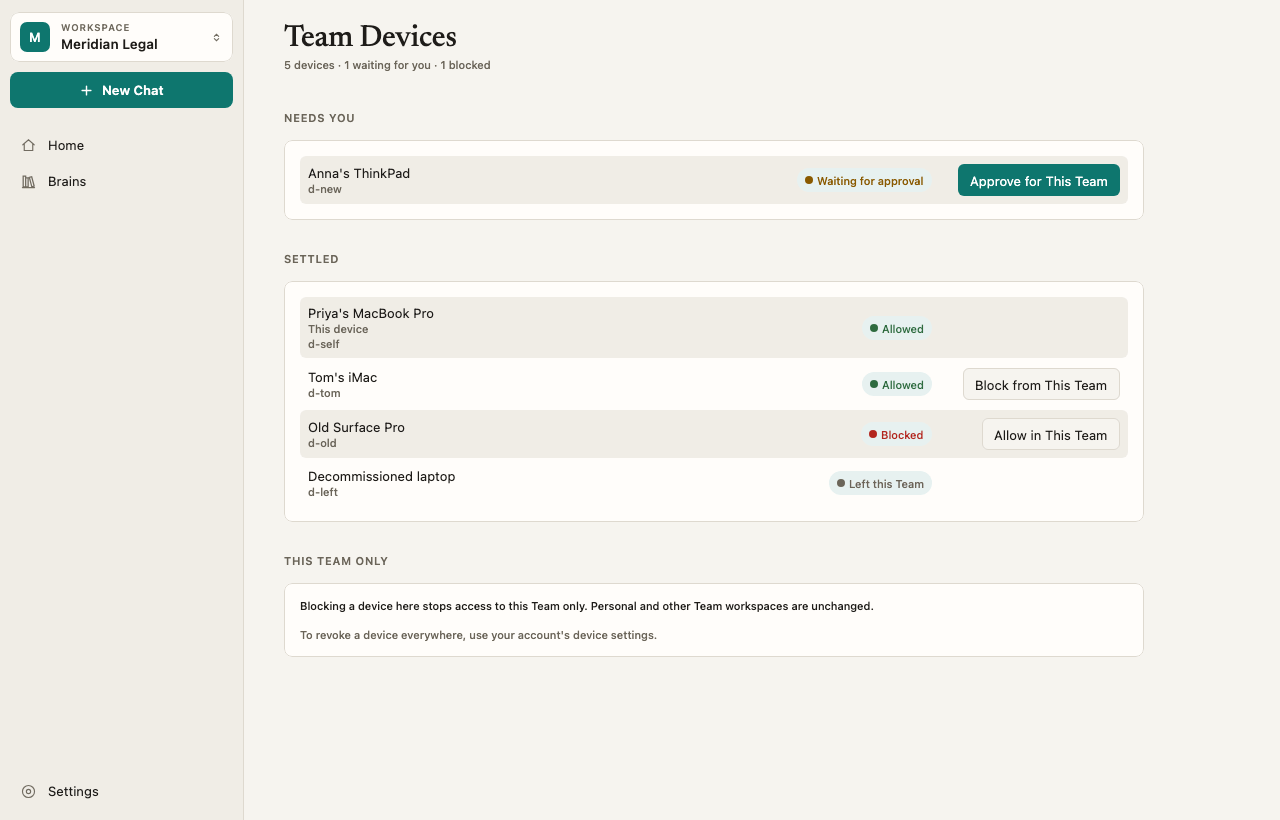
Go to Team Settings › Team Devices. Computers waiting for you are listed with Waiting for approval, and the line under the title counts them, for example “1 waiting for you”.
2
Check who it is
Check the computer’s name and the person. The joining computer shows five Confirmation Words. Ask the person to read them to you by phone or in person.
3
Approve it
Click Approve for This Team. The computer installs the Team keys and the person can open the Team workspace.
Block a computer
If a computer is lost, stolen or replaced, find it in Team Devices and click Block from This Team. To let it back in, click Allow in This Team. You can’t block the computer you are using. Use another approved computer, or ask another Admin.How it works
Device states
This Team only
“Blocking a device here stops access to this Team only. Personal and other Team workspaces are unchanged.” The person’s Personal workspace keeps working on that computer. To stop a computer everywhere, including the person’s Personal workspace, the person removes it from their own account in Settings › Plan & Billing. See Remove a device.What blocking does
The blocked computer stops syncing with the Team, its Team keys are cleared from memory, and its copy of the Team workspace is locked. On that computer, Elephas says: “This device is blocked for this Team. Another allowed device or an administrator can restore access.” The Team’s Brain keys are changed for future content, so the blocked computer cannot read anything added afterwards. What it already had stays encrypted on its disk. Blocking stops future access. It cannot undo what someone already read.Security notifications
Team Settings › Security & Audit also lists notifications such as “1 Team device is waiting for approval.” and “1 Team device is blocked.” See Audit log.Troubleshooting
The new computer isn't in the list
The new computer isn't in the list
The person must finish Register Device on their computer first. Ask them to check they signed in with the invited address. See Join a team.
I approved it but the person still sees Waiting for Approval
I approved it but the person still sees Waiting for Approval
Their computer picks up the approval on its own. Ask them to keep Elephas open and connected for a minute.