
Available in Team workspaces, for Owners and Admins.
Before you start
- You are the Team Owner or an Admin. Members see: “Only the Team Owner or an Admin can view audit events. Your current role does not have access.”
- An internet connection. Events are stored on the Elephas server.
Steps
1
Open Security & Audit
Go to Team Settings › Security & Audit.
2
Read the record
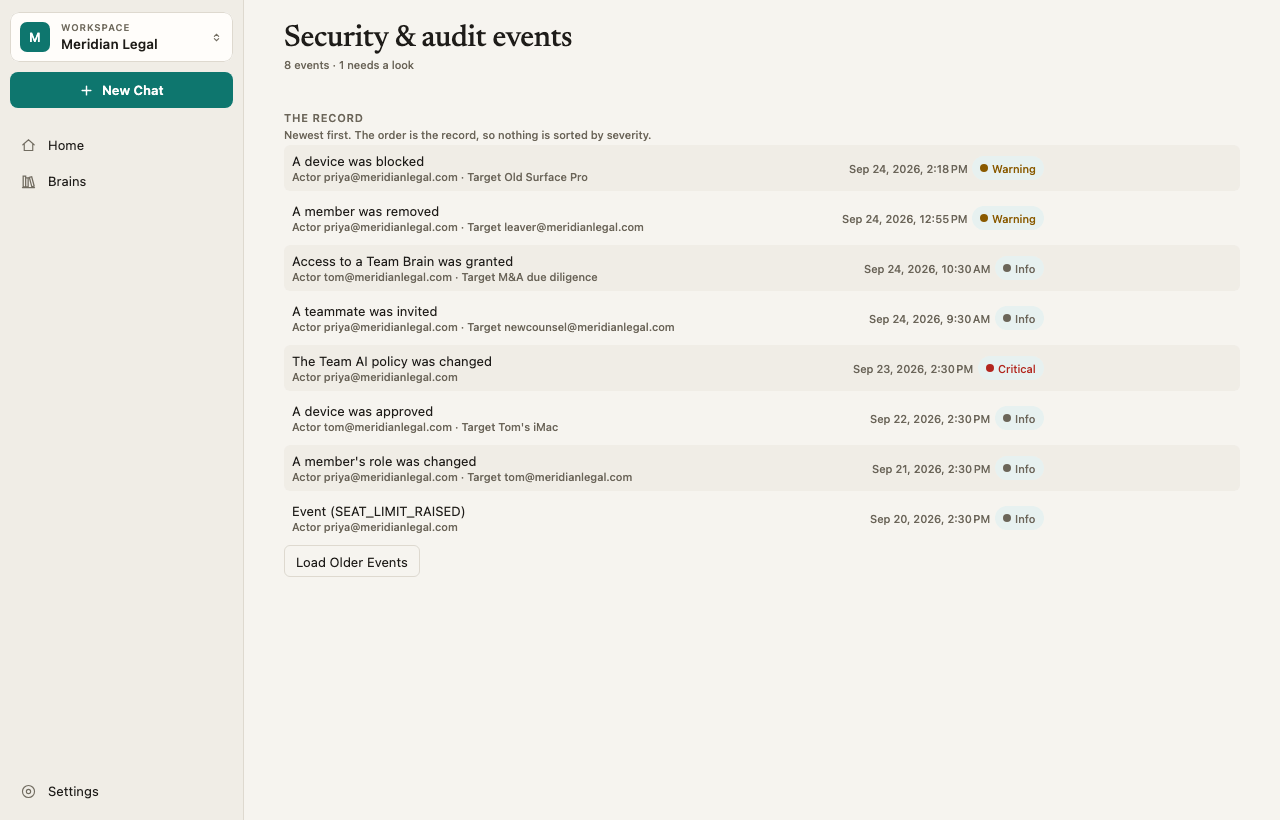
Each row is one event: what happened, who did it, what it affected and when. Events are listed newest first.
3
Go further back
Click Load older events at the bottom. “End of recorded events.” means you have reached the start.
How it works
What is logged
The server can record more kinds of event than this version of the app knows how to name. Those appear as “Event” followed by a code.
What is never logged
Audit events are content-free. They name who and what, never what a document says. They never contain Brain names, file names, document text, questions, answers or keys.Severity
Each event has a severity: Critical, High, Warning or Info. The list is not sorted by severity. “Newest first. The order is the record, so nothing is sorted by severity.” The line under the title counts how many events need a look.Security notifications
On the same screen, Security Notifications shows the current state of things that may need action, such as computers waiting for approval, blocked computers, or Brains waiting for keys. Show Diagnostics adds technical details for support. Diagnostics contain only states, versions and counts, never names, content or keys.Troubleshooting
Audit events could not be loaded
Audit events could not be loaded
Check your internet connection and try again.
An event shows a code instead of a description
An event shows a code instead of a description
This version of Elephas does not have words for that event yet. Update Elephas. See Update Elephas.
The person is shown as an ID
The person is shown as an ID
Rows name the person and the target by an opaque ID, not by name. Send the ID to support if you need help matching it to a member.