
You need an invitation from your team’s Owner or an Admin. Joining a Team does not use or change your own Personal plan.
Before you start
- Elephas installed on your computer. See Install on Mac or Install on Windows.
- The invitation email, and access to that exact address. You must sign in with the same address the invitation was sent to.
- An internet connection.
Steps
1
Open Join a Team
Click the Workspace switcher at the top of the sidebar and choose Join a Team….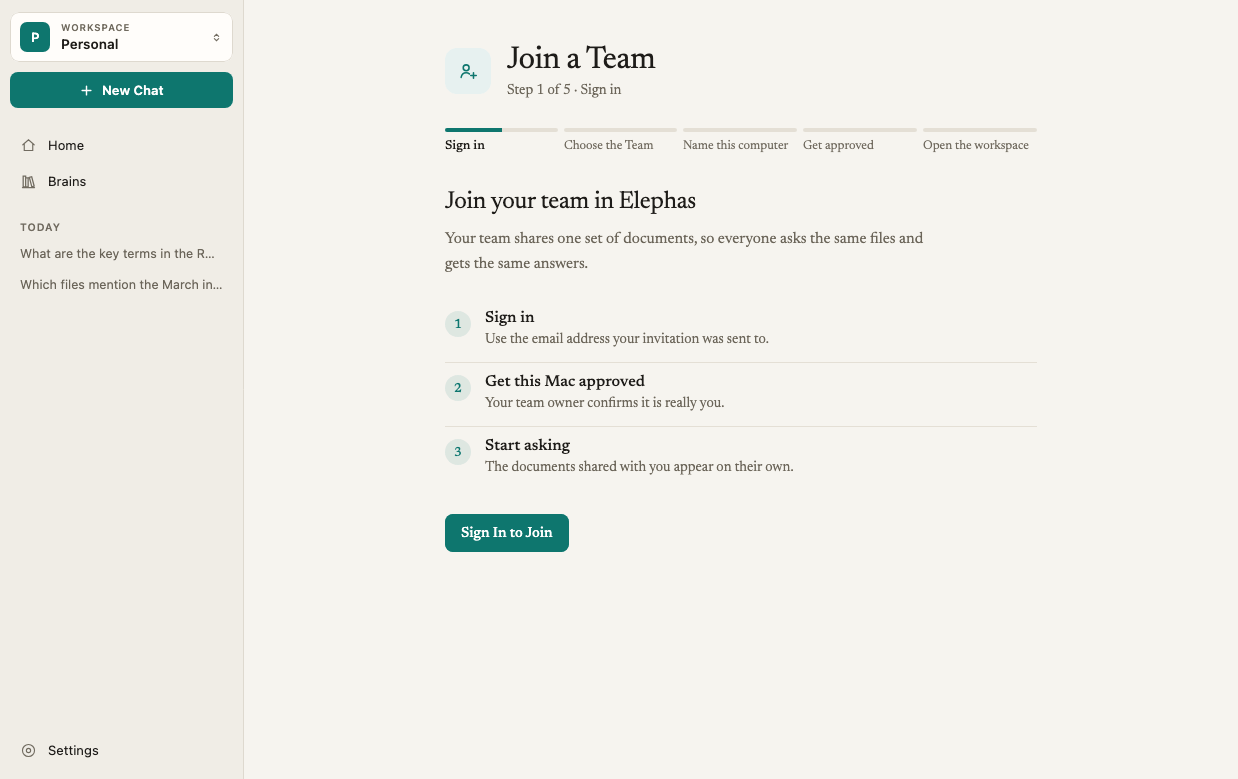
2
Sign in with the invited address
Click Sign In to Join and finish signing in in your browser, using exactly the address the invitation was sent to. If the browser did not open, click Copy Sign-In Link and paste the link into your browser.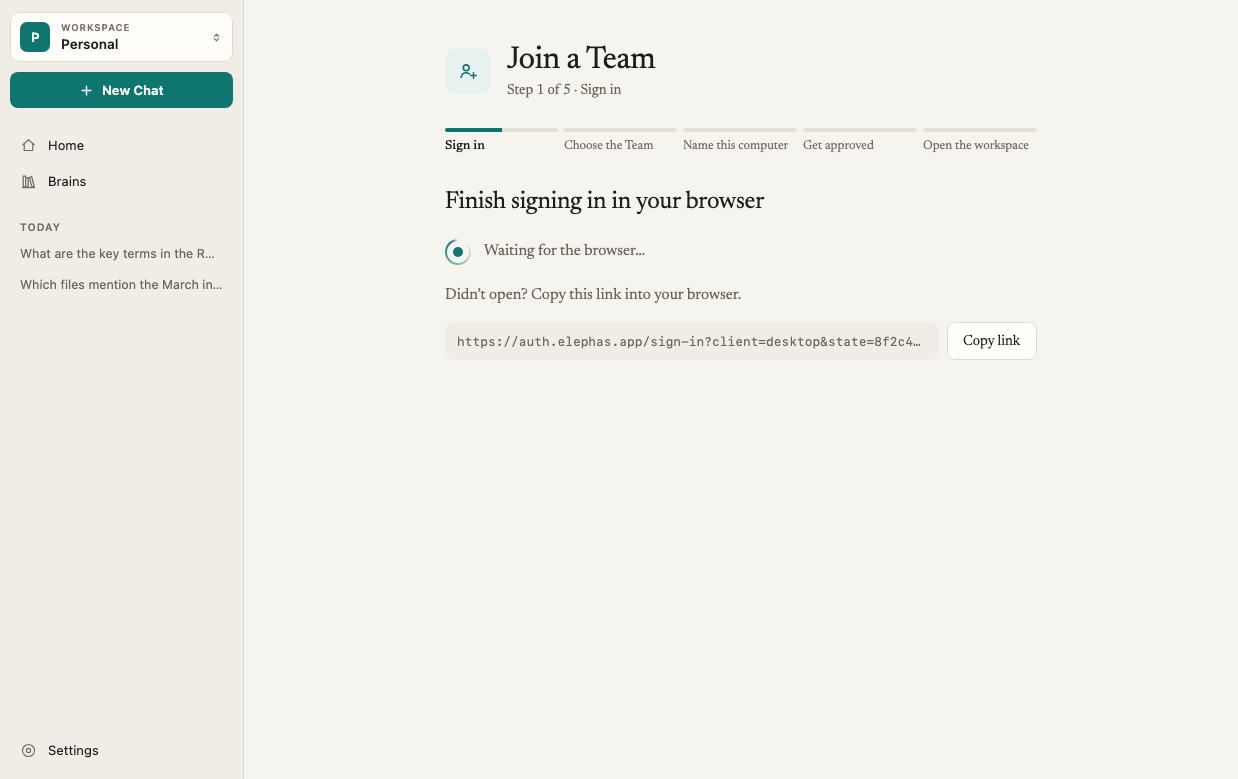
3
Choose the Team
Under Choose the Team to Join, find your Team marked Ready to join and click Select.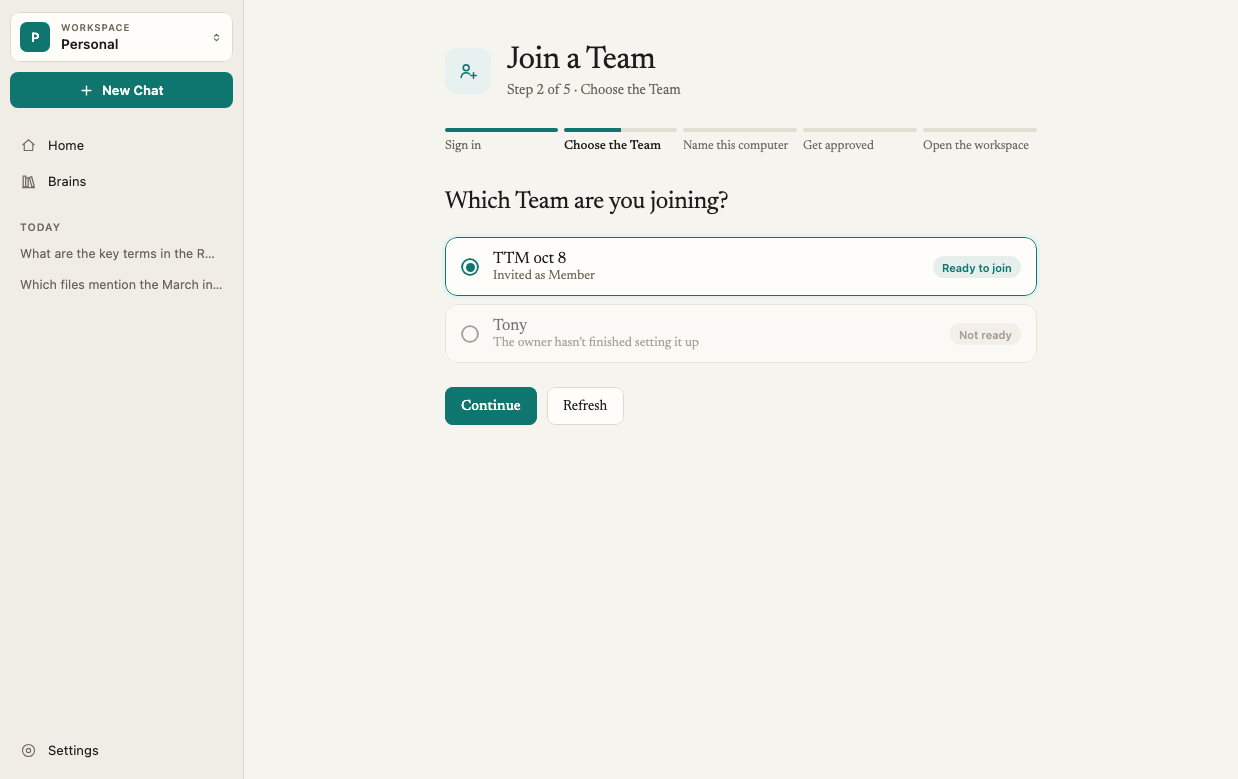
4
Name this computer
On Register This Device, enter a Device name your admin will recognize, such as “Priya’s MacBook”. You can also change the Workspace name (local only), which only you see. Click Register Device.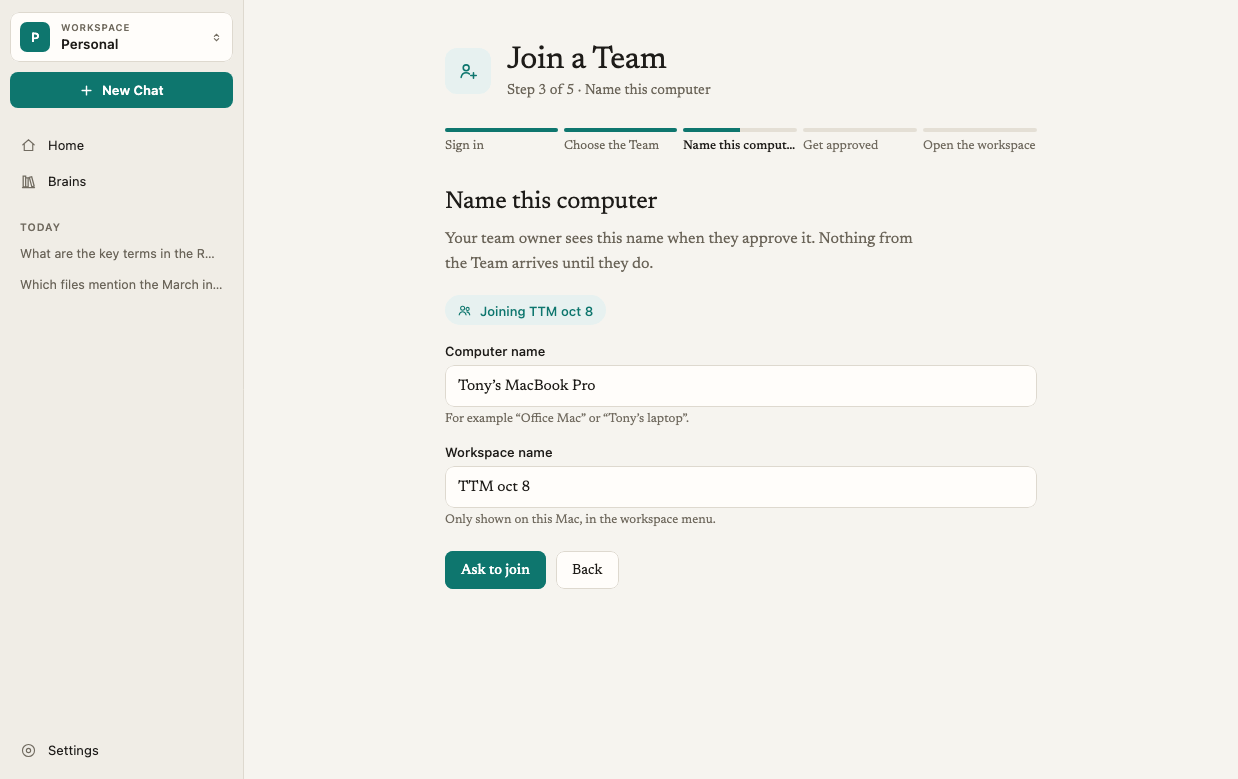
5
Show the confirmation words and wait
Elephas shows Waiting for Approval and five Confirmation Words. Your Owner or Admin approves this computer from Team Devices. You can close Elephas. It carries on once you are approved.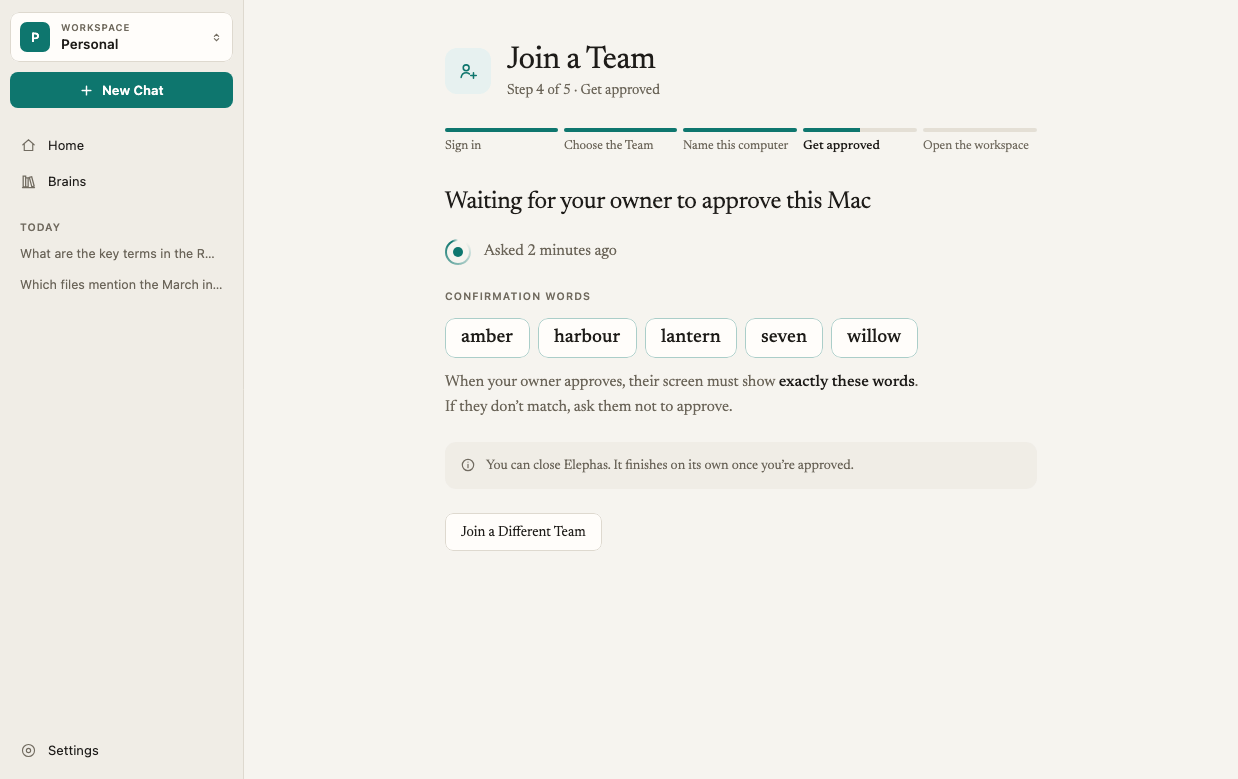
For the Owner or Admin who sent the invitation: open the Team workspace, go to Team Devices, find the new computer by its name and click Approve for This Team. Sometimes the Confirmation Words do not appear on your screen. The computer’s name still shows, so check that the name and the person are right, then approve it. See approve and manage Team devices.
6
Open the workspace
When approval arrives, Elephas installs the Team keys and shows You have joined the Team. Click Open the Team Workspace.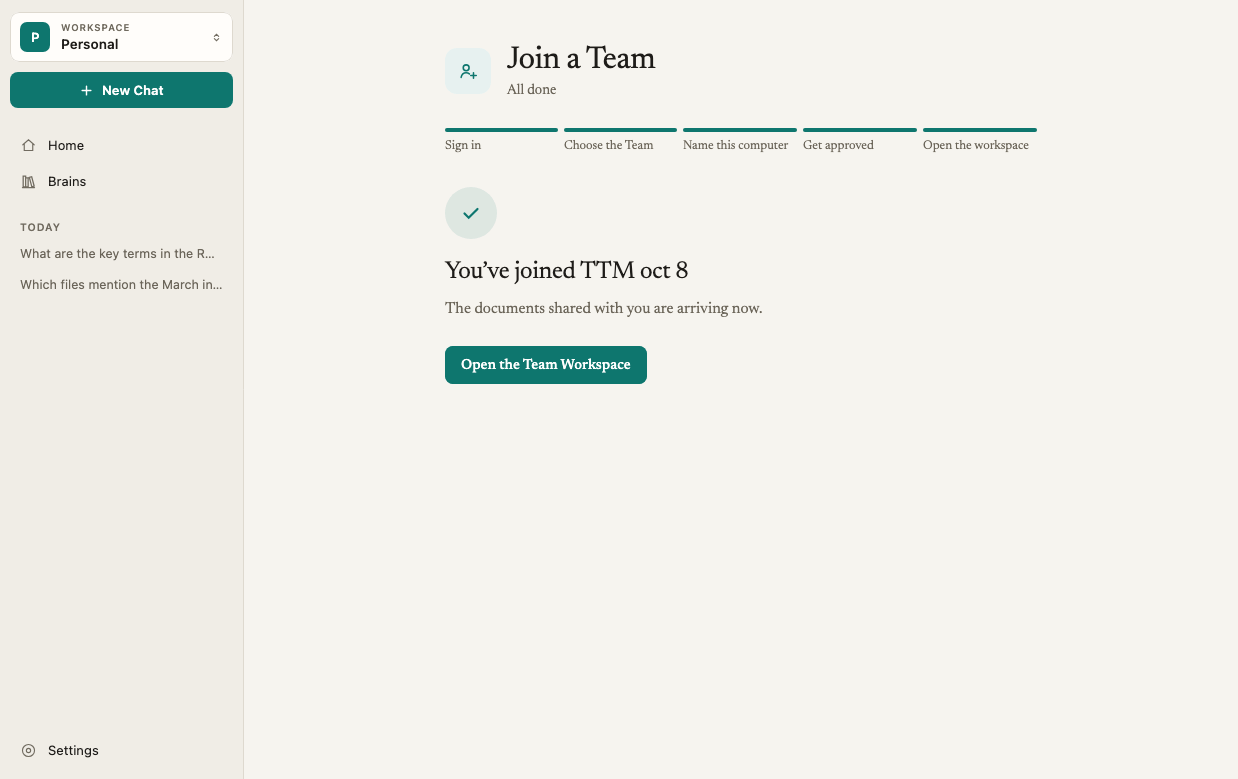
What happens next
- Your Team workspace appears in the Workspace switcher. Your Personal workspace stays exactly as it was.
- Team Brains appear under Brains once an Owner, Admin or Brain Manager shares them with you and their keys reach your computer. Until then, the Team workspace can be empty.
- What you can do in each Team Brain depends on your Brain role: Reader, Contributor or Manager. See Roles and permissions.
- AI in the Team workspace follows the Owner’s AI policy. See Team AI policy.
How it works
Why approval is needed
Team Brains are end-to-end encrypted. A new computer cannot read anything until an approved Owner or Admin lets it in, and Brain keys are only delivered to approved computers. Signing in proves who you are. Approval decides which computers may hold the Team’s keys.The five confirmation words
The words are computed on your computer from this specific registration. “The approving device must show exactly these words.” Read them to your admin by phone or in person, not by email or chat, so they know the request really came from you.Troubleshooting
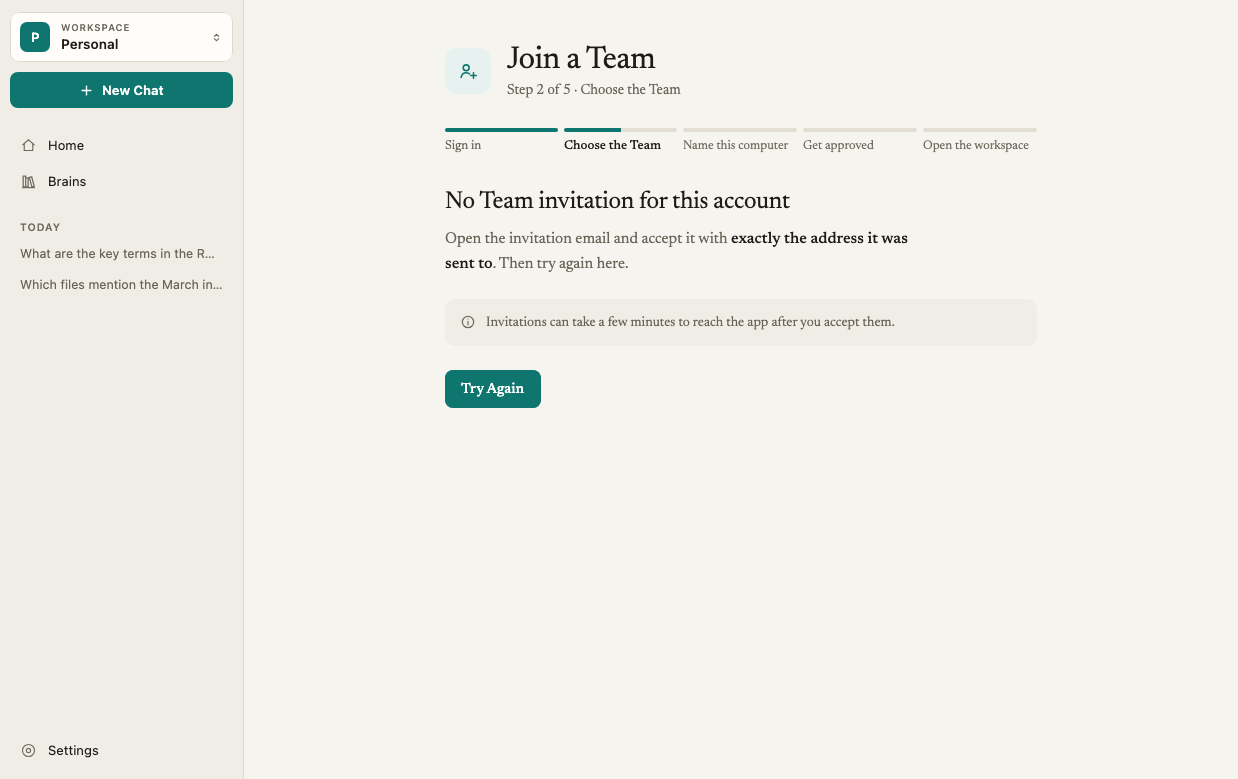
When no invitation matches the account you signed in with
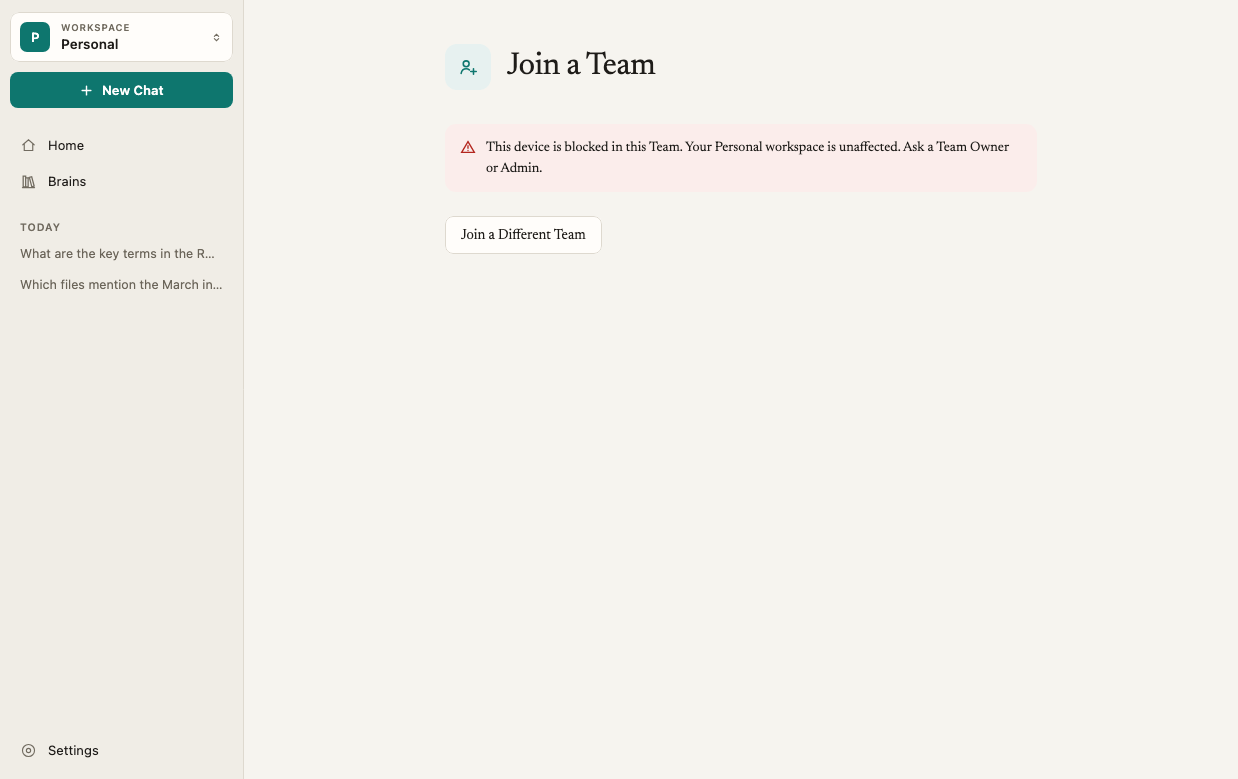
When this computer is blocked in the Team