For the person buying the Team plan, who becomes the Owner. If someone invited you, see Join a team instead.
Before you start
- Elephas installed on the computer you will use as the team’s first computer.
- An Elephas account. Use the same account in the browser and in the app. See Create an account and sign in.
- Two separate safe places for the recovery kit: one for a file, one for a code. For example, a password manager and a printed sheet in a locked drawer.
- The number of seats you need. You count as one seat. See Seats and billing.
Steps
1
Open Set up a Team
Click the Workspace switcher at the top of the sidebar and choose Set up a Team. Click Sign In to Continue and finish signing in in your browser, with the account you will buy the plan with.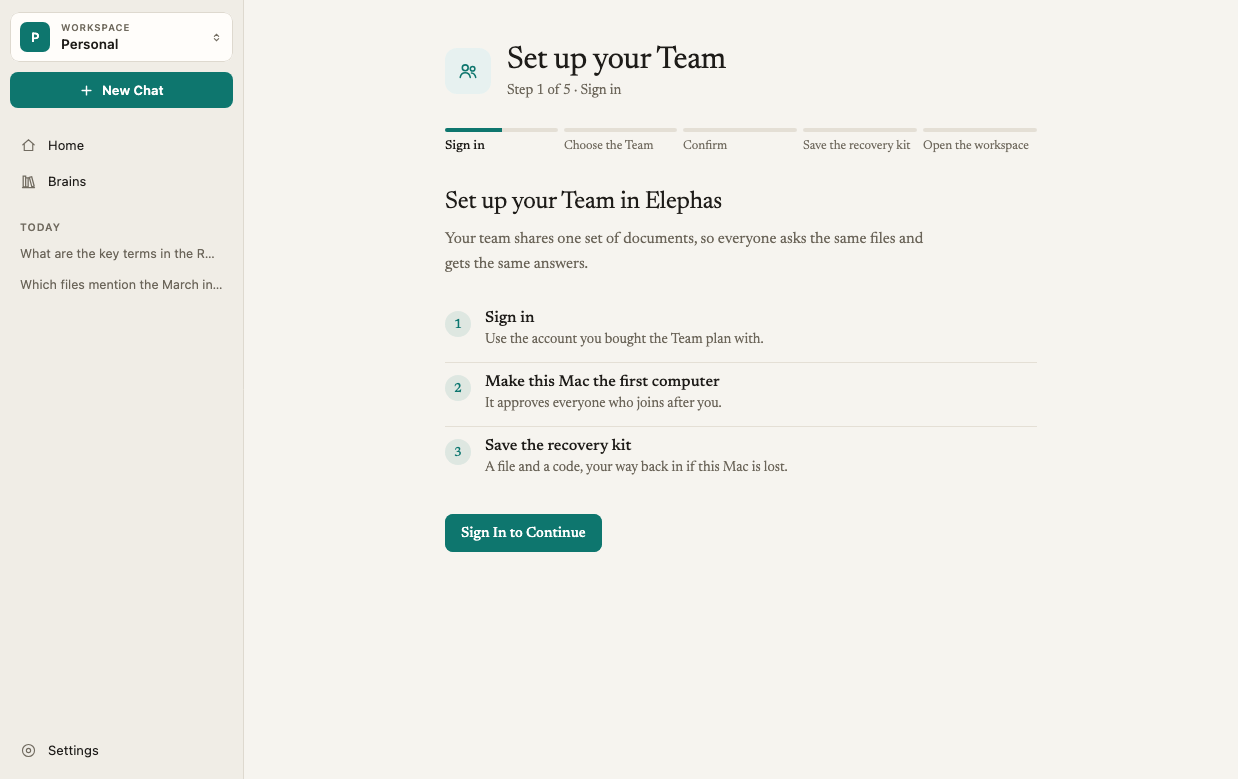
2
Buy the Team plan in your browser
If you haven’t bought it yet, Elephas shows No Team is waiting for setup. Click Create a Team…. Your browser opens the purchase page, where you enter your team’s name, the plan and the number of seats, then pay. Checkout happens in the browser, never inside the app.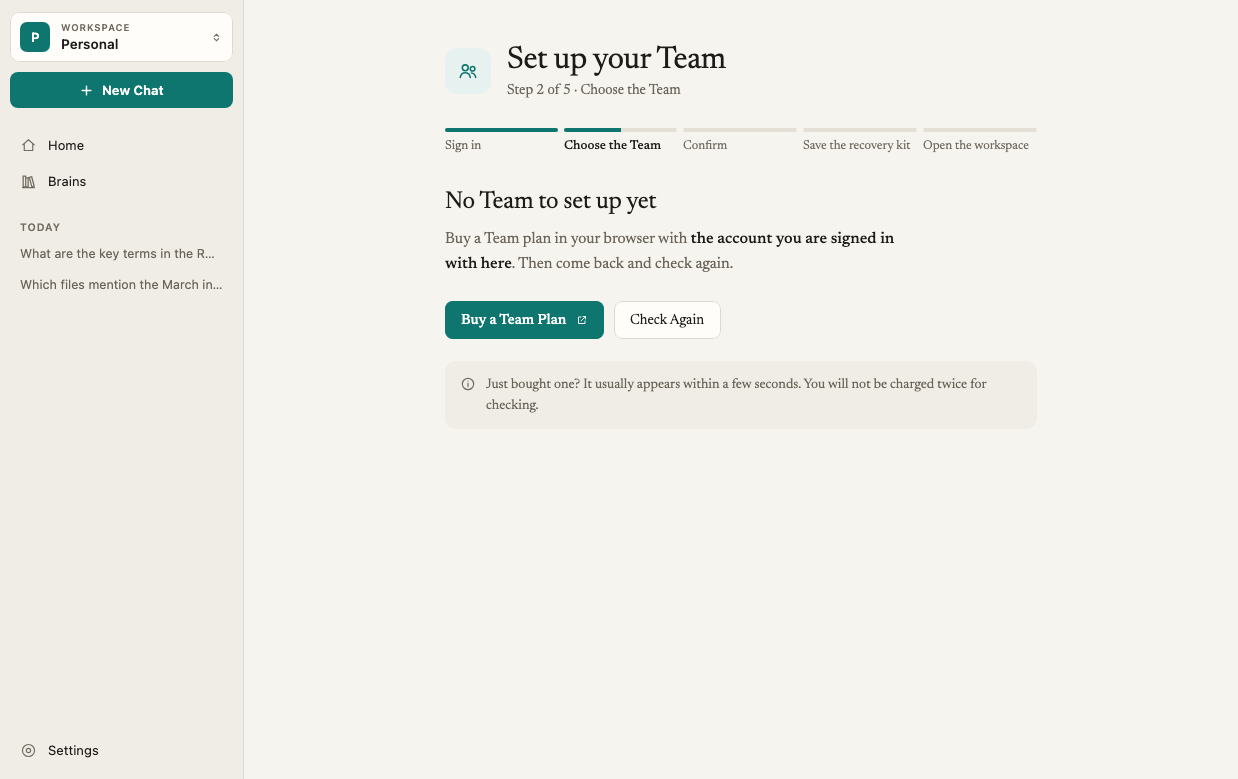
3
Come back and find your Team
Return to Elephas and click Check for Purchased Teams. Under Finish Setting Up a Team, your Team appears with Recovery setup required. Click Continue next to it. Nothing changes yet.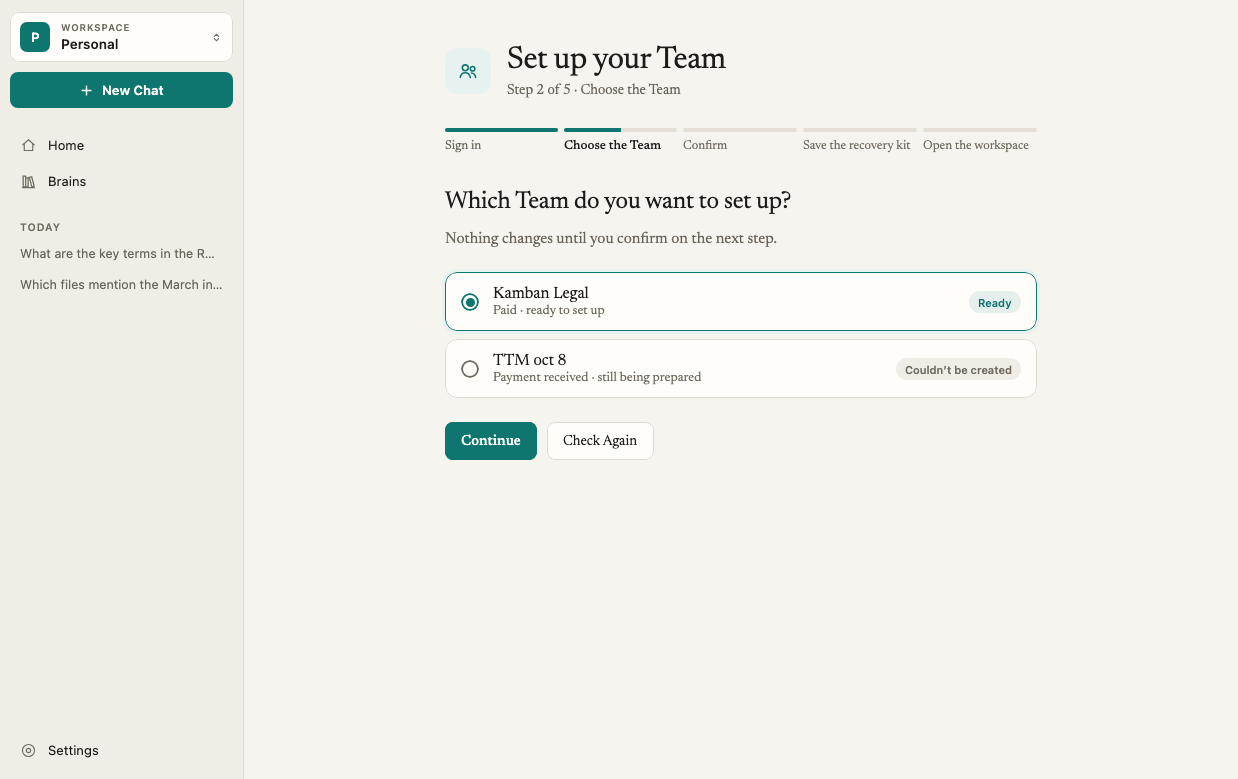
4
Confirm this Team
Elephas shows Set Up This Team? with the team name from your purchase. Check it is the right Team, then click Continue. Elephas registers this computer and creates the recovery key.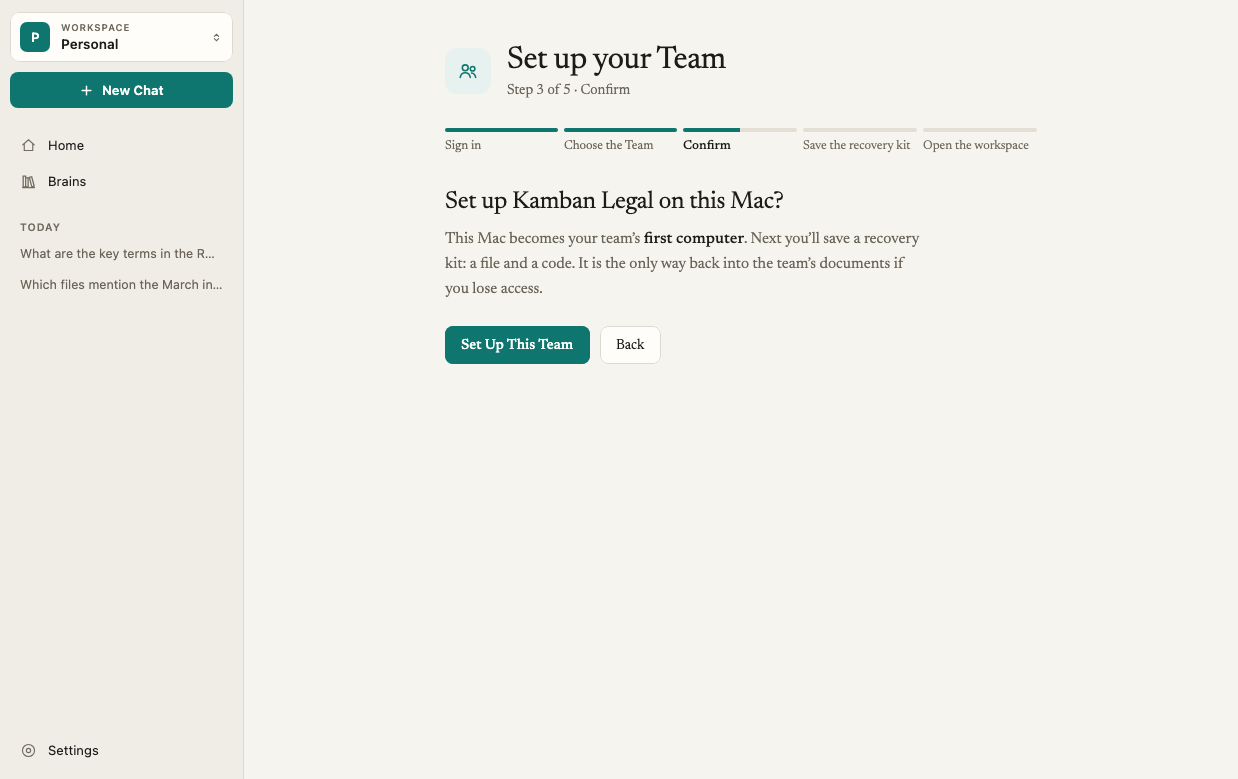
5
Save your recovery kit
On Save Your Team’s Recovery Kit: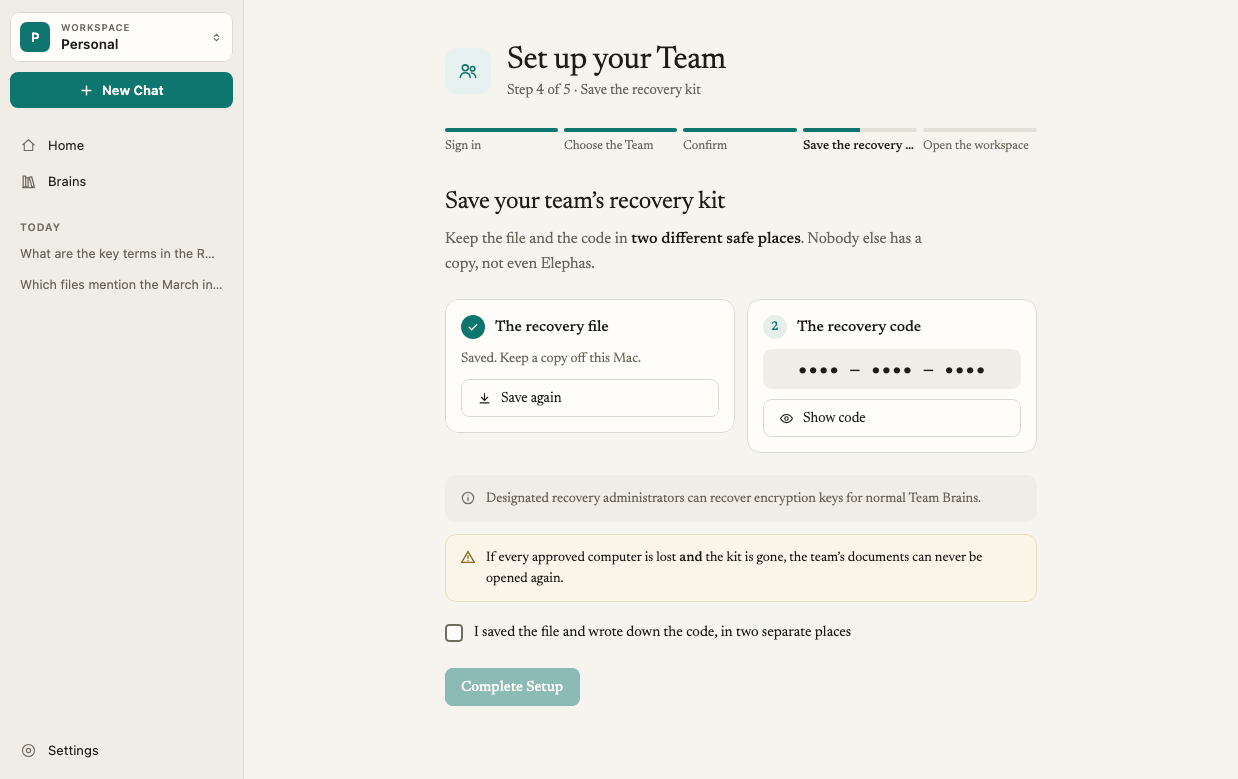
- Click Save the Recovery File… and save the file somewhere safe.
- Click Reveal Code. Write the code down and keep it somewhere other than the file. Elephas does not copy it to the clipboard. Then hide the code again.
- Tick I saved the file and wrote down the code, in two separate safe places.
6
Complete setup
Click Complete Setup. The button only works once the file is saved and the box is ticked. When you see Your Team is ready, click Open the Team Workspace.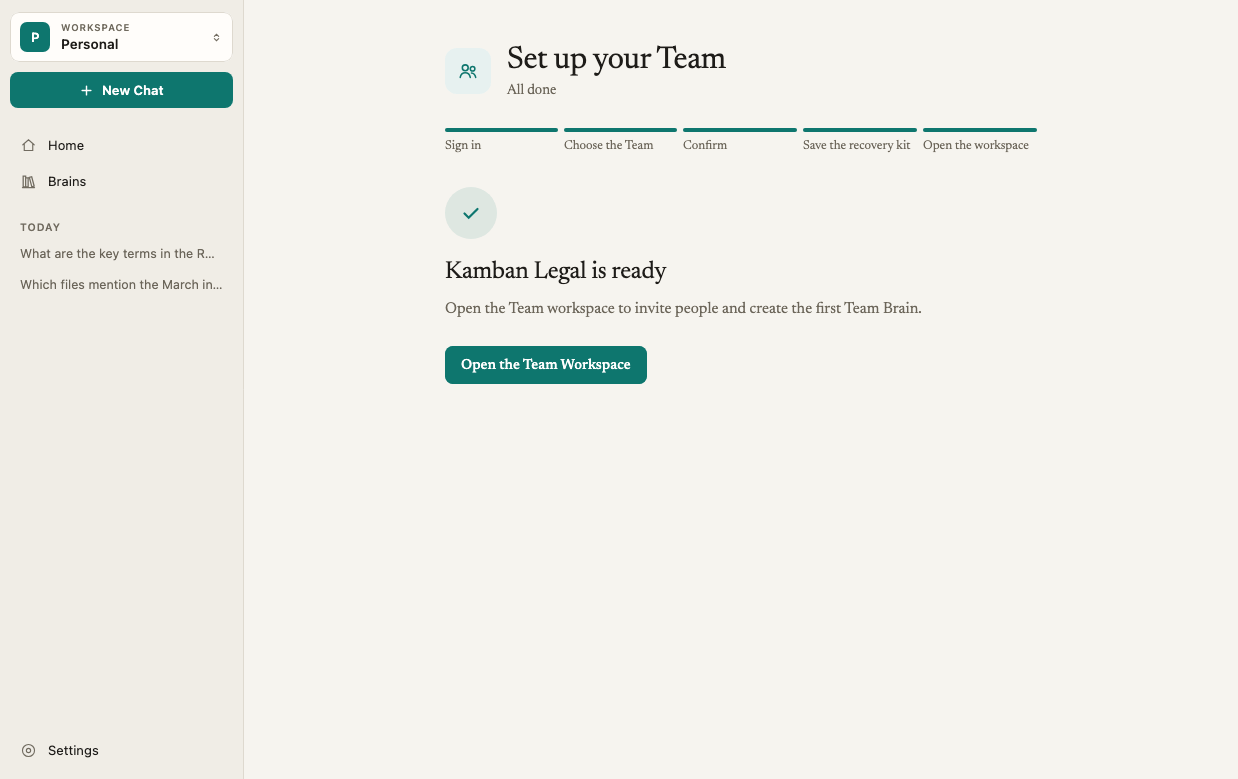
What happens next
- Your Team workspace appears in the Workspace switcher, with Team Settings in the sidebar.
- Add documents first, then invite people, so nobody arrives to an empty room. Create a Team Brain in Team Settings › Team Brains. See Team Brains.
- Invite people from Team Settings › Members. See Invite members.
- Decide how your team uses AI in Team Settings › AI Policy. See Team AI policy.
How it works
Your team’s name comes from the purchase
You enter the team name on the purchase page. The app shows that name before you press Continue, so you always know which Team you are setting up. You never type an organization ID.You can stop and come back
You can leave setup at any point. Your Team stays waiting, on this computer or another. When you come back, Elephas checks with the server and resumes from where setup really got to. If setup was interrupted after the recovery kit was created, Elephas tells you: “Setup was interrupted earlier. Any recovery package you saved before is no longer valid. Save this new package and record the new code.” Delete the old file and keep only the new kit.Nothing is usable until setup is complete
Until you press Complete Setup, the Team has no workspace to switch to, no Team Brains and no members. Invitations can only be sent once the Team is ready. If you bought more than one Team, Elephas lists each one and you choose. It never picks one for you.Troubleshooting
No Team is waiting for setup
No Team is waiting for setup
Check that you signed in to Elephas with the same account you used to buy the plan, then click Check for Purchased Teams. A new purchase can take a moment to appear.
This account is not the Owner who bought this Team
This account is not the Owner who bought this Team
Only the account that bought the Team can set it up. Sign out and sign in with that account.
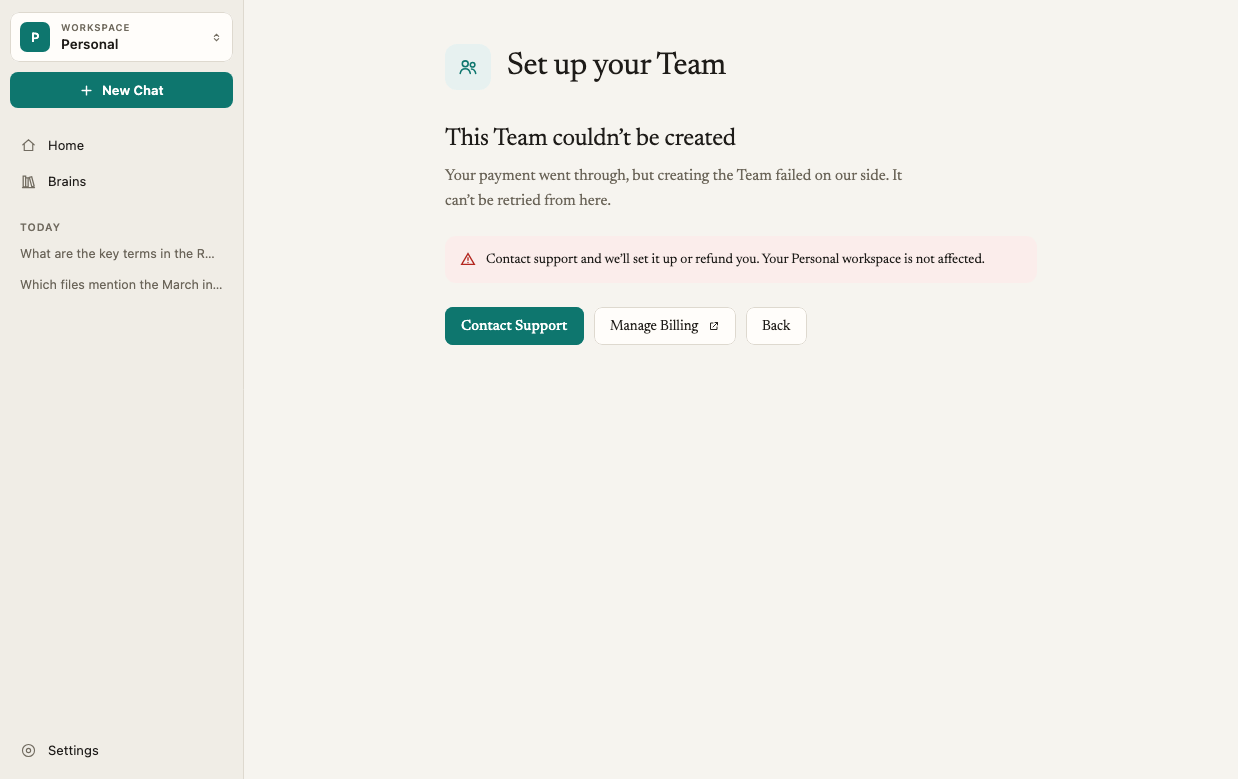
This Team could not be created
This Team could not be created
Creating the Team after your purchase failed on the Elephas side, and it cannot be retried from the app. Use Manage billing…, Contact support… or Buy again…. See Contact support.