
Available in Team workspaces. See Elephas for Teams.
Before you start
- You are the Team Owner or an Admin. Members cannot invite.
- Setup is complete. Invitations can only be sent once the Team is ready. See Set up a Team workspace.
- A seat is free. The Owner counts as one seat, and every pending invitation holds one. See Seats and billing.
- Create at least one Team Brain first, so the person has something to ask when they arrive. See Team Brains.
Steps
1
Open Members
In your Team workspace, click Team Settings, then Members. The invite form is under the member list and invitations, in Invite a Teammate.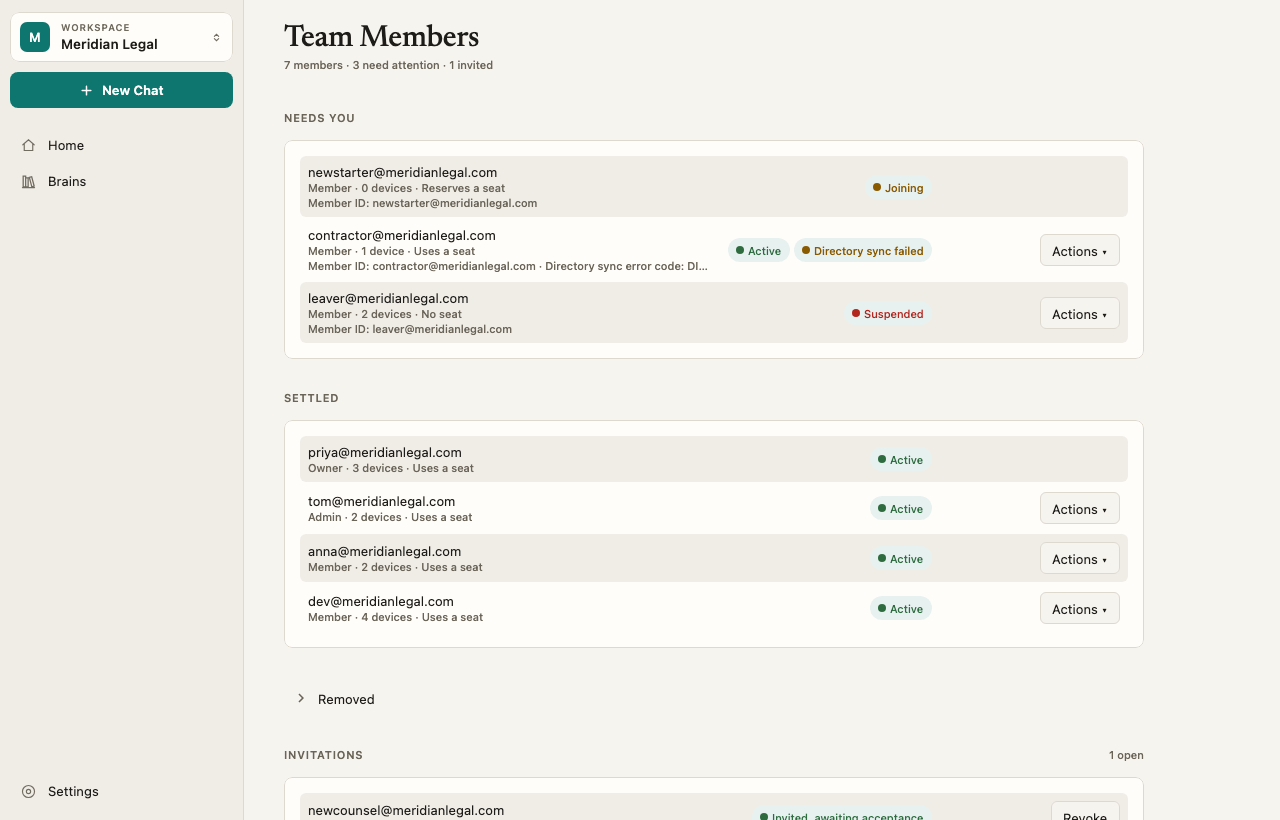
2
Enter their email
Type one address in E-mail address. Use the exact address the person will sign in with. An invitation only works for that address.
3
Choose a role
Under Role, pick Member or Admin. See Roles and permissions.
4
Send it
Click Send Invitation. Elephas confirms: “Invitation sent to” the address, and “One seat is now reserved.”
What happens next
- The person receives an invitation email from the Elephas sign-in service.
- They open Elephas, choose Join a Team… and sign in with the invited address. See Join a team.
- Their computer appears in Team Settings › Team Devices as Waiting for approval. You or another Admin approve it. See Team devices.
- Share Team Brains with them in Team Settings › Team Brains. Joining the Team does not give access to any Brain by itself. See Team Brains.
How it works
Invitations hold a seat
A pending invitation counts against your seats, so the Team never has more people than seats. The seat is released when the invitation is revoked, expires or fails. When the person accepts, the reserved seat becomes their seat.Invitation status
The Invitations list shows each invitation and its status:Revoke an invitation
Click Revoke next to the invitation, then Revoke Invitation to confirm. “The invitation to” that address “will stop working and its reserved seat will be released.” Choose Keep It to change your mind.Send an invitation again
There is no resend button. If an invitation is still live, sending another to the same address does nothing: “An invitation for this address is already live” and it was not sent again. To send a fresh email, revoke the live invitation, then invite the address again. After an invitation expires, you can simply invite again.Change someone’s role later
In the member list, use Make Admin or Make Member on their row. See Roles and permissions.Troubleshooting
If the person says the email never arrived, ask them to check spam, then revoke and invite again. More fixes in Team errors.