
Team workspaces need a Team plan, bought by the Team Owner and priced per seat. See Plans and pricing.
Who it’s for
Firms and small groups that work from a shared body of documents: a legal team with case files, an accounting practice with client records, a consultancy with project folders. Everyone asks the documents you share, not the internet, and every answer cites the file and passage it came from.Personal and Team workspaces
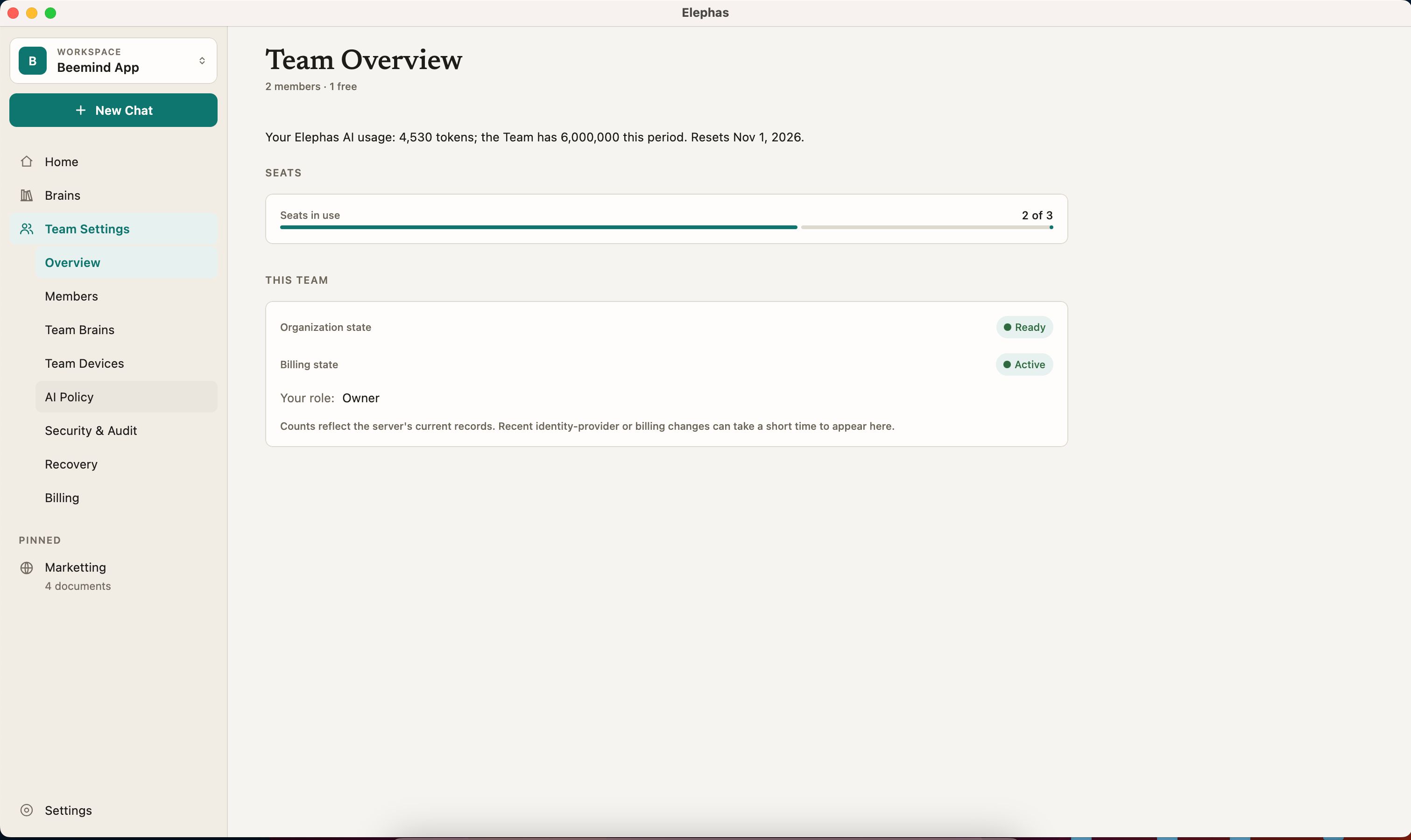
Everyone has a Personal workspace. Joining or setting up a team adds a Team workspace next to it. You switch between them with the Workspace switcher at the top of the sidebar.
The two never mix. Your Personal Brains do not move into a Team, and a Team never reads your Personal workspace. If a computer is blocked in a Team, or you are removed from one, your Personal workspace is unaffected.
Indexing happens on each computer. Always. Team sync encrypts your Team Brains, files and chats before they leave your computer, so the sync server stores data it cannot read. See Security overview.
Team Settings
In a Team workspace, the sidebar has one Team Settings row. Click it and Overview opens, with the eight sections listed underneath:
Every role sees every section. What you can change depends on your role, and a screen tells you when your role cannot do something. See Roles and permissions.
How a team gets started
1
The Owner buys a Team plan
In the browser, with the number of seats the team needs. The Owner counts as one seat.
2
The Owner sets up the Team in the app
The Owner’s computer becomes the team’s first computer, and the Owner saves the Team recovery kit. See Set up a Team workspace.
3
The Owner adds Team Brains and invites people
So nobody arrives to an empty workspace. See Team Brains and Invite members.
4
Members join and get approved
Each member signs in with the invited email, and an Owner or Admin approves their computer. See Join a team.