AI Writing Tools
Use Rewrite, Continue Writing, and Smart Write to draft, improve, and finish text in any app on your Mac.
Where the writing tools live
The core writing tools (Rewrite, Continue Writing, and Smart Write) are available from the Elephas status menu and from Super Command, so you can use them in any app on your Mac. In most cases you select text first, then choose an action. You can run them with your offline AI model for fully local processing, and Sensitive Data Protection can redact personal details before any cloud model is used.
Rewrite
Select text and choose Elephas → Rewriter, then pick a mode. Elephas ships with several built-in rewrite modes:
- Zinsser — short sentences, clear verbs, no jargon, active voice
- Friendly — a conversational, approachable tone
- Professional — formal language for business communication
- Viral — posts written to stand out and connect emotionally (shortcut Cmd + Ctrl + V; requires Elephas 3.3 or later)
- Persuasive — compelling narratives that drive action
Continue Writing
Select content you have already written and let Elephas extend it in the same direction. The more text you select, the better the result, since Elephas has more context to work from. You can also ask it for variations, such as generating counter arguments to the points you have made.
Smart Write
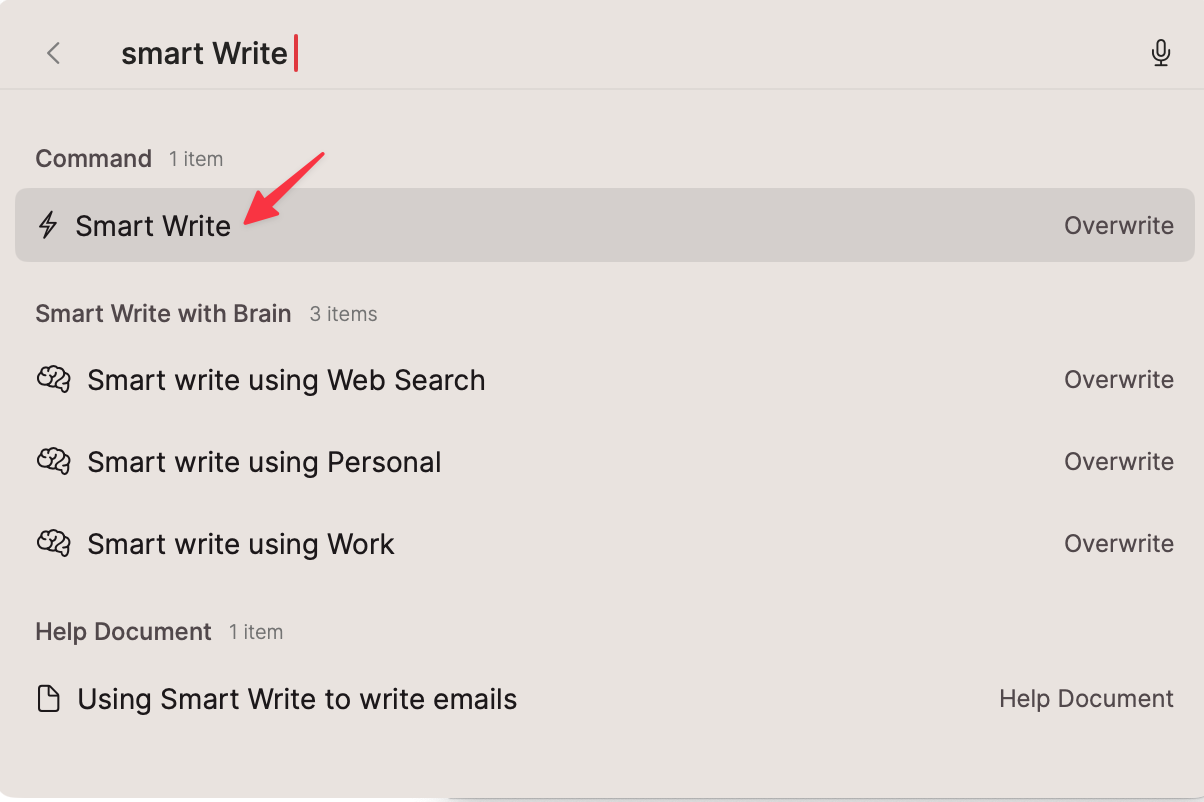
Smart Write turns short, structured hints into a finished draft. Open it with Ctrl + Cmd + S, from the Elephas menu, or through Super Command. Give it brief context (for example a company name, an offer, and a closing line) and Elephas writes the full piece, like instructing an assistant. It works for emails, blog posts, reports, summaries, headlines, and more.
Custom rewrite modes
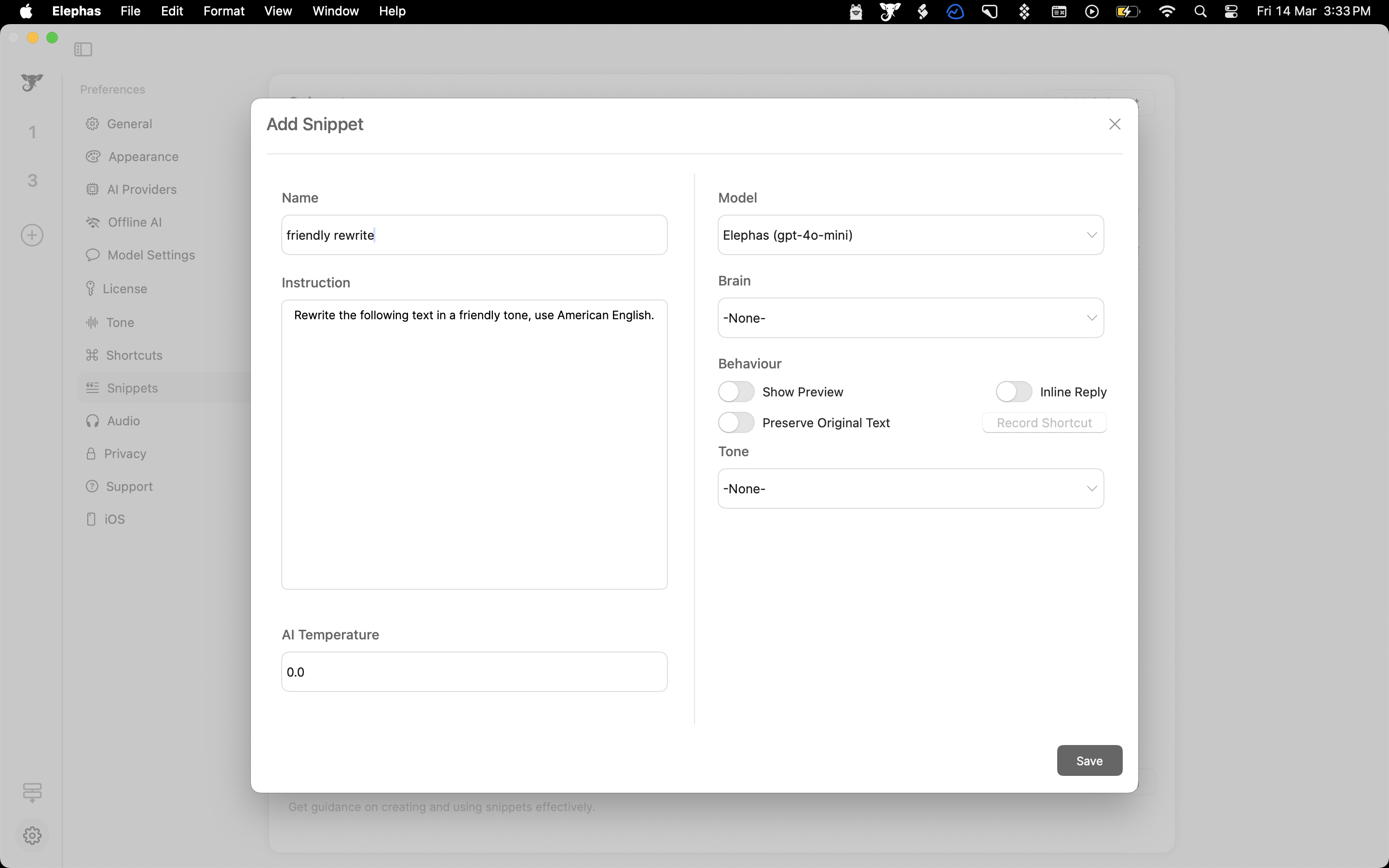
Beyond the built-in modes, you can create your own rewrite actions using Snippets, for example “Rewrite the following text in a friendly tone, use American English.” Save it as a snippet and invoke it from Super Command or a hotkey. See Writing Styles, Presets & Snippets for the full setup.
Seeing what changed (diff viewer)
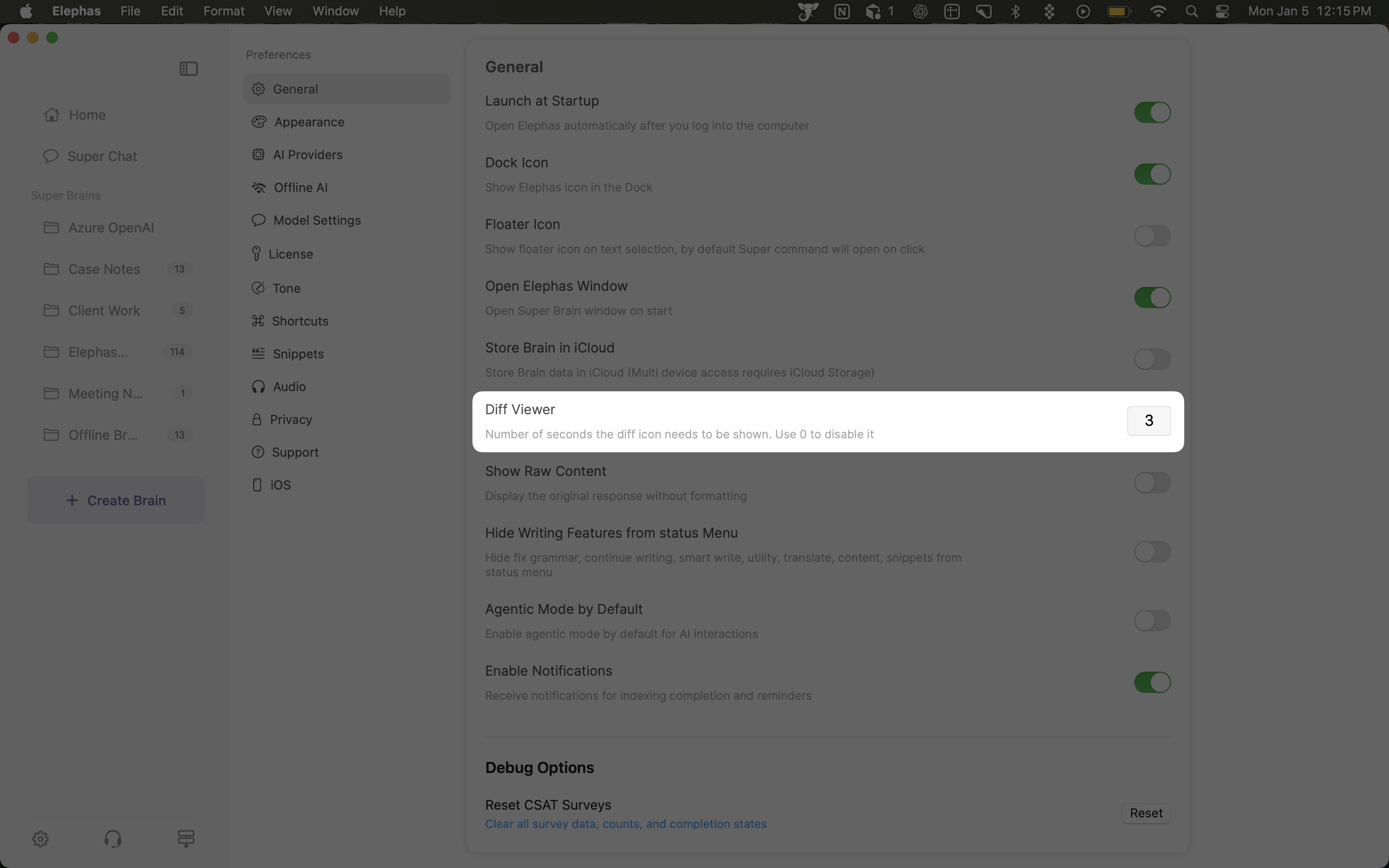
After a rewrite or grammar correction, Elephas can show a diff so you can see exactly what changed. In Preferences you can set how many seconds the diff indicator stays on screen, or set it to zero to turn it off.
The Content menu: dedicated writers
Beyond Smart Write, the Elephas → Content menu has guided, long-form writers that don't need any text selected first (a four-square icon marks tools that work without a selection):
- Write a blog — give a subject and keywords for more control over the draft
- Write an email — answer “What are the main points you want to cover?” and Elephas drafts it
- Write a headline — three types: Email Subject, Blog Headline, and Google Ad title (try again if the first set isn't right)
- Repurpose — select text, then Content → Repurpose to turn it into social media posts
Smart Write techniques
Smart Write follows your instructions closely, so structure the prompt to get exactly what you want:
- Placeholders: use
[Insert]or dollar-quoted$$...$$markers and Elephas fills them with data/stats you provide - Custom templates / formats: specify the output shape — a numbered list of points or facts, an essay outline, hierarchical technical categories, or structured data extraction (including JSON, e.g. fields like Color/Fruit)
- Analogy + context: for speeches or creative pieces, add an analogy and context (e.g. “use a boat as an analogy; context: new office opening”)
- JIRA stories: set the context as a project manager, then list acceptance criteria numbered 1–10 with an
[Insert]placeholder so the remaining points auto-fill; Continue Writing can extend them - Files / code: Smart Write can generate an HTML file or code from a formatted instruction
Output is token-limited (around 450 tokens), so for long results generate in sections or use Continue Writing to extend. To summarize notes, select the text, open Super Command, and choose Summarize.