General Settings & Startup
Open Elephas preferences, enable launch at login, and manage menu bar behavior.
Opening Preferences
There are three ways to open Elephas Preferences:
- Status menu — click the Elephas icon and choose Preferences (Cmd + ,)
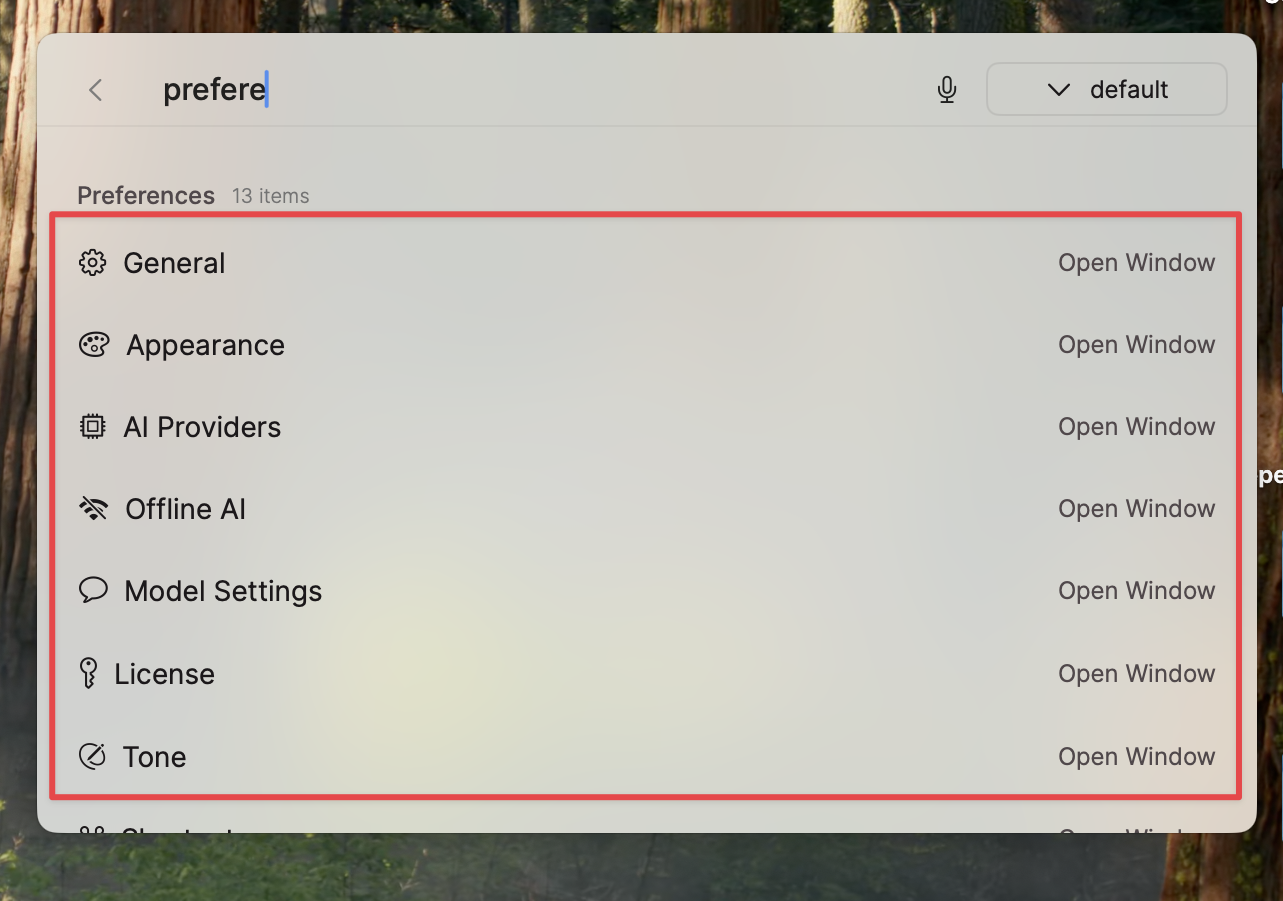
- Super Command — open Super Command, type “Preferences,” and click Open Window
- Elephas window — click the ⚙️ settings icon or press Cmd + ,
Preference sections
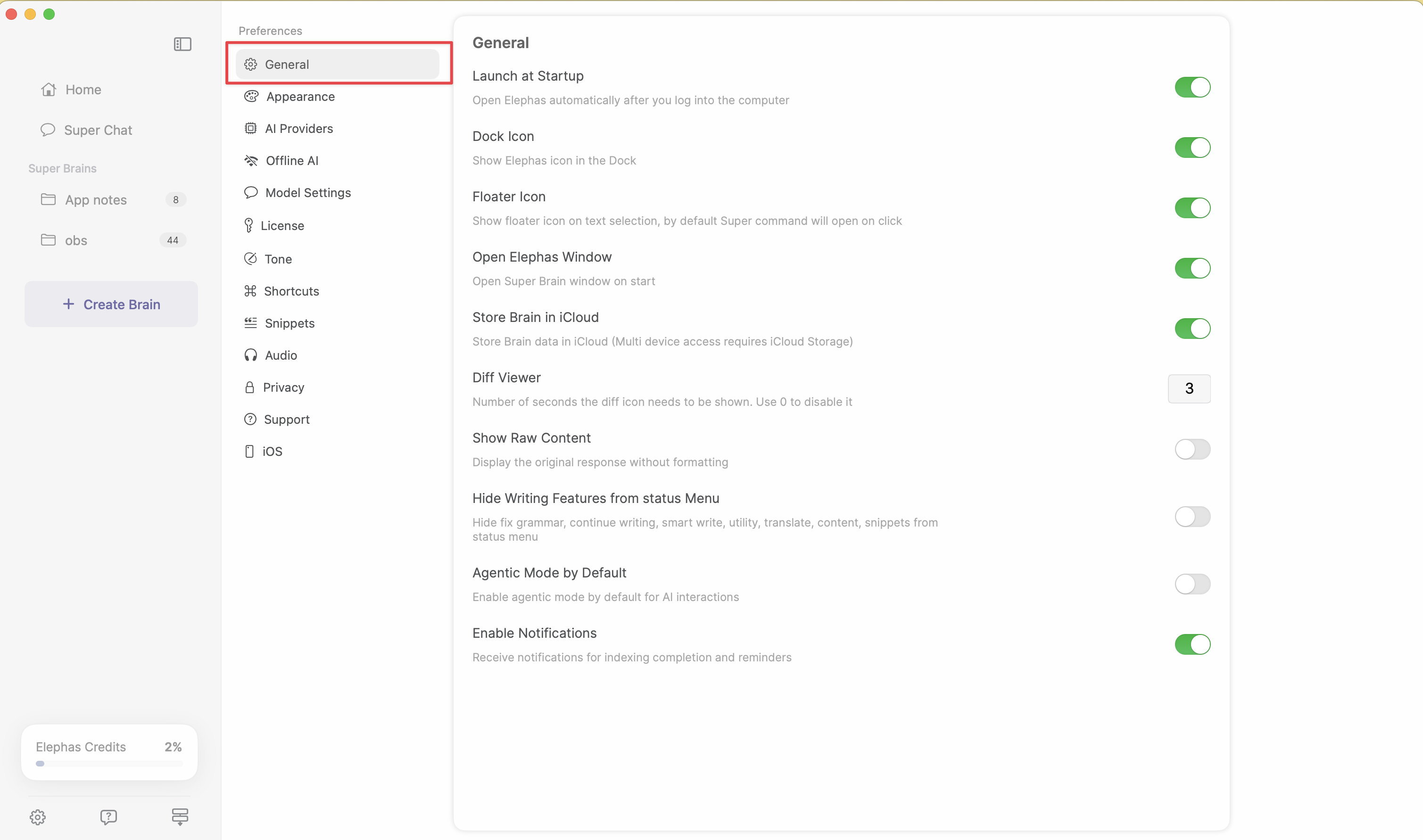
Preferences is organized into sections:
- General — startup behavior, dock visibility, floating icon, iCloud sync
- Appearance — Light, Dark, or System theme and background effects
- AI Providers — connect OpenAI, Claude, Gemini, Groq, Azure, and others
- Offline AI — run Elephas completely offline for full privacy
- Model Settings — default models across features
- License — subscriptions, credits, and account details
- Tone — your custom writing styles
- Shortcuts — keyboard shortcuts
- Snippets — reusable AI commands
- Audio — transcribe and analyze voice files
- Privacy — control anonymized event sharing
- Support — help resources and subscription management
- iOS — download and sync the Elephas mobile app
Launch Elephas at startup
To have Elephas ready whenever you start your Mac, open Preferences → General and turn on Launch at Startup. Elephas then launches automatically each time you boot and waits in the menu bar until you need it.
Related settings
For provider keys and model selection, see AI Provider Configuration. To change how you open Super Command, see Keyboard Shortcuts.
Related articles
SettingsKeyboard ShortcutsCustomize Super Command shortcuts and other key bindings in Elephas. View default shortcuts and troubleshoot conflicts.SettingsAI Provider ConfigurationStep-by-step setup for OpenAI, Claude, Gemini, Ollama, and other AI providers in Elephas. Switch between Offline, Cloud, and Bring Your Own Key modes.TroubleshootingCommon IssuesSolutions for the most frequently reported issues with Elephas: Super Command not working, slow AI, missing citations, billing, and permissions.