Super Command Overview
Access Elephas AI from any app on your Mac with Super Command. Press a shortcut, type, get answers without switching windows.
What is Super Command?
Super Command is a floating command bar that lets you access Elephas from any application on your Mac. Press a keyboard shortcut, type your question, and get an answer without switching windows.
Opening Super Command
Press Ctrl + Space (default shortcut) to open the command bar. You can customize this shortcut in Settings.
What you can do
- Ask questions using your workspace context
- Rewrite or improve selected text in any app
- Summarize content from the current page or document
- Translate text between languages
- Generate replies to emails or messages
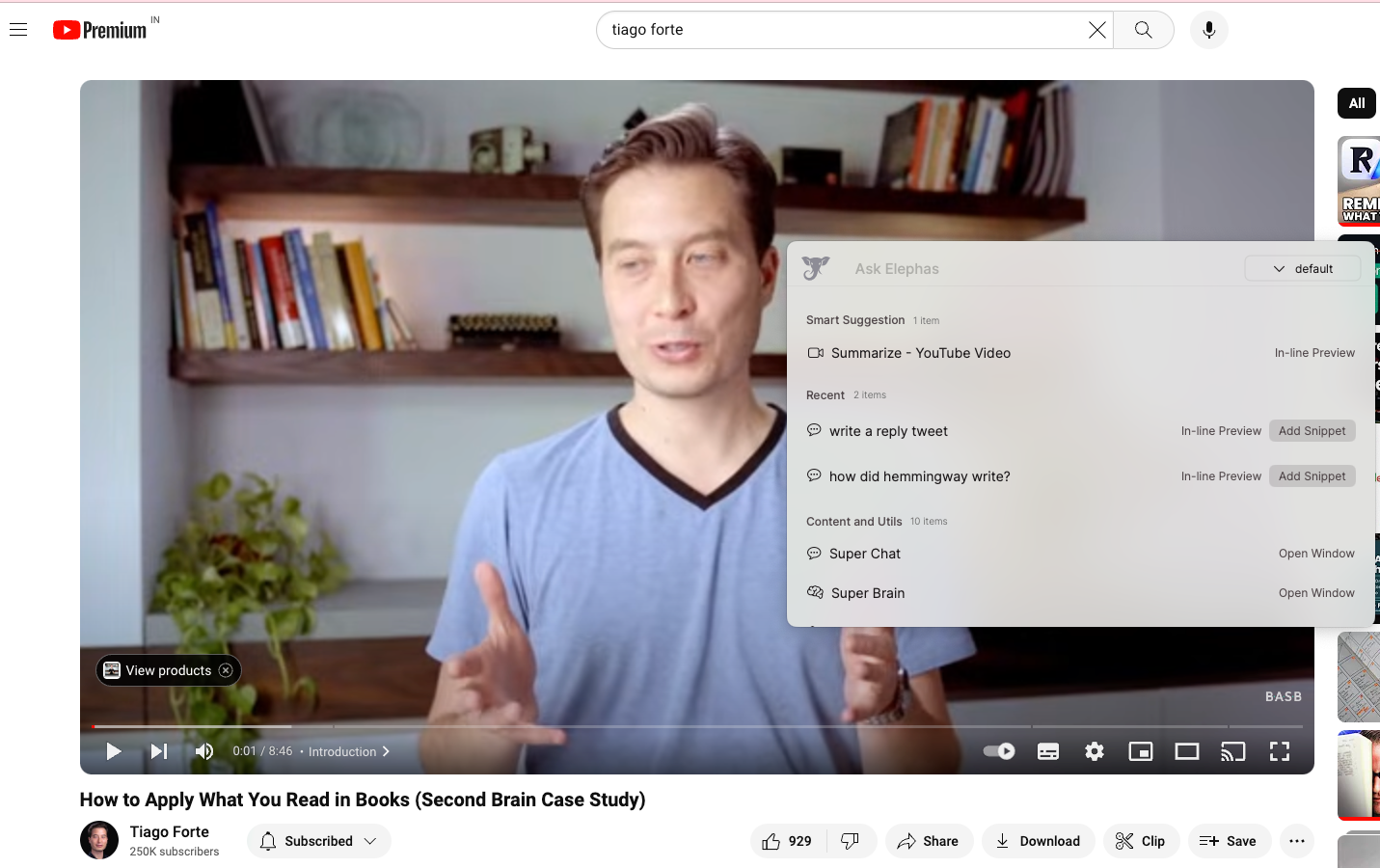
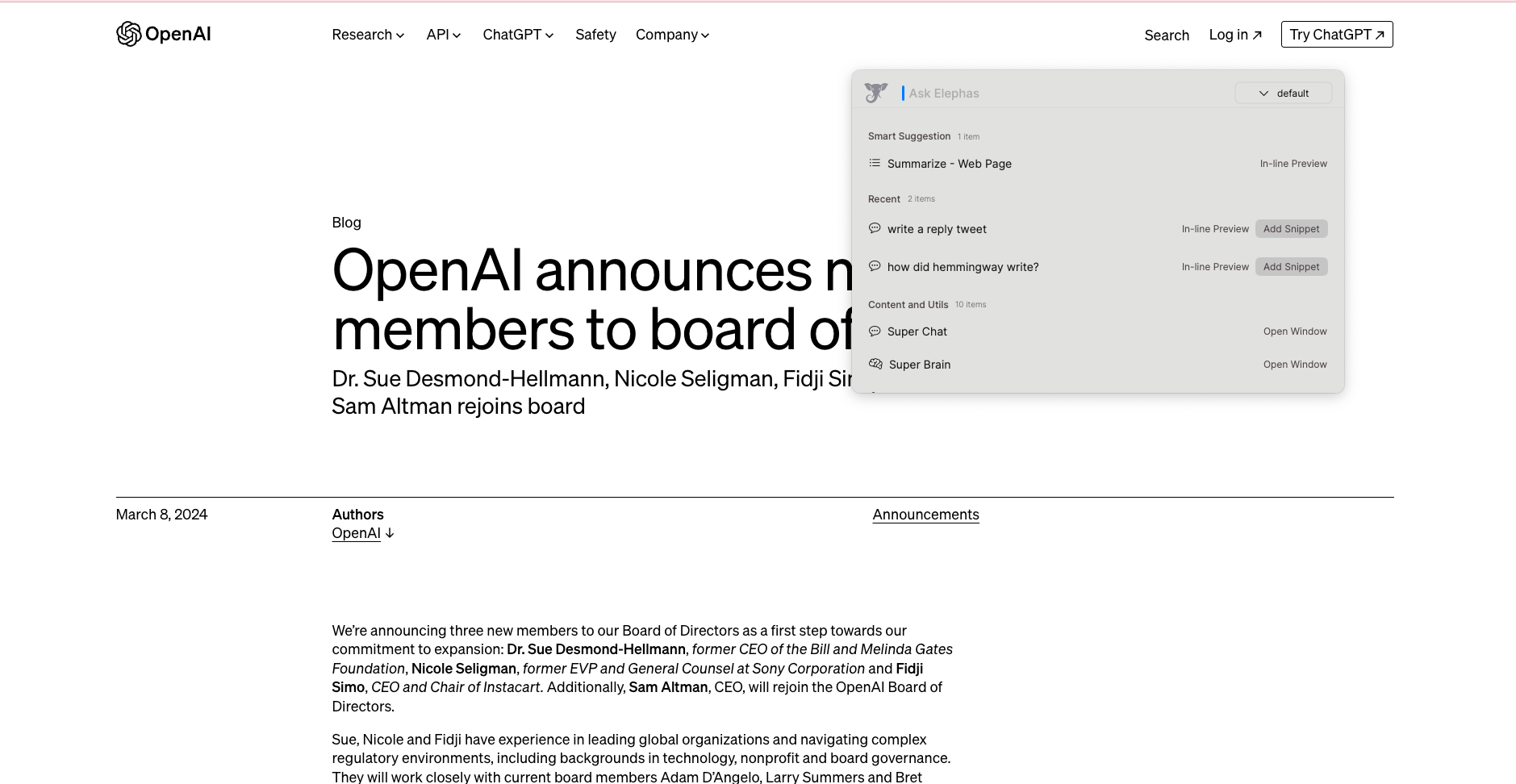
Using with selected text
Select text in any app, then open Super Command. Elephas automatically includes the selected text as context for your query. This is useful for rewriting paragraphs, answering questions about specific content, or generating responses.
Use your Super Brain anywhere
Super Command exposes three commands that use a specific Brain by name:
- Chat with [Brain Name] — answers using only that Brain's indexed context
- Smart Write [Brain Name] — writes using your data and tone
- Continue Write [Brain Name] — expands or continues your text with your knowledge

Add content to a Brain from Super Command
- Select files or folders in Finder, open Super Command, and choose the target Brain to index them
- While browsing any website, use Add Web to Brain to capture the page
- On a YouTube page, capture the video transcript into a Brain the same way

Spotlight, Content & Utils menus
Elephas 4.x integrates with macOS Spotlight, so you can reach Elephas actions from the system search bar. Other useful actions:
- Content → Summarize — summarize selected text
- Content → Counter argument — generate an opposing view (Pro)
- Presets — your saved instruction templates (Pro)
- Utils → Explain code — select code and have Elephas explain it (requires OpenAI Codex access)
- Terminal commands — describe what you want in plain text and get the matching Mac/Unix command