How to Run AI Completely Offline on Mac
Every prompt you send to ChatGPT, Claude, or Gemini is processed on someone else's server. Here are four ways to run AI entirely on your Mac — no internet required, no data leaves your device.
Key takeaway
Apple Silicon Macs can now run powerful AI models entirely on-device. You have four main options: Elephas (easiest, full-featured), Ollama (free, developer-focused), LM Studio (GUI for local models), and Apple Intelligence (built-in, limited). The right choice depends on your technical comfort and what you need AI to do.
Why Run AI Offline on Your Mac?
Cloud AI services are powerful, but they come with real trade-offs. Every prompt you send travels to a data center, gets processed on shared infrastructure, and is stored — often indefinitely. For many professionals, that's a deal-breaker.
Your Data Gets Stored (and Maybe Used for Training)
Most cloud AI providers retain your inputs. OpenAI's default settings use your conversations to train future models. Even with opt-outs, your data still sits on their servers — subject to breaches, subpoenas, and policy changes.
Professional Compliance Requirements
Lawyers risk waiving attorney-client privilege. Healthcare professionals face HIPAA violations. Consultants under NDA can't send client documents to third-party servers. Offline AI eliminates these risks entirely.
No Internet? No Problem.
Offline AI works on planes, in courtrooms, at client sites with restricted networks, and during outages. Your AI assistant doesn't depend on an API server being online.
Zero Latency, Zero Cost Per Query
Local inference has no per-token cost and no network round-trip. Once you have a model running, every query is free and instant — no subscription fees for the AI processing itself.
For a deeper look at privacy risks with cloud AI, see our guide on the AI note-taking privacy problem. Lawyers should also read how AI tools can waive attorney-client privilege, and healthcare attorneys can review our HIPAA-compliant AI guide. Consultants handling NDAs will find our guide on offline AI for confidential client documents particularly relevant.
What “Offline AI” Actually Means
Not all “local AI” is truly offline. Here's the spectrum:
ChatGPT, Claude, Gemini
Every query goes to remote servers. You have zero control over where your data ends up.
Apple Intelligence, Elephas (cloud mode)
Simple tasks run locally; complex tasks route to cloud servers. Privacy depends on the routing decision.
Elephas (offline mode), Ollama, LM Studio
All processing happens on your Mac's hardware. No internet connection needed. No data leaves your device.
Why Apple Silicon Changes Everything
Apple Silicon (M1, M2, M3, M4) uses unified memory architecture — the CPU, GPU, and Neural Engine all share the same memory pool. This means AI models can use your full RAM for inference without the bottleneck of copying data between CPU and GPU memory. A Mac with 16 GB of unified memory can run models that would require a dedicated GPU on Windows or Linux.
Elephas — Full-Featured Offline AI for Mac
Elephas is purpose-built for Mac users who need AI that works everywhere on their system — in any app, with their own documents, and with a one-click toggle between cloud and offline modes. No terminal commands, no model downloads, no configuration.
Setup (under 5 minutes)
Download Elephas from elephas.app and install it on your Mac.
Open Preferences and toggle Offline Mode on. Elephas downloads a local model optimized for your Mac's hardware.
Press the global shortcut (⌘+Space or your custom shortcut) in any app to summon Elephas.
Create Super Brains by uploading your documents, PDFs, and notes. Elephas indexes them locally for instant Q&A.
What makes Elephas different
- System-wide access — works in any Mac app (Mail, Pages, Safari, Slack, etc.)
- Super Brain — upload 100+ documents and query across them with AI, all locally
- One-click offline toggle — switch between cloud models and local models instantly
- Supports both local models AND cloud APIs (OpenAI, Claude, Gemini) when you want them
- Optimized for Apple Silicon — uses Metal acceleration and unified memory efficiently
- No technical setup — no Terminal, no Python, no model file management
Best for: Professionals who want offline AI that “just works” — lawyers, consultants, executives, researchers, and anyone handling confidential documents. Starts at $19/month.
Ollama — Free, Open-Source, Terminal-Based
Ollama is a free, open-source tool that makes it easy to download and run large language models locally. It's the foundation that many other local AI tools are built on. If you're comfortable with Terminal, Ollama gives you maximum control at zero cost.
Setup
Download Ollama from ollama.com and install it.
Open Terminal and run:
ollama pull llama3.2Start chatting:
ollama run llama3.2For document Q&A, you'll need a separate RAG tool (like Open WebUI or AnythingLLM) on top of Ollama.
Pros
- Completely free
- Huge model library
- Full control over models
- Great API for developers
Cons
- Terminal-only interface
- No built-in document Q&A
- No system-wide integration
- Requires manual model management
Best for: Developers and technical users who want free, maximum-control local AI. Great as a backend for other tools. Free and open-source. See our Ollama vs ChatGPT comparison for a deeper dive.
LM Studio — A GUI for Running Local Models
LM Studio gives you a ChatGPT-like interface for running models locally. It's a good middle ground — more visual than Ollama, but still focused on model experimentation rather than day-to-day productivity workflows.
Setup
Download LM Studio from lmstudio.ai and install it.
Browse the model library inside the app. Search for models like Llama 3.2, Mistral, or Phi-3.
Click download on your chosen model (sizes range from 2 GB to 40+ GB).
Start a chat in the built-in interface — no Terminal needed.
Pros
- Nice visual interface
- Easy model browsing
- Built-in chat UI
- Free for personal use
Cons
- Chat only — no system-wide access
- No document knowledge base
- Model management is manual
- No workflow integrations
Best for: Users who want to experiment with different AI models in a clean visual interface. Good for testing models before committing to one. Free for personal use.
Apple Intelligence — Built Into macOS
Apple Intelligence is Apple's on-device AI, built into macOS Sequoia and later. It handles basic tasks like text summarization, rewriting, and proofreading. However, it's not fully offline — complex requests route to Apple's Private Cloud Compute servers.
What Apple Intelligence can do on-device
- Summarize emails, messages, and web pages
- Rewrite and proofread text in any text field
- Smart replies in Mail and Messages
- Complex reasoning and analysis(requires cloud)
- Document Q&A across your files(requires cloud)
- Custom knowledge bases(requires cloud)
- Siri's advanced capabilities (uses cloud)(requires cloud)
Best for: Light AI use cases — quick summaries, rewrites, and proofreading. Not suitable for professionals who need guaranteed offline processing for confidential documents. Free (included with macOS).
Comparison: All 4 Methods Side by Side
| Feature | Elephas | Ollama | LM Studio | Apple Intelligence |
|---|---|---|---|---|
| 100% Offline Mode | ||||
| System-Wide Access | ||||
| Document Knowledge Base | ||||
| Visual Interface | ||||
| No Setup Required | ||||
| Multiple Model Support | ||||
| Cloud + Local Hybrid | ||||
| Free | ||||
| Works in Any App | ||||
| Apple Silicon Optimized | ||||
| Price | From $19/mo | Free | Free | Free (with macOS) |
Which Method Is Right for You?
You're a professional handling confidential documents
Lawyers, consultants, healthcare workers, executives. You need AI that integrates into your workflow, handles documents, and guarantees zero cloud exposure.
→ Choose ElephasYou're a developer who wants maximum control
You're comfortable with Terminal, want to run specific models, and may build your own tools on top of local AI inference.
→ Choose OllamaYou want to experiment with different AI models
You're curious about local AI, want to try different models with a nice UI, and don't need system-wide integration or document features.
→ Choose LM StudioYou just need basic text help
Quick summaries, rewrites, and proofreading are enough. You don't handle sensitive client data and don't need guaranteed offline processing.
→ Choose Apple IntelligenceFor a broader survey of privacy-first tools across all categories, see our guide on AI tools that keep client data private.
Mac Hardware Requirements for Local AI
The model you can run depends on your Mac's unified memory. Here's a practical guide:
Good for basic chat, summarization, and simple writing tasks. Adequate for Apple Intelligence and Elephas with smaller models.
The sweet spot for most users. Handles document Q&A, drafting, analysis, and research. Recommended minimum for Elephas and Ollama.
Near-cloud-quality responses. Handles complex reasoning, long documents, and professional-grade analysis. Future-proofed for larger models.
Frequently Asked Questions
Can I run ChatGPT or Claude offline on my Mac?
No. ChatGPT and Claude are cloud-only services — every prompt you type is sent to remote servers for processing. You cannot run them offline. However, you can run open-source models locally using tools like Elephas, Ollama, or LM Studio, which process everything on your Mac's hardware without any internet connection.
How much RAM do I need to run AI locally on a Mac?
It depends on the model size. Small models (3B–7B parameters) run well on 8 GB of unified memory. Medium models (13B) need 16 GB. Large models (30B–70B) require 32–64 GB or more. Most modern Macs with Apple Silicon (M1/M2/M3/M4) and 16 GB RAM can run capable 7B–13B models comfortably.
Is offline AI as good as ChatGPT or Claude?
For general knowledge and reasoning, cloud models like GPT-4o and Claude Opus still lead. But local models have improved dramatically — Llama 3, Mistral, and Phi-3 can handle summarization, drafting, document Q&A, and research tasks well. For privacy-sensitive work, the trade-off is clear: slightly less raw capability in exchange for complete data control.
Does Apple Intelligence count as offline AI?
Partially. Apple Intelligence processes simple tasks (summaries, rewrites, proofreading) on-device using Apple's own models. But for complex requests, it routes to Apple's Private Cloud Compute servers. You don't get to choose which tasks stay local versus cloud. For professionals who need guaranteed zero-cloud processing, dedicated offline tools like Elephas provide more control.
Can I use offline AI with my existing documents and notes?
Yes. Elephas lets you create 'Super Brains' — local knowledge bases built from your documents, PDFs, notes, and web clips. You can query across all your files using AI without any data leaving your Mac. Ollama and LM Studio also support document processing, but require more manual setup and third-party integrations.
Will running AI locally slow down my Mac?
During active inference (when the AI is generating a response), you'll use significant CPU/GPU resources and may notice a brief slowdown in other apps. Apple Silicon Macs handle this well thanks to unified memory architecture. When the AI isn't actively generating, there's zero performance impact. Elephas is optimized for Mac and manages resources efficiently.

Related Resources
Explore all AI Privacy & Security resourcesPerplexity Computer vs Claude Cowork: Which AI Agent Should Run on Your Mac?
18 min readarticleChatGPT Business vs Plus: Which Plan Is Right for Your Firm?
15 min readarticlePerplexity Computer Review (2026): What It Actually Does, What It Costs, and Who It's For
11 min readarticleClaude API Credits: How to Use Your Free $100 to $200 Before It Expires
11 min readRun AI Offline on Your Mac — The Easy Way
Elephas gives you system-wide AI with a one-click offline toggle. Upload your documents, build a local knowledge base, and keep every byte on your Mac.
Try Elephas Free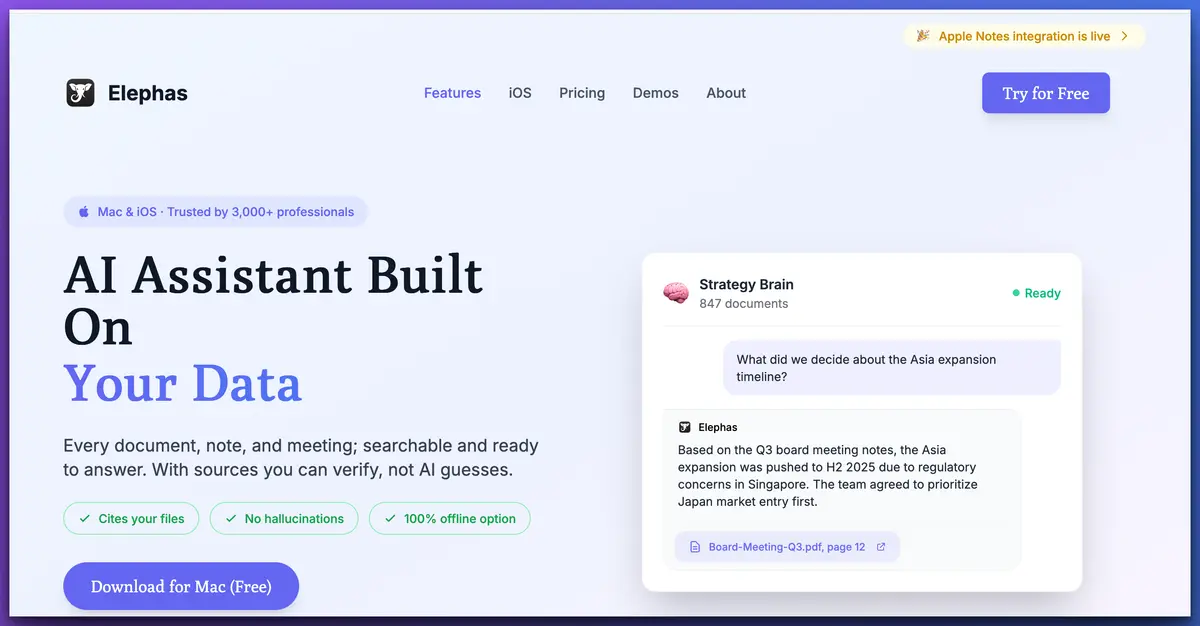
No credit card required. Works on any Mac with Apple Silicon.