How to Integrate ChatGPT with Apple Notes
ChatGPT integrates with Apple Notes through three methods: the Apple Intelligence extension (iOS 18.2+/macOS 15.1+), custom Shortcuts workflows, and Writing Tools Compose. All three require compatible hardware and an active internet connection. Each method has different setup steps and works better for different use cases. This guide walks you through every method step by step, covers the real limitations you should know about, and shows you a simpler alternative that works completely offline.
3
Integration methods
M1+
Hardware required
$20/mo
ChatGPT Plus cost
Offline
Elephas works without internet
Method 1 – Apple Intelligence Extension Setup

Apple Intelligence brings ChatGPT directly into your device's operating system. This method requires specific hardware and software versions, but once set up, it gives you ChatGPT access across all your apps, including Notes.
Requirements for this method:
- iPhone 15 Pro or later, or Mac with M1 chip or newer, or iPad with M1 or newer
- iOS 18.2 or later, macOS Sequoia 15.1 or later, or iPadOS 18.2 or later
- Device language set to English (US, Australia, Canada, Ireland, New Zealand, South Africa, or UK)
- ChatGPT account (free account works for basic access, Plus unlocks advanced features like the o1 model)
How to set up ChatGPT in Apple Notes
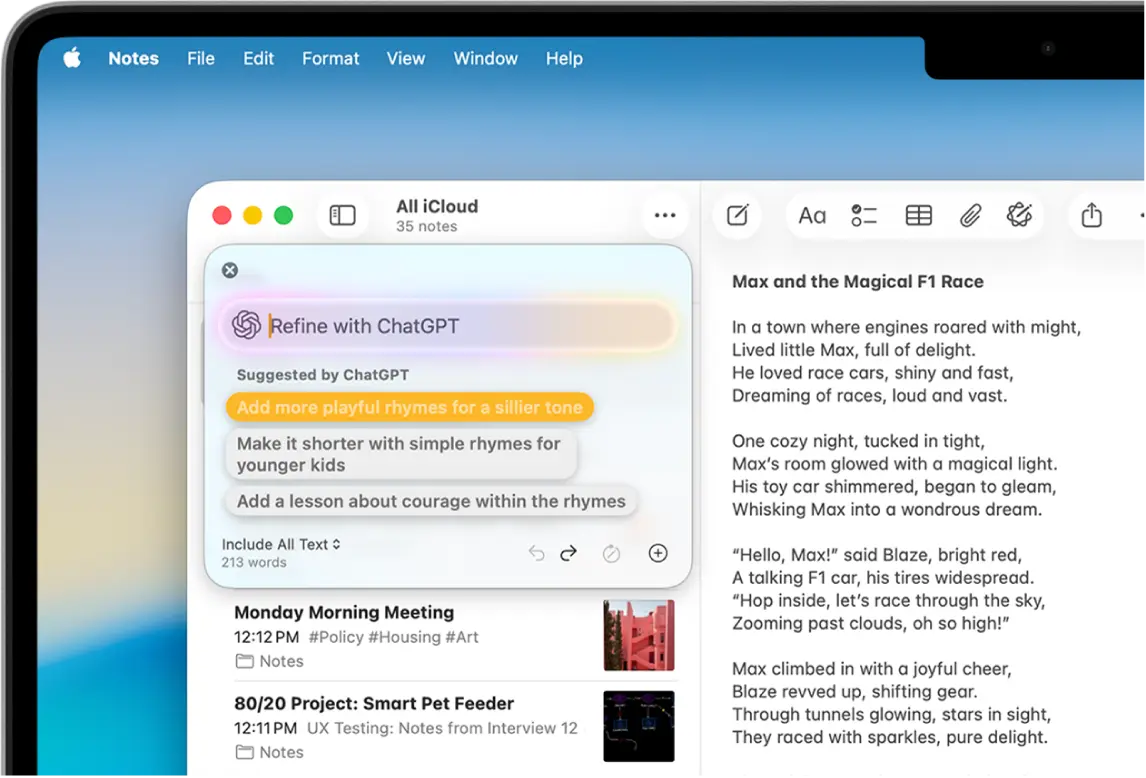
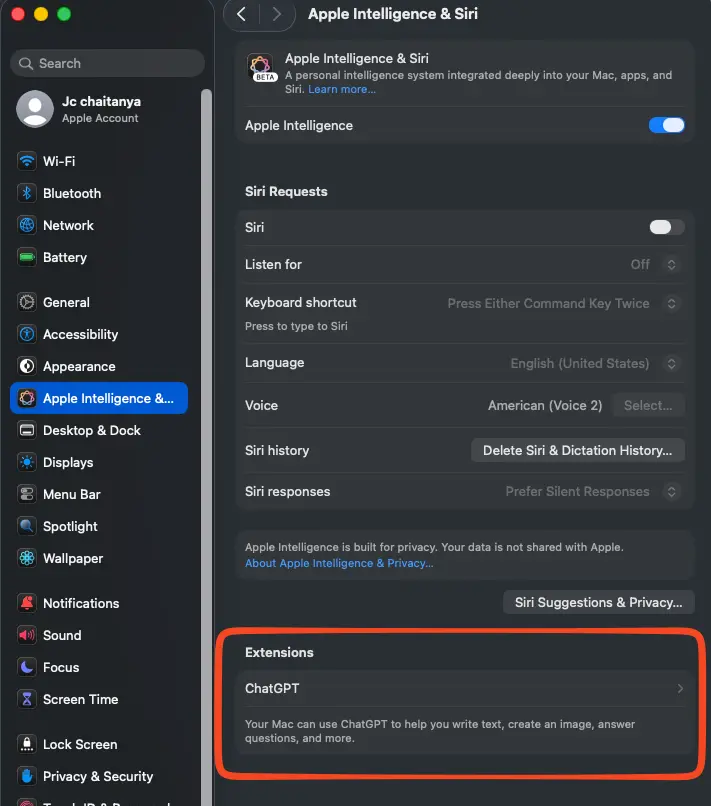
Setting it up takes just a few taps. Open Settings on your iPhone or iPad, then tap Apple Intelligence & Siri. Look for ChatGPT in the Extensions section and tap Set Up. Follow the prompts to sign in with your OpenAI credentials. You can choose to link your account or use ChatGPT anonymously. Linking an account gives you access to more features and higher usage limits.
On Mac, the process is similar. Go to System Settings, click Apple Intelligence & Siri, find ChatGPT under Extensions, click Set Up, then click Next to complete the process. If using a paid account, go into your ChatGPT account settings, enable the “Works With Apps” toggle, and select Apple Notes as an approved app.
Using ChatGPT inside Apple Notes works through the Writing Tools menu. Open any note or create a new one. Select text you want to work with, or tap in an empty area to start fresh. Right-click (or long-press on iOS) and choose Writing Tools from the menu.
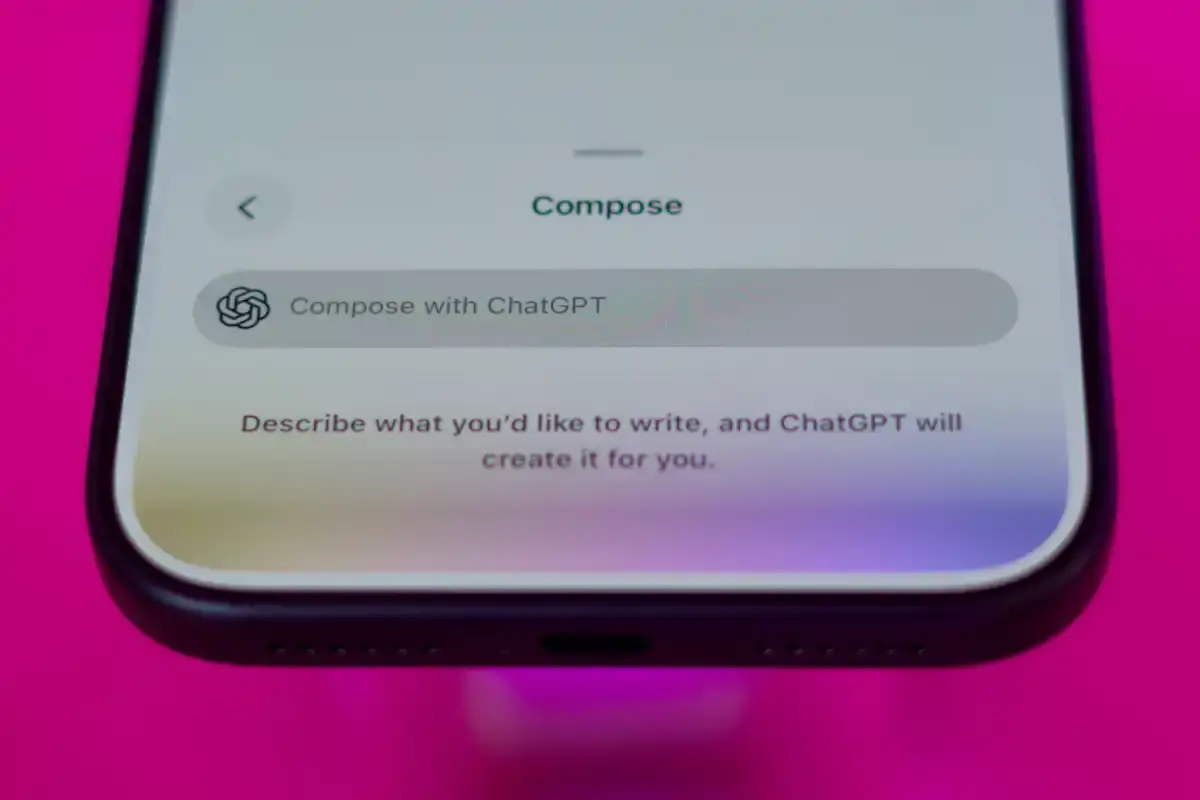
You'll see options powered by ChatGPT, including Compose, which lets you generate new content based on prompts. On macOS, pressing Option + / inside a note also opens the Writing Tools panel where you can send content to ChatGPT.
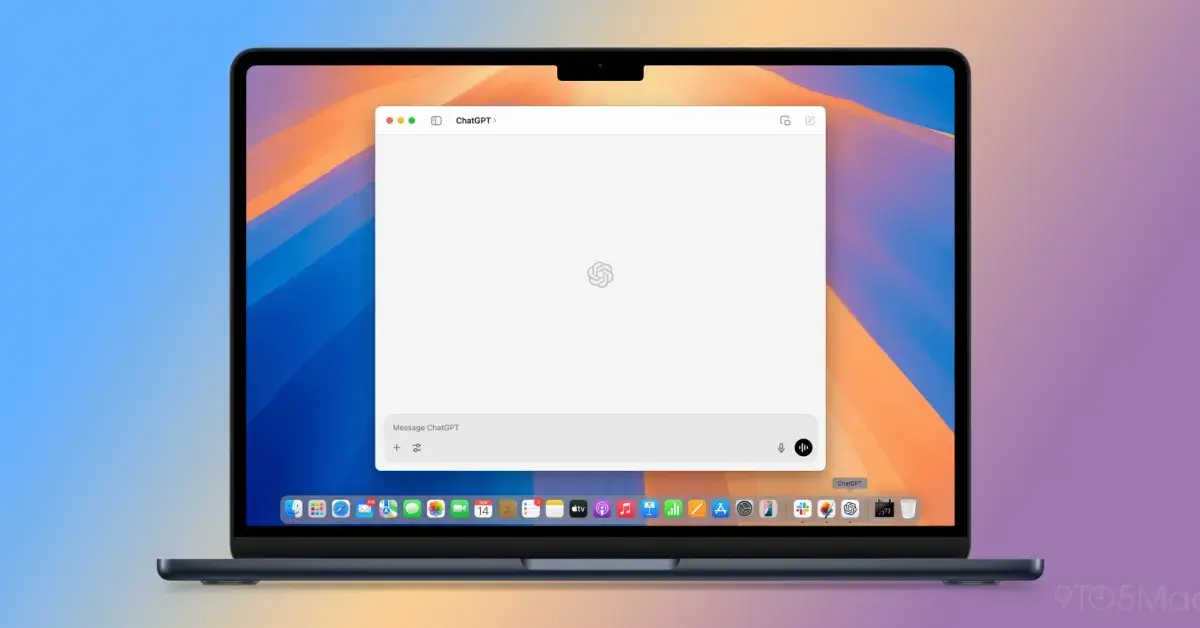
The ChatGPT Mac app supports an additional shortcut: Option+Command+Shift+1 shares your desktop (which includes your open Notes window) with ChatGPT for analysis.
Siri integration is part of this setup too. You can say “Hey Siri, summarize this note” while you have a note open, and Siri will use ChatGPT to create a summary. This works hands-free and pulls context from whatever note you're currently viewing.
Privacy controls are user-managed. Every request you send to ChatGPT requires confirmation before your data leaves your device. Anonymous mode keeps your requests private from OpenAI, but you'll have lower usage limits and no access to advanced models. Linking your ChatGPT account gives you full features but means OpenAI processes your queries under their standard retention policies.
The biggest limitation here is internet dependency. Nothing works without an active connection because all processing happens on OpenAI's servers. Every query shows a confirmation prompt before sending data, which adds friction. Response times depend on server availability and can slow down during peak usage.
Method 2 – Custom Shortcuts for ChatGPT and Notes
Shortcuts let you automate the process of sending prompts to ChatGPT and saving responses directly into Apple Notes. This method is best for people who want to log AI conversations automatically or build custom workflows.
You need the Shortcuts app, which comes pre-installed on all modern Apple devices. You also need the ChatGPT extension enabled through Apple Intelligence, as described in Method 1.
Creating a basic ChatGPT Notes shortcut from scratch involves several steps. Open the Shortcuts app on your device. Create a new shortcut and add these actions in order:
- Ask for Input (this captures your question)
- Use Model (choose ChatGPT or Extension Model from the list)
- Format Date (optional, but useful for timestamping your entries)
- Create Note (select which folder to save in)
- Append to Note (add the ChatGPT response to the note you just created)
- Add tags (optional, helps with organization)
A common setup involves a “GPT IN” folder in Notes where content gets dropped before processing, and a “GPT OUT” folder where the ChatGPT output lands after the shortcut runs. Building this kind of pipeline means writing custom automations that call the integration on a schedule or on demand.
Once built, you can run this shortcut from Siri by saying “Run [shortcut name],” from a home screen icon, or from the Notes share sheet. Each time it runs, it asks for your input, sends it to ChatGPT, gets the response, and saves everything into a new note with a timestamp.
Use cases for this method include logging AI queries with timestamps for reference later, automated research note generation where you ask multiple questions in sequence, and study note creation where you feed ChatGPT study material and have it generate summaries or quiz questions.
One thing to keep in mind: every Shortcuts automation you build is another point of failure. When either Apple or OpenAI changes something on their end, your workflows can silently break. These pipelines take meaningful time to configure and tend to need maintenance whenever updates ship.
Method 3 – Writing Tools Compose with ChatGPT
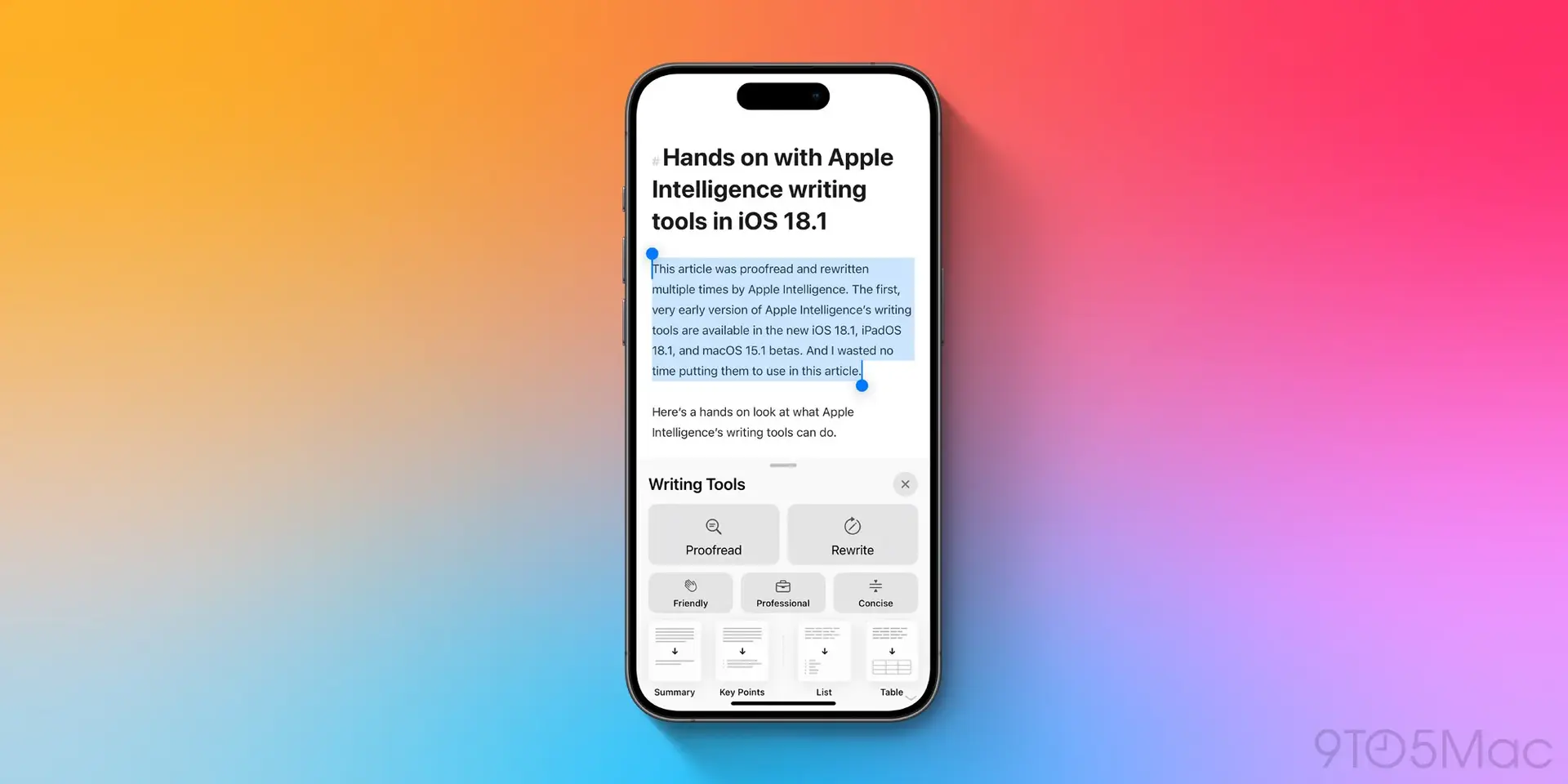
Writing Tools is the simplest method. It's built directly into Apple's operating system and works anywhere you can type, including Notes. No setup beyond enabling the ChatGPT extension is required.
To access it, open or create a note. Select text you want to edit, or tap an empty area if you're creating new content. Tap the Aa button (on iOS) or the three dots icon (on macOS) to open the formatting menu. Choose Writing Tools, then select Compose with ChatGPT.
You can do several things with this feature:
- Expand a short idea into a full paragraph
- Proofread existing text and fix grammar or spelling errors
- Rewrite content in a different style or tone
- Generate lists, tables, or structured content from a simple prompt
- Turn bullet points into flowing paragraphs or vice versa
The model powering this feature depends on what you're doing. Proofread and Rewrite modes use GPT-4o-mini by default. Compose mode can access GPT-4o if you have a ChatGPT Plus subscription, but free tier users stay on GPT-4o-mini. Both models work well for most text tasks.
This method works across iOS, iPadOS, and macOS in any app with text input fields. Notes, Mail, Pages, and even third-party apps support Writing Tools as long as they use the system text editor.
Limitations include text-only output (no images or files), daily usage caps on the free tier (approximately 10–60 advanced requests per five-hour window, depending on complexity and server load), and no support for locked or password-protected notes. After hitting the limit, you'll be switched to GPT-4o-mini until the window resets.
Quick tip: You can combine Writing Tools with Image Playground to generate visuals from text descriptions. Write a prompt in Notes using Writing Tools, then copy it into Image Playground to create matching images.
Comparison of All Three Methods
Here's how the three methods stack up against each other across the features that matter most.
| Feature | Apple Intelligence Extension | Custom Shortcuts | Writing Tools Compose |
|---|---|---|---|
| Best for | Native querying, Siri commands | Automated note logging | Quick text generation and edits |
| Requirements | Compatible device/OS, ChatGPT account | Shortcuts app, folder setup | Writing Tools enabled |
| Inline query | Yes (Siri/text) | Menu/Share sheet | Text select |
| Custom prompts | Full flexibility | Editable within workflow | Compose-only |
| Auto folder creation | Manual | Yes | No |
| macOS support | Full | Full | Full |
| Limitations | Server-dependent, confirmation prompts | Manual setup, potential errors | Text-only, daily free tier limits |
The Apple Intelligence Extension works best if you want deep integration across your entire device and don't mind confirmation prompts. Custom Shortcuts are ideal for automating repetitive tasks or building workflows that run on a schedule. Writing Tools Compose is the fastest option for one-off text tasks directly inside Notes.
What You Can Actually Do With This Integration
When everything is set up and working, the Apple Notes and ChatGPT combination handles several real workflows reasonably well.
- Research and reference. You paste article clippings, quotes, or rough notes into a note, then use the ChatGPT prompt to summarize the material, expand on a concept, or identify connections across different pieces of content. The result appears in the chat interface, and you copy what you need back into your note.
- Meeting notes. After a call, you drop your rough notes into the app and ask ChatGPT to turn them into a clean summary, pull out action items, or rewrite them into a format that works for sharing with your team. The back-and-forth is manual, but the output is generally solid.
- Brainstorming on the go. Voice-dictating a rough idea into Notes while away from your desk, then asking Siri to send the content to ChatGPT for further development, gets the job done without needing to sit at a computer. It's not seamless, but it fits into a mobile workflow.
- Content creation. YouTube scripts, blog draft outlines, research notes, client recaps — the pattern stays the same across every use case. You prepare content in Notes, pass it to ChatGPT either manually or through a shortcut, then bring the result back.
Each workflow works, but the two-app structure never disappears. You're always aware you're using two separate products rather than one integrated system.
Common Problems with ChatGPT and Apple Notes Integration
The integration is functional, but several things about it should give you pause depending on how you work.
- Internet dependency affects all three methods. Everything requires an active connection because ChatGPT processes requests on OpenAI's servers. If your connection drops, nothing works.
- Privacy concerns exist regardless of which method you choose. Your note content gets sent to OpenAI's servers for processing. Without a connected account, Apple says OpenAI does not retain your data or use it for model training. That protection changes once you link a paid account. At that point, OpenAI's standard terms apply, which means your queries can be stored and potentially used to improve their models.
- Subscription costs add up. A ChatGPT Plus subscription at $20 per month is the recommended setup for reliable access and advanced models. Free tier support was announced for future availability, but as of early 2026, the full feature set still requires a paid account.
- Device restrictions lock out older hardware. Apple Intelligence requires an Apple Silicon chip (M1 or later) and macOS Sequoia 15.1 or newer. Intel Macs are not supported. Users on older operating systems cannot access Apple Intelligence at all. If your hardware doesn't meet those specifications, this integration is unavailable regardless of what else you install or configure.
- No deep note search exists. ChatGPT can see the note you have open, but it cannot search across all your notes or find connections between different notes in your library. Each interaction is limited to the single note in front of you. There is no persistent knowledge base, so whenever you want ChatGPT to work with your content, you pass it over manually.
What Is Elephas and How Does It Work with Apple Notes?
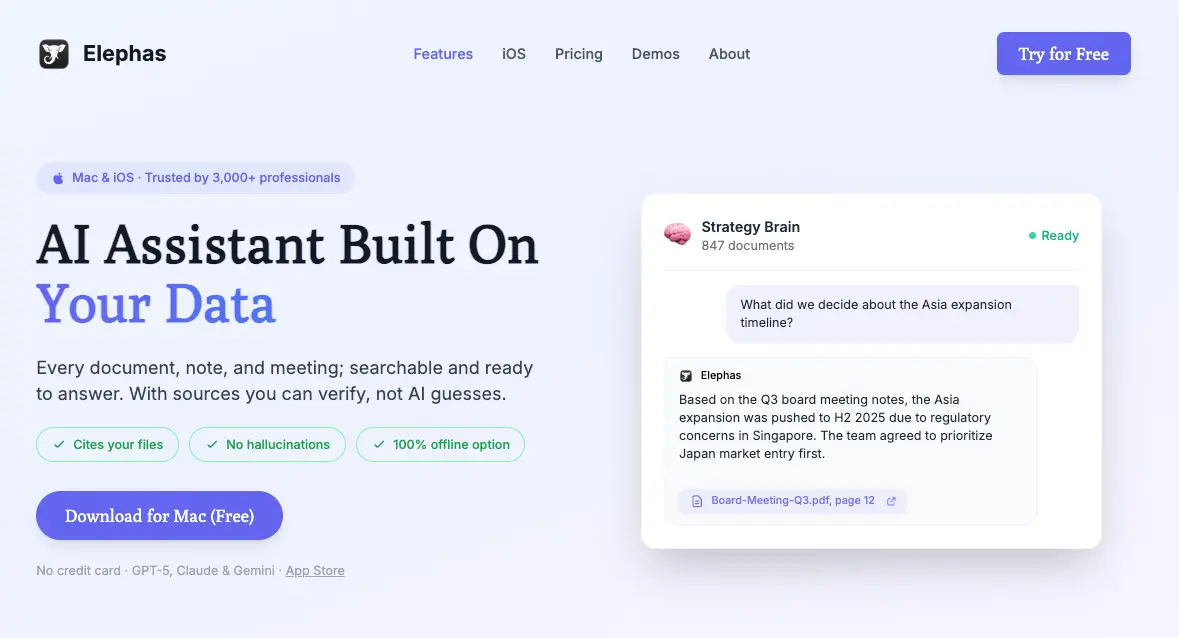
Elephas is a Mac-native AI knowledge assistant, but not a workaround between two separate products. It's a single app that connects your notes, documents, and knowledge sources, then lets you query all of it with AI directly on your device.
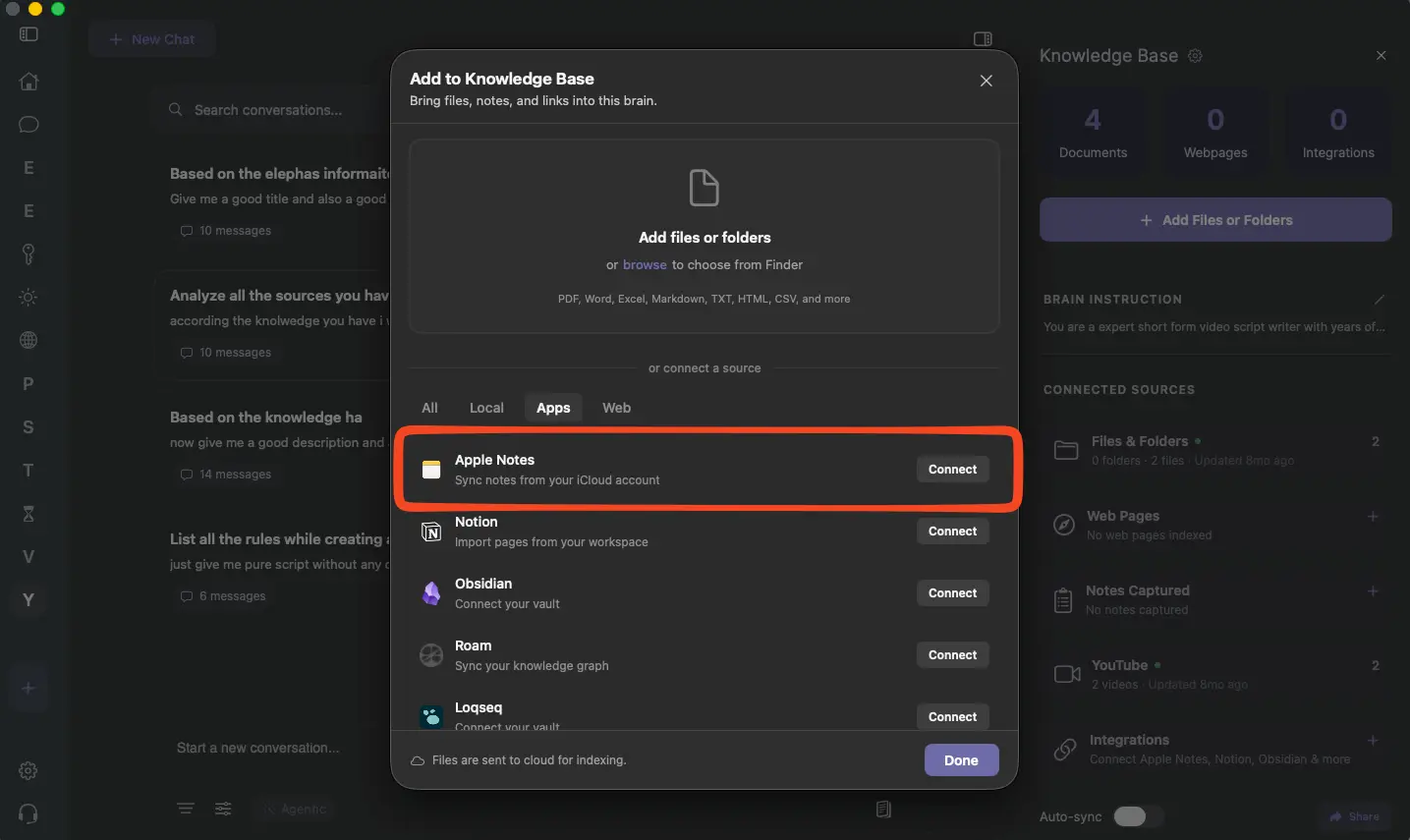
It runs on Mac, iPhone, and iPad, and supports Apple Notes natively without requiring folder routing or shortcut automation. Your notes become one of many sources inside the Elephas knowledge base, and changes sync automatically on the Pro plan. Connecting to Apple Notes takes a single click from the sidebar — no multi-step configuration required.
Unlike the Apple Notes and ChatGPT setup, Elephas works on macOS 12 and later, which includes older Intel Macs. You don't need to be on the latest operating system or own the newest hardware to use it.
It creates “Super Brains” from your Apple Notes, turning them into searchable, AI-powered knowledge bases you can chat with. Each Super Brain stays separate, so you can organize by project, topic, or client, and switch between them instantly.
Elephas starts at $19 per month.
Elephas vs ChatGPT for Apple Notes – Key Differences
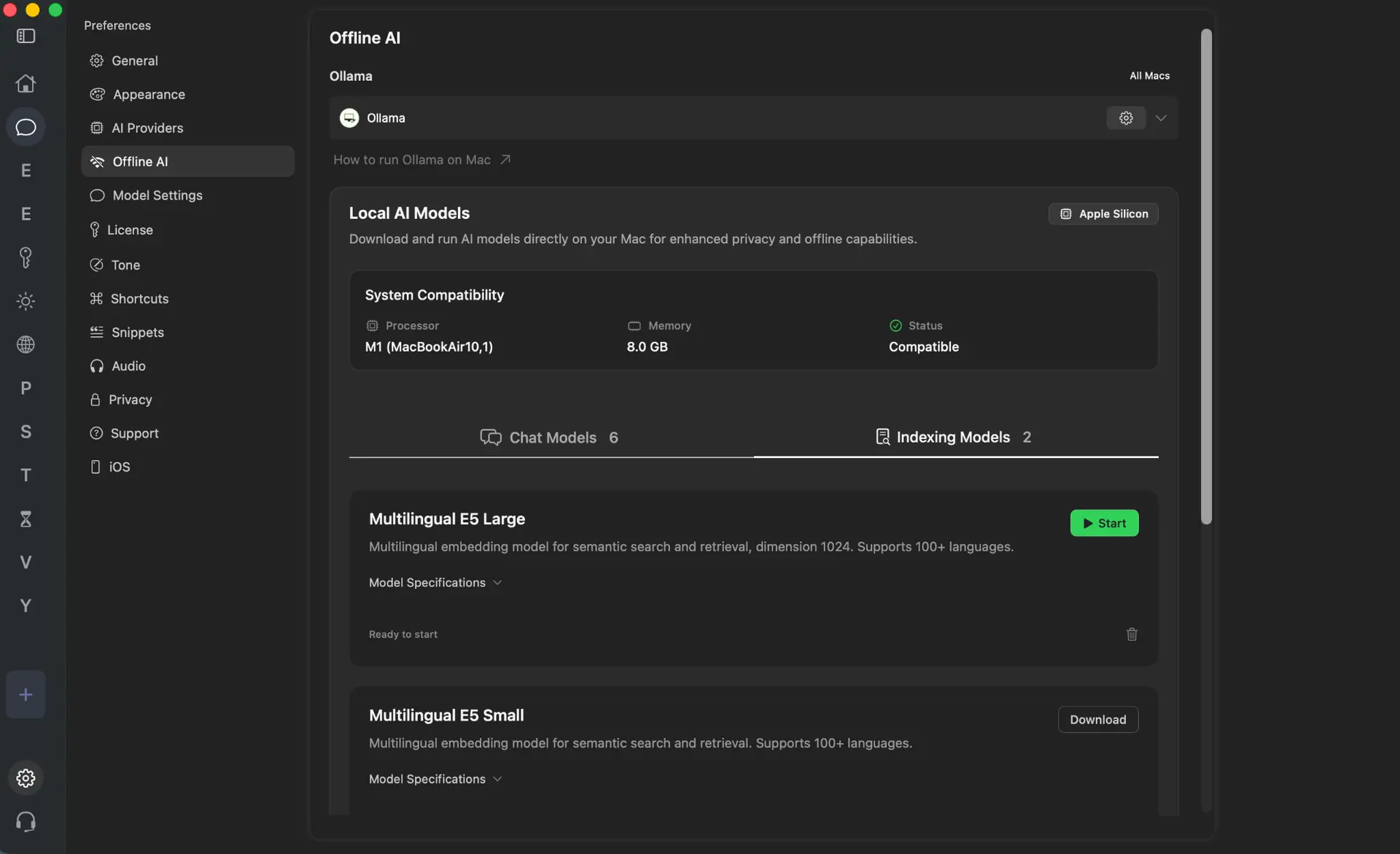
The most significant difference between the two is where your data goes and what you need to access it.
- Privacy. When you use Apple Notes + ChatGPT, your note content gets sent to OpenAI's servers for processing, even in anonymous mode. Elephas processes everything locally on your Mac using built-in offline AI models. Your documents are indexed on your device.
- Note search capabilities. ChatGPT can only work with the single note you have open at any given time. Elephas indexes your entire Apple Notes library and lets you search across all notes using natural language queries. Ask a question and get answers pulled from across hundreds of notes, with citations pointing back to the source note.
- Offline mode. All three ChatGPT methods need the internet to function. Elephas works completely offline with local AI models on Apple Silicon Macs, meaning you can query your entire knowledge base without sending anything to any server.
- Setup. ChatGPT integration needs Apple Intelligence enabled, the extension configured, compatible hardware, and a recommended paid subscription. Elephas connects to Apple Notes with a single click from the sidebar.
- AI flexibility. Apple Notes + ChatGPT locks you into OpenAI's models only. Elephas lets you choose between built-in offline models, Ollama integration, or connect your own API keys for ChatGPT, Claude from Anthropic, Gemini from Google, Grok, or Perplexity. You can switch between them depending on the task.
- Platform support. Apple Notes + ChatGPT requires macOS Sequoia 15.1 and Apple Silicon. Elephas runs on macOS 12 and later, including on Intel Macs, so older hardware is fully supported.
Side-by-Side Comparison Table
| Feature | ChatGPT + Apple Notes | Elephas |
|---|---|---|
| Document/source limit | Single open note | Unlimited notes and documents |
| Offline mode | No (requires internet) | Yes (built-in local AI) |
| Data storage | Sent to OpenAI servers | Your Mac only |
| Cross-note search | No | Yes, with natural language |
| Platform | Mac, iPhone, iPad (Apple Intelligence required) | Mac, iPhone, iPad (native app, older OS supported) |
| Knowledge base | Manual folder system | Super Brain, unlimited sources |
| AI options | ChatGPT only | ChatGPT, Claude, Gemini, Grok, Perplexity, or local LLM |
| Own API keys | No (OpenAI only) | ChatGPT, Claude, Gemini, Grok, Perplexity |
| Workflow automation | Via Apple Shortcuts only | Built-in AI agents |
| Integrations | Apple ecosystem only | Apple Notes, Obsidian, Notion, DEVONthink, and more |
| File formats supported | Text in notes | 20+ formats (PDF, Word, Excel, audio, video, etc.) |
| Pricing | $20/month (ChatGPT Plus) | From $19/month |
ChatGPT integration works for quick in-note text generation on current Apple hardware with a stable internet connection. Elephas turns your entire Apple Notes library into a searchable, private AI knowledge base — in one app.
Which One Should You Pick?
Choose ChatGPT integration if:
- You already use Apple Intelligence on a compatible Mac and don't want to add new software
- You only need occasional AI help writing or editing text inside a single note
- You already pay for ChatGPT Plus and want to get more from that subscription
- You're comfortable with your note data going to OpenAI under their account terms
- The manual back-and-forth workflow suits your pace
Choose Elephas if:
- You want one app that handles both knowledge management and AI without routing content between separate products
- You want to search across all your Apple Notes with AI, not just the one you have open
- You need offline access or work with sensitive information that should not leave your device
- You want to choose which AI model to use for each task, or prefer to avoid cloud AI entirely
- You prefer a one-time purchase over an ongoing monthly subscription
- You use Obsidian, Notion, DEVONthink, or similar tools alongside your notes and want them all searchable from one place
- You need to combine Apple Notes with other files like PDFs, spreadsheets, or audio recordings
- You're building a serious knowledge base and need powerful cross-note search and automation features
Both tools can coexist since they serve different purposes. You can use ChatGPT integration for quick text edits and Elephas for deep knowledge work across your entire note library.
Final Thoughts
ChatGPT integration with Apple Notes works well for in-note text tasks through three methods: Apple Intelligence extension, custom Shortcuts, and Writing Tools Compose. Each method has different strengths and setup requirements.
The combination handles summarization, rewriting, idea expansion, and research queries — but every interaction stays limited to the single note in front of you, requires an internet connection, and sends your content to OpenAI's servers.
For Mac users who want a complete knowledge system with real privacy controls, offline capability, cross-note intelligence, and no dependency on a specific OS version or subscription stack, Elephas is the more complete tool.
It doesn't require Sequoia, it doesn't need a Plus subscription, and it doesn't send your notes to an external server every time you ask a question. You can try Elephas free to see the difference for yourself.
Frequently Asked Questions
Do I need a ChatGPT Plus subscription to use ChatGPT with Apple Notes?
You can use ChatGPT with Apple Notes on the free tier, but access is limited. Free users get GPT-4o-mini and a limited number of GPT-4o queries (approximately 10–60 per five-hour window). ChatGPT Plus at $20 per month removes these limits and gives you full access to advanced models. As of early 2026, the full integration experience still works best with a paid account.
Can I use ChatGPT with Apple Notes offline?
No. All three ChatGPT integration methods require an active internet connection. Processing happens on OpenAI’s servers, not on your device. If you need offline AI for your notes, Elephas has a fully offline mode using local AI models.
Is the Apple Notes and ChatGPT integration available on older Macs?
No. Apple Intelligence requires an Apple Silicon chip (M1 or later) and macOS Sequoia 15.1 or newer. Intel Macs are not supported. Elephas runs on macOS 12 and later, including Intel Macs.
Which integration method is easiest to set up?
Writing Tools Compose is the simplest. Once you enable the ChatGPT extension in Settings, you can use it immediately in any note without additional setup. Apple Intelligence Extension gives you Siri integration and system-wide access but requires more configuration. Custom Shortcuts are the most powerful for automation but need manual setup.
Does ChatGPT have access to all my notes at once?
No. ChatGPT can only see the single note you have open. It cannot search across your entire Notes library or find connections between different notes. Elephas, by contrast, indexes your entire Apple Notes library and lets you search across all notes using natural language queries.
Related Articles
Apple Notes Export: Why You Should Query, Not Export
Stop exporting your notes into useless text files — query them with AI instead
What Features Does Apple Notes Not Have?
Comprehensive breakdown of Apple Notes limitations and how Elephas fills the gaps
Enable AI Search in Apple Notes Without Switching Apps
Apple Intelligence vs Elephas: complete comparison with setup guides
Ready to try a smarter way to work with Apple Notes?
Elephas connects to your Apple Notes with a single click. Search across all notes, work offline, and choose your AI model.
Try Elephas Free