25 Best Siri Shortcuts for Mac Users (2026)
Search for the best siri shortcuts and every result hands you an iPhone list. Low power mode when you start driving. A text to mum when you leave work. None of that helps at 9am on a Monday at a Mac with 40 screenshots to frame, a Downloads folder full of rot, and a Numbers table that has to become Markdown by lunch.
Nearly 60% of workers say automating repetitive tasks would give them back 6+ hours a week, close to a full working day. Every link below was verified live on 13 July 2026, and every shortcut earns its place on a desktop. If a shortcut hands text to Siri, it helps to know where that text goes: Siri privacy explained covers the routes, and the system behind it all is in our Apple Intelligence guide.
Executive Summary
The 25 best Siri shortcuts for Mac users are the ones built around what only a desktop has: a Finder multi-selection, a menu bar, a Services keystroke, and a shell. Eight of the 25 cannot run on a phone at all, and the rest are Mac-first because that is where the trigger lives.
- Shortcuts is Apple’s automation app and has shipped on macOS since Monterey. It is not an iPhone-only toy.
- The Mac gives you three entry points the phone does not have: Finder Quick Actions, the menu bar, and the Services menu with a keyboard shortcut.
- These 25 picks cover files, text, research, privacy, windows, developer work, meetings, and media. Every iCloud link was checked on 13 July 2026.
- Any shortcut that sends your text to a cloud AI service takes that text off your machine. Read the action list before you install.
- Elephas is a privacy friendly AI knowledge assistant for Mac that redacts personal details before a prompt reaches a cloud model. Free plan available; paid plans start at $19/month, with a free trial.
What counts as a Siri shortcut on a Mac
Three different things get sold under the same word, and mixing them up is why people give up.
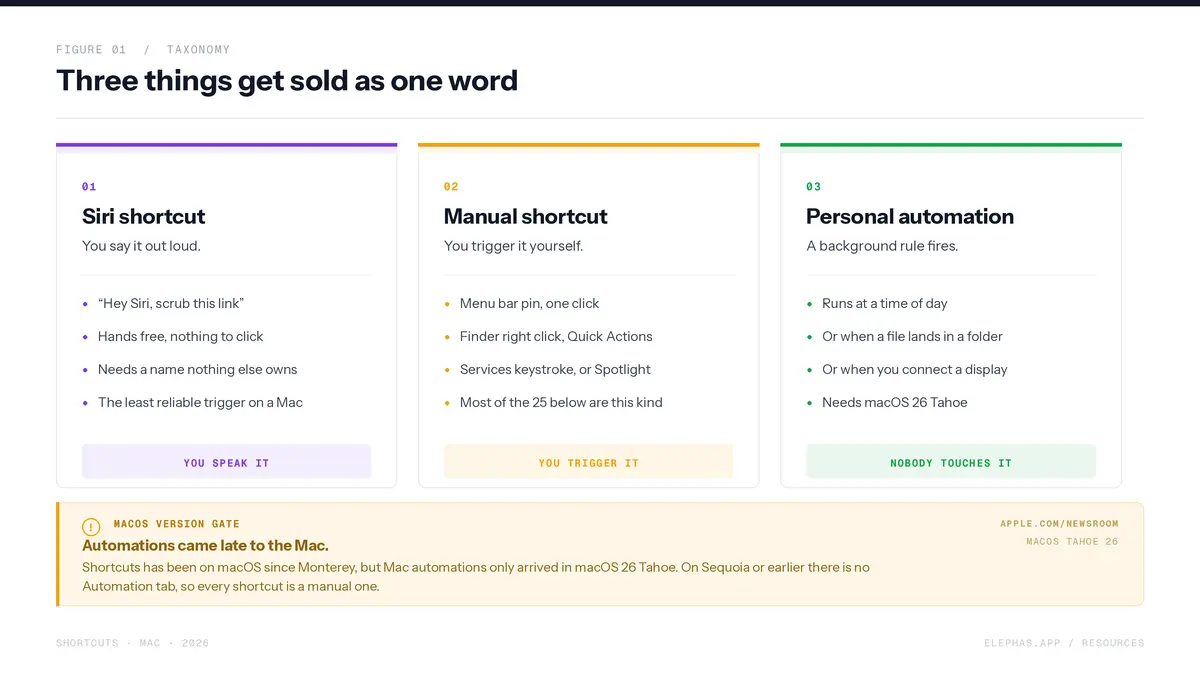
- A Siri shortcut is one you say out loud, so Siri runs it hands-free.
- A manual shortcut is one you trigger yourself from the menu bar, a Finder right-click, a Services keystroke, or Spotlight.
- A personal automation is a background rule that fires on its own, with nobody touching anything. On a Mac it can run at a time of day, when a file lands in a folder, or when you connect a display.
Apple’s Shortcuts user guide treats these as separate features, but almost every roundup blurs them. The practical rule is to build the logic once and trigger it many ways.
One commenter gives the practical rule.
“That's why you should build all this as a shortcut and then call it using an Automation.”
Background rules are a different job again. A commenter draws the line cleanly.
“Hazel works in the background, I don't need to trigger anything with a keyboard/mouse/keypad press. Totally different type of automation.”
One caveat decides whether the third kind is even available to you. The Shortcuts app has been on the Mac since Monterey, but Mac automations only arrived in macOS 26 Tahoe. On Sequoia or earlier there is no Automation tab, so every item below is a manual shortcut. On Tahoe, Delete Old Files at number 4 is the one worth wiring to a schedule.
How we picked these 25
Every link here was verified live on 13 July 2026 against Apple’s iCloud records API, which returns the real name stored on the share page. All 25 links resolved, and the name on each share page matched.
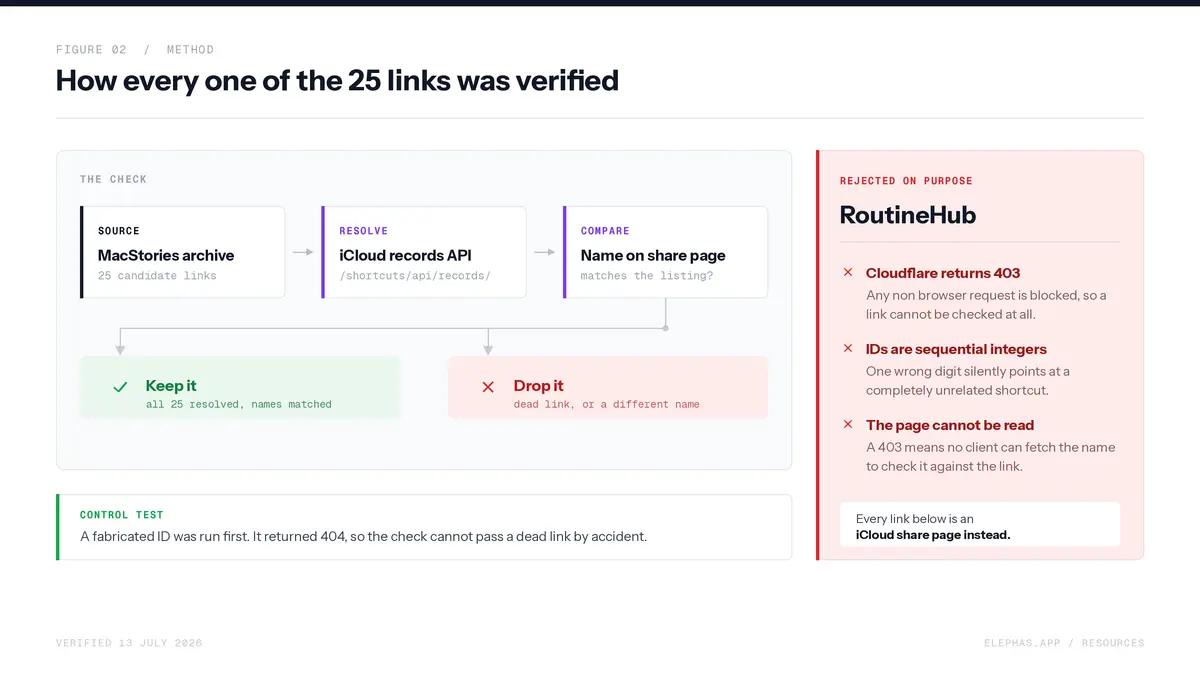
A made-up ID was tested first as a control and correctly returned a 404, so the check cannot pass a dead link by accident. RoutineHub links were rejected on purpose, because the site sits behind Cloudflare and returns a 403 to any non-browser request.
RoutineHub shortcut IDs are also sequential integers, so one wrong digit silently points at an unrelated shortcut. Every link below is an iCloud share page instead, credited to the MacStories archive. Anything iTunes-era was dropped, including the archive’s own Toggle iTunes and Play iTunes Playlist entries, because they target an app that no longer exists.
Scepticism is fair, and one commenter supplies it. So the list is short, and every item kills a job you already do.
“A lot of people were really excited about Shortcuts in 2018, but to be completely blunt I don't think shortcuts are useful for the vast, vast majority of people.”
Quick comparison table
All 25 iCloud links verified live on 13 July 2026. Every shortcut is free.
Files and Finder
Four batch shortcuts that act on a Finder selection. This is the category with no iPhone equivalent, because the point is doing one thing to many files at once.
Best for killing HEIC export, one file at a time.

Convert to JPEG turns images selected in Finder into JPEG files in one pass. It kills the ritual of opening a stack of HEIC files from an AirDrop, one at a time in Preview, and exporting each because the upload form refuses HEIC.
How to set it up
Best for killing manual image upscaling.

Super ML upscales images selected in Finder using Pixelmator Pro's machine-learning Super Resolution action. It kills dragging each low-resolution image into the app, hunting for the ML action, waiting, exporting, and repeating for every file.
How to set it up
Best for killing the job of framing 20 screenshots by hand.

Frame Folder wraps every image in a folder you pick inside a device frame, in one run. It kills feeding 20 raw screenshots into a mockup tool one by one before a post, a listing, or a client deck goes out.
How to set it up
Best for killing Downloads folder rot.

Delete Old Files finds files older than a cutoff you set and deletes them. It kills the quarterly chore of sorting Downloads by date and shift-clicking everything older than 30 days into the Trash.
Read this before you run it. The shortcut deletes permanently and bypasses the Trash, so there is nothing to restore. Point it at a folder you are certain about, and run it by hand a few times before you trust it on a schedule.
How to set it up
Writing and text
Five shortcuts that act on the clipboard or on selected text. Most hang off the Services menu or a keystroke, so they work inside whatever app you are typing in.
Best for killing the copy, switch, paste, repeat loop.

MD Clip for Mac turns a Safari selection into a Markdown blockquote with a link back to the source, ready on your clipboard. It kills the four-step copy dance between browser and notes.
How to set it up
Best for killing hand-built literature notes.

Obsidian Clip for Mac does the same job and sends the result straight into a note in your Obsidian vault. It kills the app-switch tax of hand-building a literature note for every source in a research session.
How to set it up
Best for killing the job of deleting stray asterisks.

Strip Out Markdown takes Markdown from the clipboard and puts clean plain text back on it. It kills hand-deleting asterisks, hashes, and link brackets after pasting into Slack, an email, or a CMS field that will not render them.
How to set it up
Best for killing the export-to-HTML detour.

Convert Selected Text to Rich Text converts Markdown selected in any editor into formatted rich text and replaces the selection in place. It kills the export-to-HTML detour when you drafted in Markdown but the destination wants real bold and italics.
How to set it up
Best for killing the job of typing pipes and dashes.

Spreadsheet to Markdown Table converts a block of cells copied from Numbers into a tidy MultiMarkdown table. It kills typing pipes and dashes to rebuild a 12-row table because the data lives in Numbers and the docs live in Git.
How to set it up
A shortcut closes that gap without leaving Numbers.
Web and research
Four shortcuts for the reading and archiving half of desk work. Three run against a live Safari page, and one works from whatever is on your clipboard.
Best for killing paste bombs full of site styling.

Safari Markdown Selection converts a rich-text selection from a web page into clean Markdown on your clipboard. It kills the paste bomb, where a chunk of a page arrives in your notes carrying the site's fonts, colours, and inline styles.
How to set it up
Best for killing View Source hunting.

Find RSS Feed finds the RSS feed URL for the page open in Safari and copies it. It kills View Source, a Command-F for the word rss, and squinting at link tags just to subscribe to a blog.
How to set it up
Best for killing 15 tabs and 15 PDF exports.

Make PDFs from Safari Selection Links takes every hyperlink inside a Safari selection and creates a separate PDF for each one. It kills the archive-a-reading-list slog of opening 15 links in 15 tabs and exporting each by hand.
How to set it up
Best for killing the switch, new tab, paste, return sequence.

Open Copied Link opens whatever URL is on your clipboard in your default browser. It kills the switch, new tab, paste, return sequence you run whenever someone drops a bare link in Slack or a terminal prints one.
How to set it up
Privacy and security
Two shortcuts that stop data leaking when you copy, paste, or publish, and one that shows you the Exif block a photo is carrying. This is the category the iPhone-first lists leave out, and it is where Shortcuts quietly earns its keep.
Metadata is the part people miss, and one commenter states the problem for every phone camera photo that lands on your Mac.
“Most people do not know what EXIF is. Somebody may share their location without knowing.”
Best for killing tracking parameters in links.

URL Cleaner strips tracking parameters from a link using a built-in list of known trackers, including utm_source, fbclid, and gclid. It kills deleting everything after the question mark before you paste a link into a doc or a client email.
How to set it up
Best for killing the risk of pasting images with metadata attached.

Convert to JPEG and Copy converts an image on the clipboard to JPEG and strips its metadata on the way through. It kills the risk of pasting a screenshot into a public thread with embedded data still attached.
How to set it up
Camera photos are the opposite case, which is why stripping on the way out is the safe default.
Best for killing the job of reading a photo's Exif block by hand.

EXIF Inspector shows a photo's Exif block, so you can see the timestamp, exposure, and lens an image is carrying before you publish it.
Read this carefully, because it is the one place a shortcut can mislead you. It reads the Exif block only. Location sits in a separate GPS block, so this shortcut will not show your coordinates even when the photo still has them. A blank result here is not proof a photo is clean.
How to set it up
To actually remove location, run Convert to JPEG and Copy at number 15, which strips metadata as it converts.
If a shortcut's access prompts get into a mess, do not reach for tccutil in Terminal. It resets that permission for every app on your Mac and still will not fix the shortcut. Open the shortcut, go to Details, then Privacy, and use Reset Privacy on that shortcut alone.
System and menu bar
Three utilities you can pin once and run from anywhere with one click. Two of them are a close call, because macOS Sequoia already tiles windows natively.
Best for killing the drag-windows-side-by-side routine.

Pick Windows and Create Pairs lets you choose two open windows and snaps one to the left half of the screen and the other to the right. It kills the drag-and-nudge routine you repeat at the start of every compare-two-documents task.
How to set it up
Window managers are the first app most people pay for, and a 52-upvote comment pushes back.
“Rectangle > Magnet. Rectangle's free version is just as good as Magnet. Plus proper native window management will be coming in Sequoia this fall so new Mac owners might as well save themselves a few bucks.”
That comment is right, and it cuts against these two picks. macOS now ships native window tiling, so drag a window to a screen edge and it snaps.
Take these two only if you want one named phrase to rebuild an exact pairing. Otherwise the built-in tiling is the better answer.
Best for killing even the picking step.

Split Last Two Apps places your two most recent apps side by side instantly. It kills even the picking step, for the common case where the two things you want are the last two things you looked at.
How to set it up
Best for killing the blind paste.

Show Clipboard displays what the clipboard is holding and what data type it is. It kills the blind paste into a scratch document just to check whether you copied the thing you meant to copy.
How to set it up
This shortcut covers the "what am I about to paste" half of that for nothing. Buy a clipboard manager when you need real history, not before.
Developer
Two shortcuts that reach into the parts of the Mac only a desktop has: AppleScript and the shell.
Best for killing hand-written AppleScript glue.

Script Builder converts multiple shortcuts into AppleScript files. It kills writing the same "tell application" boilerplate for every shortcut you want to call from AppleScript, a Keyboard Maestro macro, or an Automator flow.
How to set it up
Most people wire AppleScript into a shortcut. Script Builder runs it the other way, exporting your shortcuts as callable AppleScript files.
Best for killing the cleanup of raw transcripts.

Video Processor (Claude) pipes the raw transcript of a YouTube video through the llm command-line tool to a Claude model, which reformats it and pulls out the key quotes. It kills cleaning up an auto-generated transcript with no punctuation and no paragraphs. The model is set in the shell command, so point it at Claude Opus 4.8 or whatever you have configured.
How to set it up
This is the layered stack Mac users already build.
“if Shortcuts can't get it done, try Automator. If Automator can't get it done, try AppleScript. If AppleScript can't get it done, try a Shell script.”
Note that this one sends your transcript to a cloud AI service, which is the subject of a later section.
Meetings and calendar
Two shortcuts for the admin around the actual work. Both are typed and run at a desk, not on a phone.
Best for killing the post-meeting re-read of a wall of notes.

ActionItems takes messy meeting notes from the clipboard, uses Apple Intelligence Writing Tools to pull out action items and key takeaways, and offers to turn each into a reminder. It kills the post-meeting re-read where you scan a wall of notes for the four things you committed to.
Check what you paste into this one. Apple says Writing Tools may send your text to Private Cloud Compute when the on-device model decides a request needs a server. Your Mac chooses per request, and you are not asked.
How to set it up
Best for killing the job of personalising 30 emails by hand.

Mail Merge sends a templated email to a list of recipients with per-person variables substituted. It kills the copy, paste, edit, send loop of personalising the same email 30 times, without paying for a mail-merge service.
How to set it up
Media
Two image shortcuts. Live Text reads the text in a picture on the device, and Apple Frames drops a screenshot into a device mockup.
Best for killing the retyping of text from a screenshot.

Live Text Extractor runs Apple's Live Text OCR over any image and shows the recognised text so you can copy it. It kills retyping when a colleague sends a screenshot of an error message, a table, or a config block.
How to set it up
Live Text does the same job on-device, so the image never leaves the Mac.
Best for killing hand-placed device mockups.

Apple Frames wraps screenshots in accurate device frames for iPhone, iPad, Apple Watch, and Mac. It kills opening a design tool and hand-positioning a screenshot inside a mockup layer every time you need a presentable image.
How to set it up
It has been maintained by MacStories for years, and it exposes an API that other shortcuts call, which is how Frame Folder works at all.
The privacy gap in AI shortcuts
Some shortcuts send your text off the machine and never say so. Video Processor at 21 is the only one here that hands text to a third-party cloud AI. ActionItems at 22 can also leave: Apple says Writing Tools may reach Private Cloud Compute, and your Mac decides that, not you.
Siri does the same.
“Today GPT is assisting Siri for anything Siri can't do which substantial and growing as we speak.”
Siri itself keeps more than people assume. Apple’s privacy page says request history may be retained for up to two years. What travels with a request:
- Transcripts and related data, a subset of which Apple may review.
- Contact names, location, installed apps, and shortcut names.
- Any third-party app the shortcut connects to, under that app’s privacy policy, not Apple’s.
There is a network-level version too. A 2023 USENIX Security study by Ahmed, Sabir and Das found encrypted traffic revealed assistant activation with 99% accuracy. Redaction does not fix that, because traffic analysis reads packet shapes, not words. Tokens leak too: a 2026 Ohio State study showed that stolen Apple Intelligence tokens could be replayed on macOS 26 Tahoe, and Apple confirmed it with a CVE.
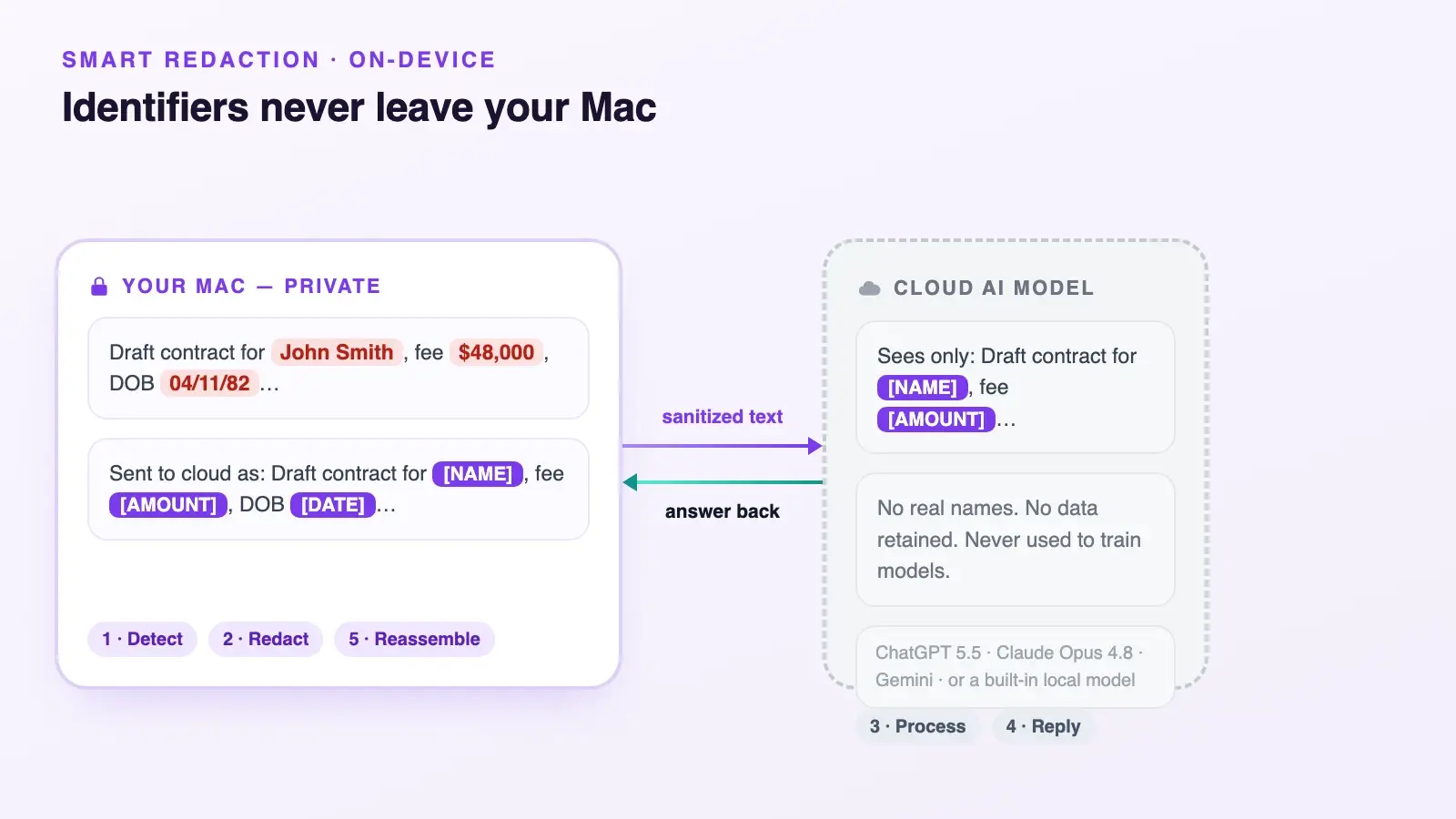
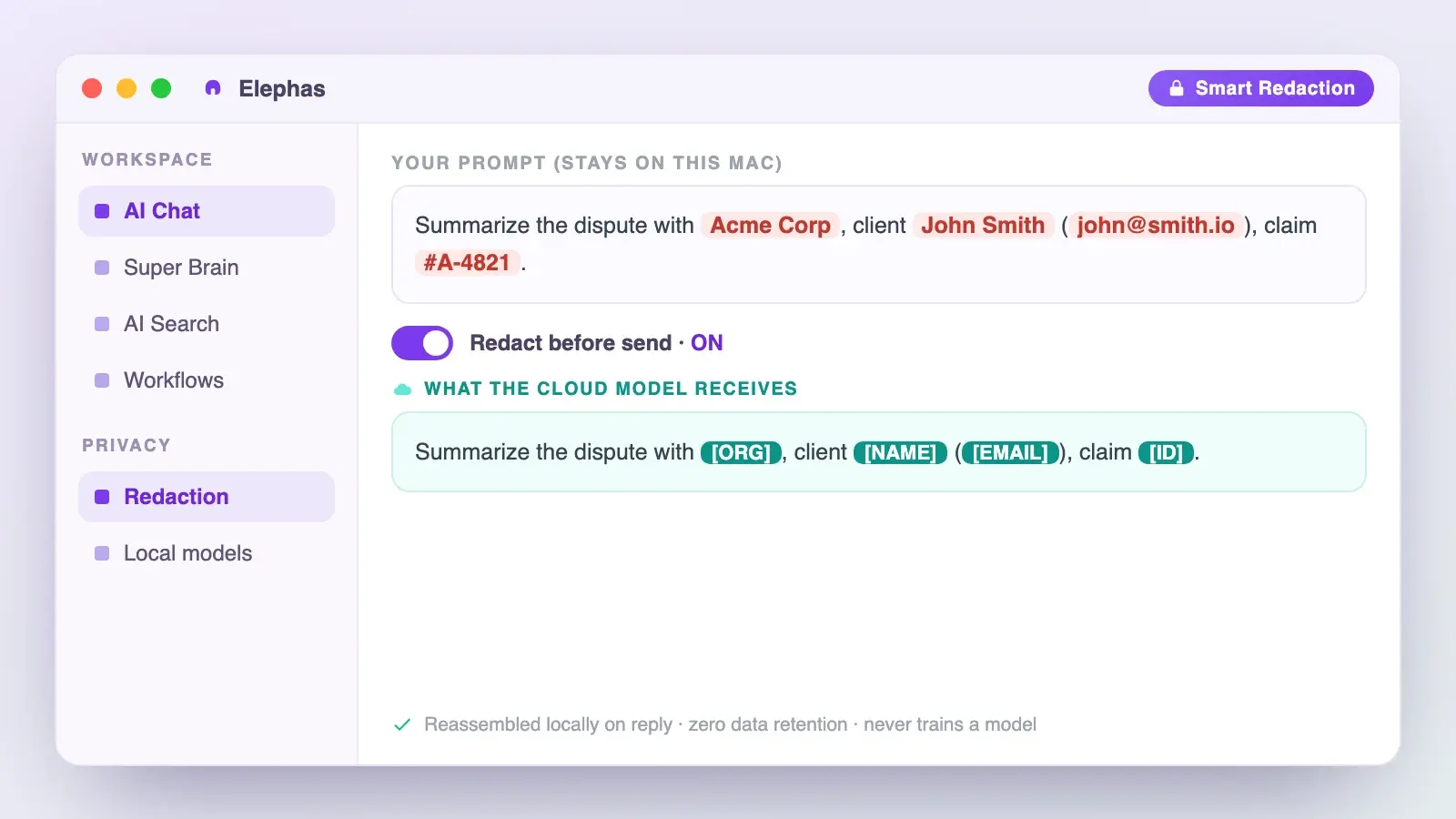
For Mac users who still want a leading cloud model, Elephas adds a second layer through automatic PII redaction. Before a prompt is sent to ChatGPT 5.5, Claude Opus 4.8, Gemini, Grok, Perplexity, or any other cloud model, Elephas strips sensitive names, emails, phone numbers, and identifiers on your Mac. The cloud model only ever sees the sanitized text. When the answer comes back, the redacted fields are reassembled locally on your machine, so identifiable information never leaves the device. Elephas pairs this with zero data retention: content never trains AI models, never sits on a vendor’s server, and never passes through a third-party reviewer’s screen.
Why we picked Elephas
Elephas is a privacy friendly AI knowledge assistant for Mac, and the sequence is worth stating plainly: local Mac, then redact, then cloud AI, then the answer comes back, then the redacted fields are reassembled locally on your machine. Smart Redaction runs on every plan, including the Free tier, so it is not something you buy your way into. Elephas also provides built-in local LLM models, so the work can stay entirely on the machine when you want it to. Keep the batch and clipboard shortcuts, drop the ones that quietly post your text to an API, and route the AI work through a layer that redacts first. Free plan available; paid plans start at $19/month. See the Elephas pricing page for the current list.
Before you install any shortcut, the permission check
Apple says outright that it cannot verify the authenticity or behaviour of shortcuts shared privately through AirDrop, Messages, or similar channels. Its Shortcuts privacy guidance covers how to grant and reset that access. A shortcut you did not write can still reach your files, contacts, photos, location, or the network, and nothing reviews it the way the App Store reviews an app, so open the action list before you run it.
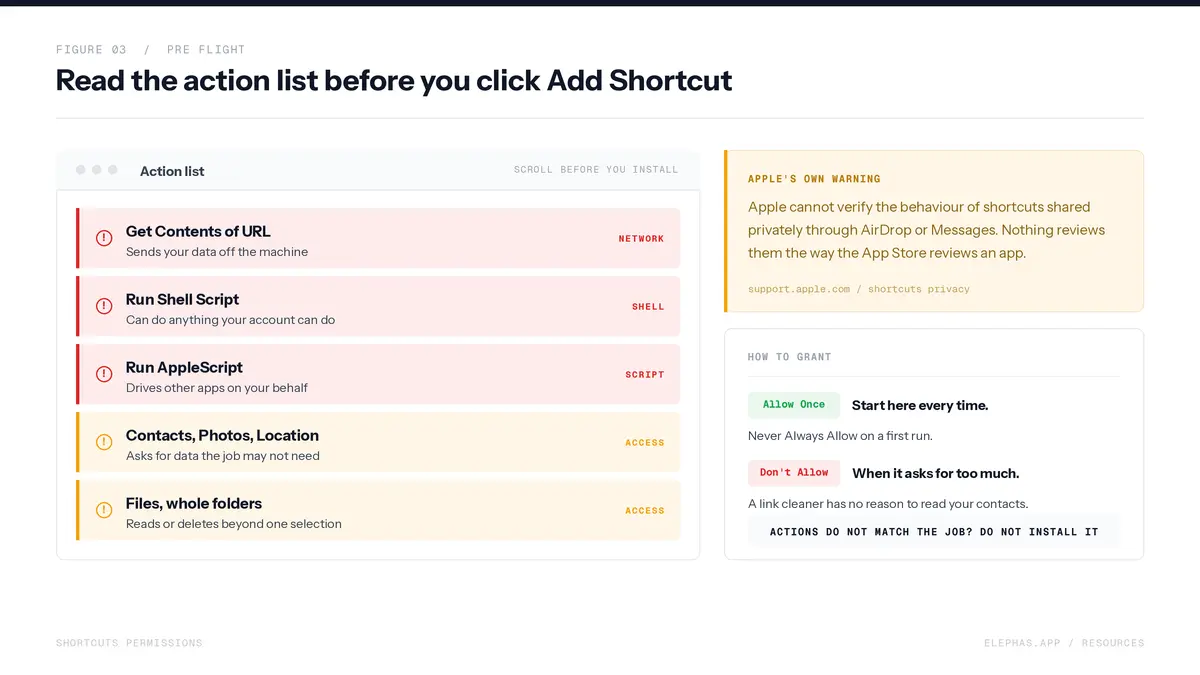
The clearest statement of the risk is a 416-upvote comment about a shortcut that pulled code from a git repo.
“A shortcut that downloads files from a git repo, can update itself, and has access to personal iCloud data sounds like a recipe for having personal info stolen or leaked.”
A second commenter in the same thread is precise about why the risk is real even when the author is honest.
“The problem isn't the OP's shortcut is malicious, it's that it could be exploited and that it's encouraging users to grant permissions that could leave them vulnerable.”
So open the action list on the iCloud page before you click Add Shortcut. Grant access with Allow Once first, and use Don’t Allow when an action wants more than the job needs. The actions worth pausing on:
- Get Contents of URL, which sends data off your machine.
- Run Shell Script, which can do anything your account can do.
- Anything holding an API key.
- Anything touching contacts, photos, or a whole folder.
When Siri will not run your shortcut
Siri sometimes searches the web instead of running your shortcut. It is worth knowing why, because the common explanation is wrong. Apple's Shortcuts guide says that if a shortcut's name matches a standard Siri command, Siri runs the shortcut, not the command. A name clash does not lose to Siri.
What actually fails is recognition. Siri has to match what it heard to the shortcut's name, and short or common names are easy to mishear. When the match fails, it falls back to a web search. So the fix is a name Siri cannot mistake for anything else.
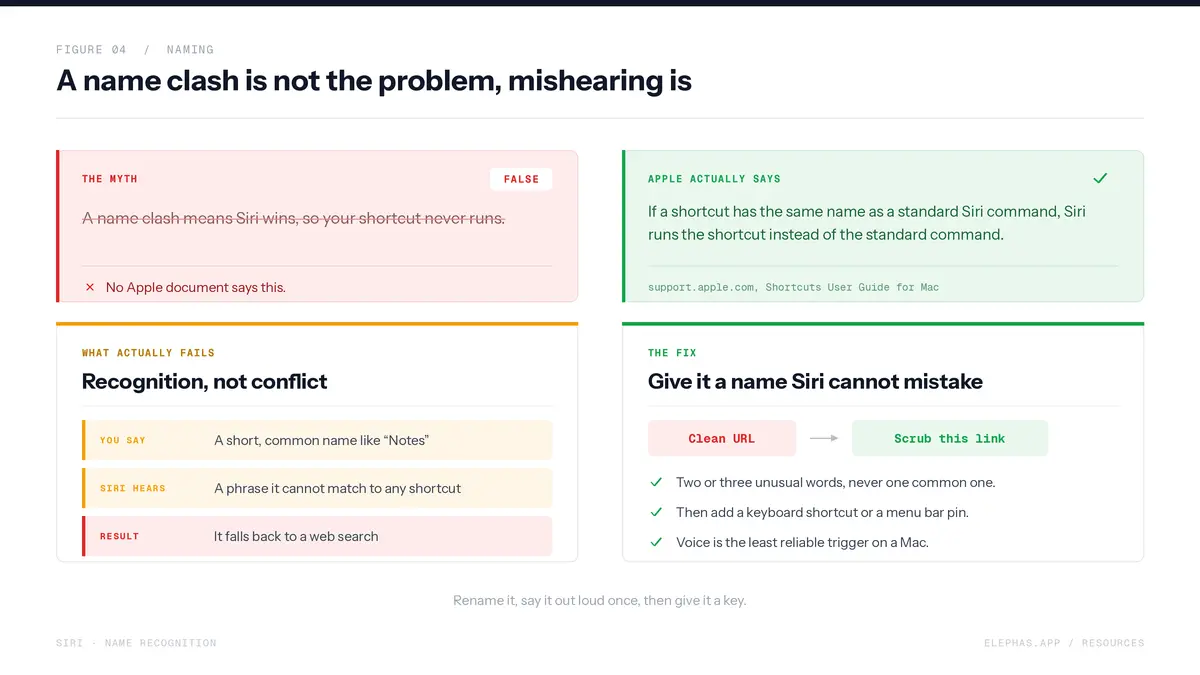
- Use two or three unusual words. No app names, no bare common verbs.
- “Scrub this link” is easier for Siri to catch than “Clean URL”.
- The name in the Shortcuts app is the phrase, so rename it and test it out loud.
- Give every important shortcut a keyboard shortcut or a menu bar pin, because voice is the least reliable trigger on a Mac.
Updates break things too, because Apple removes actions between releases. A heavily upvoted list of grievances ends with exactly that failure.
“In 18.4, Apple removed the Shortcut action I was using to retrieve the temperature setting.”
Recovery is boring and it works. Duplicate a shortcut before you edit it, so the version that used to run still exists. Open it, find the action marked unavailable, and swap it for the current equivalent. Re-grant permissions after a macOS upgrade, since a system update can reset them.
When a shortcut is the wrong answer
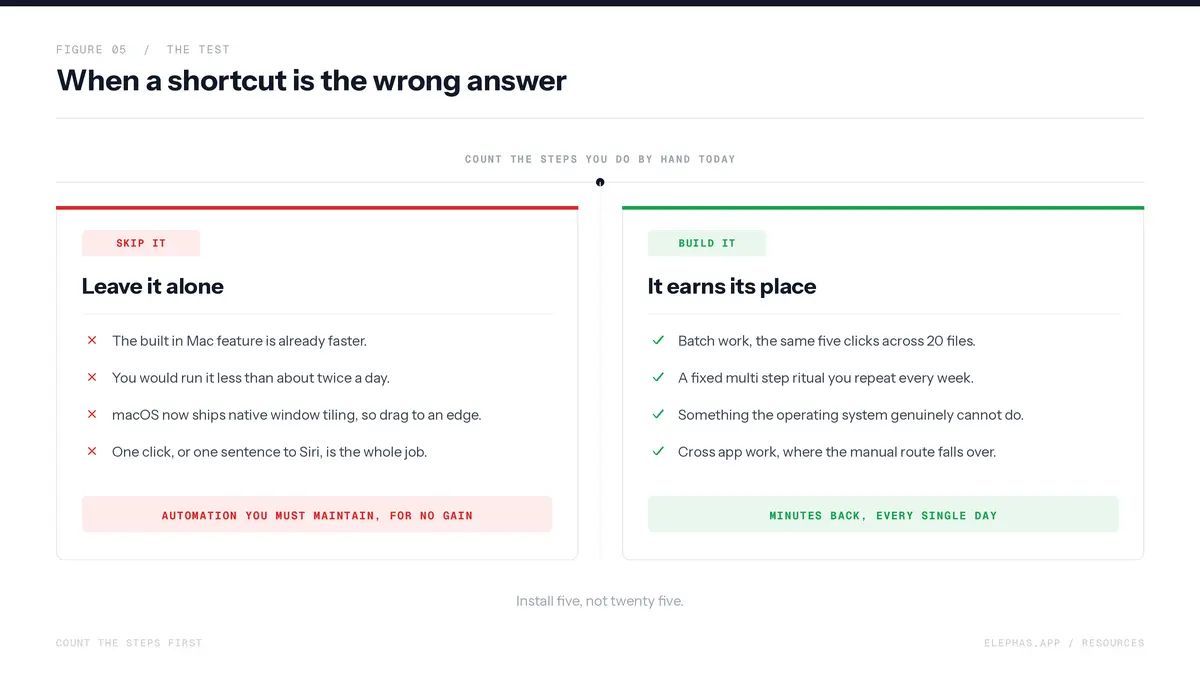
Sometimes the built-in feature is faster and you should skip the shortcut. If the job is one step, wrapping it in an automation adds maintenance for no gain, and you now own a thing that will break the next time Apple changes an action.
The most honest note in the whole research pile comes from a sceptic, replying in a thread about clever AI shortcuts.
“This is what I do. You can use Siri to make a note or reminder. No need for a shortcut.”
That is correct. Capturing a task is already a first-class Siri command on every Apple device, and building a shortcut for it is ceremony. The test is simple, so count the steps you do by hand today.
- One click, or one sentence to Siri: leave it alone.
- The same five clicks repeated across 20 files: automate it.
- Pick Windows and Split Last Two Apps, at 17 and 18, are the closest calls on this list. macOS Sequoia ships native window tiling, so drag a window to a screen edge and it snaps. Take these two only if you want one named phrase to rebuild an exact pairing.
- Open Copied Link at 13 is the next closest. If you only paste a bare link twice a day, switching to the browser and pasting already beats installing anything.
Everything here sits on the wrong side of that line by design, which is why the batch and clipboard items dominate. Cross-app work is where machines still fall over: researchers found the best phone-agent setup completed 52% of 133 tasks, and only 37% of multi-app ones, in the 2026 iOSWorld benchmark (Jang et al.).
Conclusion
The best Siri shortcuts on a Mac are the boring ones. They convert a folder of files, clean a link, tile two windows, pull text out of a screenshot, and rebuild a table you would otherwise retype. Every one of the 25 links was verified live on 13 July 2026.
None of them impress anyone at a dinner party, and all of them give you minutes back every day. That is the point when workers toggle between apps about 1,200 times a day, which Harvard Business Review puts at nearly 4 hours a week lost to reorientation.
The average knowledge worker also loses 308 hours a year to duplicated or irrelevant work. Install five, not twenty-five. Start with the five that pay off fastest and need nothing else installed:
- Convert to JPEG, for the pile of HEIC files nothing will accept.
- Delete Old Files, for Downloads rot. It deletes permanently, so run it by hand first.
- Open Copied Link, for every bare URL someone drops in Slack.
- Strip Out Markdown, for every time you paste into Slack and inherit stray asterisks.
- Show Clipboard, so you never blind-paste the wrong thing again.
Read the action list before each one goes on, name them so Siri can hear them, and check what leaves your machine. Credit for all 25 goes to the MacStories archive, still the most reliable shortcuts library on the web. For the AI shortcuts that do leave the machine, Elephas redacts personal details before a prompt reaches a cloud model, with built-in local LLM models when you want the work to stay on the Mac. Free plan available; paid plans start at $19/month.
Frequently asked questions
Do Siri Shortcuts work on a Mac?
Yes. Shortcuts has shipped on macOS since Monterey and syncs across Apple devices. A Mac adds three entry points the iPhone lacks: Finder Quick Actions, the menu bar, and the Services menu with a keyboard shortcut.
How do I run a shortcut on my Mac?
Four ways. Pin it to the menu bar in Shortcut Details, assign it a keyboard shortcut, right-click a file in Finder and choose it from Quick Actions, or type its name into Spotlight and press Return. You can also ask Siri.
How do I add a shortcut to the menu bar on Mac?
Open the shortcut in the Shortcuts app, double-click it, click Shortcut Details in the right-hand panel, and tick Pin in Menu Bar. It appears under the Shortcuts icon and runs with one click from any app.
Are Siri Shortcuts safe to install?
Shortcuts run locally, but individual actions may not. Apple says it cannot verify shortcuts shared privately. Read the action list on the iCloud page before installing, and look for network requests, shell scripts, and API keys.
Why does Siri search the web instead of running my shortcut?
Usually because Siri did not recognise the name, not because it lost to a built-in command. Apple says a shortcut whose name matches a standard Siri command runs instead of that command. Rename the shortcut to two or three unusual words, and add a keyboard shortcut as a fallback.

A privacy friendly AI knowledge assistant for Mac
Elephas strips sensitive names, emails, and identifiers on your Mac before a prompt reaches a cloud model, and provides built-in local LLM models when you want the work to stay on the machine.
Try Elephas FreeFree plan available; paid plans start at $19/month.
Related Resources
Apple Intelligence on Mac
For what runs on-device and what does not.
Local AI assistants
If you want the model itself to stay on your machine.
Is Siri an AI
For what Siri actually does under the hood.
Set Up Siri
For turning Hey Siri on before any of these run.
Siri vs ChatGPT
For the privacy trade-off behind the shortcuts that leave the machine.