How to Use Apple Intelligence on Mac (and What Stays Private)
Turn Apple Intelligence on in System Settings > Apple Intelligence & Siri on an M1-or-later Mac running macOS Sequoia 15.1 or later, wait for the roughly 7 GB model to download, then use Writing Tools, Siri, and the ChatGPT extension.
Apple runs what it can on your Mac, sends heavier requests to its private cloud, and only ChatGPT leaves Apple's umbrella. This guide shows each step and where your data goes.
It suits a Mac power user or knowledge worker, and lawyers, accountants, advisers, and clinicians who care what leaves the device. Plan on 10 to 40 minutes, mostly the model download (Apple Support 121115), and Apple's accuracy warning and independent 2026 findings are covered too.
The mood is muted: “Honestly, I forgot it existed until this post. That says it all. Apple Intelligence needs to be more integrated, more useful, or just… more noticeable” (r/apple).
What You Need Before You Turn On Apple Intelligence
Apple's requirements are an Apple silicon Mac (M1 or later; Intel cannot run it), macOS Sequoia 15.1+ (macOS Tahoe 26 for the full 2026 set), about 7 GB of free storage, and matching Mac and Siri languages. For the download, keep the Mac on Wi-Fi and power.
No Terminal, no developer setup. Everything lives in System Settings and right-click menus.
The full checklist before Step 1:
- Apple silicon Mac, M1 or later. Intel Macs are not supported at all (Apple Support 121115).
- macOS Sequoia 15.1+ for core features, Tahoe 26 for the current set, 15.2+ for the ChatGPT extension.
- About 7 GB of free storage for the on-device model, which Apple says may grow.
- A matching language: device and Siri language must be the same supported language.
- Wi-Fi and power while the on-device models download.
- Skill level: beginner.
Storage and RAM matter on smaller Macs: “8GB will be fine… if everything else checks out on this computer, go for it” (r/mac).
If you're setting this up from scratch
Open the Apple menu > About This Mac: confirm an M1-or-later chip (not “Intel”), and if macOS is below 15.1, update under System Settings > General > Software Update, then match your Mac and Siri language.
If the “Apple Intelligence & Siri” row is missing from System Settings, your Mac is most likely not eligible, so stop here.
If you're coming from another tool
If you pay for ChatGPT Plus, Grammarly, or Claude, Apple Intelligence does not replace them. Writing Tools is a draft helper like Grammarly's proofread and rewrite; the ChatGPT extension is the free, no-account path, not your paid history.
Do not expect one switch to hand you a full chat assistant. Quit Grammarly during setup; it can block Writing Tools. Some just prefer another tool:
“I tried Apple Intelligence but it seems clunky and inaccurate. I prefer the AI in Raycast” (r/mac).
If you're upgrading an existing workflow
If Apple Intelligence was already on under an earlier macOS, a Tahoe upgrade can break Writing Tools until the models re-download, so toggle it off and on once.
Check that a VPN or an MDM (mobile device management) profile is not blocking Apple's model servers, and confirm you still have about 7 GB free after the upgrade. Storage pressure is common:
“I turned it off and deleted the model from my drive to save space” (r/mac).
How to Turn On and Use Apple Intelligence on Mac, Step by Step
Work the steps in order for clear, per-app activation and guidance; eligibility is the gate, so a wrong chip, macOS, or language stops the switch from appearing.
The quick version:
- Confirm eligibility: M1 or later, macOS 15.1+, matching Mac and Siri languages.
- Turn it on in System Settings > Apple Intelligence & Siri and let the on-device models download (they need about 7 GB free).
- Use Writing Tools to proofread, rewrite, or summarize selected text.
- Ask Siri, or type your request with Type to Siri.
- Turn on the ChatGPT extension only if you want it; it is off by default.
- Try the image and per-app tools (Image Playground, Genmoji, Clean Up).
- Decide what stays private using the data-path table and the Apple Intelligence Report.
Step 1: Check that your Mac is eligible
Open the Apple menu > About This Mac and confirm three things: the chip is Apple silicon, M1 or later (not “Intel”), macOS is 15.1 or later (ideally Tahoe 26), and your Mac and Siri language match. A wrong chip, OS, or language means the switch never appears (Apple 121115).
Verify it worked: About This Mac shows an Apple silicon chip and an “Apple Intelligence & Siri” row in System Settings.
Step 2: Turn on Apple Intelligence and let the model download
Open System Settings > Apple Intelligence & Siri and click the Apple Intelligence switch, then keep the Mac on Wi-Fi and power while the on-device models download. They need about 7 GB, and the tools below stay hidden until the download finishes, usually 20 to 40 minutes (Apple Support 121115).
First-timers: the toggle may sit on “Preparing” or “Downloading” for a while. That is normal, not a hang. The feature panels light up once the progress text is gone.
Many use it in this on-off way: “I turn it on for proofreading and turn it off when I'm done” (r/mac).
Verify it worked: the toggle reads On, with no “Downloading” or “Preparing” text underneath.
Step 3: Use Writing Tools (Proofread, Rewrite, Summarize)
Select text in nearly any app, Control-click it, and choose Show Writing Tools. Proofread and Rewrite change the text in place, with Done or Revert; Summary, Key Points, List, and Table give you Replace or Copy (use Copy on read-only pages). Apple warns generative output can vary and should be checked (Apple Support).
Migrators: treat this like Grammarly for edits. It mostly works on highlighted text, though Compose writes new text from scratch and routes to ChatGPT, not Apple's models.
One reader's verdict is typical: “I sometimes use it to summarize fragments of articles that I'm reading but I could live without it,” while another switched away: “I prefer to use the AI implementation in Raycast” (both r/mac).
Verify it worked: the Writing Tools panel appears over your selection, with Done and Revert for a rewrite, or Replace and Copy for a summary.
Step 4: Use Siri, including Type to Siri
Activate Siri by voice, the Siri key, or the menu-bar icon. The field stays open, so you can type your request (press Command twice for Type to Siri), ask Apple product questions, and hand suitable queries to ChatGPT.
The personal-context “Siri AI” that reads your mail and acts across apps has not shipped yet (Apple Support).
Typed questions are where Siri shines for many: “I just type the question into the little Apple Intelligence box” (r/mac). Others stay blunt: “Siri still useless, Apple Intelligence still dumb, but yeah” (r/ios).
Verify it worked: the Siri field stays on screen and answers a typed question.
Step 5: Turn on the ChatGPT extension (and understand the opt-in)
In System Settings > Apple Intelligence & Siri > Extensions > ChatGPT > Set Up, choose Enable ChatGPT (no account) or Use ChatGPT with an Account. Photos and files always ask before they are sent; text can skip the prompt with “Ask ChatGPT”.
Without an account, Apple hides your IP, does not link the request to your Apple Account, and OpenAI must not store or train on it except where law requires.
With an account, your ChatGPT settings and OpenAI's policies apply. Either way OpenAI can receive more than the prompt, including confirmed files and some device and context metadata (Apple ChatGPT extension privacy).
Verify it worked: ChatGPT shows as enabled under Extensions, and starting a request with “Ask ChatGPT” returns a ChatGPT answer.
Step 6: Try the image and per-app features
In Image Playground > New Image, add Concepts and a description, pick a style (“Any Style” routes to ChatGPT), then Save. Make a Genmoji with Fn or globe plus E while typing.
Use Photos > Edit > Clean Up to brush out a distraction, search the Photos app with natural language to find a specific photo, try Live Translation in Messages, and read Mail, Safari, and Notes summaries in their apps. Clean Up on a face can blur rather than remove, and some image tools are region-limited.
Power-users: Shortcuts can send text to Apple Intelligence models for summarize and other actions, the automation hook most guides skip:
“I have a shortcut or two for a few super specific tasks that I use Apple Intelligence with” (r/mac).
Verify it worked: a saved image or Genmoji appears, or the object is gone after Clean Up.
Step 7: Decide what stays private (and how to go further)
Apple checks each request and picks one of three routes. The route is decided per request, so the table below shows the typical route, not a guarantee:
- On-device: most work runs here and nothing leaves the Mac.
- Private Cloud Compute (PCC): heavier requests, which get only the relevant data and, Apple says, are not retained after the response (Apple legal).
- ChatGPT: runs only if you turned it on, and leaves Apple entirely (photos and files always confirm; text can skip).
| Feature | Processing route | What leaves the Mac |
|---|---|---|
| Writing Tools proofread | Usually on-device | Nothing (heavy rewrites may use PCC) |
| Writing Tools “Compose” | ChatGPT | Your text prompt |
| Siri product help | On-device | Nothing |
| Siri complex query | Private Cloud Compute | Only the relevant request data |
| Mail summary | On-device or PCC | Nothing, or the relevant data sent to PCC |
| Photos search / Clean Up | On-device | Nothing |
| Image Playground “Any Style” | ChatGPT | Your description |
| ChatGPT extension | ChatGPT | Your prompt, any files you confirm, plus device and context metadata |
Typical routes, based on Apple's documentation and reported behavior, not original lab testing. Apple decides the actual route per request.
To audit it, open System Settings > Privacy & Security > Apple Intelligence Report, pick Last 15 Minutes or Last 7 Days, then Export Activity to save Apple_Intelligence_Report.json, which records requests sent to Private Cloud Compute, and, where you turned it on, the ChatGPT extension (Apple legal).
Verify it worked: the exported Apple_Intelligence_Report.json lists any Private Cloud Compute requests from that window; an empty report means none in the window.
Apple's defaults stop at your own files and cloud model. To go further, Elephas is the privacy-friendly AI knowledge assistant for Mac: chat with your documents through Super Brain, run fully offline with built-in local LLM models, and redact PII (personally identifiable information) before anything reaches a cloud model.
For Mac users who still want a leading cloud model, Elephas adds a second layer through automatic PII redaction (beta). Before a prompt is sent to ChatGPT 5.5, Claude Opus 4.8, Gemini, Grok, Perplexity, or any other cloud model, Elephas strips sensitive names, emails, phone numbers, and identifiers on your Mac. The cloud model only ever sees the sanitized text. When the answer comes back, the redacted fields are reassembled locally on your machine, so identifiable information never leaves the device. Elephas pairs this with zero data retention: content never trains AI models, never sits on a vendor's server, and never passes through a third-party reviewer's screen.
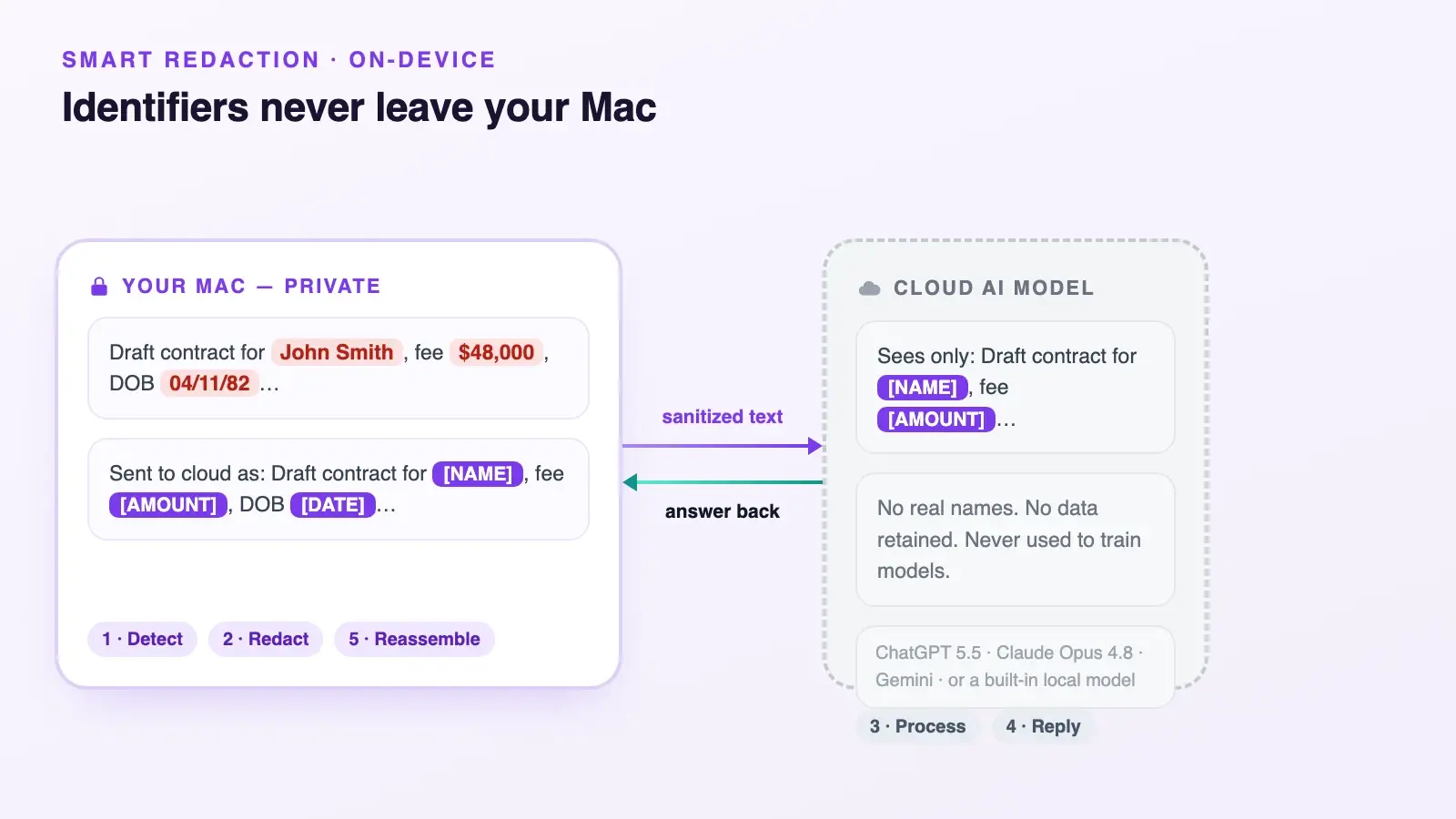
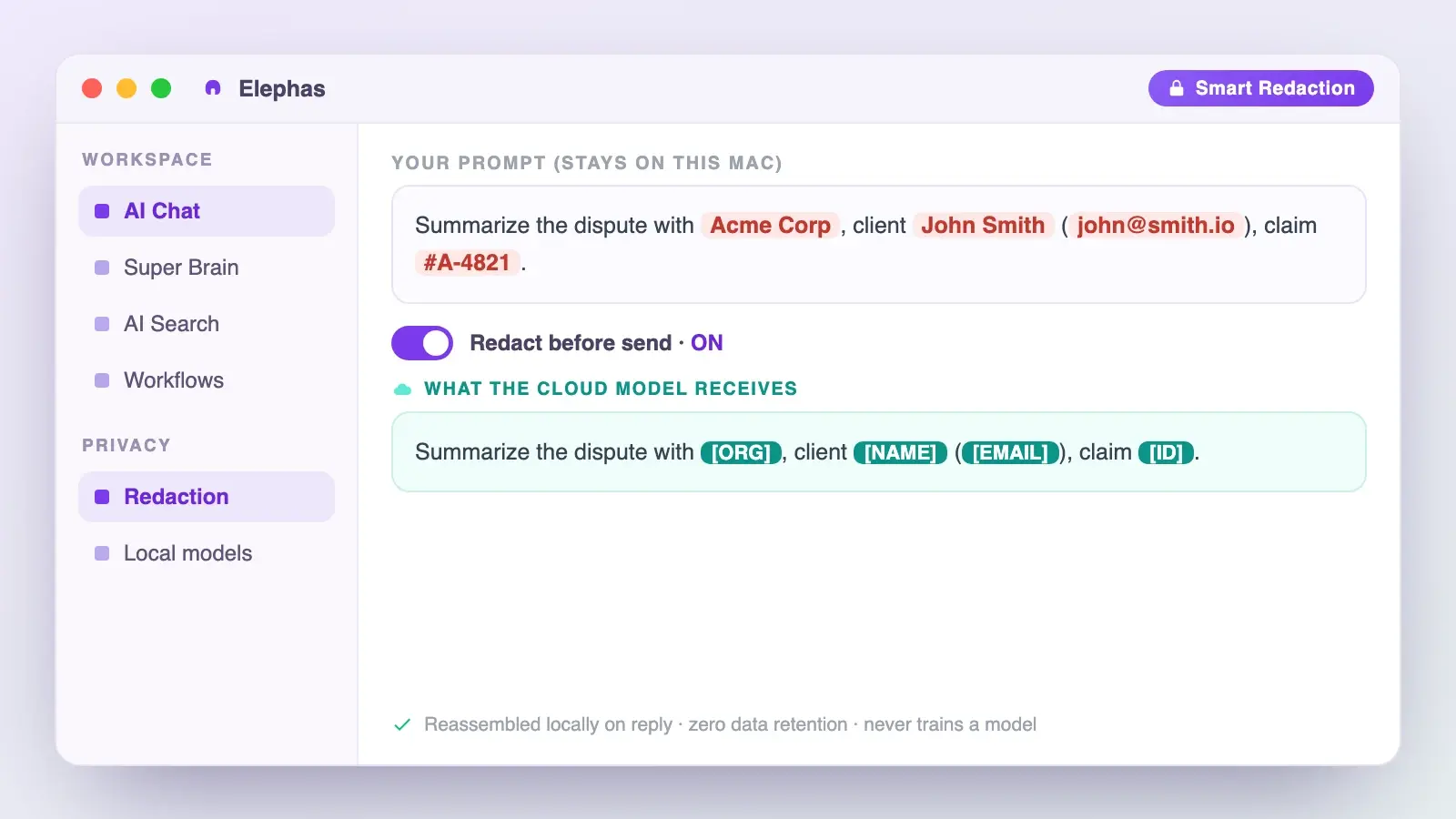
Sensitive data is automatically detected and redacted before anything reaches a cloud AI model, your content is never used to train AI models, and nothing passes through a third-party reviewer's screen. Elephas has a free plan and starts at $19/month; you can try it for free and see the current plans at elephas.app/pricing.
Common Apple Intelligence Mistakes on Mac (and the Honest Caveats)
Most Apple Intelligence problems on Mac come from four things: a stalled download or storage squeeze, Writing Tools that never appear, expecting a “smart Siri” that has not shipped, and trusting AI output without checking it. Each has a known fix or limit, plus the accuracy and privacy caveats below.
- Writing Tools is unavailable or missing after a Tahoe upgrade (Apple Community, 2026-04-01, thread 256179309). Match your System, Region, and Siri language, toggle Apple Intelligence off then on to re-download the models, disable your VPN, and quit conflicting text tools such as Grammarly.
- The “more personal” Siri is still missing and slipped to version 27 (9to5Mac, 2026-03-30, report). Treat Type to Siri, product help, and ChatGPT hand-off as today's reality; do not expect the WWDC-2024 personal-context Siri yet (power-user or first-timer).
- The new Siri AI is held back in the EU and China (MacRumors, 2026-04-22, report). The 2026 Gemini-powered Siri rolls out in stages and by region, and some features are limited or delayed in certain countries. Check Apple's availability page for your region before assuming a feature is present (migrator, EU readers).
- Apple Intelligence needs about 7 GB free and can grow (MacRumors, 2026-05-01, how-to). Free space before you turn it on, and reclaim it by turning Apple Intelligence off, which may need a restart before the storage frees.
Apple warns generative output can vary and should be checked. A 2026 ACL Industry Track study of Apple's “Professional” rewrite found it changed a text's fake-versus-real classification 62 percent of the time, with a reported “Privacy Preservation Rate” of 42 to 49.79 percent (ACL study). A rewrite changes style, not always meaning.
A 2026 RSAC prompt-injection technique bypassed safeguards in 76 percent of tests against apps built on Apple's on-device Foundation Models, though researchers say macOS 26.4 stopped it (RSAC). Keep human review on legal, clinical, tax, financial, and HR outputs.
Some users are done: “Apple Intelligence is a train wreck. I disabled it” (r/apple), and battery is a real complaint, since “as per users Apple intelligence has been the main culprit of fast battery drain” (r/macbookair).
Next Steps: Get More From Apple Intelligence on Mac
Your next move depends on where you started: a first-timer learns the keeper features, a migrator decides what to keep paying for, and a power-user locks down the cloud paths.
If you're setting this up from scratch
Spend a week on the keepers: Proofread and Rewrite, Type to Siri for “how do I” questions, Mail summaries, and Photos search. Turn off what you do not use, and run an Apple Intelligence Report once to see what, if anything, left your Mac.
One user did exactly that: “the priority notifications sorting is the only thing i kept on, turned the rest off after about a week” (r/mac).
If you're coming from another tool
Decide what to cancel and keep. Apple Intelligence covers quick on-device edits, but it is not a full ChatGPT or Claude replacement, and the no-account extension is not your history. One migrator's take:
“I try to use it to forward requests to ChatGPT... it can't get anything right” (r/mac).
If you're upgrading an existing workflow
Wire it into Shortcuts for repeatable summarize tasks, keep the ChatGPT extension off (or no-account only) for confidential work, and audit cloud use with the Report.
Frequently asked questions
Is Apple Intelligence free?
Yes. It is built into macOS at no extra cost, and the no-account ChatGPT extension is also free.
Does it work offline on Mac?
Partly. On-device features work without internet, but Private Cloud Compute and ChatGPT need a connection.
Which Macs support Apple Intelligence?
Apple silicon only, meaning M1 or later. Intel Macs cannot run it (Apple Support 121115).
What macOS version do I need?
Sequoia 15.1+ for core features, 15.2+ for the ChatGPT extension, and Tahoe 26 for the full 2026 set.
Why is Apple Intelligence not showing on my Mac?
Usually an ineligible chip or macOS, a language mismatch, a stalled download, or a VPN or region block. Match your languages and toggle it off and on.
When does my Mac send a request to ChatGPT, and what does OpenAI see?
Only after you turn it on. Text can go straight through, but photos and files always ask first, and without an account OpenAI cannot train on them.
How do I control what stays on my Mac versus the cloud?
Most work stays on your Mac; use the Apple Intelligence Report to see what went to the cloud, and turn off what you do not want.
How do I check what Apple Intelligence sends to the cloud?
Open System Settings > Privacy & Security > Apple Intelligence Report > Export Activity to save Apple_Intelligence_Report.json.
A few moves pay off wherever you started:
- On a managed work Mac, ask IT whether Writing Tools, Safari summaries, or the ChatGPT extension are blocked by policy before you troubleshoot.
- Re-run the Apple Intelligence Report after each macOS update, since an update can quietly switch features back on after you turned them off.
- When “what stays private” must mean “the sensitive parts never left this Mac,” add Elephas, the privacy-friendly AI knowledge assistant with built-in local LLM models and redact-before-send.