How to Use Apple Intelligence on Photos Without Oversharing
Apple Intelligence can search for specific photos with natural language, create a Memory movie from one sentence, and remove distracting objects with one tap. Most processing happens locally.
Using Apple Intelligence on photos without oversharing means knowing when an image leaves your Mac or iPhone, plus which default to change. This guide maps every feature's data path.
Quick answer: which Apple Intelligence photo features stay private, and which do not
- On your device only: photo search, Memory movies, Clean Up, and People and Pets in Photos. They work with iCloud Photos off.
- Sent to Apple by default: Enhanced Visual Search landmark matching. It ships on, so turn it off first.
- May use Private Cloud Compute: heavier requests, which Apple says are not retained.
- Leaves Apple only when you tap it: the ChatGPT handoff and Visual Intelligence Google or Ask actions.
- For sensitive document work around your photos, Elephas is a privacy-friendly AI knowledge assistant that keeps analysis on your Mac with built-in local LLM models. A free plan is available, with paid plans from $19 per month.
What Apple Intelligence actually does to your photos, and where each task sends them
Whether you use Apple Intelligence on Mac or iPhone, most photo work stays on the device. Apple says scene classification, face recognition, quality analysis, and People and Pets grouping happen locally, and that it does not use your library to develop its features.
A few features take a different path. Enhanced Visual Search reaches Apple's servers, large requests can use PCC, and the ChatGPT handoff leaves Apple entirely. For on-device work, Apple describes a model of about 3 billion parameters in its foundation-models report.
| Feature | What it does | Where the data goes | Status |
|---|---|---|---|
| Natural language search | Find a photo or video moment by description | Local index | Stable in iOS 26 |
| Memory movies | Build a movie from a written prompt | Local processing | Stable |
| Clean Up | Remove objects from a photo | Local processing | Stable |
| People and Pets | Group faces and pets | Local processing | Stable |
| Enhanced Visual Search | Match landmarks to Apple's index | Photo-derived data to Apple servers; on by default | Stable |
| Image Playground and Image Wand | Generate images | Local except for the ChatGPT style | Stable |
| Visual Intelligence | Identify camera or on-screen content | Google or ChatGPT handoff | Stable |
| ChatGPT and Siri handoff | Ask a cloud model about a photo | OpenAI | Stable |
| Spatial Reframing, Extend, SynthID | Newer edits and a hidden watermark | Announced | iOS 27, fall 2026 |
Discoverability is part of the problem. A MacOS discussion noted that almost no one was talking about the Photos feature. A separate privacy discussion argued that Enhanced Visual Search should be opt-in.
Independent verification is incomplete. A 2026 analysis of the PCC client found that closed binaries limit outside verification in an arXiv paper, while a separate privacy audit reported problems in 68 percent of one Apple data collection.
Before you start: the 4 privacy settings to fix first
Four settings decide whether a sensitive image leaves your device: disable Enhanced Visual Search, leave the ChatGPT extension off or set it to confirm, choose iCloud Photos with Advanced Data Protection or keep it off, and give third-party apps Limited photo access.
None of the on-device tools need iCloud or ChatGPT. Apple lists the hardware plus a 7 GB requirement, so confirm that your device qualifies.
| Requirement | Detail |
|---|---|
| iPhone | iPhone 15 Pro, or any iPhone 16 or later |
| iPad | A17 Pro, or M1 and later |
| Mac | Apple silicon, M1 or later |
| Software | Latest available iOS, iPadOS, or macOS release |
| Storage | About 7 GB free |
| Language | Device and Siri language must match a supported language |
- Turn off Enhanced Visual Search. On iPhone or iPad: Settings, Apps, Photos, then toggle it off. On Mac: Photos, Settings, General, then uncheck it. It sends an encrypted, photo-derived signature to Apple's landmark index.
- Keep the ChatGPT extension off, or keep “Confirm ChatGPT Requests” on. Go to Settings, Apple Intelligence and Siri, ChatGPT. Leave confirmation enabled so nothing sends without your tap.
- Decide between iCloud Photos and Advanced Data Protection. Standard iCloud encrypts photos while Apple holds the keys. Advanced Data Protection makes them end-to-end encrypted. Shared Albums do not support it.
- Set third-party apps to Limited photo access. Open Settings, Privacy and Security, Photos, choose an app, then choose Limited Access.
If you're setting this up from scratch
Decline a ChatGPT prompt during setup if you do not need it. Local photo tools work without ChatGPT. After setup, run the Step 5 audit before using a feature on a client screenshot.
If you're coming from another tool
If your old eraser uploaded photos to remove objects, Apple's Clean Up changes that workflow because it runs locally. Turn off auto-shared Memories, move sensitive shots out of Shared Albums, and check whether any smart button invokes ChatGPT.
If you're upgrading an existing workflow
No switch forces a task to fail instead of escalating to PCC. Treat the documented local photo features as your safe set and keep privileged material off the cloud path.
How to use each Apple Intelligence photo feature, and what leaves your device
Search, Memories, and Clean Up stay on your device. Content leaves through the image generator's ChatGPT style, Visual Intelligence Google and Ask actions, or a Siri handoff, and you are asked first.
Quick steps:
- Turn on Apple Intelligence.
- Search photos and build a Memory movie.
- Remove objects with Clean Up.
- Generate images and use Visual Intelligence.
- Use the ChatGPT handoff, then run a privacy audit.
Step 1: Turn on Apple Intelligence
On iPhone or iPad, open Settings, Apple Intelligence and Siri, and turn it on. On Mac, use System Settings. Keep the required storage free while the models download.
Path and check
Step 2: Search photos and create a Memory movie
Open Photos, tap Search, and type a description such as “blue dress at the beach.” For a Memory movie, open Collections, select Memories, tap Create, and describe the story, such as “summer trip with family.”
Path and check
Step 3: Remove objects with Clean Up
Open a photo, tap Edit, then Clean Up, and tap, brush, or circle the object. On Mac, adjust the brush with the Size slider and use Zoom for precision before clicking Done.
Path and check
Step 4: Generate images and use Visual Intelligence
Open Image Playground, or use Image Wand in Notes, describe the image, select a style, and generate it. Creation stays on the device unless you pick the ChatGPT style, which asks before handing the request to ChatGPT.
On an iPhone 16 with Camera Control, hold that button and point at the physical scene. On an iPhone 15 Pro or 16e, open Visual Intelligence from the Action button or Control Center. For screen content, take a screenshot and then search or ask about it. Google and Ask actions leave Apple.
Path and check
Step 5: Use the ChatGPT handoff, then run a privacy audit
Ask Siri to summarize a photographed document or perform another action. Siri shows a confirmation when a photo or document is attached. Approve only after checking the contents. This path leaves Apple and goes to ChatGPT.
Then confirm that Enhanced Visual Search is off, the ChatGPT extension is off or set to confirm, Advanced Data Protection is on if you use iCloud Photos, and every third-party app has Limited Access.
Power users: when the work involves a case file or report related to a photo, the text is often where oversharing happens. A privacy-friendly AI knowledge assistant like Elephas redacts personal details before a request reaches a cloud model and restores them locally on your Mac.
Common mistakes that quietly overshare your photos
The biggest risks are defaults you never chose and edits you trust too much. These are the quiet traps and the direct fixes.
- Leaving Enhanced Visual Search on. It ships on. The Register documented the behavior in January 2025. Fix: turn it off in Photos settings first.
- Chasing a Wi-Fi error in the image generator. Apple's June 9, 2026 notes say that “Connect to Wi-Fi to create images” can mean a blocked or unsupported request. Fix: change the prompt.
- Generating a ChatGPT image inside Mac Messages. The same release notes list this as failing on Mac. Fix: use ChatGPT in Image Playground directly.
- Brushing only a face in Clean Up. Clean Up can blur rather than remove the face. Apple Support explains the behavior. Fix: circle the whole subject.
Do not trust a generative edit as a record. Clean Up invents the fill where the object was. A 2024 false-memory study found that AI-generated videos based on edited photos produced 2.05 times as many false memories and 1.19 times the confidence in those memories.
Keep the untouched original of any photo that matters. Also re-check privacy defaults after OS updates, especially before handling medical, legal, client, or other regulated images.
Next steps: a private-by-default photo workflow
Keep local features, gate cloud actions, audit the four settings on a schedule, and use sanitized versions of related documents for cloud requests.
If you're setting this up from scratch
Practice on a throwaway photo first. Re-run the four-point privacy audit after every system update because settings and feature availability can change.
If you're coming from another tool
Check feature parity before deleting the old app, then turn off its cloud backup so the same library is not syncing to two cloud services.
If you're upgrading an existing workflow
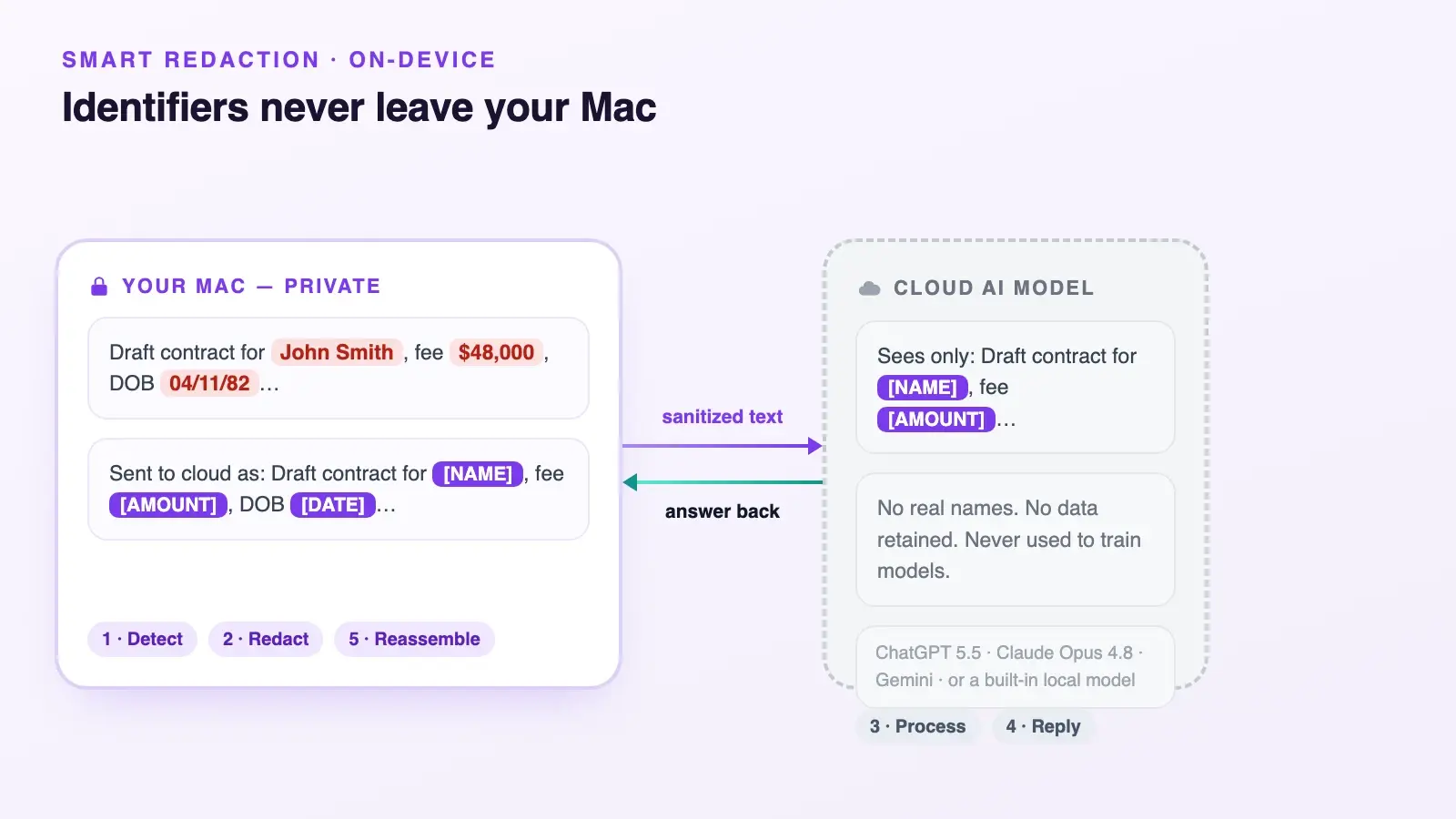
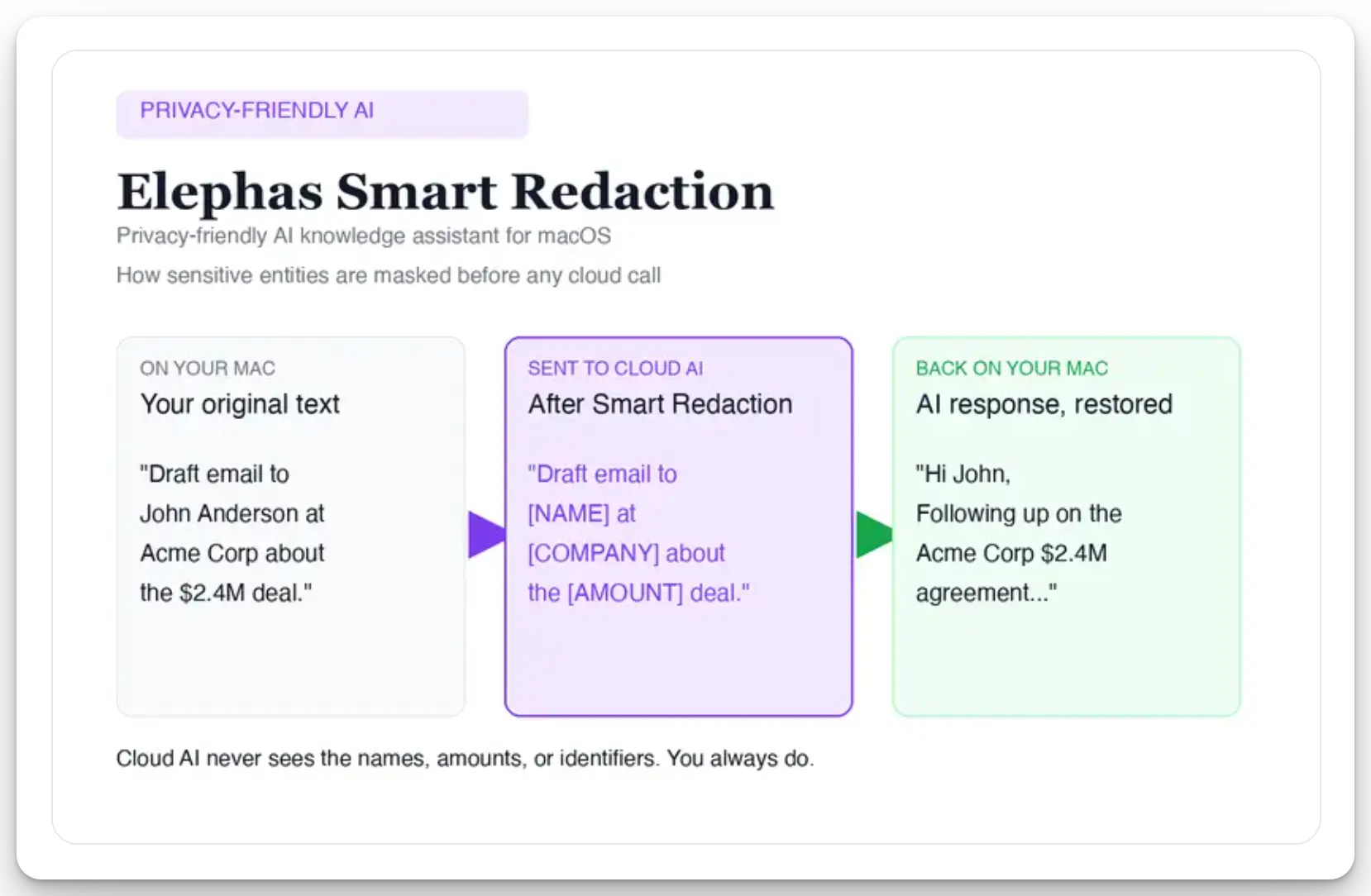
At scale, the leak is often the document related to the photo, such as a contract or report that you then ask a model about. The safer pattern is redact, then send: remove private details locally and send only the sanitized version.
For work that still needs a leading cloud model, Elephas is a privacy-friendly AI knowledge assistant that adds automatic PII redaction (beta) on every plan, including Free. Before a prompt reaches ChatGPT 5.5, Claude Opus 4.8, Gemini, Grok, Perplexity, or any other cloud model, Elephas strips sensitive names, emails, phone numbers, and identifiers on your Mac. The cloud model only ever sees sanitized text, and the redacted fields are reassembled locally when the answer returns. Elephas pairs this with zero data retention: your content never trains AI models, never sits on a vendor's server, and never passes through a third-party reviewer's screen. It also provides built-in local LLM models, so for fully private work the request never leaves your Mac.
- Turn off Enhanced Visual Search and re-check it after every OS update. Keep local features for the photos themselves.
- Treat the ChatGPT handoff and Visual Intelligence Ask and Google actions as steps that leave Apple, and keep the untouched original of any photo that could serve as a record.
- If your photo work feeds sensitive documents, Elephas is a privacy-friendly AI knowledge assistant with built-in local LLM models that redacts before sending to any cloud model, so data never leaves your Mac. A free plan is available, with paid plans from $19 per month. Try Elephas free.
Frequently asked questions
Does Apple Intelligence upload my photos to the cloud?
Mostly no. Search, Memories, Clean Up, and face grouping run locally. Enhanced Visual Search sends photo-derived data to Apple by default, heavy requests can use Private Cloud Compute, and content leaves Apple when you hand it to ChatGPT or a Visual Intelligence Google search.
Do I need iCloud Photos for Apple Intelligence to work?
No. Local features work with iCloud Photos off. iCloud adds sync and backup. Turn on Advanced Data Protection if you keep iCloud Photos enabled.
Is Clean Up done locally?
Yes. Clean Up runs locally. It can pixelate a face if you brush only over it, and it generates the replacement fill, so keep the untouched original.
Can I force a photo task to stay off the cloud?
There is no single switch that blocks Private Cloud Compute. Use the documented local photo features for sensitive images and leave the ChatGPT extension off. Apple asks before a photo or file is sent to ChatGPT.
What about regulated images like medical, legal, or client photos?
Keep them on the device or in end-to-end encrypted iCloud, never place them in a Shared Album, and redact sensitive details before any cloud model sees related text. Applicable privacy and professional-confidentiality rules still apply.
Related Resources
Explore all AI Privacy & Security resourcesApple Intelligence Privacy: What Leaves Your Mac (and What Never Should)
9 min readcomparisonSiri vs Alexa in 2026: Which Assistant Wins After the AI Overhaul?
20 min readarticleWhat Is Apple Intelligence? Features, Devices & Privacy Explained (2026)
15 min readguideApple Intelligence on Mac: The Complete 2026 Guide (Features, Setup, Privacy, and the New Siri)
25 min readKeep sensitive work private
Use local models or remove personal details before a request reaches a cloud model.
Try Elephas free