Apple Intelligence Writing Tools: What They Can and Can't Do (2026)
Last updated: July 23, 2026
Apple Intelligence Writing Tools rewrite, check grammar, and summarize text you have already written almost anywhere you type on a Mac running macOS Sequoia 15.1 or later. They cannot compose from a blank page on their own, they only run on Apple silicon, and they go missing in several apps knowledge workers use every day.
This guide is for people evaluating the feature, and it takes about 5 to 10 minutes to turn on and confirm it works. For the wider picture, see our Apple Intelligence guide.
Quick answer
- Can: proofread, rewrite in three tones, and summarize text you already wrote.
- Can't: compose from a blank page without the ChatGPT extension, or reach many web apps like Notion and Slack web.
- Needs: Apple silicon, macOS Sequoia 15.1 or later, about 7 GB free, and matching languages.
- Elephas has a free plan and starts at $19/month with a free trial, for cross-app writing and local redaction.
What Can Apple Intelligence Writing Tools Do?
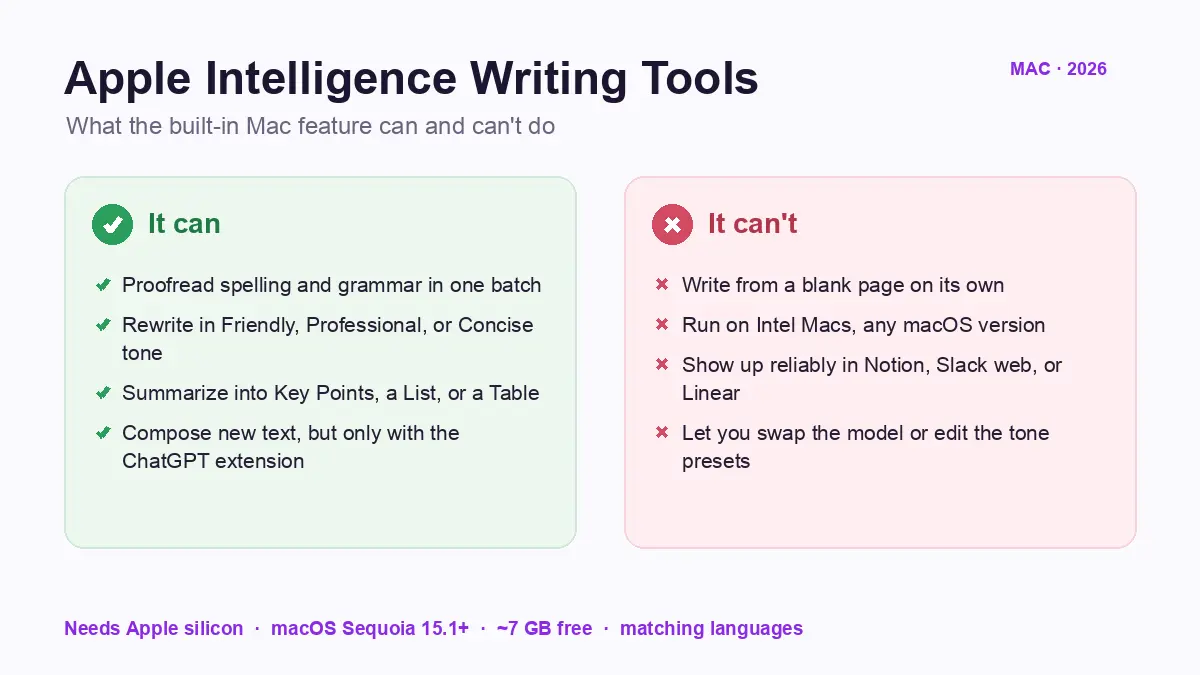
The feature adds four actions to text you have already written. Proofread fixes spelling and grammar in one batch. Rewrite restyles the same passage in a Friendly, Professional, or Concise tone without adding new facts.
Summarize condenses a selection into a short paragraph, Key Points, a List, or a Table. Compose generates new text from a prompt, but only after you connect the ChatGPT extension in Step 5.
What You Need Before You Start
The feature ships inside the operating system, so there is nothing extra to install. What you do need is the right hardware and a few matching settings, or it will not appear at all.
Some Mac owners are already wary of AI writing tools in general. One mildlyinfuriating post said the new AI surge for writing "causes nothing but issues," since detection tools can flag clean, typo-free writing as machine-made.
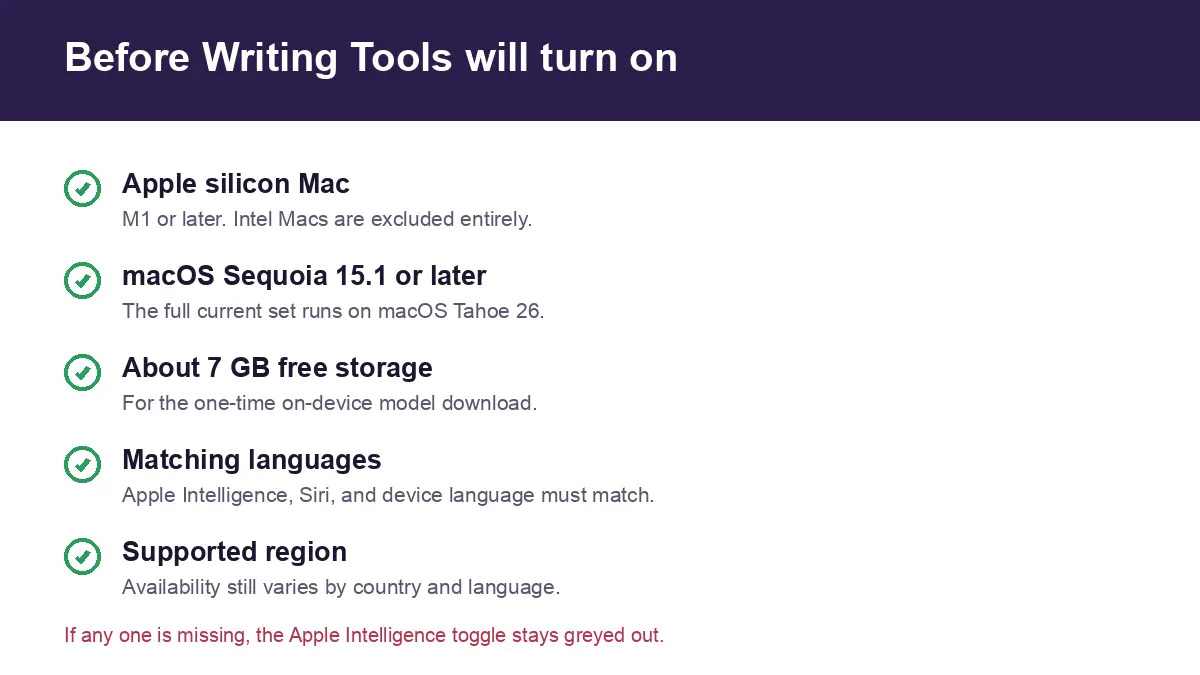
- A Mac with Apple silicon (M1 or later). Intel Macs are excluded entirely, whatever the version.
- Sequoia 15.1 or later, which is when the feature first shipped. The full current set runs on macOS Tahoe 26.
- About 7 GB of free storage for the on-device model download.
- Wi-Fi and power connected while the model downloads the first time.
- Apple Intelligence, Siri, and your device language all set to the same supported language.
On iPhone and iPad, the same feature arrived with iOS 18.1 and iPadOS 18.1, with Compose landing in the 18.2 update, per Apple Support. If you own several Apple devices, make sure you're using the latest version on each, since older builds behave differently.
Step 1: Turn On Apple Intelligence in System Settings
Open the Apple menu, choose System Settings, select Apple Intelligence and Siri, and toggle Apple Intelligence on.
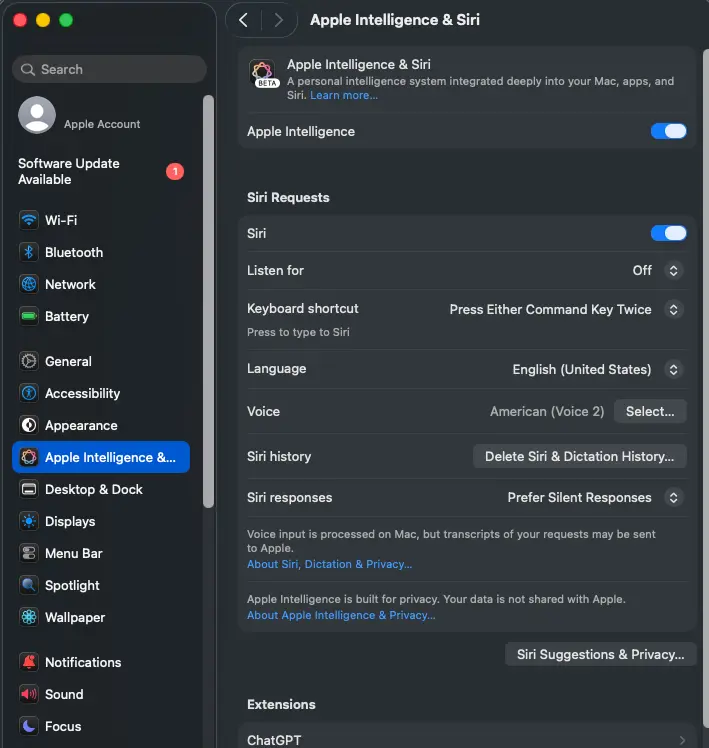
Your Mac begins downloading the on-device models in the background, and the progress shows in the same settings pane. The tools become available once that download finishes, so give it a few minutes on the first run. After that, you can use Apple Intelligence anywhere you write.
Roll-out has been uneven across versions, which frustrates some users. One iOS user expected "the last piece of Apple Intelligence" in an update and called its absence a "Shame."
Common mistake: the toggle is greyed out. This is almost always a language or region mismatch, which we fix in Step 2 and cover again in Common Mistakes as G1.
Step 2: Set Siri, Device, and Region Language to Match
Stay in the same Apple Intelligence and Siri pane. Confirm that your Siri language, your system language, and your Apple ID region are all set to one of the supported languages. English (US) is the safest default while you get started.
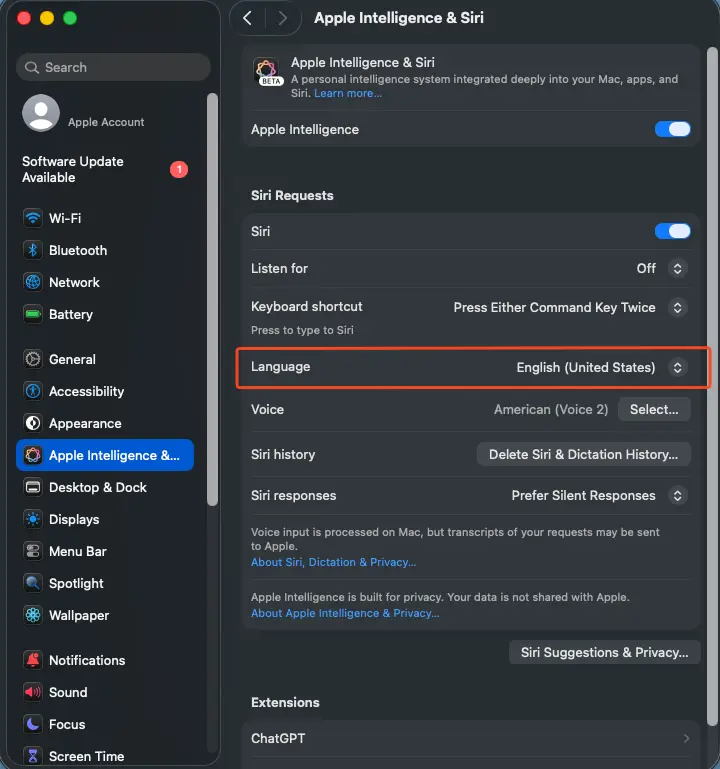
Once the three settings match a supported pairing, the toggle becomes selectable, and the tools start appearing when you Control-click text.
Availability keeps shifting, partly because Apple has been careful about which Apple Intelligence features it ships and when. One apple thread called it "strange they did it with multiple Apple Intelligence features."
Common mistake: a mismatched language or region is the number one reason the toggle stays greyed out or the feature never shows up. Apple lists 16 supported languages as of mid-2026, but availability still varies by region.
Step 3: Select the Text You Want, Then Open the Menu
Highlight text you have already written. This works in Notes, Mail, Pages, Safari text fields, and most other places you write. Then Control-click and choose Show Writing Tools.
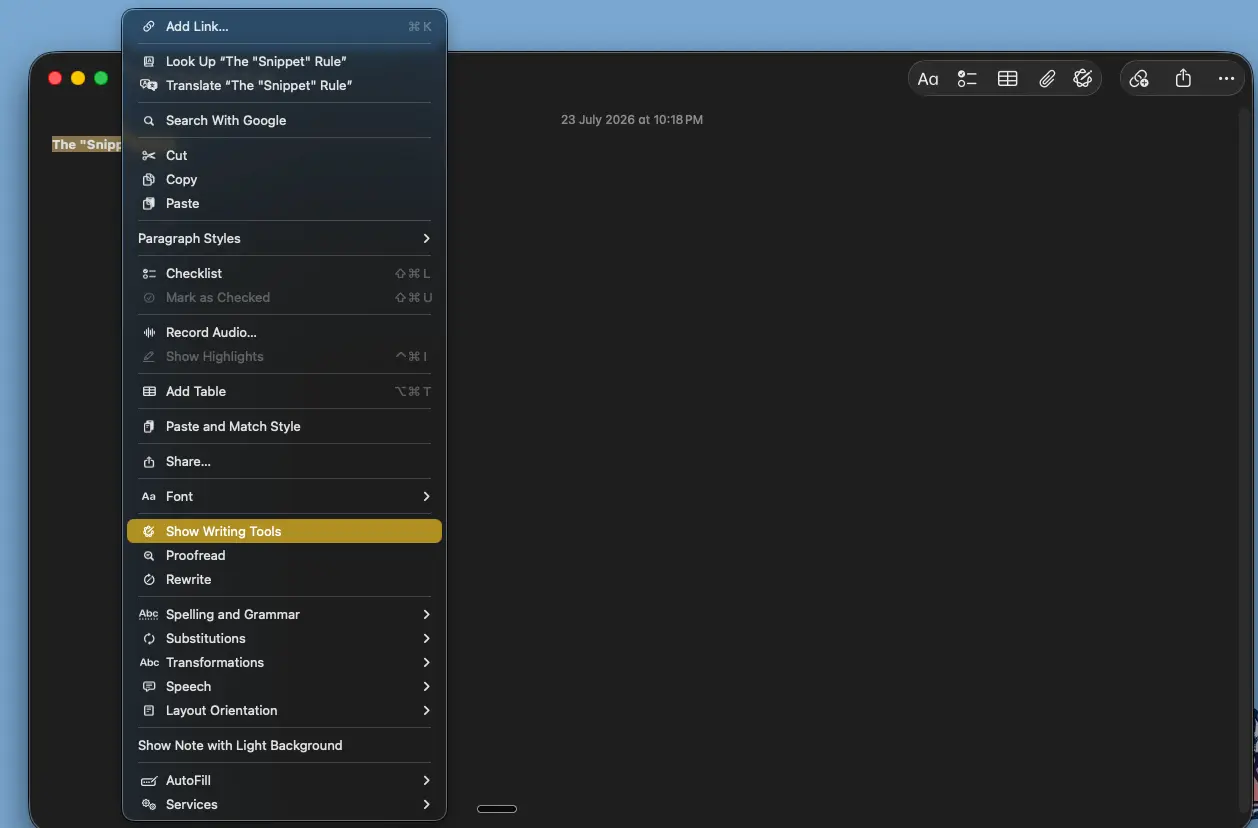
In apps like Notes and Mail, you can instead hold the pointer over your text and click the popover button, or use the button in the toolbar. To use Writing Tools with Apple Intelligence, you simply select a passage first, since the core actions have nothing to work on otherwise.
A pop-up menu appears listing the grammar check, Rewrite, Summarize, Key Points, List, Table, and Compose if the extension is set up. Apple lists the same set in its user guide.
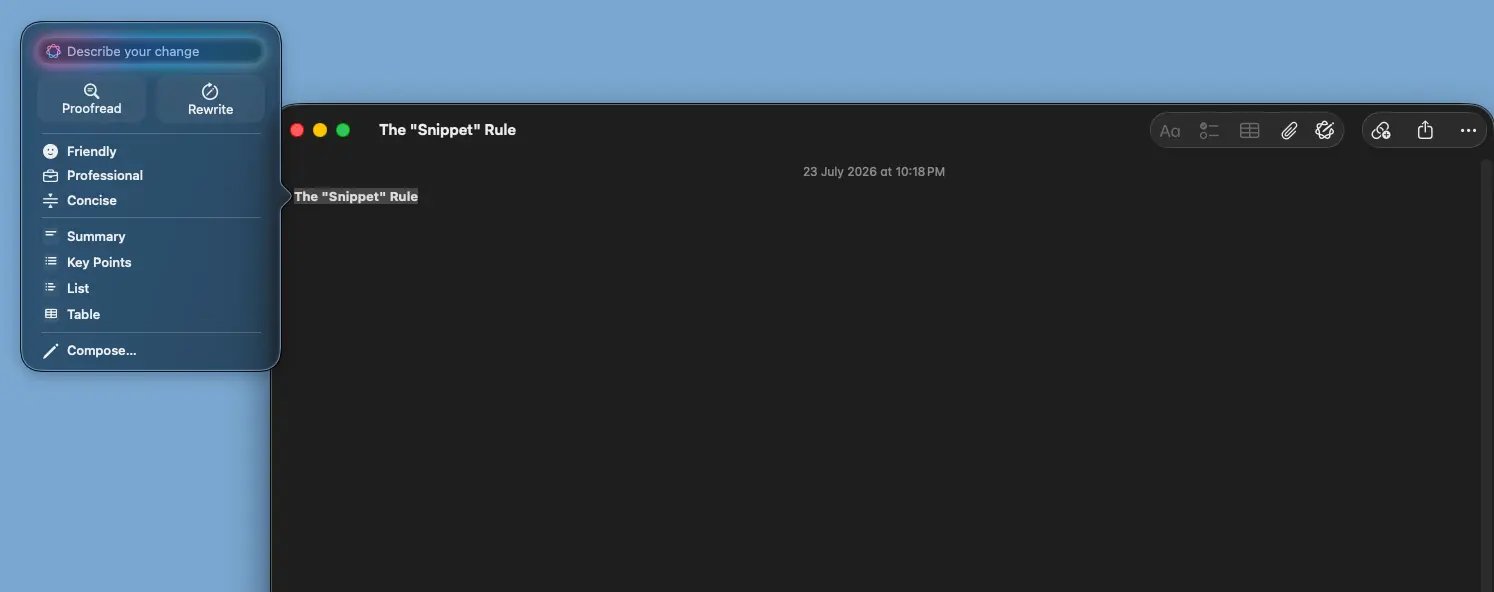
Common mistake: trying this on a blank page with nothing selected. The core actions have nothing to transform without existing text, which is the root of the Compose confusion we expand in Step 5.
Step 4: Pick Proofread, Rewrite, or a Summary Format
Choose the action that fits the job. Proofread catches spelling or grammar in one batch. Rewrite restyles the same passage in a Friendly, Professional, or Concise tone. Summarize, Key Points, List, and Table condense your text into a shorter format. Here is what each result looks like:
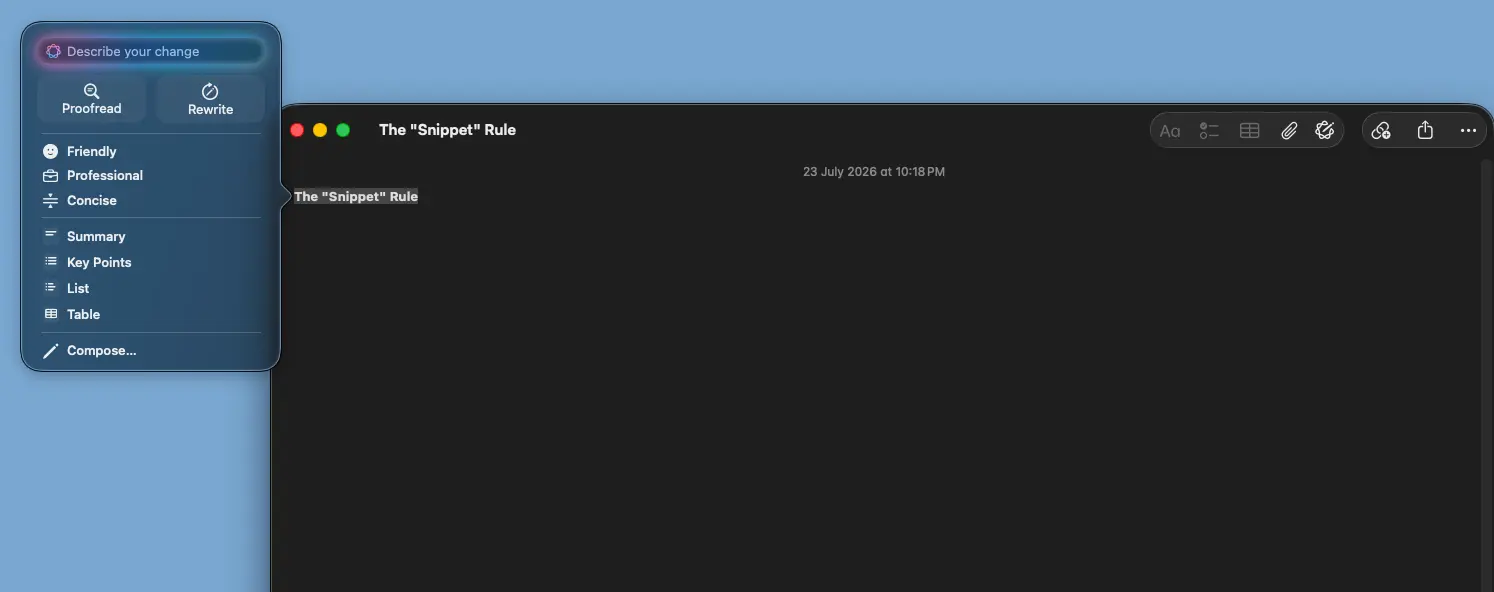
- The grammar check shows underlined fixes you accept as one set. Changes are underlined so you can review them before applying.
- Rewrite replaces the passage inline with a rewritten version, without inventing new facts. The new text appears inline in place of the original.
- Summarize returns a short paragraph, while the key ideas and List views give a bulleted breakdown.
- Table reorganizes suitable content, such as a comparison, into a list or table of rows and columns.
One apple summary captured the trade-offs well, noting the feature enhances writing "by correcting spelling and grammar" but is "currently in beta" and cannot let you review suggestions individually. Summarization shows up in the wild too. One MacOS post shared a release note written as a "Summary Through Apple Intelligence."
Common mistake: expecting to accept one grammar fix and reject another the way Grammarly's inline suggestions work. The check applies all its corrections together in a single pass.
The rewrites are conservative by design. Reviewers describe the tone of your writing as changed but rarely in a dramatic way, and repeated taps on the same passage can stop producing changes once the model treats the text as revised. To force a fresh pass, edit the passage first or switch to a different tone.
Step 5: Enable the Extension for Compose
Go to System Settings, then Apple Intelligence and Siri, then ChatGPT, then Set Up, then Next. Choose Enable ChatGPT for a rate-limited option with no account, or sign in with an OpenAI account for higher limits.
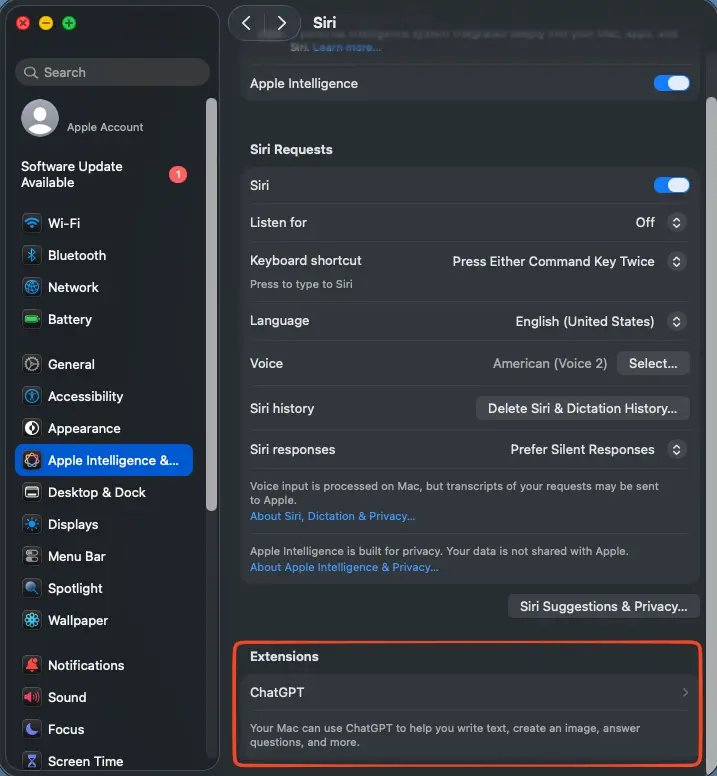
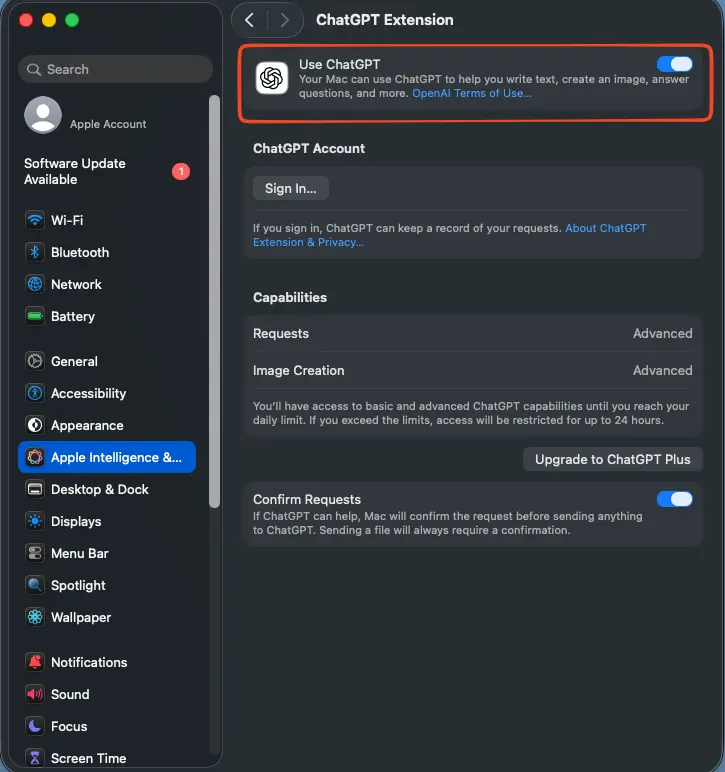
Compose appears in the menu once this step is done. Selecting it lets you compose text from a prompt, generated from nothing, unlike Rewrite and the grammar check, which only edit existing text. Once connected, it is the only action leaving that private path, so keep that in mind on sensitive drafts.
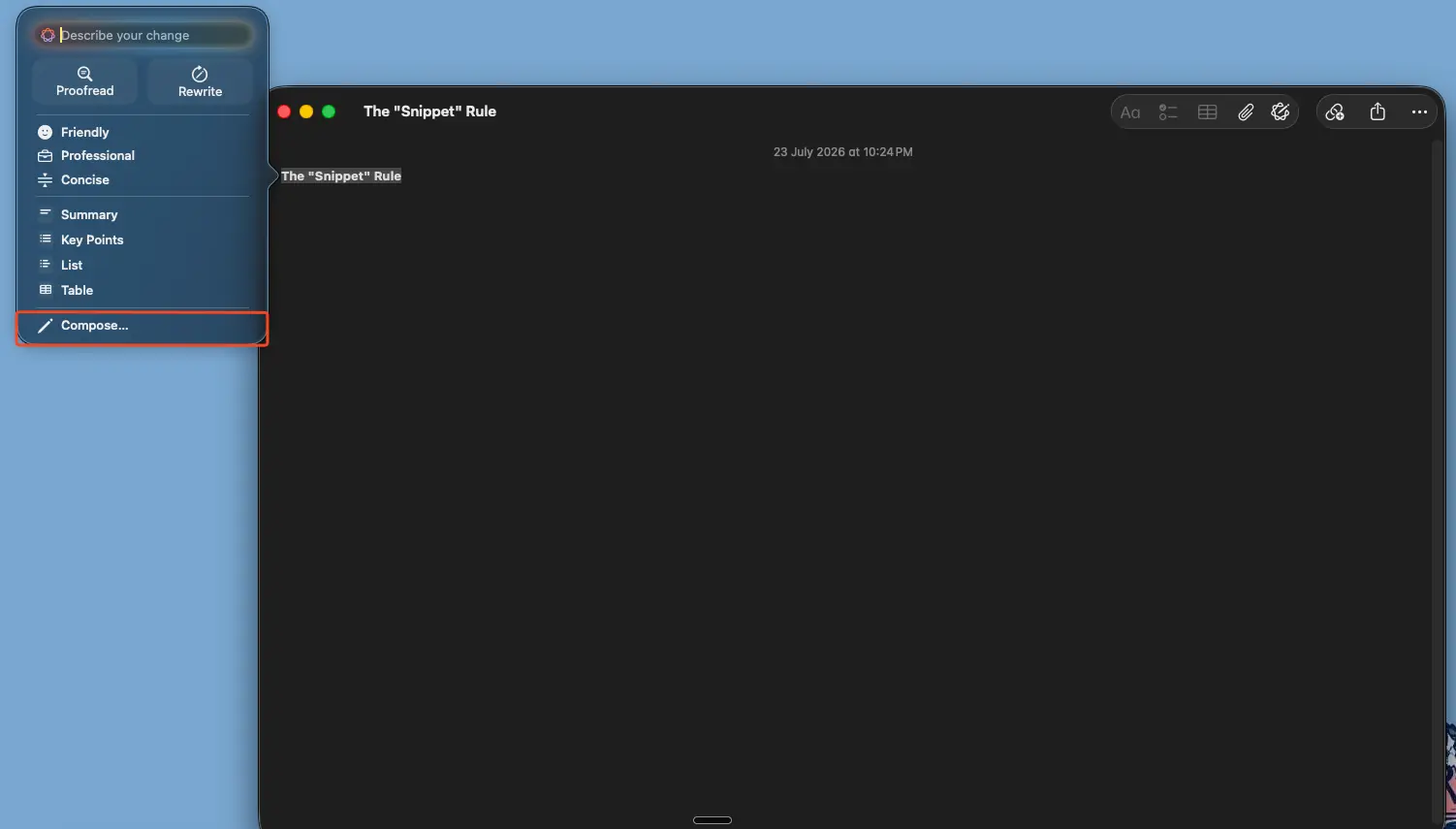
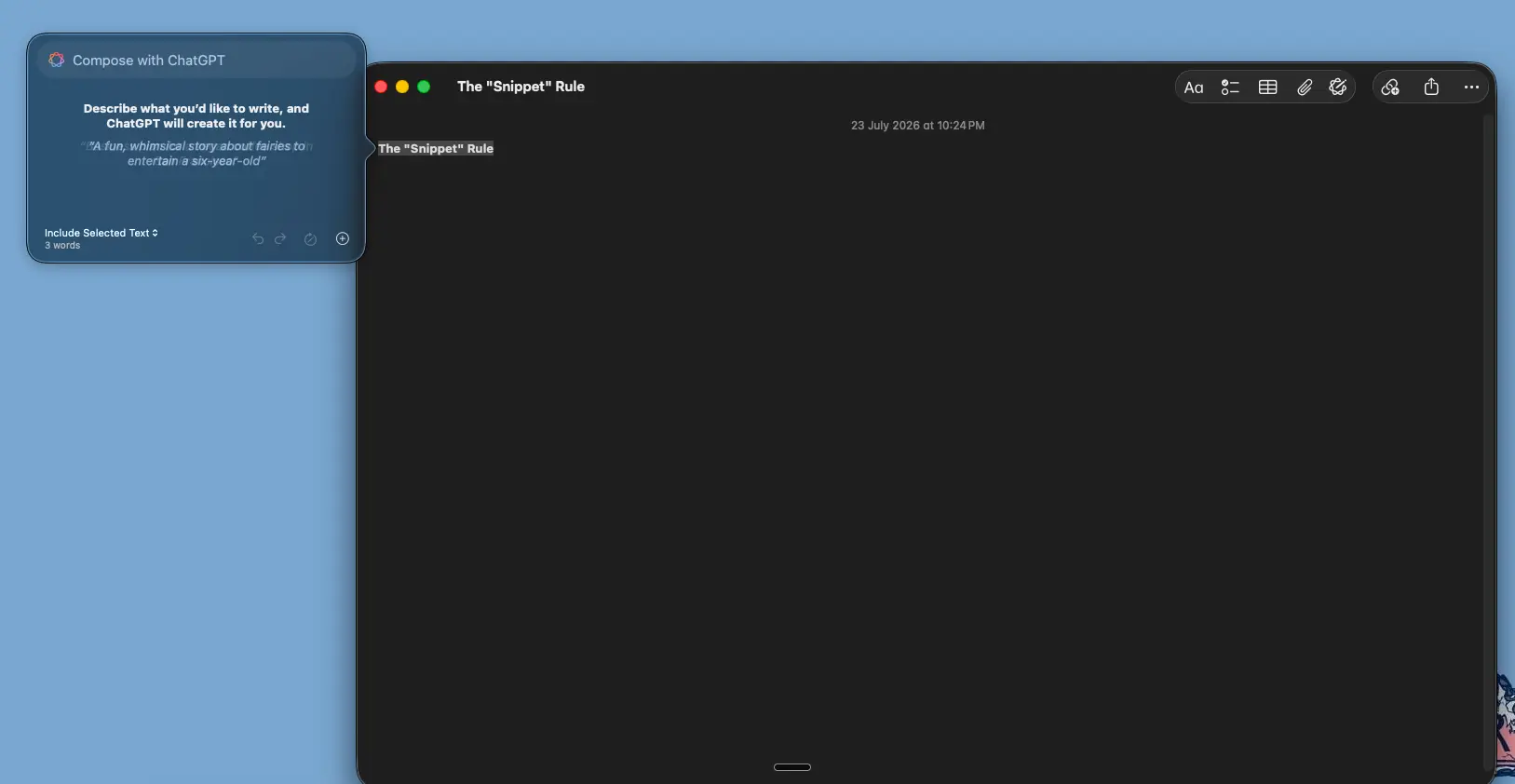
Some readers reach for Compose because they find the built-in editing modest. One technology comment argued Apple is "way behind the pack" on AI, which is part of why the heavy generative work is handed off.
Common mistake: assuming Compose is as private as the rest of Writing Tools. It is not. If you use it without signing in, Apple's arrangement means OpenAI cannot store your request or train on it.
On sensitive drafts
Where Writing Tools Work, App by App
The ranking pages say the feature works in "most places" without proving where the controls actually appear. Here is a reported view across the apps knowledge workers live in, drawn from Apple Support and independent Wordwand coverage.
| App | Writing Tools available? | Notes |
|---|---|---|
| Notes | Works | Native app, toolbar button and Control-click |
| Works | Native app, toolbar button included | |
| Pages | Works | Native app, full tool set |
| Safari (text fields) | Works | Editable fields; read-only pages can summarize |
| Google Docs | No | Custom web editor does not expose native text APIs |
| Microsoft Word | No | Reported unsupported on Mac |
| Outlook | Partial | Reported working in some surfaces |
| Slack web | Partial | Reported working and not working, depends on surface |
| Gmail | Partial | Reported working in the web compose field, but web fields are inconsistent |
The pattern is consistent. Native Apple apps and well-behaved third-party apps work. Browser-based custom editors are the least reliable surface, because the feature depends on standard system text-field APIs that many web apps do not expose.
In a read-only view like a PDF, you can still generate a summary even though you cannot edit the source.
Long documents are the other soft spot. A custom rewrite can process only part of a very long block, so plan to work in smaller selections rather than one giant block.
What Are the Most Common Mistakes to Avoid?
Most problems trace back to four recurring issues. Each one below names the symptom, the cause, the source, and the fix.
- G1. "Writing Tools is unavailable" error (most common for first-timers). Region, Siri language, and system language do not all match a supported pairing. Source: Apple Community / macReports (2026-07). Fix: set all three to the same supported language, use English (US) if unsure, then restart.
- G2. Expecting Compose to write from a blank page by default (most common for migrators). The core actions only transform text you have already written. Source: MacRumors / Apple Support (2026-07). Fix: turn on the separate extension first, as shown in Step 5, then use Compose.
- G3. Feature missing in Notion, Linear, or Slack web (most common for power users). It depends on native system text-field APIs that many browser-based web apps do not expose. Source: Shadow blog (2026-07). Fix: use native Apple apps and well-behaved third-party apps, and pick another assistant for custom web tools.
- G4. Grammarly or browser AI blocking the feature (most common for migrators). Grammarly running in the background, or browser AI like Brave Leo AI, can force an "apple intelligence is not available" report. Source: Apple Community 255823499 (2026-07). Fix: quit the conflicting app, then reopen the text field.
Some Mac owners doubt Apple Intelligence lives up to its own billing. One iphone comment asked "can they really keep getting away with falsely advertising Apple Intelligence." When in doubt, treat availability as version-specific and check each app.
Security research adds a fifth reason for caution beyond setup mistakes. RSAC researchers reported that a combined prompt-injection attack bypassed Apple's on-device filters in 76% of test prompts, a reason to keep sensitive drafts out of any assistant until fixes ship. Source: RSAC research.
Where Apple's Writing Tools Stop, and What Picks Up
Apple's Writing Tools are a genuinely useful editing layer, not a thinking layer. They restyle and tighten text you already drafted, and once the extension is on they can compose from scratch.
Where it falls short for real knowledge work is coverage and control. It cannot reach half the web apps people write in all day, and its one non-Apple path sends sensitive text outside Apple's models once you use Compose. Our Apple Intelligence guide covers the rest of the feature set.
That gap is exactly where a privacy-first assistant with built-in local LLM models picks up. Elephas is a private AI knowledge assistant for Mac that works across web apps through a menu-bar assistant, drafts original text with a choice of connected models, and redacts sensitive text locally before any cloud call.
Smart Redaction is available on every Elephas plan, including Free, so it is never locked behind a paid tier.
How Elephas Smart Redaction works
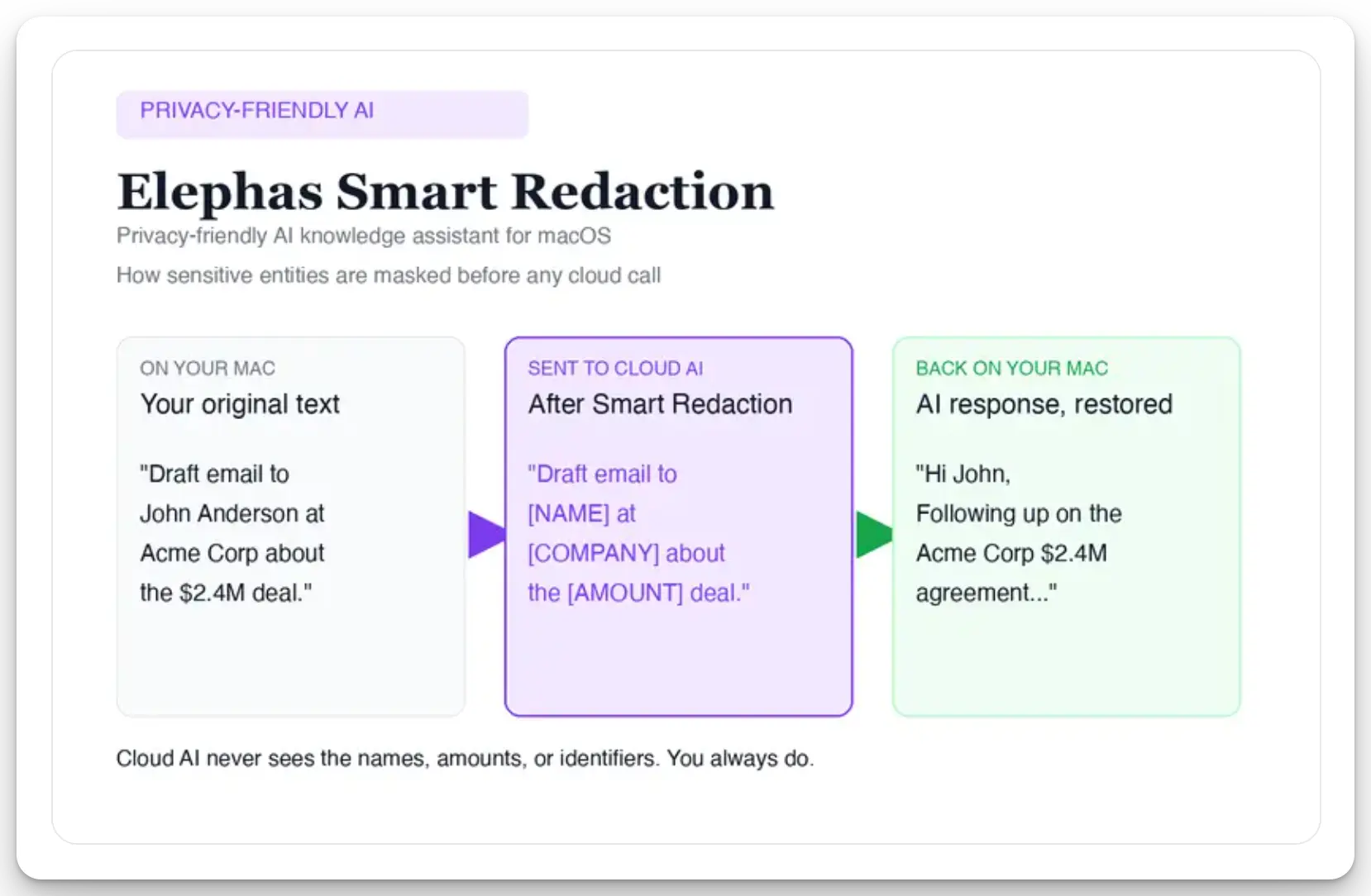
For Mac users who still want a leading cloud model, Elephas adds a second layer through automatic PII redaction. Before a prompt is sent to ChatGPT 5.5, Claude Opus 4.8, Gemini, Grok, Perplexity, or any other cloud model, Elephas strips sensitive names, emails, phone numbers, and identifiers on your Mac.
The cloud model only ever sees the sanitized text. When the answer comes back, the redacted fields are reassembled locally on your machine, so identifiable information never leaves the device. Elephas pairs this with zero data retention: content never trains AI models, never sits on a vendor's server, and never passes through a third-party reviewer's screen.
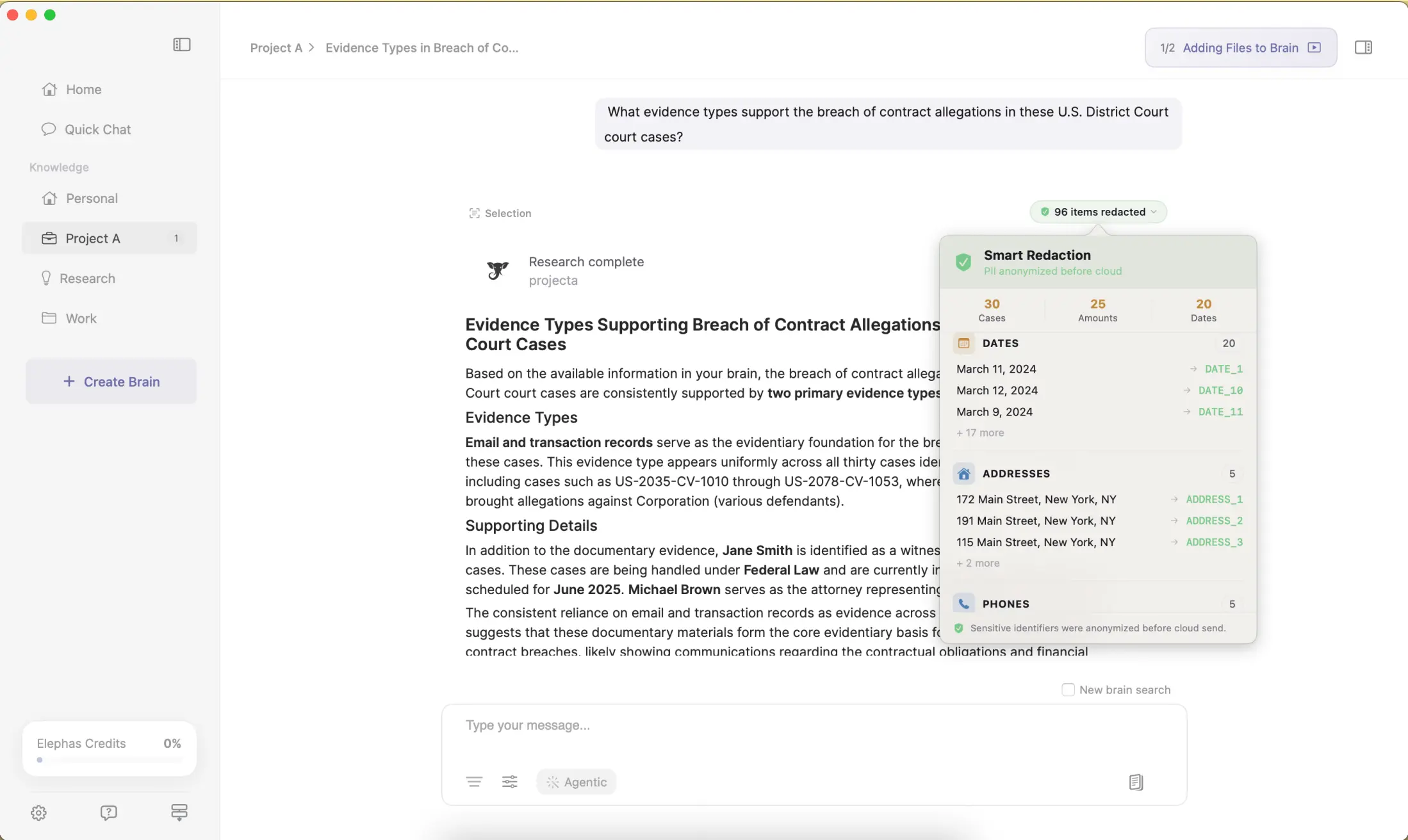
There is independent reason to care which model touches your text. According to a 2025 arXiv privacy study, a Friendly rewrite cut one attack's accuracy from 96% to 6.04%, while other modes gave weaker protection.
Raw quality is a separate question from redaction. A 2026 WiSec study reverse-engineered Apple's Private Cloud Compute and found Gemini 3 Pro Preview ahead by 16.7 to 22.8 percentage points on their tests, a reminder that model quality varies and model choice still matters even with redaction in place.
Pricing and where to go next
Apple's on-device model runs about 3 billion parameters, with a larger sparse model for harder requests, which is why some actions stay local and others do not. An Apple model report puts its on-device model on par with comparable open models, a vendor test worth weighing against outside audits.
Elephas has a free plan and starts at $19/month, with a free trial. If your real question is whether any of this is actually private, read our take on Siri and AI privacy. If you want the full app-by-app list, see our roundup of Apple Intelligence apps.
FAQ
Which Apple devices can run Writing Tools?
You need Apple silicon: an M1 or later Mac, an iPhone 15 Pro or newer, or an M1 or later iPad. Intel Macs are excluded, whatever the operating system version. The device also needs about 7 GB of free storage and matching Siri and device languages.
Is there a word or character limit?
There is no fixed published limit, but long documents are unreliable. A custom prompt can rewrite only part of a very long block, so work in smaller selections. Select the text you want in paragraph-sized chunks for consistent results.
Can I change the model or the tone?
You can create different versions by switching the Rewrite tone between Friendly, Professional, and Concise. You cannot swap the underlying model in the built-in tools. To use ChatGPT for Compose, or to pick from several models, you need the extension or a third-party assistant like Elephas.
Is Compose private the way the rest of the feature is?
No. The core editing runs on the on-device or Private Cloud Compute models, but Compose routes to OpenAI. Once you sign in, your OpenAI account settings apply and requests may be logged. For sensitive drafts, redact locally first or keep them off the extension.
Does Apple Intelligence Writing Tools work offline?
Proofread, Rewrite, and tone changes run on-device and work without an internet connection. Summarize, Key Points, List, Table, and Compose route through Private Cloud Compute or ChatGPT instead, so those need an active connection.
Which languages does it support?
Apple lists 16 supported languages as of mid-2026, and coverage still varies by region. Check the current language list and make sure Siri, device, and Apple ID region all match a supported pairing.
Can I use Writing Tools on Windows?
No. It is Apple silicon only, so there is no Windows or Intel Mac version. One software thread pointed to an open-source clone built to fill that gap on Windows.
Related articles
- Apple Intelligence on Mac: The Complete 2026 Guide
- What Is Apple Intelligence? Features, Devices and Privacy Explained
- 12 Best Apple Intelligence Apps for Mac in 2026
- Is Siri AI Private? What It Can Access