How to Turn Off Apple Intelligence (and When You Actually Should)
Yes. You can turn off Apple Intelligence completely, or switch off individual features. The right choice depends on whether you dislike the noise, need the storage back, or do not want AI touching sensitive work.
This guide covers iOS 26, iPadOS 26, and macOS 26 paths, including the separate switches for summaries, Writing Tools, Image Creation, ChatGPT, and the Apple Intelligence Report.
Quick answer
- Yes. You can turn off Apple Intelligence completely, or switch off individual features.
- If your problem is battery, storage, or noisy summaries, use the master toggle first and re-enable later if you miss it.
- If your problem is sensitive data, start by turning off ChatGPT integration and checking which features can leave the device.
- If you turn it off because you do not trust the ChatGPT handoff on sensitive work, Elephas runs AI on your Mac with Smart Redaction, on every plan, from $19/month with a free trial.
What turning off Apple Intelligence actually does (and what it doesn't)
The master switch turns off the Apple Intelligence layer across the device. That removes summaries, Writing Tools, notification and priority summaries, Image Playground, Genmoji, Image Wand, ChatGPT integration, and the Apple Intelligence layer of Siri.
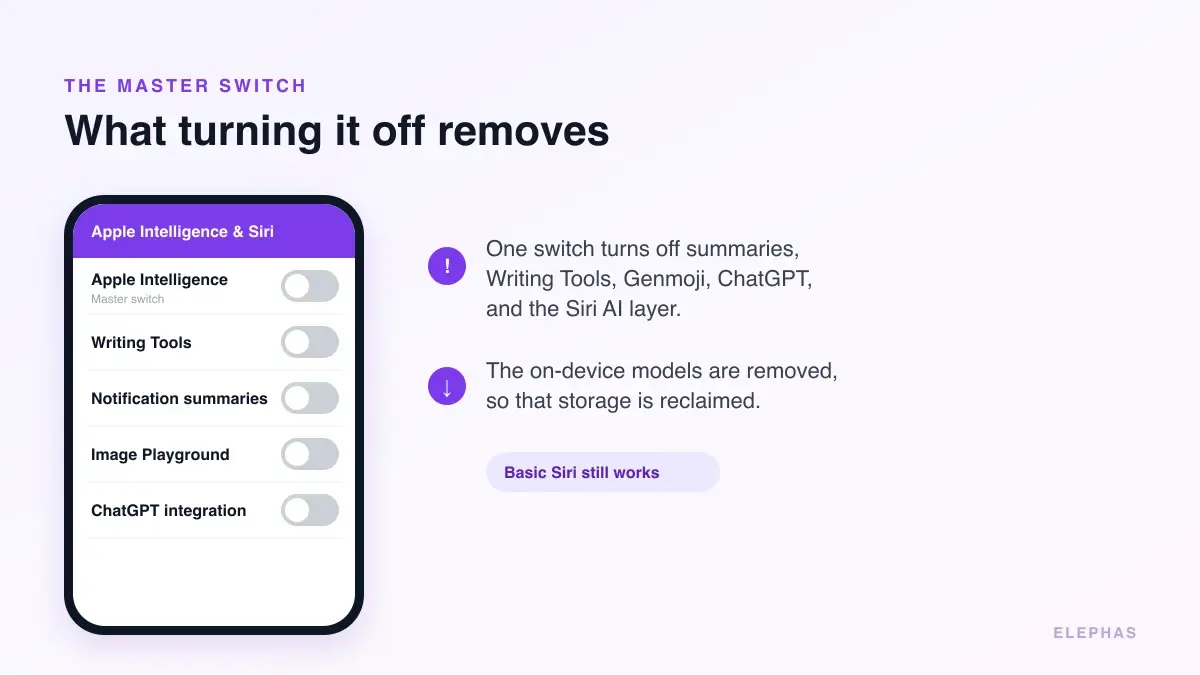
Basic Siri can still work. You also cannot uninstall Apple Intelligence as a separate app, because it is built into the OS. You can disable it, and disabling removes the downloaded on-device models.
Apple says, "If you turn off Apple Intelligence, the on-device models will be removed from your device." That means the storage used by those models can be reclaimed, although a Mac may take 24 to 48 hours to show the space back.
The official model storage requirement rose from about 4 GB to about 7 GB per device around iOS 18.2 in January 2025. Real user reports vary, usually around 5 to 12 GB or more, depending on device and System Data behavior.
A MacRumors forum user wrote: "I thought it might be the Apple Intelligence model because when I stopped the download of it, I got back like 10 gigs of storage but after a few days it came back."
So turning it off can help with storage, but it is not a clean promise for every device. Some people suspect Apple Intelligence when System Data grows, while others see the storage come back normally.
The iOS 18 paths many guides cite are not the same as iOS 26. In iOS 26, the pane is named Apple Intelligence & Siri, and per-app summary controls live under Apps or Notifications.
Forward-looking note: reports from iOS and macOS 27 developer betas say Apple Intelligence may be mandatory with no full off switch. That is beta behavior and may change before release. On iOS 26, the off switch remains and stays off.
How to turn off Apple Intelligence on iPhone and iPad
Use this when you want the full AI layer off. It is the fastest path if you are troubleshooting battery, heat, storage, or unwanted AI summaries.
iPhone or iPad
- Open Settings.
- Tap Apple Intelligence & Siri.
- Tap the toggle next to Apple Intelligence to turn it off, then confirm.
When you turn it back on, the models re-download. If you disabled individual features separately, those settings may still need to be restored one by one.
How to turn off Apple Intelligence on Mac
The Mac path is the same idea with System Settings. Use it if Apple Intelligence feels distracting, if a feature keeps appearing in text fields, or if you want the model storage removed.
Mac
- Open System Settings.
- Click Apple Intelligence & Siri.
- Click the toggle next to Apple Intelligence to turn it off.
To re-enable it later, the same pane shows a Turn on Apple Intelligence control.
Turn off specific features without disabling everything
You do not have to use the master switch for every problem. If one feature bothers you, use the targeted control below and leave the rest of Apple Intelligence on.
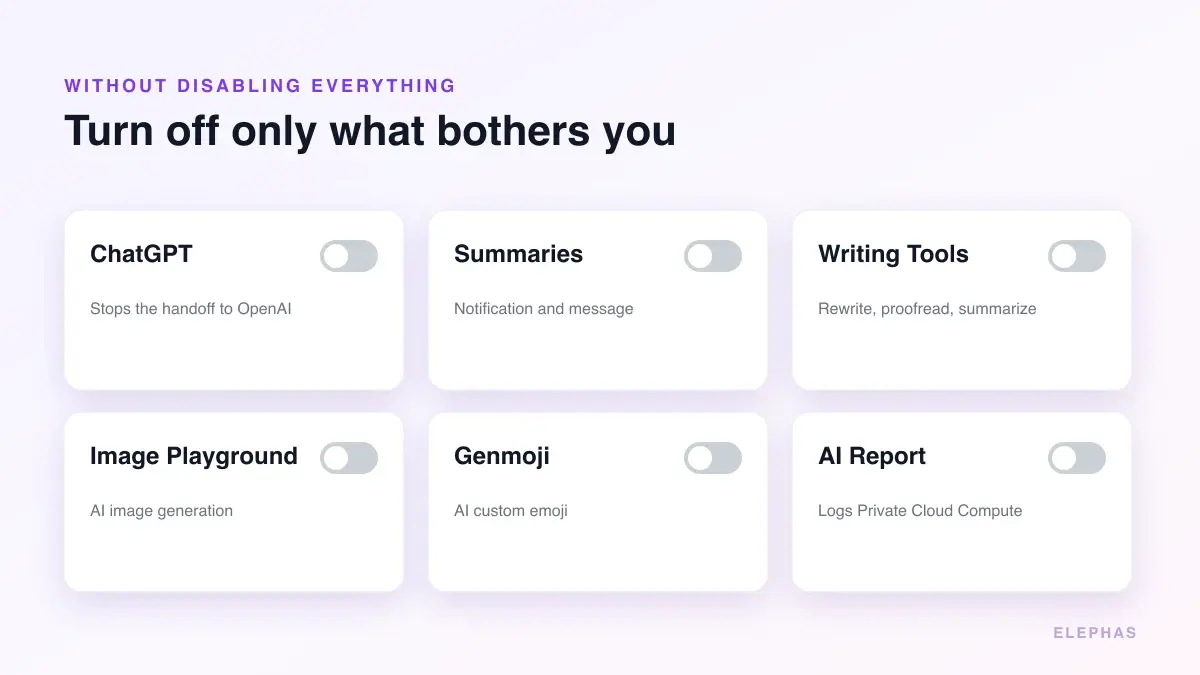
Apple Intelligence feature controls
| Feature | What it does | iPhone / iPad path | Mac path |
|---|---|---|---|
| Apple Intelligence (all) | Turns off every AI feature and removes the on-device models | Settings > Apple Intelligence & Siri > toggle off | System Settings > Apple Intelligence & Siri > toggle off |
| ChatGPT integration | Sends some requests to OpenAI's ChatGPT | Settings > Apple Intelligence & Siri > ChatGPT > Use ChatGPT off | System Settings > Apple Intelligence & Siri > ChatGPT > Use ChatGPT off |
| Notification summaries | AI-summarizes incoming notifications | Settings > Notifications > app > Summarize Notifications off | System Settings > Notifications > app > off |
| Message summaries | Summarizes Messages and Mail | Settings > Apps > Messages > Summarize Messages off | Settings on iPhone (managed per app) |
| Writing Tools | Rewrite, proofread, summarize text | Screen Time > Content & Privacy > Intelligence & Siri > Writing Tools | Screen Time > Content & Privacy > Intelligence & Siri |
| Image Playground and Genmoji | AI image and emoji generation | Screen Time > Content & Privacy > Intelligence & Siri > Image Creation | Screen Time > Content & Privacy > Intelligence & Siri |
ChatGPT integration
On iPhone, go to Settings > Apple Intelligence & Siri > ChatGPT, then turn off Use ChatGPT. The same control exists on Mac under System Settings. Keep Confirm ChatGPT Requests on if you allow it at all.
The ChatGPT handoff is the part to watch for documents. If you use AI with confidential files, read this guide on ChatGPT and documents before you leave it enabled.
Notification and message summaries
Notification summaries are per app: Settings > Notifications > pick an app > turn off Summarize Notifications. Priority notifications are also per app under Settings > Notifications > Prioritize Notifications.
Messages and Mail are separate. Messages is Settings > Apps > Messages > Summarize Messages off. Mail is Settings > Apps > Mail > Summarize Message Previews off.
Writing Tools, Image Playground, and Genmoji
Use Screen Time for these controls. On iPhone, go to Settings > Screen Time > Content & Privacy Restrictions, turn it on, then open Intelligence & Siri.
Writing Tools can be set to Don't Allow. Image Creation covers Image Playground, Genmoji, and Image Wand. Intelligence Extensions covers third-party AI such as ChatGPT.
Apple Intelligence Report
On iPhone, go to Settings > Privacy & Security > Apple Intelligence Report. Choose Last 15 Minutes, Last 7 Days, or Off. Export Activity saves Apple_Intelligence_Report.json.
On Mac, use System Settings > Privacy & Security > Apple Intelligence Report. The report logs Private Cloud Compute requests only. It does not record on-device activity, so an empty report does not prove nothing happened.
Should you actually turn off Apple Intelligence?
For most people, this is not a moral choice. It is a utility choice. Keep it if the summaries and Writing Tools save time. Turn it off if it creates noise, heat, storage pressure, or privacy doubt.
Turn it off or keep it on
| Turn it off if | Keep it on if |
|---|---|
| You want better battery life | You have a recent iPhone with battery and storage to spare |
| You need to reclaim the on-device model storage | You rely on notification summaries to triage a busy inbox |
| You handle sensitive data and do not want the ChatGPT handoff. See worth it for data. | You mostly use on-device tools like proofreading |
| The summaries feel noisy or get facts wrong | You want Genmoji, Image Playground, and AI search |
| You prefer a quieter, less automated device | You are comfortable with Apple's Private Cloud Compute |
Practical verdict: test it for a week
- If battery or heat improves, leave it off and turn back only the features you miss.
- If storage comes back, give the Mac 24 to 48 hours before judging the result.
- If privacy is the reason, disable ChatGPT first and treat cloud requests as separate decisions.
A MacRumors forum user wrote: "I did it a couple of weeks ago since I was noticing a dramatic impact on battery life...I was ending the day with 15-20% and now I'm back to the 40~ that I'm used to."
Another MacRumors forum user wrote, "I have done this, and battery life is definitely better without it." Treat these as user reports, not controlled tests. Apple says AI only draws power when used.
The update concern is fair. Some people worry that AI settings come back after software updates. On iOS 26, the master switch stays off once you turn it off.
Apple Intelligence also powers the new Siri, which can reach your messages, mail, and on-screen content. Is Siri AI private breaks down what it can access.
Privacy is the harder call. Apple analyzes each request and sends complex ones to Private Cloud Compute. Apple says that data is not stored and is not readable even by Apple, but it is still cloud routing. For more context, see local vs cloud AI.
How to turn Apple Intelligence back on
On iPhone or iPad, open Settings > Apple Intelligence & Siri, then turn the Apple Intelligence toggle on. The on-device models will re-download, so leave time and storage available.
On Mac, open System Settings > Apple Intelligence & Siri, then click Turn on Apple Intelligence. The same storage note applies there too.
Per-app features turned off separately, and Screen Time restrictions, must be re-enabled individually. If summaries still do not appear, check Notifications, Apps, and Screen Time before assuming the master switch failed.
The private way to keep AI for sensitive work
Turning a feature off does not pull back anything already processed in the cloud. It only stops future use. And the moment you reach for ChatGPT for real work, the "trust us, it is anonymized" promise is doing a lot of work.
That is where a privacy-first AI knowledge assistant for Mac makes more sense. Elephas is built around redact-before-cloud, so sensitive details are removed before a cloud model receives the prompt.
For people who still want a leading cloud model, Elephas adds Smart Redaction. Before a prompt is sent to ChatGPT 5.5, Claude Opus 4.8, Gemini, Grok, Perplexity, or any other cloud model, Elephas strips sensitive names, emails, phone numbers, and identifiers on your Mac.
The cloud model only ever sees the sanitized text. When the answer comes back, the redacted fields are reassembled locally on your machine, so identifiable information never leaves the device.
Elephas pairs this with zero data retention: content never trains AI models, never sits on a vendor's server, and never passes through a third-party reviewer's screen. Smart Redaction is on every plan, including the free tier.
Elephas starts at $19/month with a free trial. It also includes built-in local models for work where you want to run AI offline, and this approach matches what private AI means in practice.
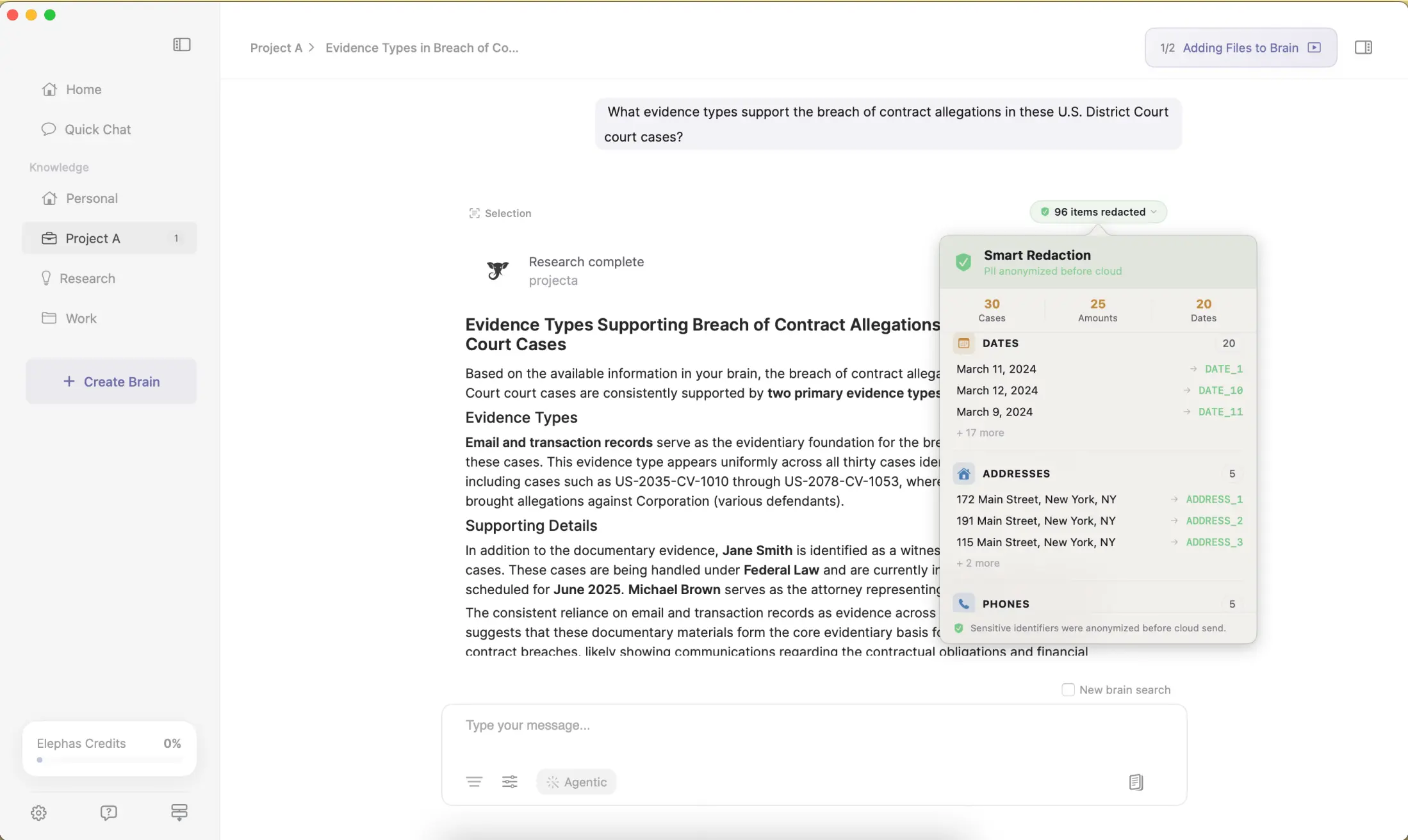
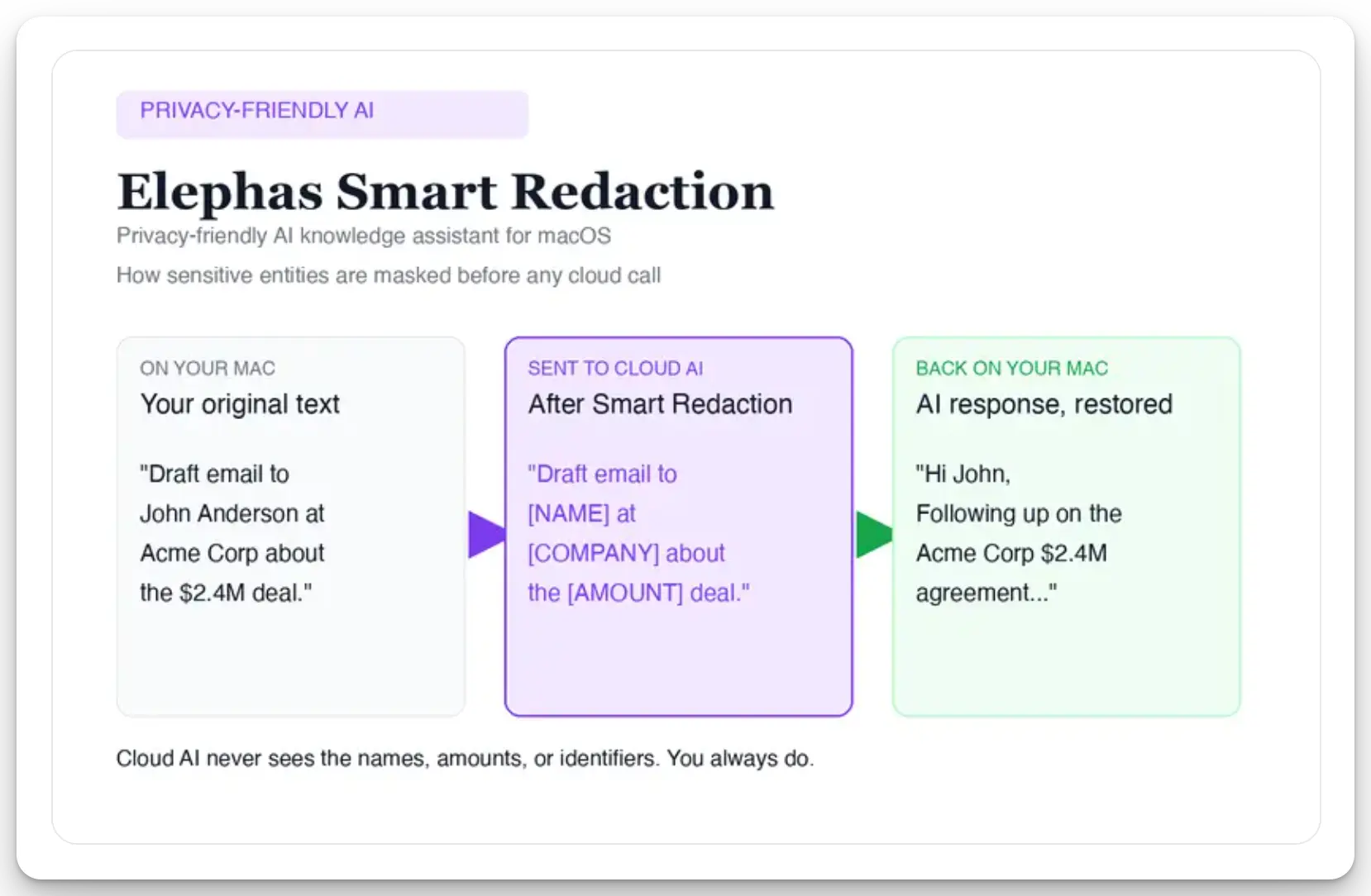
Sensitive data is automatically detected and redacted before anything reaches a cloud AI model, your content is never used to train AI models, and nothing passes through a third-party reviewer's screen.
try Elephas for free if you want AI help without sending raw names, emails, numbers, or identifiers into a cloud model.
Frequently asked questions
Can you turn off Apple Intelligence completely?
Yes. iPhone/iPad: Settings > Apple Intelligence & Siri > turn off Apple Intelligence. Mac: System Settings > Apple Intelligence & Siri > toggle off. The on-device models are then removed.
How do I remove Apple Intelligence completely?
You cannot uninstall it; it is built into the OS. You can only disable it, which removes the downloaded on-device models and frees that space.
Does turning off Apple Intelligence improve battery life?
Apple says it only uses power when active, but many users report better battery life and less heat after turning it off. Results vary by device and usage.
Does turning it off free up storage?
It can. Apple removes the on-device models when you disable it. On Mac the space may take a day or two to come back, and some users see System Data behave oddly.
What is the Apple Intelligence Report and should I turn it off?
It logs requests sent to Private Cloud Compute, not all activity. It is a transparency feature, not a full audit trail, so an empty report does not prove nothing left your device.
Can I turn off just the ChatGPT integration?
Yes. Settings > Apple Intelligence & Siri > ChatGPT > turn off Use ChatGPT. Apple Intelligence's on-device features stay on.
Is Apple Intelligence a privacy risk?
Most tasks run on-device or in Private Cloud Compute, which Apple says is not stored or readable by Apple. The weak point for confidential work is the optional ChatGPT handoff to OpenAI.
For sensitive work, redacting details before any cloud request is safer. Elephas does that with Smart Redaction on every plan, including free.