How to Get Your Mac Ready for macOS 27's AI Features
Last updated: August 2026. Last verified: August 7, 2026.
To get your Mac ready for macOS 27's AI features, confirm your chip is Apple silicon, free up 40GB or more of storage, back up and verify it, check your daily apps for known breakage, then upgrade and review your AI privacy settings right after.
Apple is previewing this release as macOS Golden Gate, still in public beta ahead of a fall 2026 release, and compatible is not the same as capable. Some Macs install it and still leave the headline Siri AI features dark. This guide runs the checks in order.
Quick answer
- It installs on Apple silicon only, whether you're on the public beta or the general release. Intel Macs get no upgrade path to macOS 27.
- Some Siri AI features need an M3-or-later chip and 12GB unified memory, a separate gate from base compatibility.
- Budget 40GB or more free space before the installer, then another 20GB or more after you turn on the AI features.
- Back up first, but check the beta-cycle Time Machine caveat before you pick an external or NAS destination.
- If you handle sensitive documents, Elephas is a privacy-friendly AI knowledge assistant with built-in local LLM models and Smart Redaction on every plan, including Free, with paid plans starting at $19 a month. Try Elephas for free.
What “Ready for macOS 27” Actually Means
Readiness splits into three bars: whether it installs, whether the full Siri AI feature set switches on, and whether you are ready for AI inside the OS. The most-cited sources, Apple's own page and MacRumors threads, mostly stop at the first bar. The checks take 45 to 90 minutes, mostly a backup running unattended.
The third bar is the one this guide has not seen covered elsewhere: you used to choose what to paste; now Siri AI reads whatever is already open, so the decision moves from what you send to what you keep local.
What Your Mac Needs Before You Touch the Installer
The update installs on Apple silicon Macs only, on the supported device list: MacBook Neo (2026), MacBook Air and MacBook Pro from 2020 on, iMac from 2021 on, Mac mini from 2020 on, Mac Studio from 2022 on, and Mac Pro from 2023 on.
Apple keeps macOS 26 Tahoe on security-only updates through roughly mid-2028 for Intel hardware, per TidBITS (2026-07-20).
Compatible and capable get mixed up often. During Apple Intelligence's 2024 rollout, one r/ios user noted that downloading the model and seeing the Type to Siri interface “isn't Apple Intelligence working” (r/ios). See the full rollout guide for every feature this cycle touches.
Confirm each first:
- “Chip,” not “Processor,” shows an Apple silicon name.
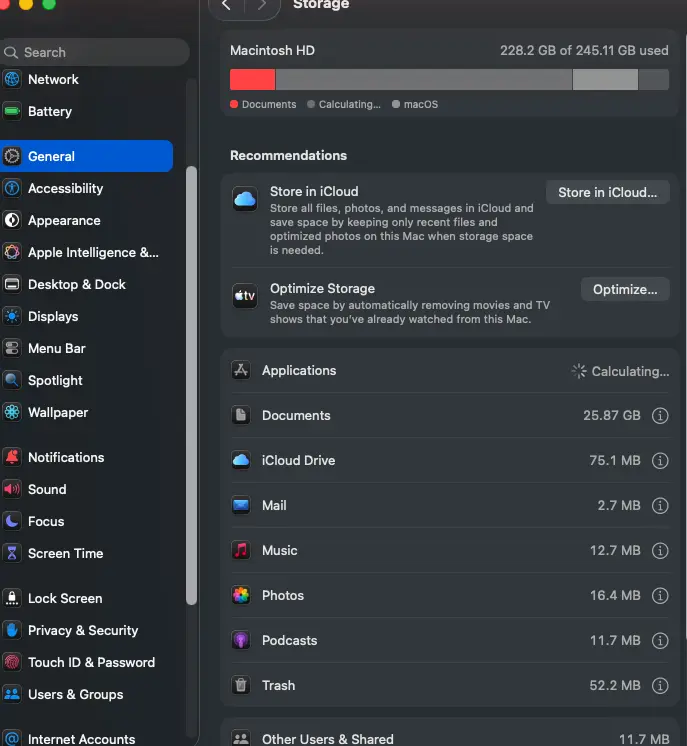
- At least 40GB free on your startup volume.
- A backup you can actually restore from (beta caveat in Step 3).
- Daily-driver security or driver software checked against Step 4's list.
What the upgrade does not do
Upgrading does not switch every AI feature on across all your files at once. These AI features and Siri AI report what they processed after the fact, in Step 5: visibility, not per-feature control, as of beta 1.
There is also nothing to import from a separate AI writing tool. Siri AI lives at the OS level across apps, and this cycle adds a dedicated Siri app for direct conversations.
Step-by-Step: Get Your Mac Ready for the Upgrade
Six checks answer “will it install.” Work through them in order.
Check the feature list too, not just the hardware. Apple has reportedly grown more cautious about promising features before they ship; treat the list as a promise, not a fact.
On r/apple, discussing that earlier pattern, one commenter noted it was “strange they did it with multiple Apple Intelligence features” (r/apple).
Quick Steps:
- Check your chip name and RAM in About This Mac.
- Clear 40GB or more of free disk space.
- Back up fully, then verify the backup.
- Cross-check daily apps against known breakage.
- Review the AI privacy report settings (Step 5).
- Re-test your Shortcuts automations one by one.
Step 1: Check whether macOS 27 Golden Gate installs at all, then whether you get full Siri AI
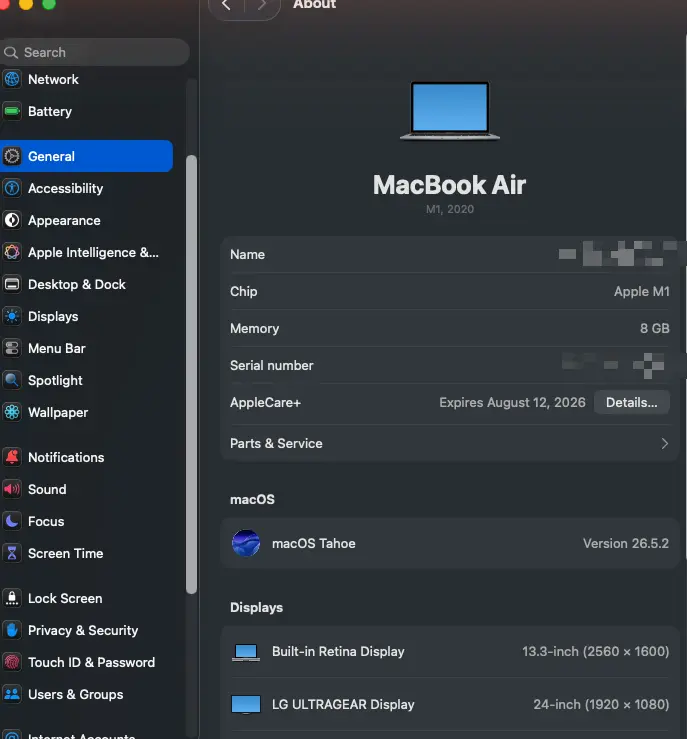
Open the Apple menu, choose About This Mac, and look at “Chip,” not “Processor.” “Processor: Intel” means it will not appear in your software update list.
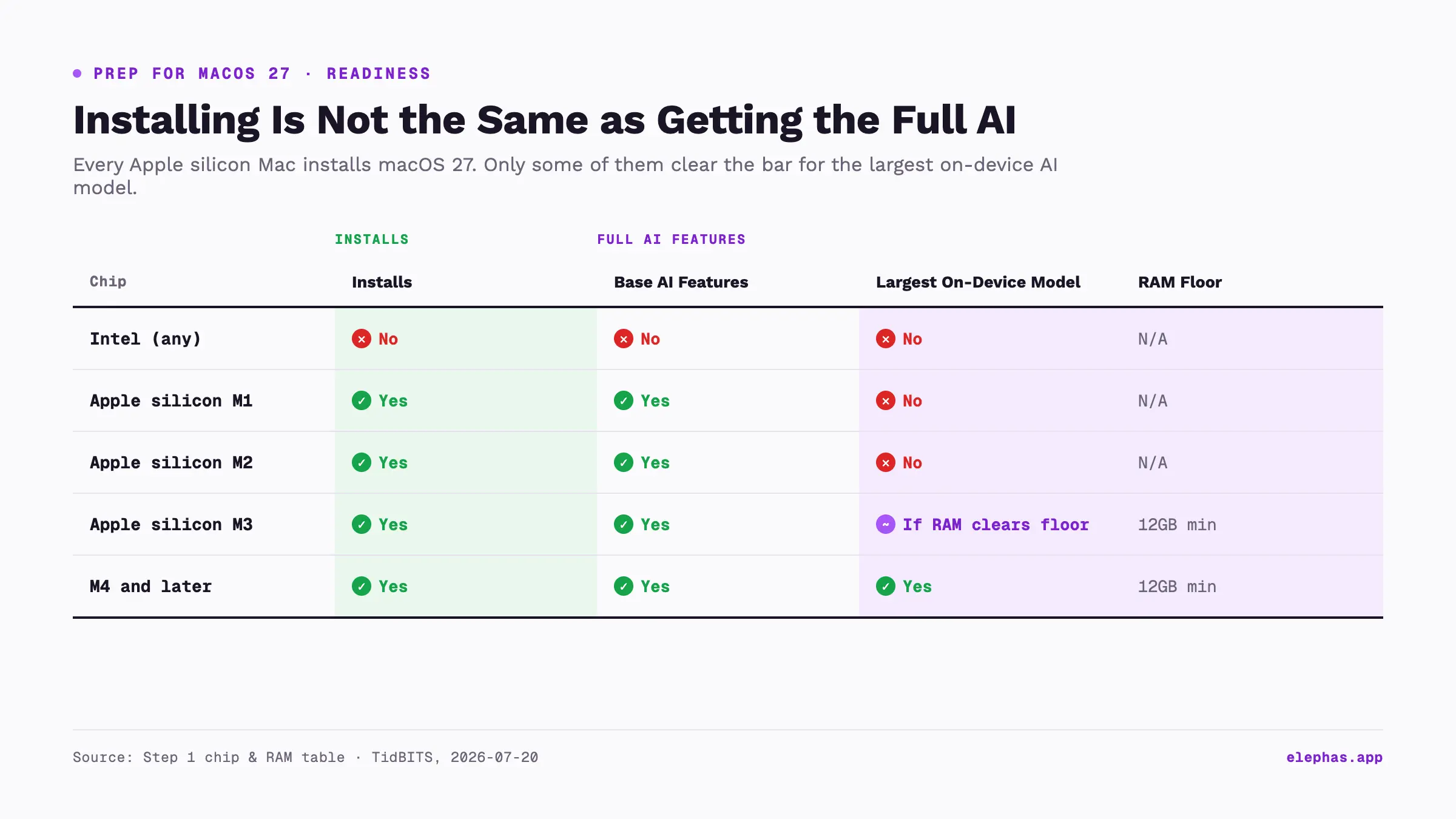
If you see an Apple silicon chip name, note the generation and RAM, then check both against the table below.
| Chip generation | Installs | Base AI features | Largest local AI model (some Siri features) | RAM floor | What to do |
|---|---|---|---|---|---|
| Intel (any) | No | No | No | N/A | Stay on macOS 26 Tahoe (security updates to ~mid-2028) |
| Apple silicon M1 | Yes | Yes | No | N/A | Base features only; extra RAM will not turn on the largest model |
| Apple silicon M2 | Yes | Yes | No | N/A | Same as M1; chip generation is the gate, not memory |
| Apple silicon M3 | Yes | Yes | Yes, if RAM clears the floor | 12GB minimum | Check RAM; under 12GB, only base features run |
| M4 and later | Yes | Yes | Yes | 12GB minimum | Check RAM the same way; RAM is the only remaining constraint |
Verify it worked: Run system_profiler SPHardwareDataType | grep -E "Chip|Memory". On Apple silicon, this prints the exact chip name (for example, “Chip: Apple M2”) and installed memory. On an Intel Mac, the same command prints “Processor Name:” instead of “Chip:”; no “Chip:” line means no macOS 27 upgrade path.
Step 2: Free up real disk space for the installer and the AI footprint
Clear at least 40GB verified free on your startup volume before you start. Donemax recommends keeping 35 to 40GB free, separate from anything these AI features add later.
After you upgrade and turn the AI features on, check again: MacRumors Forums users report storage climbing to 20 to 26GB, roughly 3x Apple's stated ~7GB local-model footprint (2026-06-09).
There is no one-click fix. On r/mac, one user explained why: “A lot of thing inside your Mac computer is stored as purgeable storage… the OS will automatically remove unused/unneeded components to make space for new ones” (r/mac).
Verify it worked: Run df -h /. Confirm the Avail column reads 40G or higher before you start.
Step 3: Back up your Mac, and know the beta-cycle backup caveat
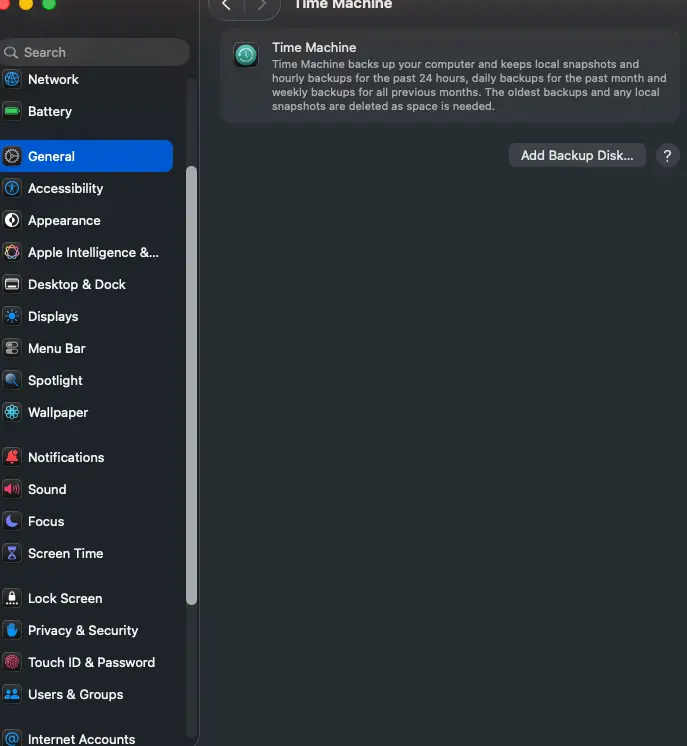
Take a full Time Machine backup before upgrading.
If your backup tool snapshots to an external drive or NAS, the caveat below affects you directly.
This is beta-only, not confirmed as permanent: heise online (2026-07-15) found that updating to macOS 27 developer beta 3 corrupted Time Machine backups on an external drive or NAS. diskutil verifyVolume flagged errors, and Apple's guidance was to erase and revert to macOS 26.5.2.
Verify it worked: Run diskutil verifyVolume /. Expect “The volume [Name] appears to be OK.” Metadata errors mean do not proceed.
Step 4: Check your daily-driver apps for known breakage this cycle
Cross-reference daily apps against confirmed breakages on MacRumors Forums (2026-06-08): Little Snitch blocks network traffic until you disable its filter or uninstall it, pCloud refuses to launch on an OS check, Wacom's driver stops detecting hardware, and Quicken 9.1 crashes if you update categories quickly.
Verify it worked: Run system_profiler SPApplicationsType | grep -B7 "Kind: Intel". This lists installed apps still running as Intel-only binaries, so you know which to re-check.
Step 5: Run the upgrade, then review what stays on-device in your Apple Intelligence and Siri AI settings
After install, open System Settings, then Privacy & Security, to see what processed locally versus what routed to Private Cloud Compute (PCC), shown as the last 15 minutes or 7 days of requests. PCC routes automatically; in June 2026 Apple expanded it to NVIDIA GPUs on Google Cloud (Apple Security).
- Where a separate tool let you pick the model, the OS now decides alone, giving only an after-the-fact list.
- There is no live log, just a pane of recent PCC requests as exportable JSON. This echoes an older r/apple complaint about “little visibility on computing going further” (r/apple).
- Beta 1 shipped with no full-disable toggle, unlike every prior release. On an earlier release, one r/MacOS user described a similar workaround: “Keeping it disabled is a bit trickier… updates that show apple intelligence as part of the setup assistant seem to reenable it” (r/MacOS).
An IEEE S&P 2026 audit found privacy violations in 5 of 9 audited Apple differential-privacy mechanisms, affecting 87% of sampled data collection in macOS Sonoma and 68% in Sequoia.
A 2026 WiSec study found simple summaries sent to PCC with no local-only setting offered, and single-use session tokens reused 2 to 5 times.
- Local processing and “audited” are not the same claim: quarterly SOC 3 audits do not evaluate AI accuracy, only provisioning controls.
Verify it worked: Open System Settings, then Privacy & Security, then the AI privacy report pane. Expect recent PCC requests, or “Off” if disabled.
Step 6: Review what App Intents changes mean for your automations
Reporting on this cycle describes Shortcuts automations restructured with triggers first, given auto-generated names such as “Focus 3” or “Charging 2,” depending on trigger count (MacRumors Forums).
Developer-facing App Intents changes, including background-capable intents, can rename or swap app actions from the same developer.
Verify it worked: No reliable CLI check exists here. Re-test your automations manually, one at a time.
Common Mistakes When Getting Ready for macOS 27
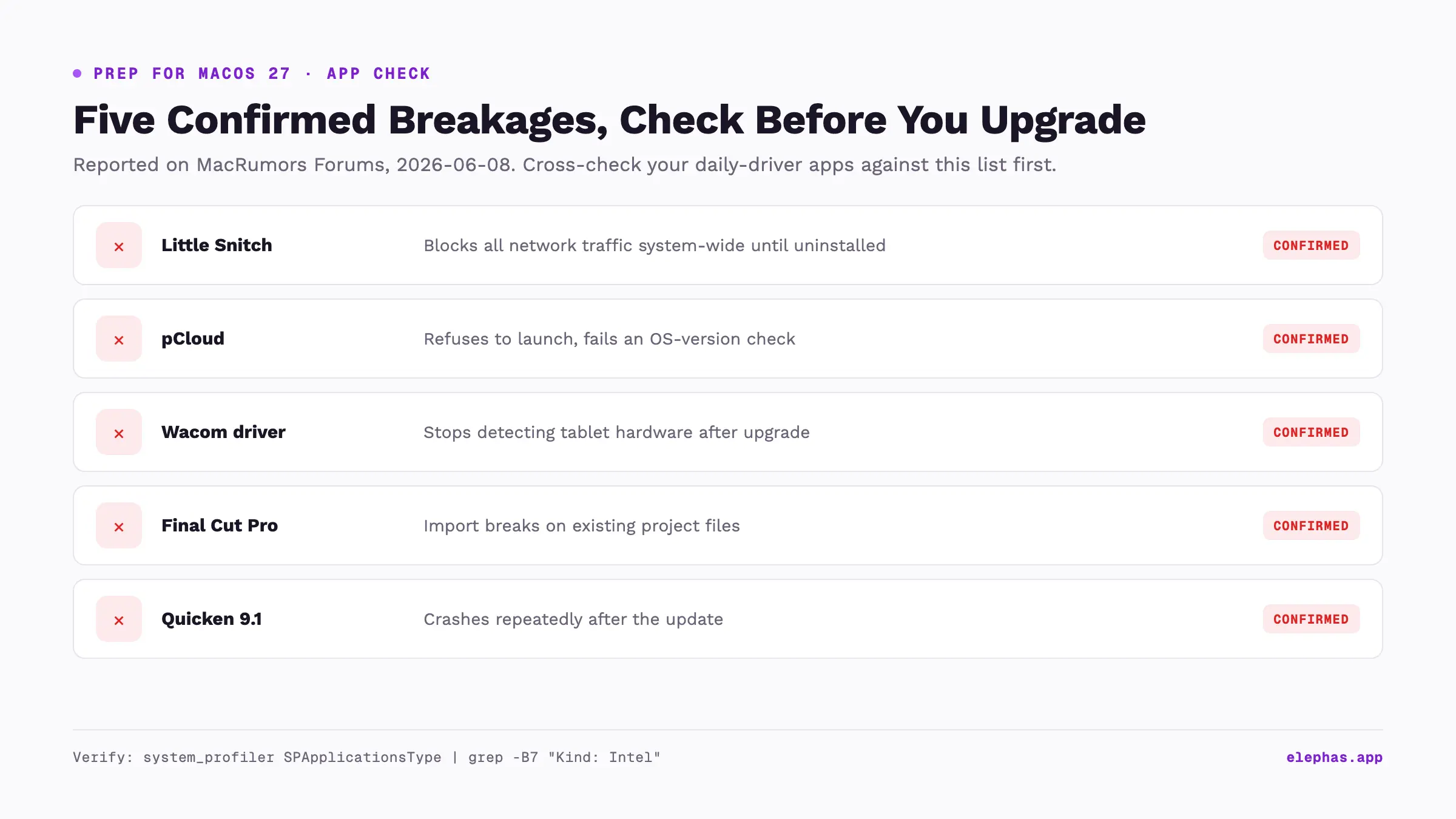
Four mistakes cause most of the frustration: three are storage or compatibility gaps, and one is a beta-specific backup risk serious enough that Apple told affected users to revert.
- Treating “my Mac supports it” as “I get every AI feature” is the most common trap. It installs on any M1-or-later Mac, but some Siri AI features stay off below the M3-or-later plus 12GB bar. Source: Macworld, 2026 (cross-confirmed by TidBITS, 2026-07-20). On r/iphone, recalling an earlier Apple Intelligence rollout, one user described buying an iPhone 16 Pro for the AI features, saying “it doesn't even exist in the capacity they showed off” (r/iphone).
- Freeing space for the installer, but not the AI footprint, is the second. Storage climbs to 20 to 26GB post-upgrade, roughly 3x Apple's stated ~7GB figure. Clear 40GB or more, then re-check Storage after enabling the AI features. Source: MacRumors Forums, 2026-06-09.
- Trusting an external or NAS Time Machine backup during the beta window is the riskiest. The “back up first” step triggered file-system corruption on the macOS 27 beta. Verify with
diskutil verifyVolume, and use a second backup method. Source: heise online, 2026-07-15. - Upgrading before checking whether a security tool or driver is confirmed broken is the fourth. Readers lose network connectivity (Little Snitch) or hardware detection (Wacom) only after upgrading. Check daily apps against the MacRumors Forums thread first. Source: MacRumors Forums, 2026-06-08.
What to Do After Your Mac Is Ready
Once your Mac clears the six steps, here is what to do next.
What to try first
Run Visual Intelligence on a screenshot, dictate a note with the AI's writing features open, then check the AI privacy report.
If your build ships a dedicated Siri app, try its writing tools on a paragraph you'd normally proofread by hand. Treat feature names as beta-only until general availability. See the full guide.
What does not carry over
There is no export or import step for Siri AI. Your documents carry over, not app history. What you lose is per-request control over which model sees what.
Some people skip the question entirely. On r/mac, one user summed up the workaround in a line: “I installed Gemini on my mac and disabled Apple Intelligence” (r/mac). For the privacy question, see Siri AI's privacy design.
Where Apple's settings stop
Pair the Step 5 audit trail with a written policy for which files may leave the device, a layer Apple's settings don't provide.
In an earlier report, one r/privacy user found Spotlight sharing data with third parties by default, with no prompt (r/privacy). For the deeper architecture, see the privacy model.
Apple's own WWDC26 security team warned that agentic AI features can be manipulated through indirect prompt injection, recommending deterministic checks, user confirmation, device authentication, and PII redaction (Apple Developer).
Deciding what stays on the Mac
Once Siri AI reads whatever is open on screen, there is no paste step left to decide what it sees. Elephas is a privacy-friendly AI knowledge assistant built for exactly that gap.
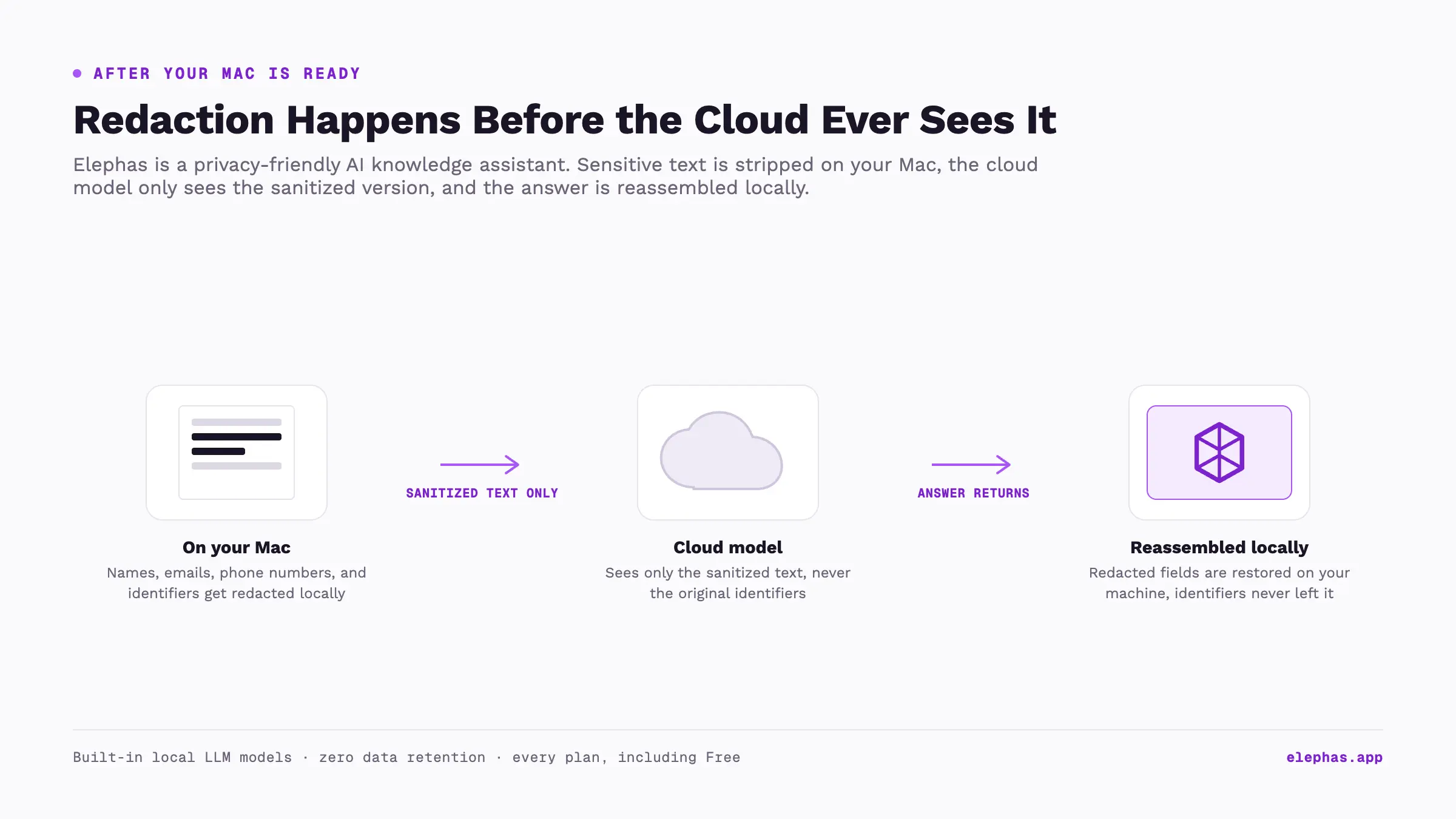
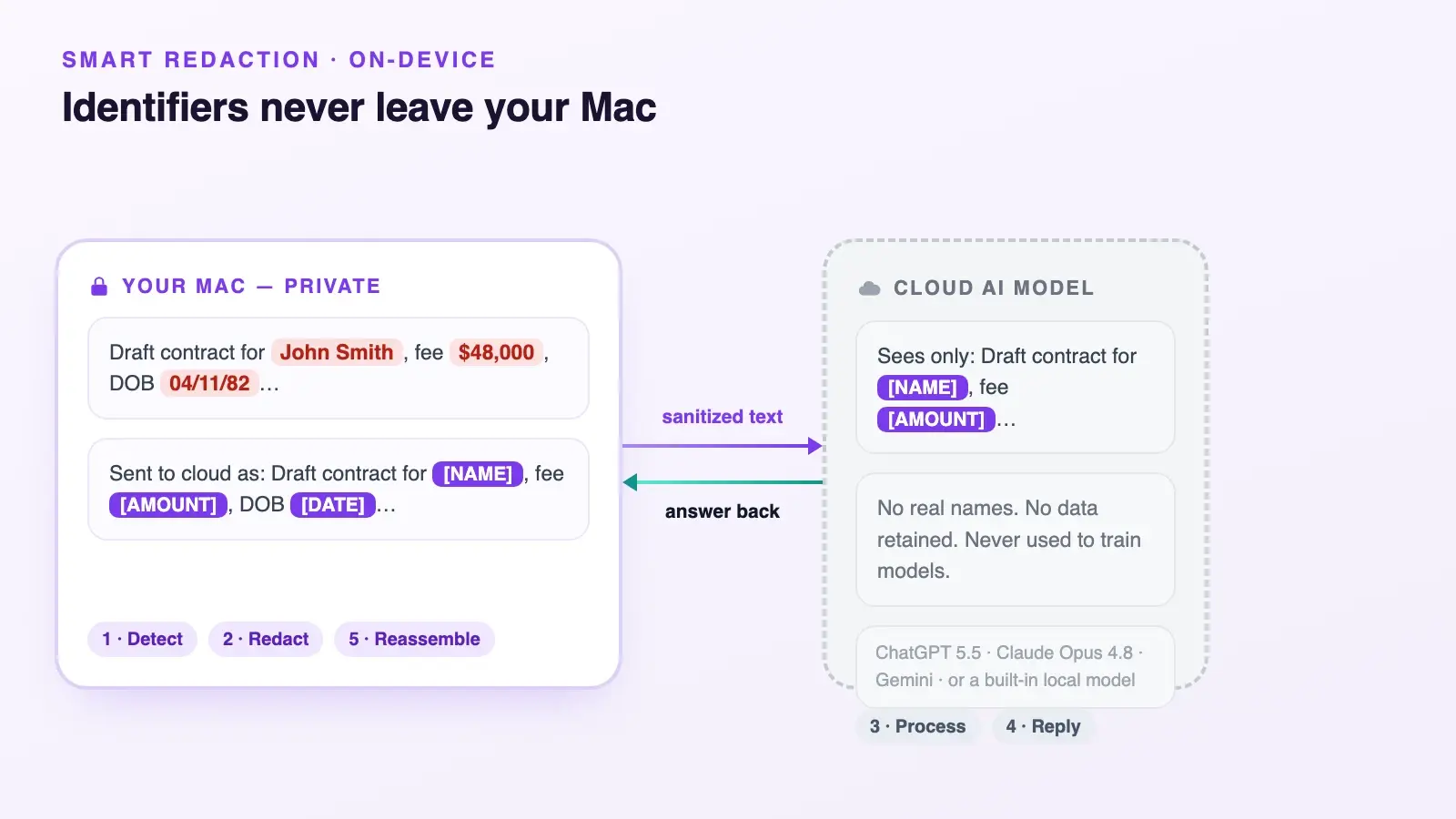
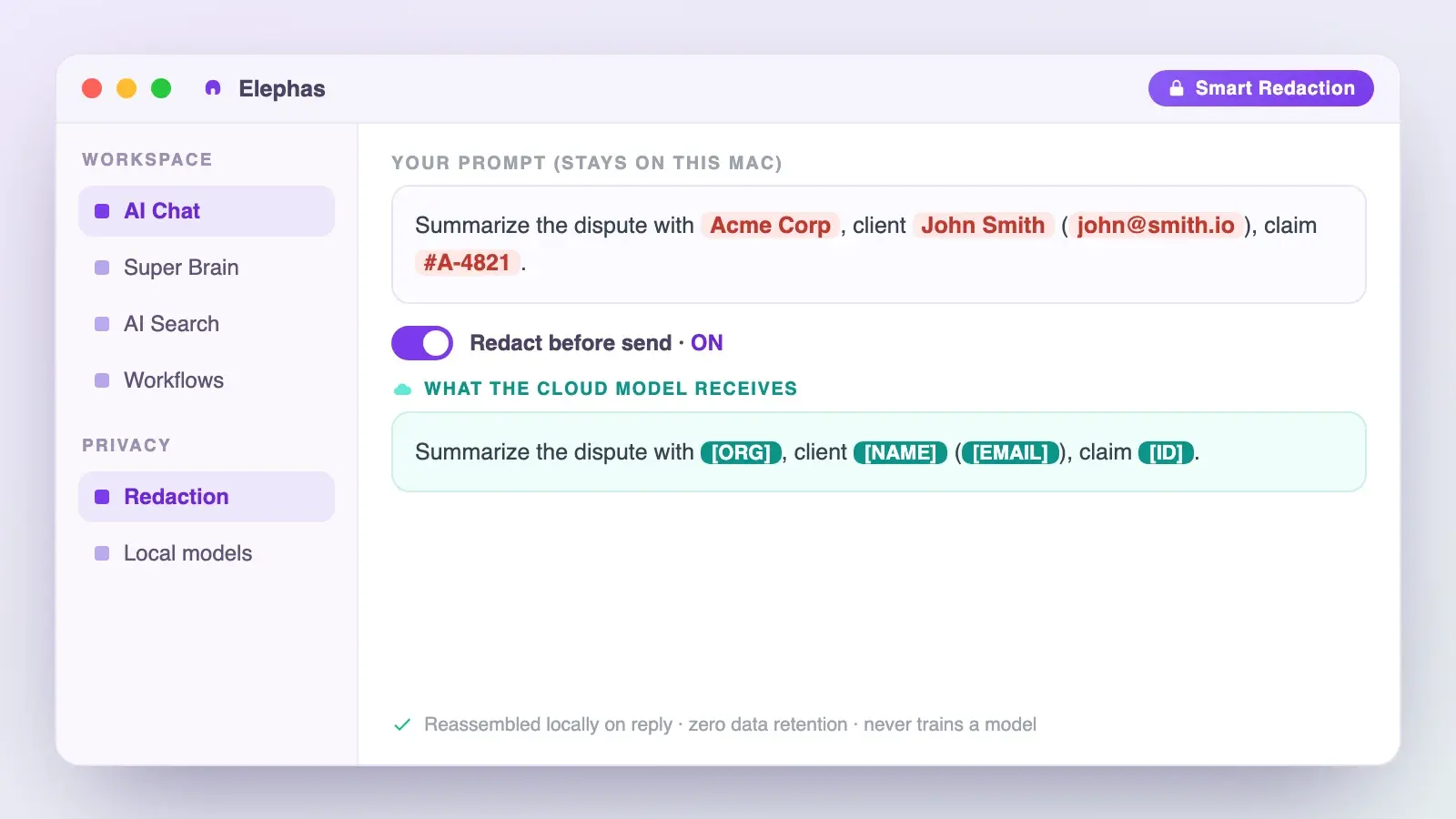
If you still want a leading cloud model in the mix, Elephas puts a second layer in front of it through automatic PII redaction. Names, emails, phone numbers and other identifiers are stripped out on your Mac first, before anything reaches ChatGPT, Claude, Gemini, Grok, Perplexity, or any other cloud model.
The model on the other end only ever receives the cleaned-up text. Once its answer comes back, the redacted fields are put back together locally, so the identifying details never left your machine. Alongside that sits zero data retention: your content never trains AI models, never sits on a vendor's server, and never passes through a third-party reviewer's screen.
That holds on every Elephas plan, the free one included, with paid plans from $19 a month; try Elephas for free to start. It also ships built-in local LLM models, so sensitive work stays on the Mac by choice, not because a toggle survived to general release.
- Confirm your chip and RAM against the Step 1 table.
- Open the AI privacy report a week later to see your local versus PCC split.
- Re-test your automations once, not just after one misfires.
- If you handle sensitive documents daily, Elephas is a privacy-friendly AI knowledge assistant with built-in local LLM models that keeps redaction in your control.
Frequently Asked Questions
Can I install macOS 27 on an Intel Mac?
No. It requires Apple silicon, and Intel Macs get no upgrade path; About This Mac will not even offer it. macOS 26 Tahoe keeps receiving security-only updates on Intel hardware for roughly two more years, through mid-2028 (TidBITS, 2026-07-20).
Does a compatible Mac automatically get the new Siri AI features?
No. The base install works fine on any M1-or-later Mac, but some Siri AI features need an M3-or-later chip plus 12GB unified memory, a separate gate from base OS compatibility, per Macworld's Golden Gate guide (2026).
How much free disk space does it actually need?
Budget at least 40GB of verified free space for the installer itself. Then budget another 20GB or more once you turn the AI features on. MacRumors Forums users reported storage climbing to roughly 3x Apple's own stated ~7GB local-model figure (2026-06-09).
Is it safe to back up to an external drive before installing the beta?
A beta-cycle update corrupted some Time Machine backups written to external drives or NAS destinations, per heise online (2026-07-15).
Verify with diskutil verifyVolume and consider a second backup method until GA ships clean.
Can I turn off the built-in AI entirely?
As of beta 1, no full disable toggle existed, unlike every prior release, where you could switch it off completely. This is beta-only behavior that may change; recheck your own build rather than assume it stays this way.
What is the difference between local processing and PCC?
A local request never leaves your Mac. PCC handles harder requests on Apple's own servers, which Apple states are “not stored or made accessible to Apple.”
Quarterly SOC 3 audits cover those servers, but do not evaluate AI accuracy, only provisioning controls. That gap matters: an IEEE S&P 2026 audit found privacy violations in 5 of 9 audited differential-privacy mechanisms, affecting 87% of sampled data collection in macOS Sonoma and 68% in Sequoia.
Whichever bar your Mac clears first, the real decision was never the upgrade. It is what you keep local.