How to Organize ChatGPT Projects
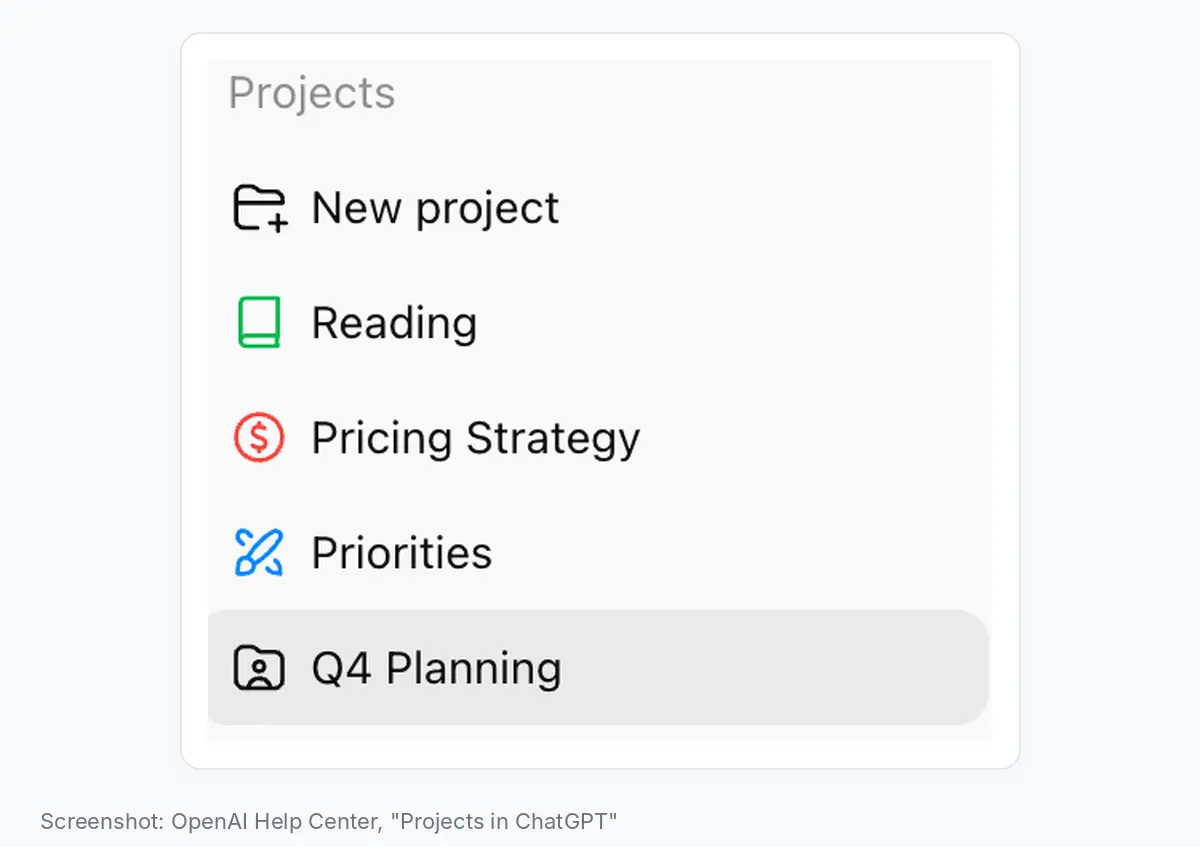
ChatGPT lets you create unlimited Projects (OpenAI Help), but it has no folders and no way to sort them; you can only pin them (OpenAI Support, 8 September 2026). People keep asking for folders in threads like "Projects as files and folders" on r/OpenAI.
The hard part is deciding which old chats belong in a Project, how to move a backlog without breaking anything, and when to split a Project in two.
Start with the Quick answer and the eight steps below, or read the ChatGPT Projects overview first if Projects are new to you.
Quick answer
- Use a Project for a continuing outcome, not a one-off question.
- Name Projects with the formula
area - outcome - time windowso the right one is easy to spot in a flat list. - Moving an old chat into a Project can change its future answers, so test it with one message after the move.
- Never delete a Project before saving the final deliverable and decisions somewhere else.
- For private files, Elephas is a better alternative to ChatGPT Projects. It answers from documents kept on your Mac and hides names, email addresses and phone numbers before a question leaves your computer. It has a 7-day free trial, then plans from $19 a month.
What to check before you sort your ChatGPT Projects
Default memory usually does not isolate a Project: chats on every plan except Enterprise and Edu can still reference conversations outside it (OpenAI Help). In r/ChatGPT, one reply called Projects "not a perfect sandbox" (r/ChatGPT, 19 September 2026).
A 2023 study found that when ChatGPT summarized cover letters, it kept personal details word for word in 57.4% of cases (arXiv:2305.15008).
That rate fell to 30.5% when ChatGPT was told to follow privacy rules, and to 15.2% when also given step-by-step instructions on what to remove (arXiv:2305.15008). The study tested a 2023 version of ChatGPT on cover letters, not Projects, so read it only as a reason to think before you paste anything sensitive.
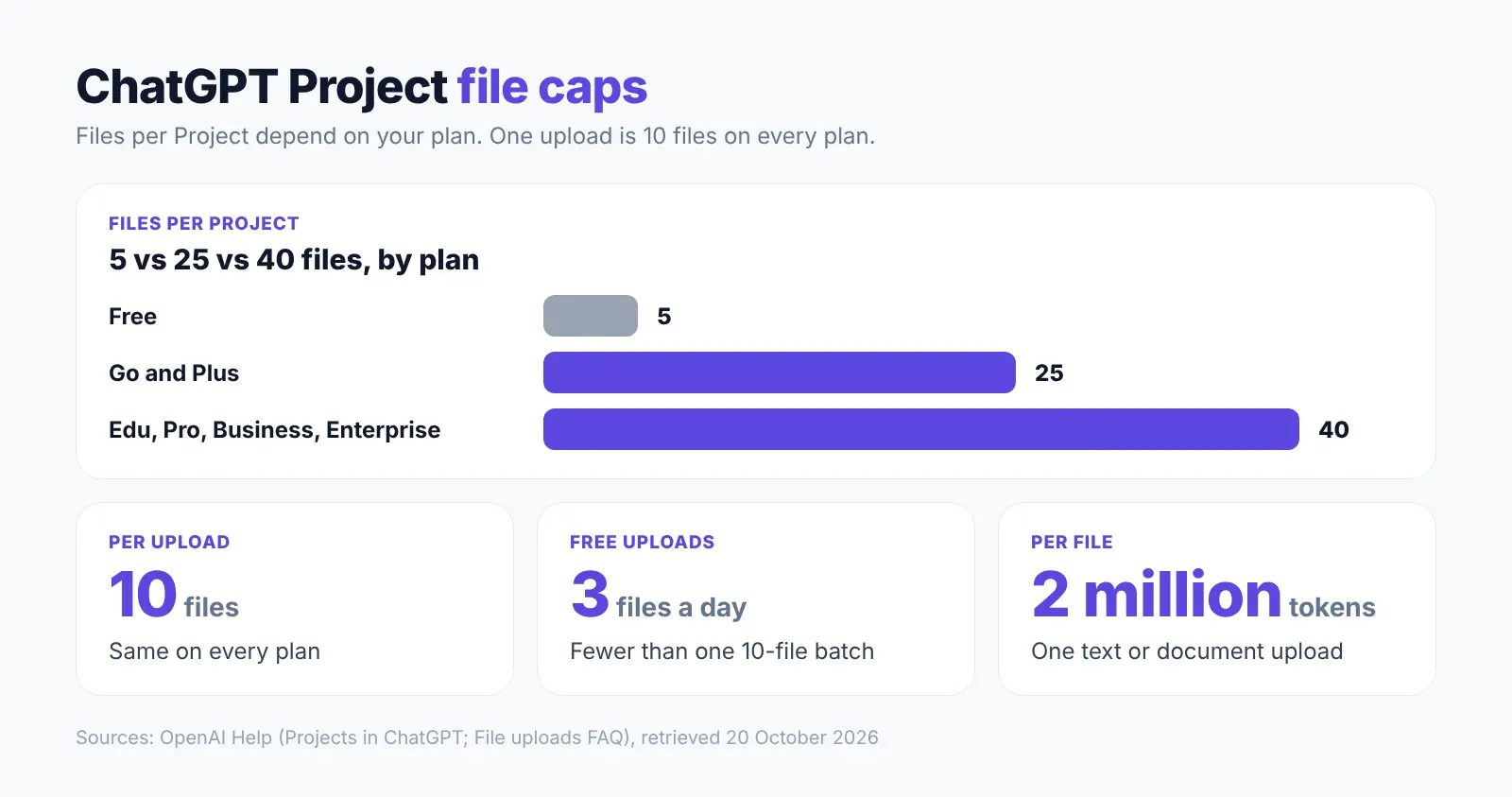
Beyond the file caps below, OpenAI documents a separate cap of 2 million tokens for a single text or document upload (OpenAI file limits). Free users can also upload only 3 files a day. See Project file limits for the full breakdown, and how to upload more files if you hit them.
- ChatGPT account on any plan, Free through Enterprise; at least one Project already created plus a backlog of ungrouped chats to triage. Set up a Project first if you have not yet; this guide picks up after that.
- Project-only memory, if part of your work must stay apart: with it on, a Project's chats do not draw on your other conversations. You can switch an eligible, unshared Project between default and project-only memory in the Project's settings, under Memory (OpenAI release notes, 14 August 2026).
- Sidebar search across chats, Projects, images, and documents. OpenAI documents it on every plan, on web, iOS and Android, for anyone signed in. Which filters and result types you actually see can differ by account and device. Source: OpenAI Help.
- No API, code, or third-party tool needed; every step below uses the native interface only.
| Plan | Files per Project | Files per single upload |
|---|---|---|
| Free | 5 | 10 |
| Go / Plus | 25 | 10 |
| Edu / Pro / Business / Enterprise | 40 | 10 |
Source: OpenAI Projects docs, checked 20 October 2026.
How to organize ChatGPT Projects: the eight steps
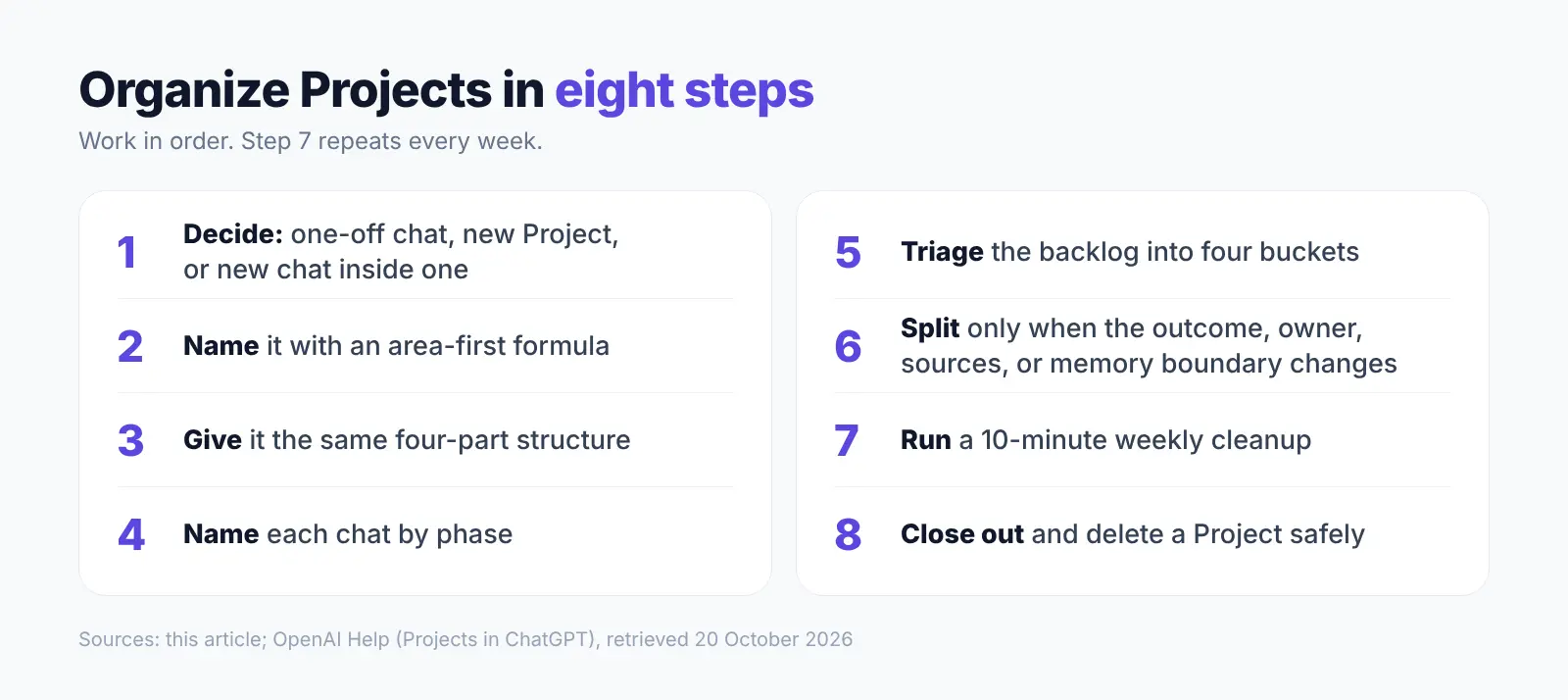
Steps 1 to 4 set up each new Project, Step 5 sorts the chats you already have, and Steps 6 to 8 keep Projects tidy and close them safely.
Step 1: Decide whether to create a Project, a one-off chat, or a new chat inside one
Apply a three-way test before you type the first prompt. A one-off question with no follow-up stays a plain chat. A continuing outcome that will produce more than one output, or reuses the same files across sessions, becomes a Project.
A distinct phase of an outcome you already have a Project for becomes a new chat inside that Project, not a new Project. Every new piece of work should now land in exactly one of these three places.
Common mistake: creating a new Project for every one-off topic fills the sidebar fast, and ChatGPT has no way to sort Projects, only pinning.
Step 2: Name the Project with an area-first formula built for search
Name every Project as area - outcome - time window, so the most distinctive word comes first. You cannot sort Projects by name, and search matches titles and message text, so a clear name is how you find it again. Names built this way read clearly in a flat list, for example:
- Customer work:
Acme - Website launch - Q4 2026 - Study or research:
Thesis - Methods chapter - Fall 2026 - Recurring admin work:
Admin - Tax filing - 2026 - OpenAI publishes no official naming rule, so this formula is our own. Each name should now show its area, outcome, and time window at a glance, since people tend to browse before they search.
In a 2008 study of personal files, people said they found their own files by browsing folders in 56% to 68% of the times they looked, even with better desktop search (Bergman et al., 2008).
They said they used search in only 4% to 15% of the times they looked (Bergman et al., 2008). That was desktop folders in 2008, not a ChatGPT sidebar, so treat it as a hint, not proof.
Common mistake: vague names such as Work or Ideas, which tell you nothing in a long list and match far too many searches.
Step 3: Give every Project the same four-part structure and custom instructions
Structure each Project the same way every time, with four parts:
- Instructions: written once, for that Project only.
- Sources: a small, current set of files you upload or connect, within your plan's file cap.
- Working chats: one per phase, not one giant thread.
- Decisions: a single saved note of the current state, updated as work progresses.
Project instructions apply only inside that Project and override your account-wide custom instructions there (OpenAI Help). You can also save a ChatGPT response as a Project source and reuse it in future Project chats. Open the Project later and you should see what it's for, what it knows, and what's decided without reading every chat.
Both templates below are our own, not OpenAI's. Paste the first into the Project's Instructions field. Save the second as a Project source.
Role: [what you want ChatGPT to act as for this Project only]
Audience: [who this output is for]
Output format: [for example, short paragraphs, bullet points, no headers]
Scope: [the one outcome this Project covers, nothing else]
Sources to prioritize: [name the files or sources actually in this Project]
What to ignore: [outdated drafts, unrelated topics, old assumptions]
Outcome: [the single continuing result this Project exists to produce]
Current state: [what is true right now, in one or two sentences]
Decisions made:
- [date] [decision, one line]
Open questions: [what is still unresolved]
Next step: [the next concrete action, and who owns it]
Common mistake: treating the instructions as a dumping ground for an entire brief. Another is letting the decisions note go stale in an archived chat. In r/ChatGPT, commenters described keeping project state and decisions in persistent files or a pinned note, with individual chats treated as temporary work sessions (r/ChatGPT, 11 September 2026).
Step 4: Name related chats and use one chat per phase
Inside a Project, start a new chat for each distinct phase, such as Research, Draft outline, or Feedback round one, instead of one indefinite thread. Rename each chat to name the phase, not "New chat." Each chat title should now tell you the phase.
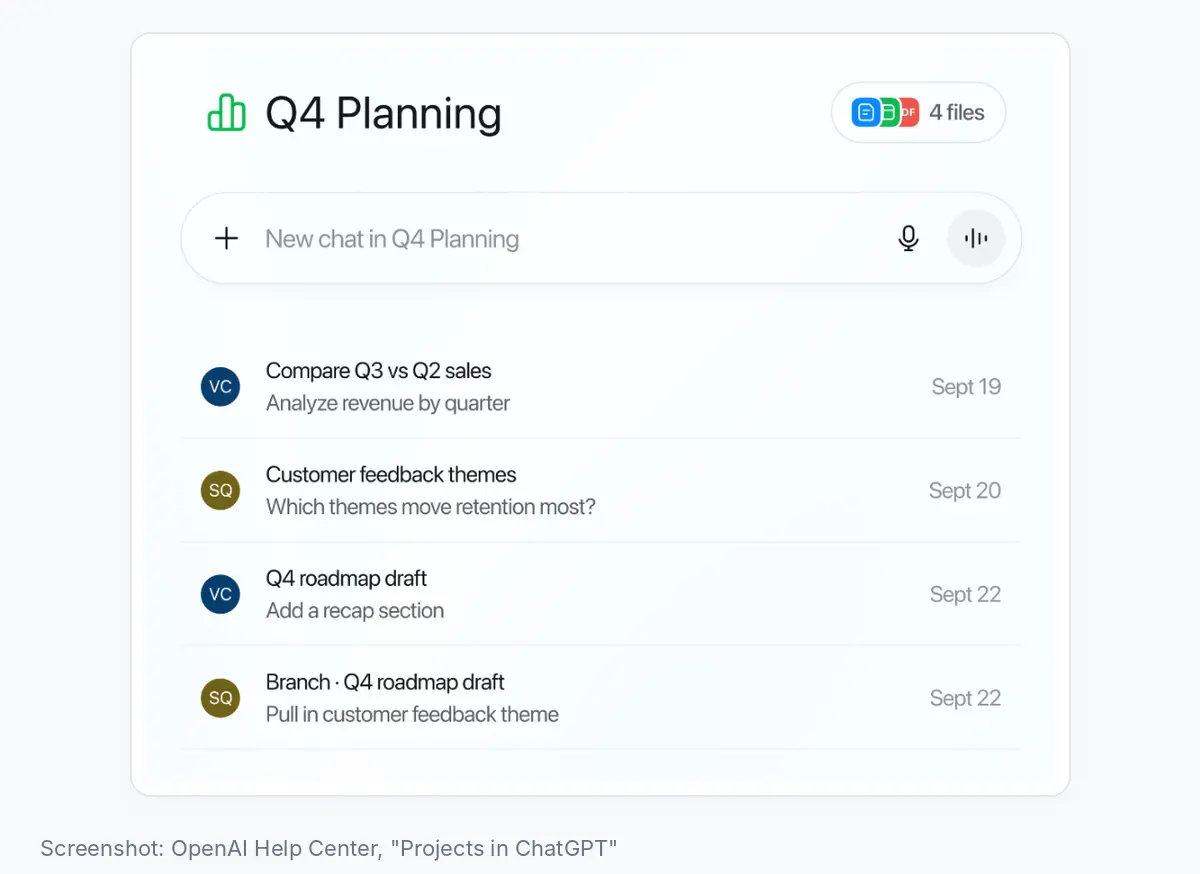
Common mistake: letting one chat run across unrelated phases, so an old assumption from an earlier phase silently carries into a later one.
Step 5: Triage your existing backlog into four buckets
Look through your chat list and sort every chat outside a Project into one of four buckets: move (belongs to a continuing outcome), archive (a finished one-off worth keeping; archived chats stay searchable), leave (a genuine one-off), or delete.
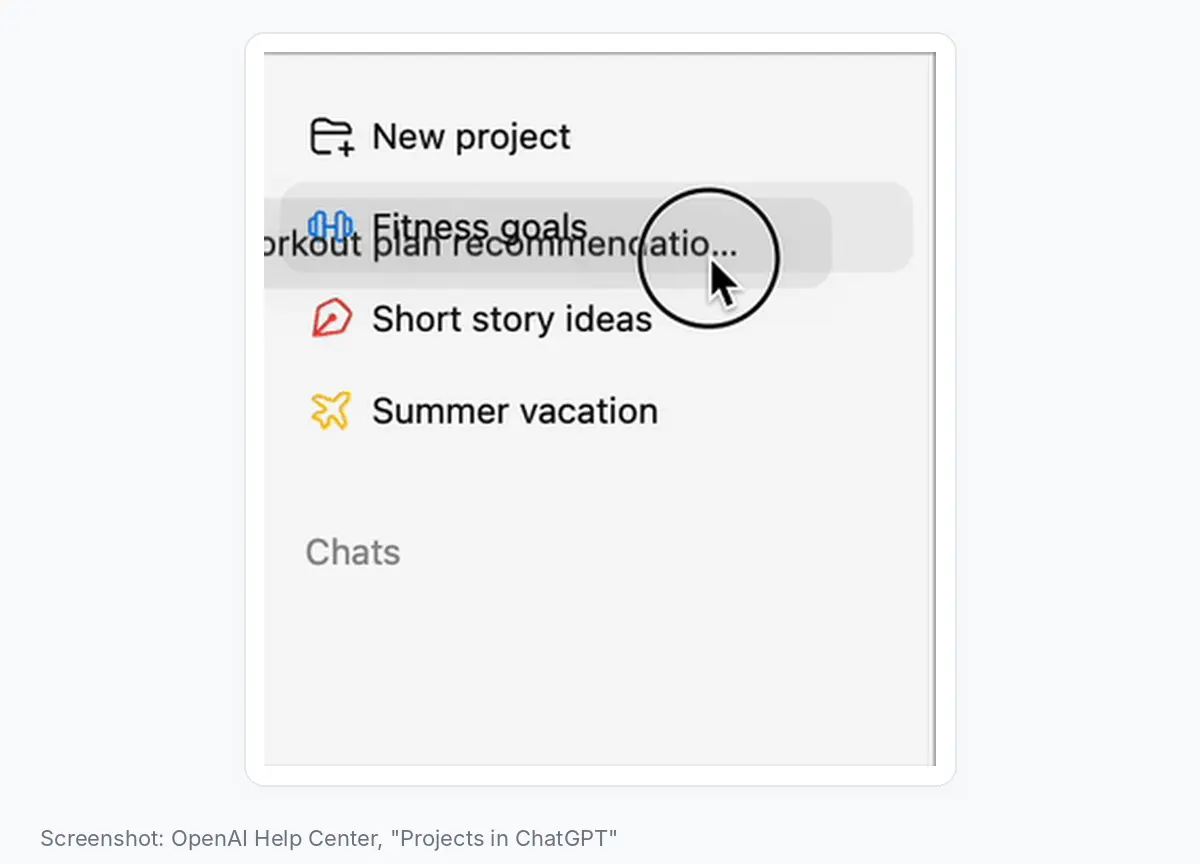
To move a chat, drag it onto the Project in the sidebar, or open the chat's menu and choose Move to project (OpenAI Help). Before moving anything, run this checklist:
- A moved chat inherits the target Project's instructions and files, so its future answers can change.
- A GPT-made chat cannot be moved into a Project at all; start fresh inside the Project instead.
- After moving, send one message and confirm the reply reflects the Project's instructions before trusting the chat.
- If a move goes wrong, open the chat's menu and choose Remove from project, when the option is available, to send the chat back to your chat history.
When you finish, every backlog chat has a bucket.
Common mistake: dragging your whole chat history in at once and expecting nothing to change. One r/ChatGPT reply suggested a throwaway "DeleteMe" Project: add the chats you want gone by hand, then wipe its contents at once (r/ChatGPT, 10 July 2026).
Step 6: Split a Project only when the outcome, owner, sources, or memory boundary changes
Every chat in a Project shares its instructions, its files, and one memory setting, so split when part of the work needs something different. These triggers are our own; OpenAI publishes no split rules.
- Outcome: the Project now serves two goals.
- Owner: someone else takes over part of the work. Sharing a Project forces project-only memory automatically.
- Sources: part of the work needs files the rest does not.
- Memory boundary: part of the work must stay apart from your other chats, and the rest does not.
Create the new Project first, then move only the affected chats using the Step 5 checklist, and add the files the new Project needs as its own sources. The result should be two Projects, each still representing exactly one continuing outcome.
Common mistake: splitting on a chat count. OpenAI publishes no chat-count limit for a Project.
Step 7: Run a 10-minute weekly cleanup routine
Once a week, run the checklist below. Use sidebar search to jump to chats needing attention, and pin the Projects you use most so they stay near the top of the sidebar (OpenAI). The checklist is our own; OpenAI publishes no official routine.
Weekly review, about 10 minutes total:
- Rename any chat still titled "New chat" or similar
- Archive chats for outcomes that finished this week
- Update each active Project's current-state note
- Re-check the Step 6 split triggers: outcome, owner, sources, memory boundary
- Confirm no Project is close to its file cap before adding more
- Look through your chat list for chats that still belong in a Project
- Check that the Projects you have pinned are still the ones you use most
Afterward, no chat is still titled "New chat" and every active Project has a current note.
Common mistake: skipping the routine until the sidebar is already unmanageable.
Step 8: Close out and delete a Project safely
Before deleting any Project, save the final deliverable and the decisions note from Step 3 outside ChatGPT, since deletion is permanent. Then delete it. If you are not ready to delete, archive its chats and leave the Project in place, or remove only the stale chats or files.
You should now find the Project's final work and decisions outside ChatGPT, and the Project itself gone from the sidebar.
Common mistake: deleting a finished Project the way you'd archive a folder.
Common mistakes that turn a Project into a junk drawer
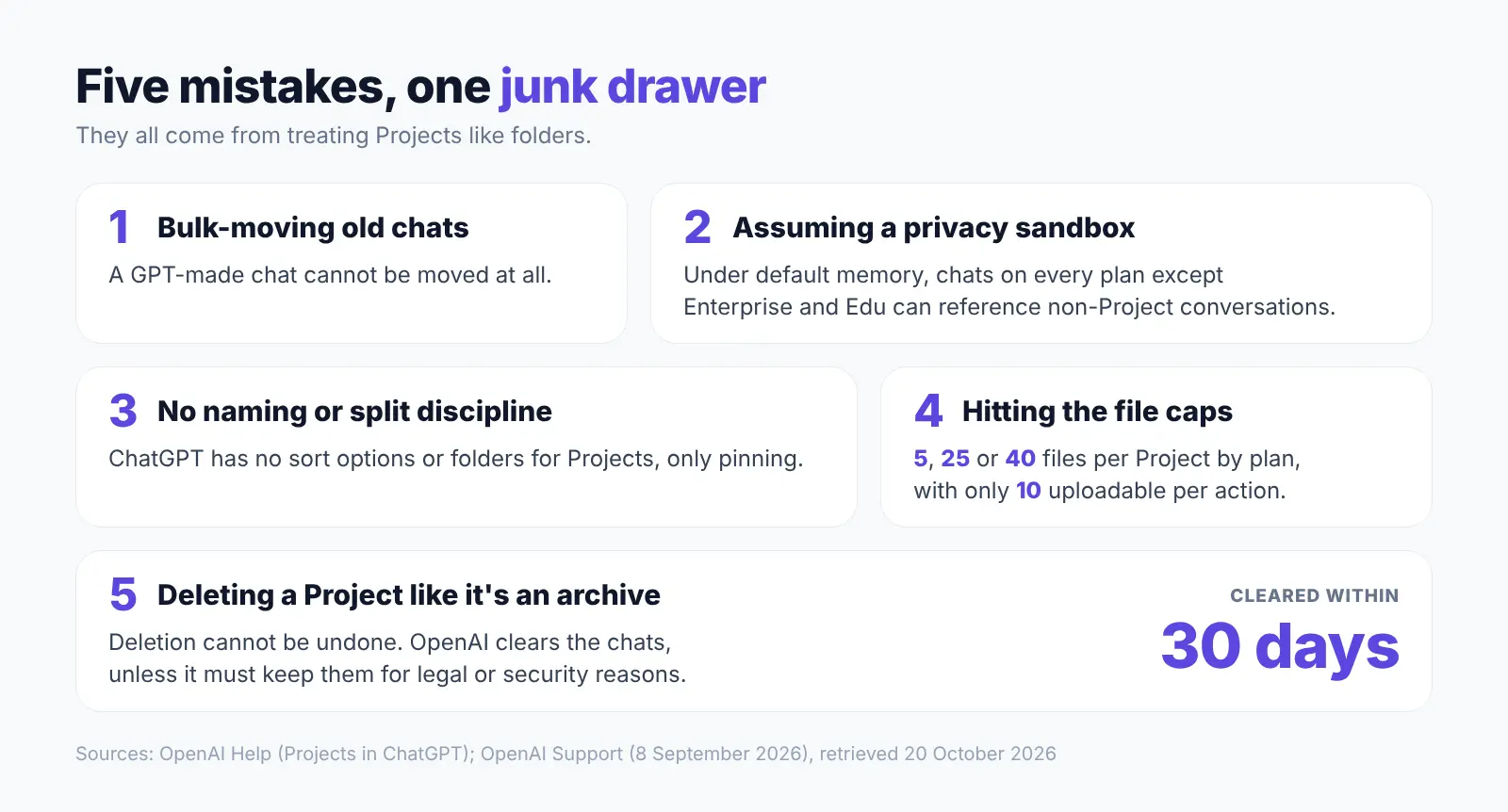
Common mistakes with ChatGPT Projects come from treating them like folders. These five cause most of the clutter and risk.
- Bulk-moving old chats without checking inheritance. A moved chat inherits the target Project's instructions and files, so its future answers can change, and a GPT-made chat cannot be moved at all. Fix: run the Step 5 checklist every time (OpenAI Help).
- Assuming a Project is a privacy sandbox by default. Under default memory, chats on every plan except Enterprise and Edu can reference non-Project conversations, and sharing forces project-only memory automatically. Fix: set project-only memory before adding anything sensitive (OpenAI Help).
- Letting the sidebar grow with no naming or split discipline. ChatGPT has no sort options or folders for Projects, only pinning (OpenAI Support, 8 September 2026). Fix: apply the Step 2 naming formula and Step 6 split rule early. In r/ChatGPT, one reply advised using one chat per phase and renaming it when the phase ends (r/ChatGPT, 12 August 2026).
- Hitting the file caps mid-setup. Each plan caps how many files a Project can hold, as the plan table above shows. Fix: keep only the files you will reuse, and upload in batches of 10 or fewer (OpenAI Help).
- Deleting a Project like it's an archive. Deletion cannot be undone. It removes the chats, the instructions, and any files stored only in the Project. OpenAI clears them from its systems within 30 days, unless it must keep them for legal or security reasons. Files you saved separately in your Library are not deleted. Fix: copy the final deliverable and decisions note out first, per Step 8 (OpenAI Help).
Next steps: keeping Projects organized
Run the weekly routine for a month, then recheck each Project against the Step 6 triggers. Save the final deliverable and decisions note outside ChatGPT before you delete a Project. The same habits work in NotebookLM: see organizing NotebookLM notebooks.
Elephas: a better alternative to ChatGPT Projects for private documents
ChatGPT Projects keep your chats tidy, but OpenAI keeps the files you add to a Project until you delete them or a workspace policy removes them (OpenAI Help). For contracts, HR notes or customer reports, Elephas is a better alternative. It is a private AI tool for your documents on Mac, with Windows coming soon.
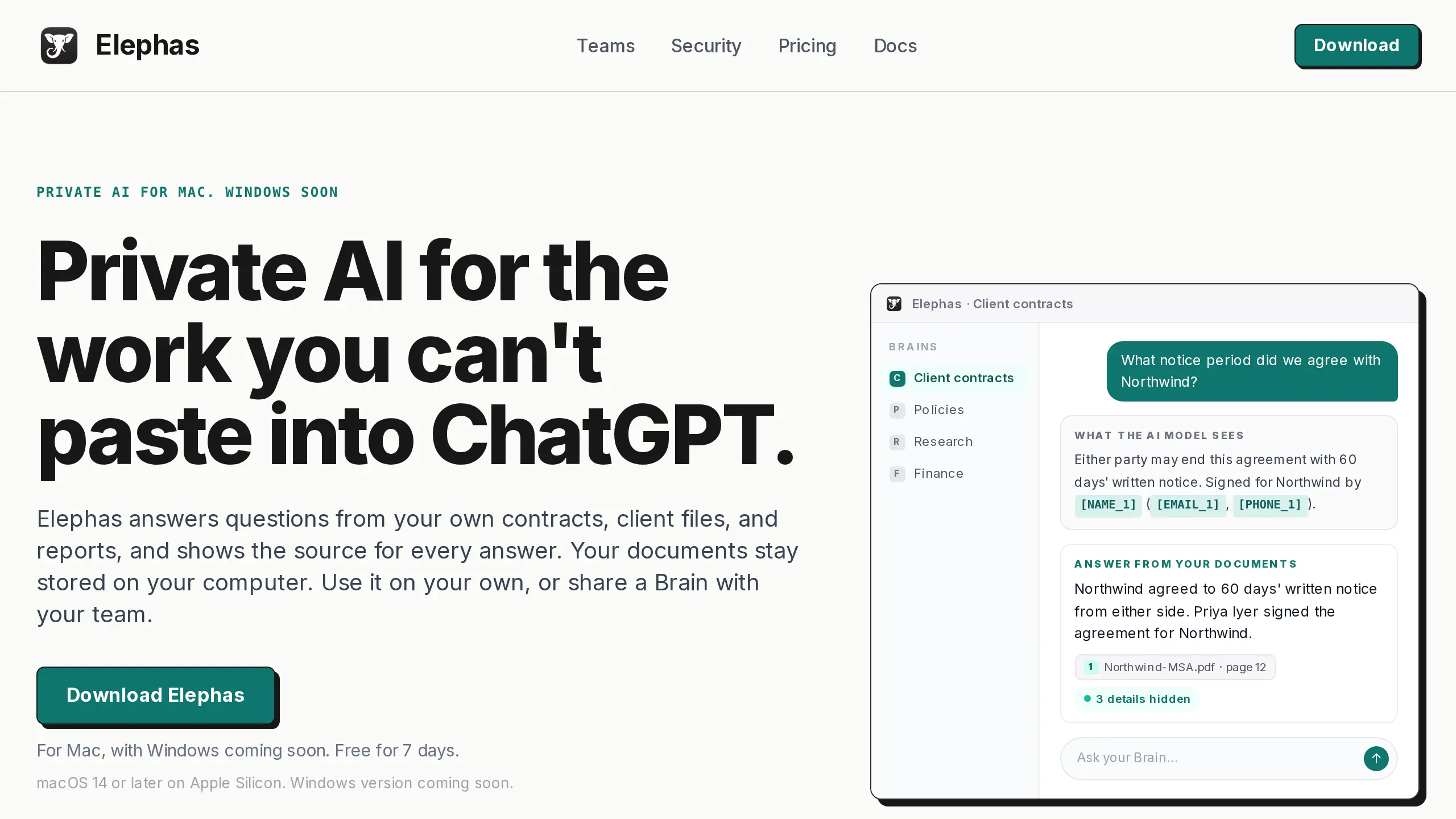
Elephas answers from your own files, shows the source for every answer, and keeps your documents stored on your computer. Before a question leaves your computer, it hides personal details such as names, email addresses, and phone numbers, then puts them back in the answer. You can see what was hidden under every answer.
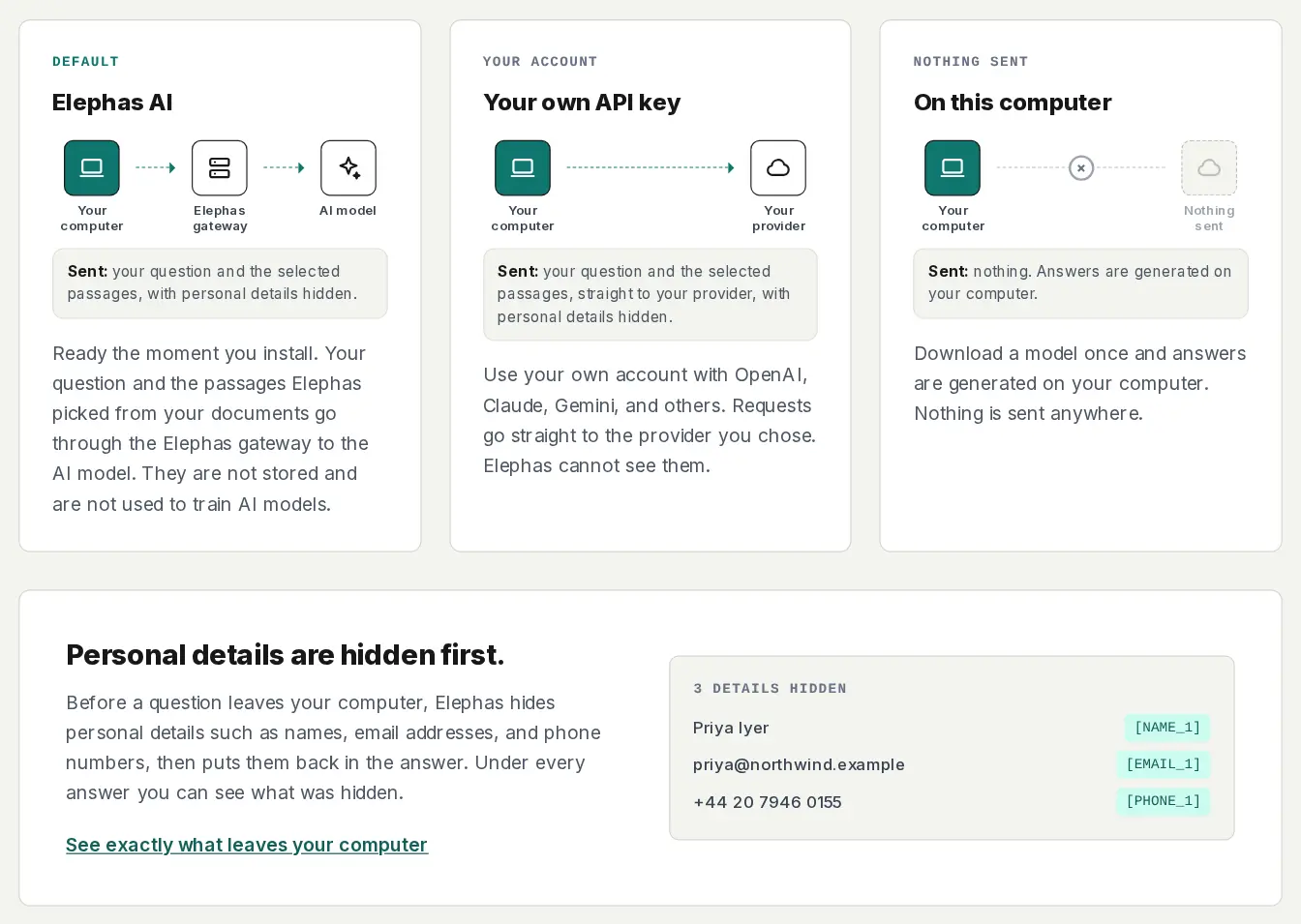
You choose where answers come from. Elephas AI is included, and your questions and passages there are not stored or used to train AI models. Personal and Professional plans also let you use your own OpenAI API key, with details still hidden first, or a model on your computer that sends nothing anywhere.
For teams, the Elephas Team plan has shared Team Brains, which are shared collections of your documents. It has manager, contributor and reader roles, private chats for each person, and end-to-end encrypted team sync. Team costs $29 per person a month.
- Try Elephas free for 7 days with no card needed; plans then start at $19 a month.
FAQ
Can I organize chats in ChatGPT without using Projects?
Yes. Rename chats, use sidebar search across titles and message text, and archive finished ones. Projects add a shared layer of instructions, files, and memory on top; they matter only for an outcome that needs the same context every time.
Can a single conversation belong to more than one Project at once?
No. ChatGPT lets you move a chat into a Project or take it out again, but it does not describe putting one chat in two Projects. If a conversation serves two outcomes, keep it in the Project it started in and start a fresh, phase-named chat for the second outcome.
Does ChatGPT search across all my Projects, or only the one I have open?
Sidebar search covers chats, Projects, images, and documents across your whole account, not just the open Project. It rolled out to every plan in mid-July 2026, and matches titles and message text, which is why the Step 2 naming formula matters.
Can I create native folders for Projects in ChatGPT?
No. ChatGPT has no folders for Projects and no option to sort them or drag them into order. You can pin a Project to keep it near the top of the sidebar. On 8 September 2026, OpenAI Support answered a request for folders and sorting with "No timeline to share."
My ChatGPT Projects have disappeared. How do I recover them?
Check that you are signed in to the right account and workspace. A missing chat is not always deleted, so search for a word from it. A deleted Project cannot be recovered; OpenAI removes its chats and Project-only files within 30 days, unless it must keep them for legal or security reasons.
Can I archive a Project instead of deleting it?
OpenAI's docs describe archiving a Project's chats, not the Project itself. Archiving a chat hides it from the sidebar without deleting it, and archived chats stay searchable. When a Project is finished, archive its chats and leave the Project in place, or save the work elsewhere and then delete it.
Can I move a chat created with a custom GPT into a Project?
No. ChatGPT offers no move-to-project option for chats made with custom GPTs. Start a new chat inside the target Project instead, and paste in only the content you still need.
Private AI for your own documents
Elephas answers from your own files and hides personal details like names, emails and phone numbers on your computer before a question goes to cloud AI. For Mac, with Windows coming soon. Try it free for 7 days. Plans start at $19 a month.