How to Use ChatGPT Projects (Setup, Files, Memory, and Sharing Done Right)
Last updated: August 28, 2026.
ChatGPT Projects is a workspace that keeps related chats, files, instructions, and memory together for one recurring job. To use it, create one focused Project, choose its memory boundary, add shared reference files, and test it before relying on the answers.
A correct setup takes about 15 to 20 minutes. The important decision comes before the first upload: choose the memory boundary, then add files and decide whether sharing is worth its permanent tradeoff.
The productivity case is broader than Projects. A Science study of 453 professionals found ChatGPT users completed assigned writing work 40% faster and received quality ratings 18% higher. It did not test Projects, privacy, or file handling.
Quick answer:
- Create one Project for a recurring workstream, not a one-off question.
- Choose default or project-only memory before uploading sensitive files.
- Add only the reference files and instructions every related chat should use.
- Check your file allowance first: Plus documentation currently conflicts between 20 and 25 files, and sharing permanently makes a Project project-only.
- For sensitive files, redact first with Elephas before upload, or skip the shared Project altogether: Elephas Super Brain is a Mac-native alternative with your choice of AI model. Elephas has a free plan and starts at $19/month. Try Elephas for free.
What You Need Before Setting Up a Project
Use a ChatGPT account on any plan. Projects are available on Free and paid plans, with no separate Projects fee. ChatGPT Plus costs $20/month. A Project isn't just a folder, it's a workspace that carries instructions, files, and project memories across related chats.
Projects aren't the same as Custom GPTs or ChatGPT Work: a Custom GPT is a reusable configured tool, Work is a separate mode and surface, and a Project is a workspace for related chats, files, and instructions. For feature, pricing, and limit background, see ChatGPT Projects.
- Use the web app at chatgpt.com for the clearest setup path. A reported desktop sync error in r/ChatGPT is anecdotal, not a universal current limitation.
- Gather each computer file before starting: PDFs, text, code, spreadsheets, images, and approved data for the workstream.
- Set the scope before adding sensitive business, marketing, research, or patient material. Privacy starts with deciding what doesn't belong in the Project.
- Know your file cap before you start (see the FAQ below); OpenAI also allows only 10 files per upload action, per the Projects guide.
Text and document files can carry up to 2 million tokens each, per OpenAI's File Uploads FAQ.
Most accounts are also capped at up to 80 files uploaded per 3 hours, per the same File Uploads FAQ.
How Do You Set Up and Use a ChatGPT Project?
Eight steps take you from an empty Project to one you can trust, in about 15 to 20 minutes. Set the memory boundary before your first upload, then confirm the Project answers from its own material.
Real setups vary widely, per an r/ChatGPTPro discussion.
Step 1: Create a ChatGPT Project
Open the ChatGPT sidebar, select Projects, then choose New project and enter a project name. Use this first Project to create a ChatGPT project for one continuing workstream, not a catch-all workspace. The steps match OpenAI's Projects guide.
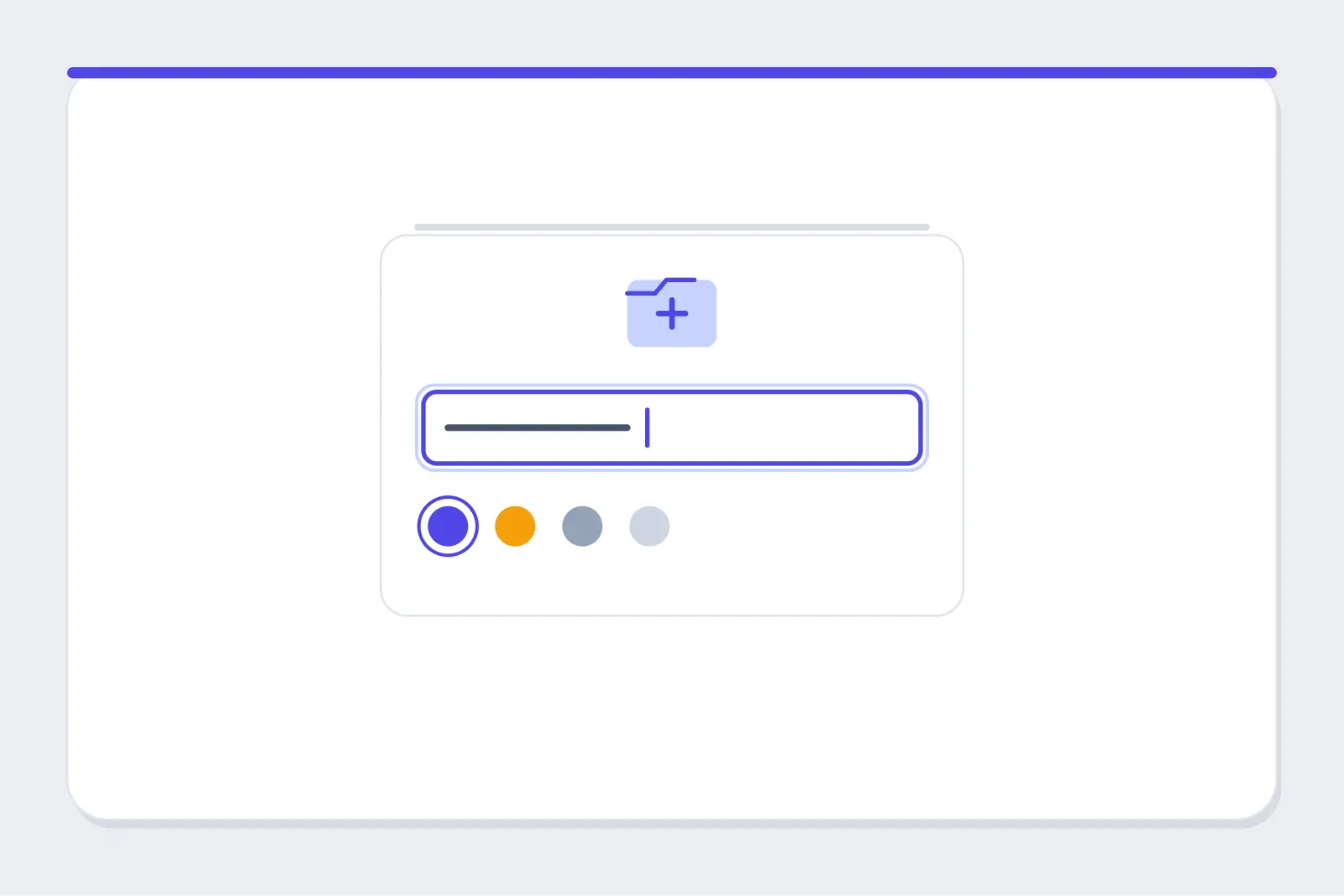
Expected result: You should now see an empty ChatGPT Project in the Projects view, ready for files and custom instructions.
If you use the desktop app, note that OpenAI's July 16, 2026 release notes confirm existing Projects were added to the combined desktop app with Chat and Work threads. A July request in r/OpenAI reflects earlier discoverability friction, not proof that Projects are still missing from desktop today.
Step 2: Name the Project for a Recurring Workstream
Name the new project after an ongoing client, matter, or workflow, such as "Acme Contract Review," rather than one question. A useful project name tells you what belongs within it when multiple projects begin to accumulate.
If your existing ChatGPT chats are scattered with no Project at all, don't wait: the longer you wait, the more painful reorganizing everything later becomes.
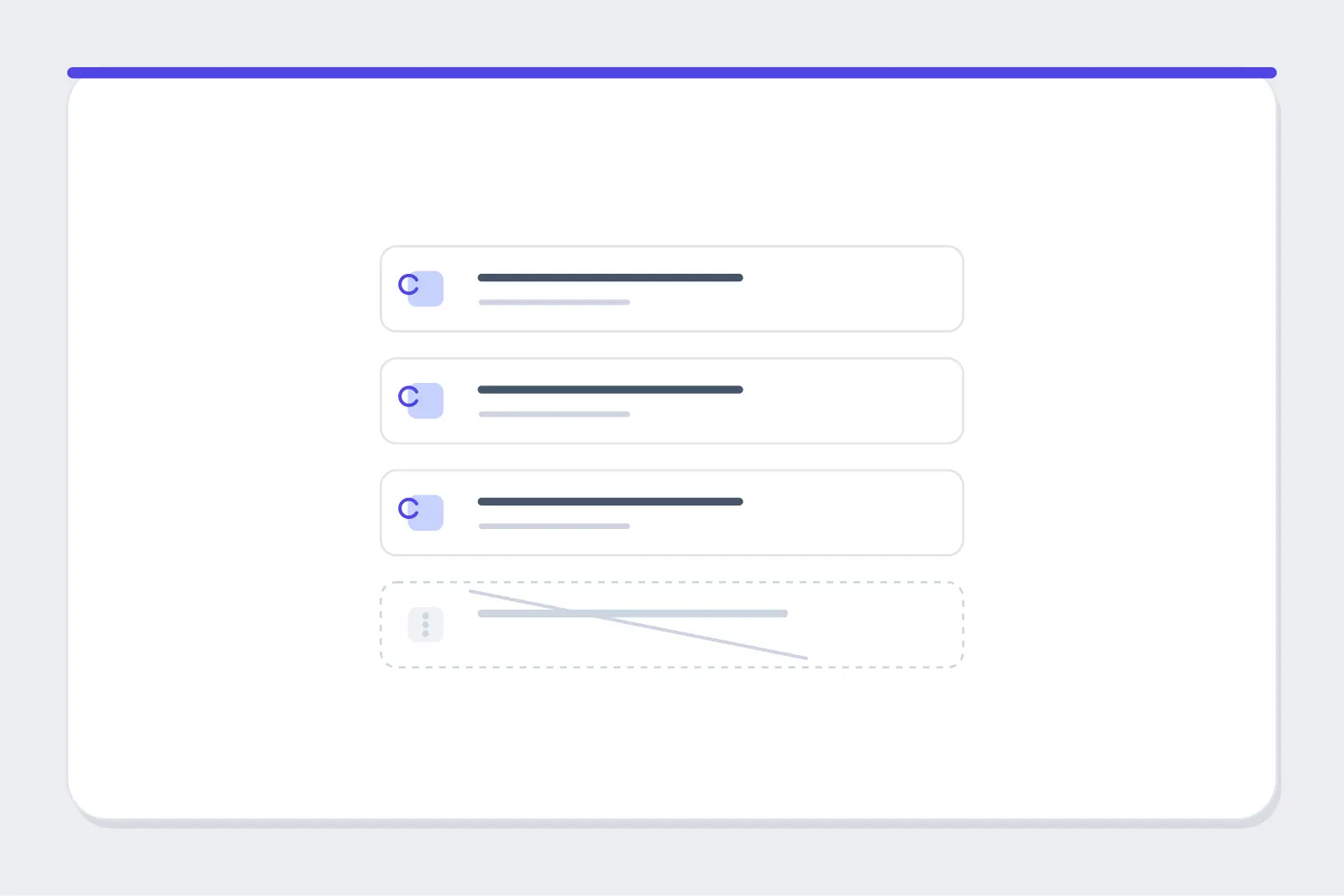
Expected result: You should now see a dedicated project whose purpose will still make sense when you return next week. Use a standard chat for a one-off question and reserve Projects for work that needs related chats, files and chats, and repeated context.
Step 3: Choose How Project Memories Work
Choose the memory mode in More options before adding anything sensitive. Default memory lets a chat reference relevant chats outside the Project, unlike NotebookLM, where each notebook only knows its own uploaded sources and stays sealed off. Project-only memory gives you that same seal, instead of pulling from everything you've ever told ChatGPT.
| Configuration | What happens | Main gotcha |
|---|---|---|
| Project-only memory | Chats can use other chats in that Project, not saved memories or chats outside it. ChatGPT Work is unavailable. | Requires the right memory setting turned on. |
| Default memory (non-Enterprise, incl. Business) | Project and non-Project chats can reference each other, unless another Project is project-only. | Doesn't create a hard context boundary. |
| Default memory (Enterprise & Edu) | Chats stay contained within the Project, subject to workspace controls. | Workspace toggles can still disable memory, voice, or Deep Research. |
| Shared Project | Sharing turns on project-only memory automatically; it can't switch back, even after collaborators are removed. | Permanent for that Project. |
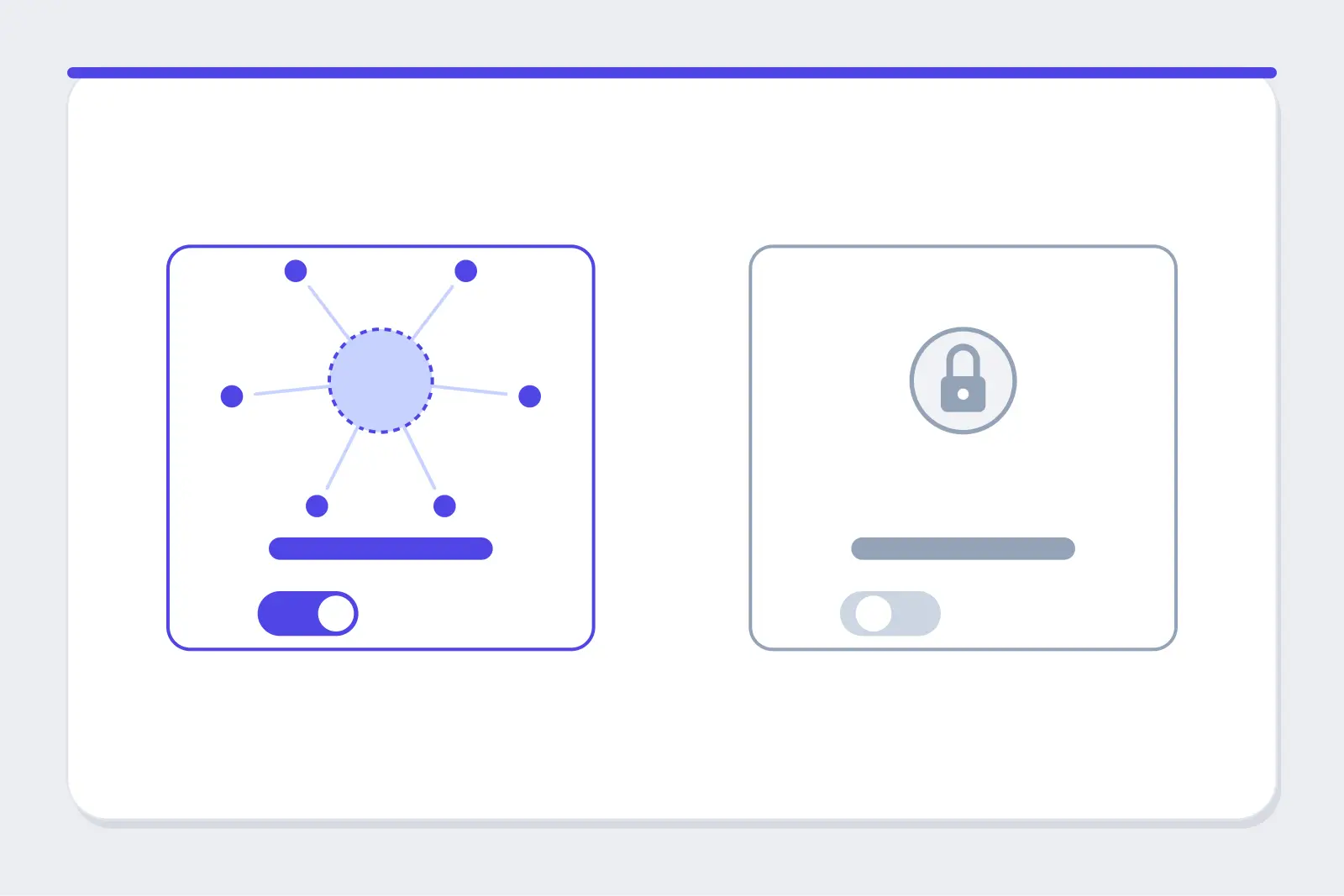
Expected result: you should now see a context boundary that fits the material you plan to keep inside the Project, and ChatGPT Work stays unavailable in project-only mode, per the release notes. Project instructions apply only within a project, overriding global custom instructions, and eligible unshared Projects can now switch memory modes after creation.
Community reports show why this choice deserves care. An r/OpenAI discussion asked for clearer context isolation, while an r/ChatGPT thread raised the Work-mode limitation. These are anecdotal reports, with the latter now confirmed in OpenAI's release notes.
Common mistake: Do not treat sharing as a harmless later setting. A shared project is permanently switched to project-only memory, even after collaborators are removed.
Step 4: Add Files to the Project
Attach the reference documents every project chat needs, such as a spec, style guide, dataset, or approved client file, using the Project's upload control. Keep the list limited to authoritative material.
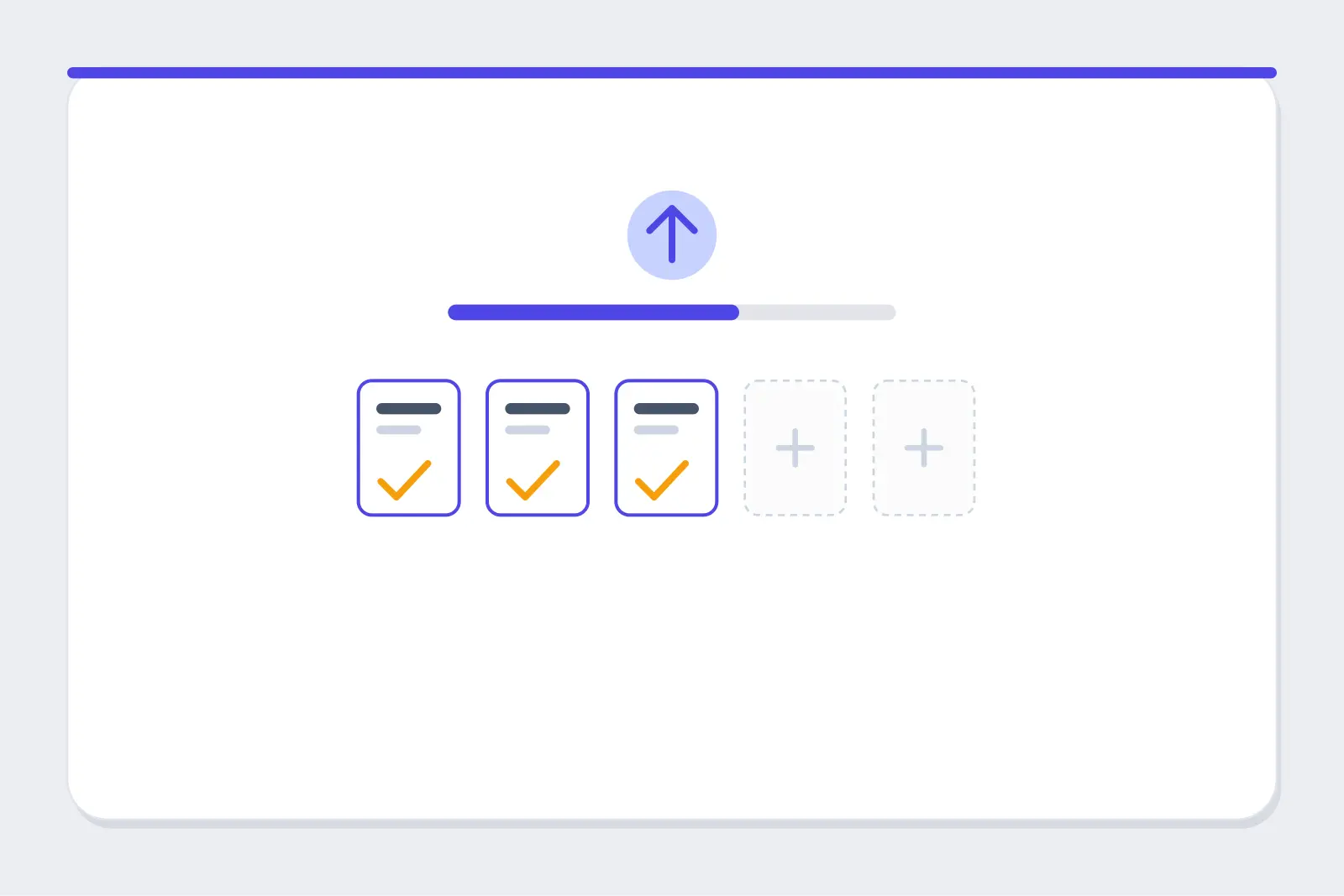
Expected result: you should now see project files listed in the workspace, available as context to chats started or moved inside the Project. OpenAI documents a maximum of 10 files per upload action, plan-based files per Project, and 25 GB of storage per end user (100 GB per organization) in its upload FAQ.
Keep untrusted material out. An injection study found that retrieved external content can be used to attack LLM-integrated systems. Treat a source file as reference material, not as instructions to follow.
Common mistake: do not plan a Plus upload around 25 files without checking your account first. The Projects page says 25; the File Uploads FAQ says 20. Large Projects reportedly fail to load more often too, per anecdotal r/ChatGPT reports, another reason to keep a Project scoped.
Step 5: Write Custom Instructions
Write Project-specific guidance in Add instructions. State the required tone, output format, citation style, or default tools in short, testable language. For example: "Use headings, cite primary sources, and flag missing evidence."
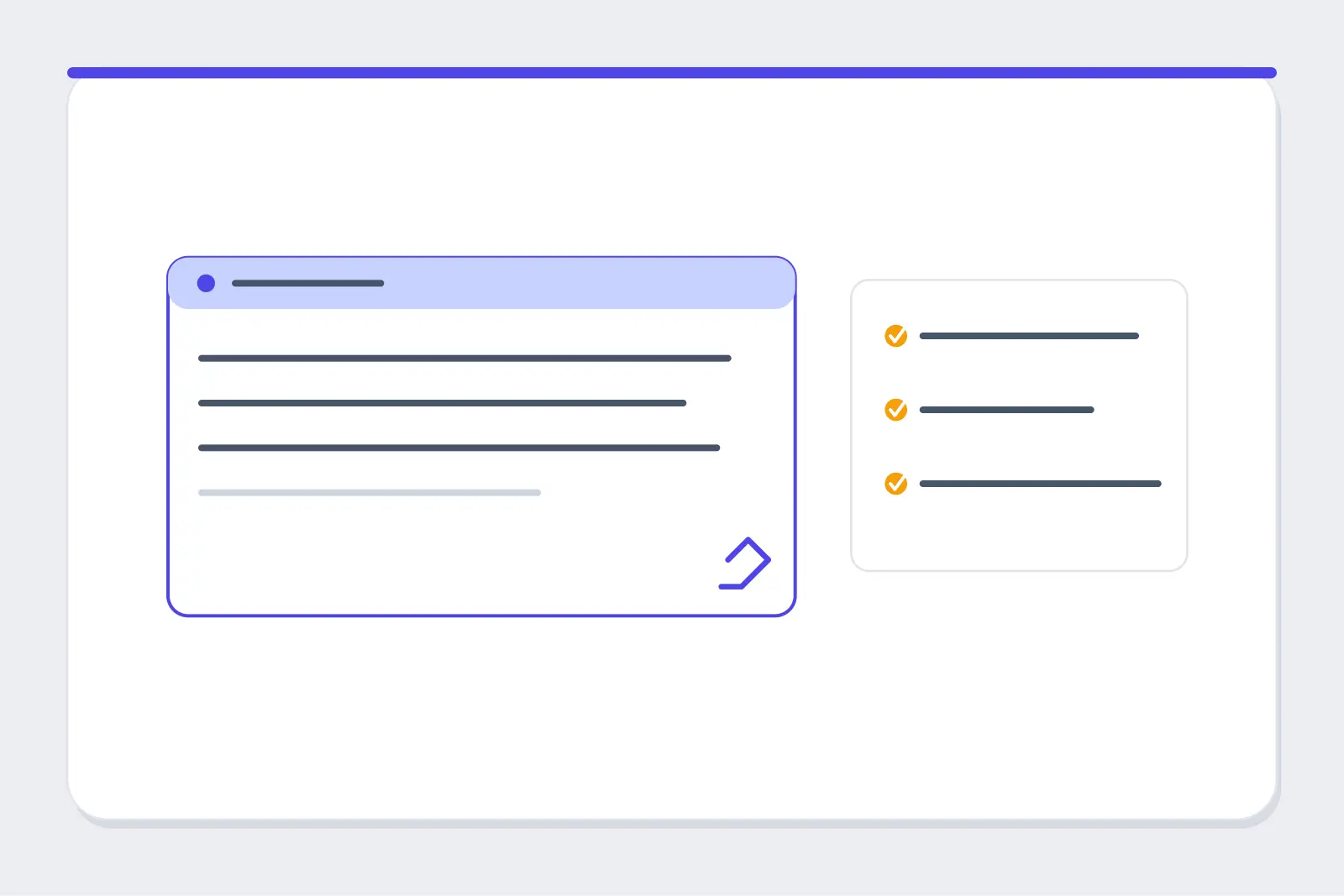
Expected result: You should now see instructions and file context applied to each new chat in the Project. These Project-level instructions override your regular, account-wide custom instructions inside this Project, so the two don't compete, and you skip re-pasting rules every session.
Don't rely on custom instructions for rules that can't be missed. They can be ignored at the start of a chat, so repeat a critical rule in your first message and check the response. Writing reusable instructions takes iteration, per an r/ChatGPTPro thread.
Step 6: Move or Start Chats Inside the Project
Place related chats in the workspace by dragging an eligible conversation onto the Project, or open its menu and choose Move to project. Alternatively, start a new chat inside the Project when the conversation needs its files and custom instructions from the first message.
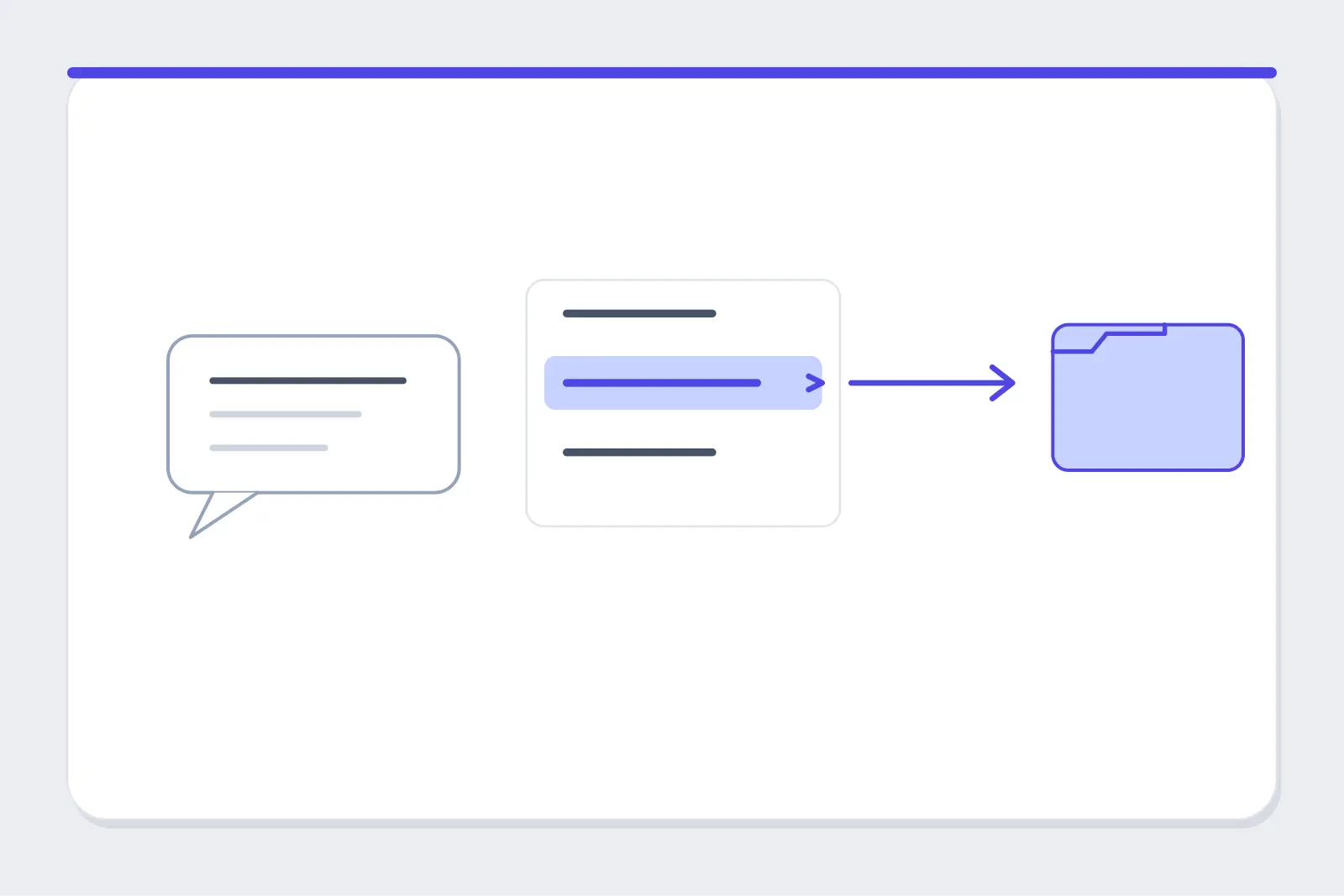
Expected result: You should now see the chat in the Project, with its files and project instructions available.
Organizing everything into separate Projects won't cost you the single-search-bar habit from Notion or email. OpenAI's July 14, 2026 update lets you search across all your chats, Projects, images, and documents at once.
Temporary Chats and custom-GPT chats are ineligible by design, so move chats in as they become relevant; there's no bulk-import shortcut. An r/ChatGPTPro report questioned whether one Project chat could use another, conflicting with current docs. Test two related chats yourself before relying on cross-chat context.
Step 7: Turn It Into a Shared Project (If Needed)
Share only after deciding the Project's memory mode and reviewing every file, chat, and instruction it contains. Grant can-view/chat access when someone only needs to interact with the workspace, or can-edit access when they also need to change files, instructions, and invitations.
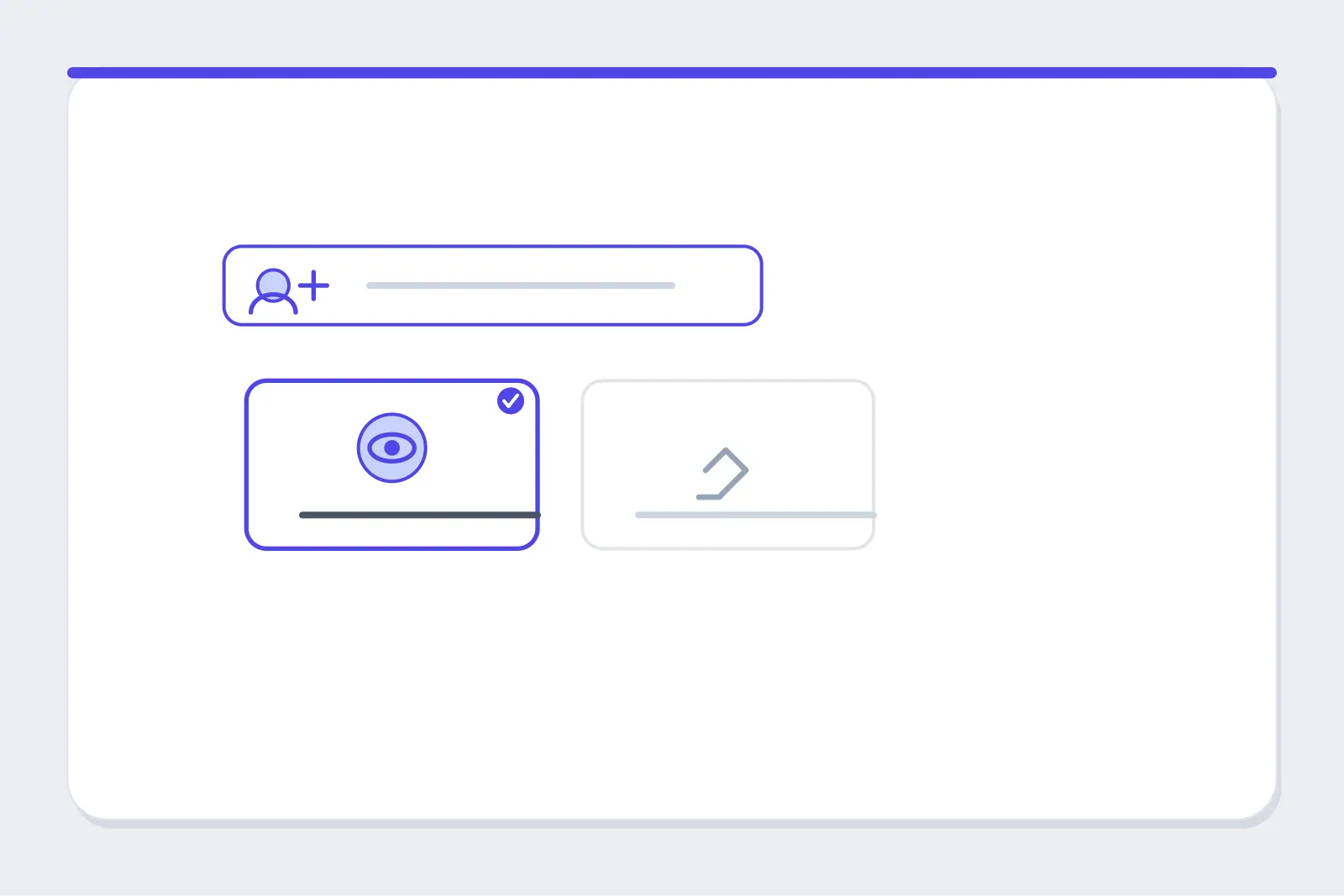
Expected result: you should now see named collaborators, or a link-access setting, at the permission level you selected. Every member can access the whole shared Project, not just one chat, per OpenAI's sharing rules.
Common mistake: Do not share a Project to show one conversation. Project sharing exposes the whole workspace and permanently changes memory to project-only. That surprise is also described in r/ChatGPTcomplaints, an anecdotal community report corroborated by OpenAI's documentation.
Step 8: Test the Project Before Trusting It
Ask one question that requires an uploaded file or a Project instruction to answer correctly. For example, ask what a named rule says in a style guide, then compare the reply with the source file.
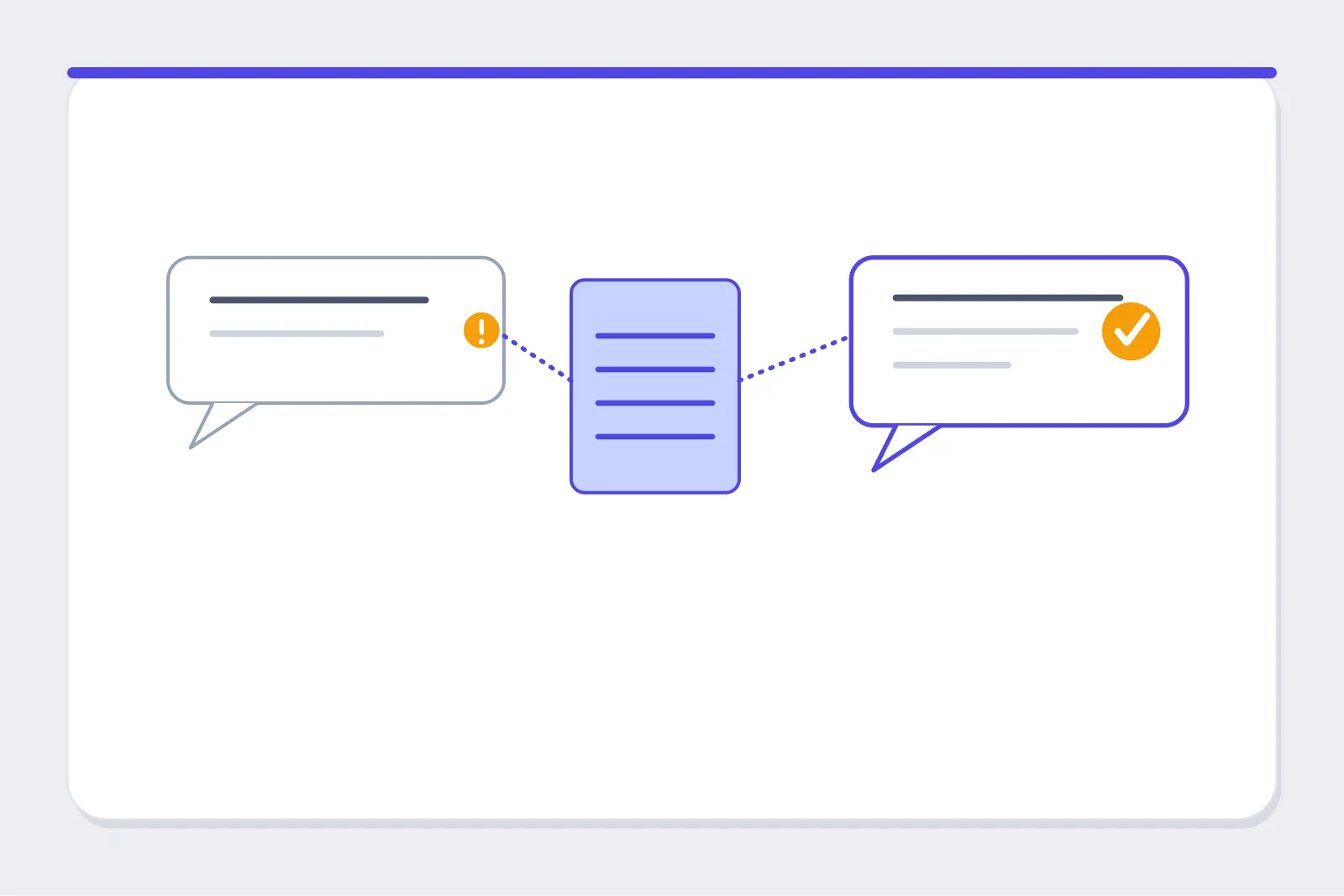
Expected result: You should now see an answer that reflects the source and stated instructions rather than generic AI knowledge. This test is a practical safeguard, not an official OpenAI setup requirement.
If the result is vague, check the upload, tighten the instruction, and retry before trusting the Project with real work. An r/OpenAI discussion described Projects over-anchoring on stale context, an anecdotal report, not a confirmed bug. A source-specific test catches that fastest.
What Mistakes Should You Avoid With ChatGPT Projects?
| Mistake | Symptom | Cause | Fix |
|---|---|---|---|
| Treating project-only memory as permanently fixed | You avoid changing an eligible unshared Project's setup. | Older guidance is stale; eligible unshared Projects can now switch modes. Release notes (2026-08-14). | Change the setting before sharing; allow a few hours for conversion. |
| Clicking Share before deciding on memory | The Project becomes project-only after inviting someone. | Sharing permanently switches the workspace to project-only memory, even after collaborators leave. OpenAI Projects (2026-08-14). | Complete any default-memory workflow before sharing. |
| Expecting ChatGPT Work in project-only mode | Work mode is unavailable in the Project. | Work doesn't work inside project-only-memory Projects. Release notes (2026-08-14). | Switch to default memory only while eligible and unshared. |
| Planning around the higher Plus file limit | An upload plan assumes 25 Plus files. | Projects page lists 25 for Go and Plus; File Uploads FAQ lists 20. Projects guide, upload FAQ (2026-08-15). | Treat 20 as the safe number until your account confirms otherwise. |
| Using one Project for one question | The setup adds work without reusable context. | No recurring context to reuse. OpenAI Projects. | Use a normal chat for single-use work; separate Projects for ongoing work. |
| Trusting instructions without checking them | A new chat misses a formatting or compliance rule. | Project instructions can be intermittently ignored. r/ChatGPTPro. | Restate the essential rule in the first prompt; verify the response. |
| Treating an old desktop complaint as current truth | You assume Projects are absent on desktop. | The July 16, 2026 update added Projects to the combined app; earlier r/ChatGPT reports remain situational. | Update the app or use the web app for a sync issue. |
What's the Best Alternative to ChatGPT Projects?
Elephas is a private AI knowledge assistant for Mac, and its Super Brain feature is the best alternative to ChatGPT Projects for sensitive or multi-model work. See the full comparison in Elephas vs ChatGPT.
A shared ChatGPT Project's files are visible to every collaborator, and on Free, Plus, and Pro plans, project data may train models when "Improve the model for everyone" is on, per OpenAI's data controls and Projects guide. A dedicated Elephas brain sidesteps that entirely and adds:
- Your choice of AI model, including ChatGPT, Claude, Gemini, Grok, Perplexity, or a built-in local LLM, instead of one fixed model, plus a brain selector to query one brain or all of them at once.
- Files that stay on your Mac by default, instead of on OpenAI's servers with a training toggle to manage.
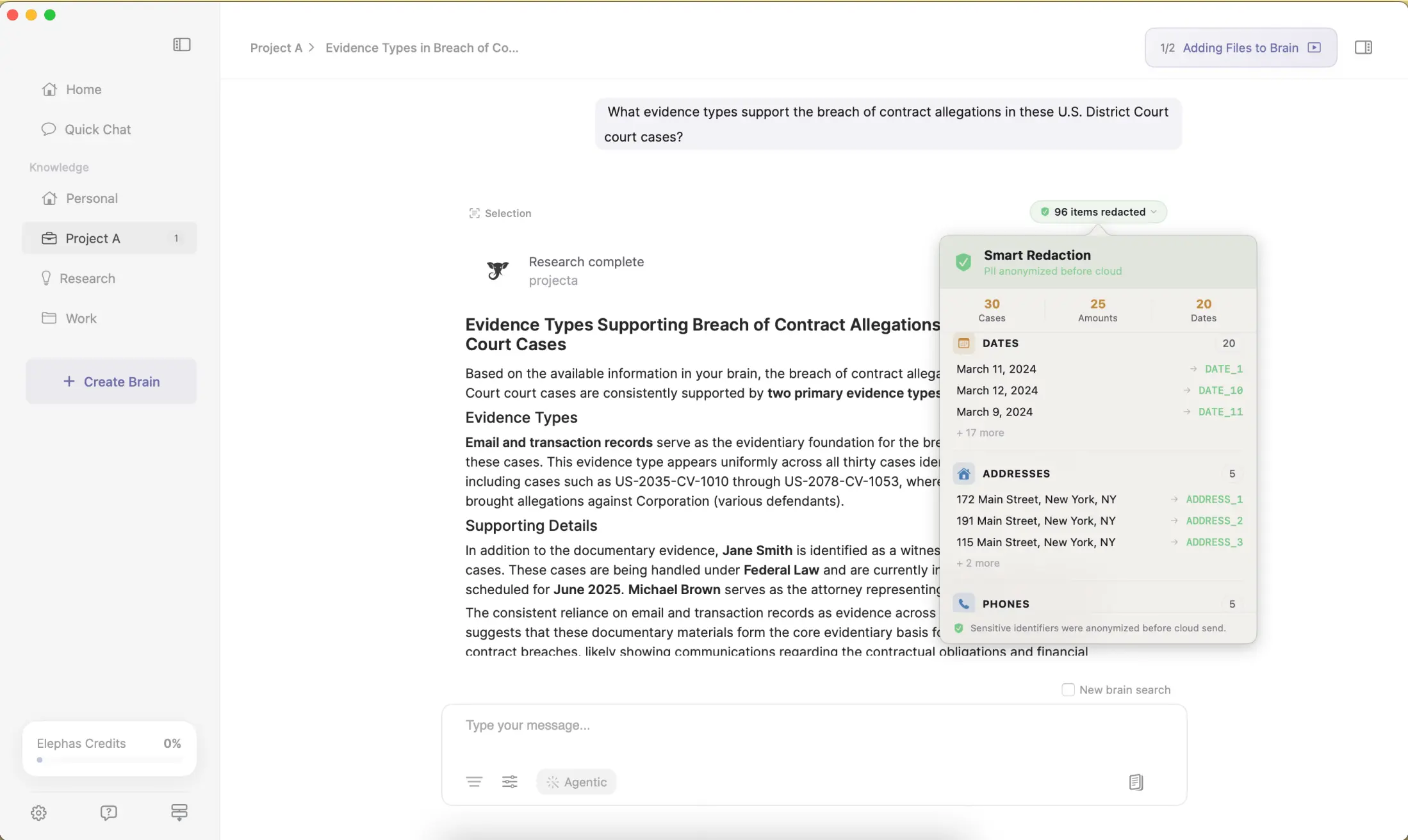
- Automatic PII redaction on every plan, including Free, with no equivalent in ChatGPT Projects.
- A fully offline mode for work that should never touch the cloud at all.
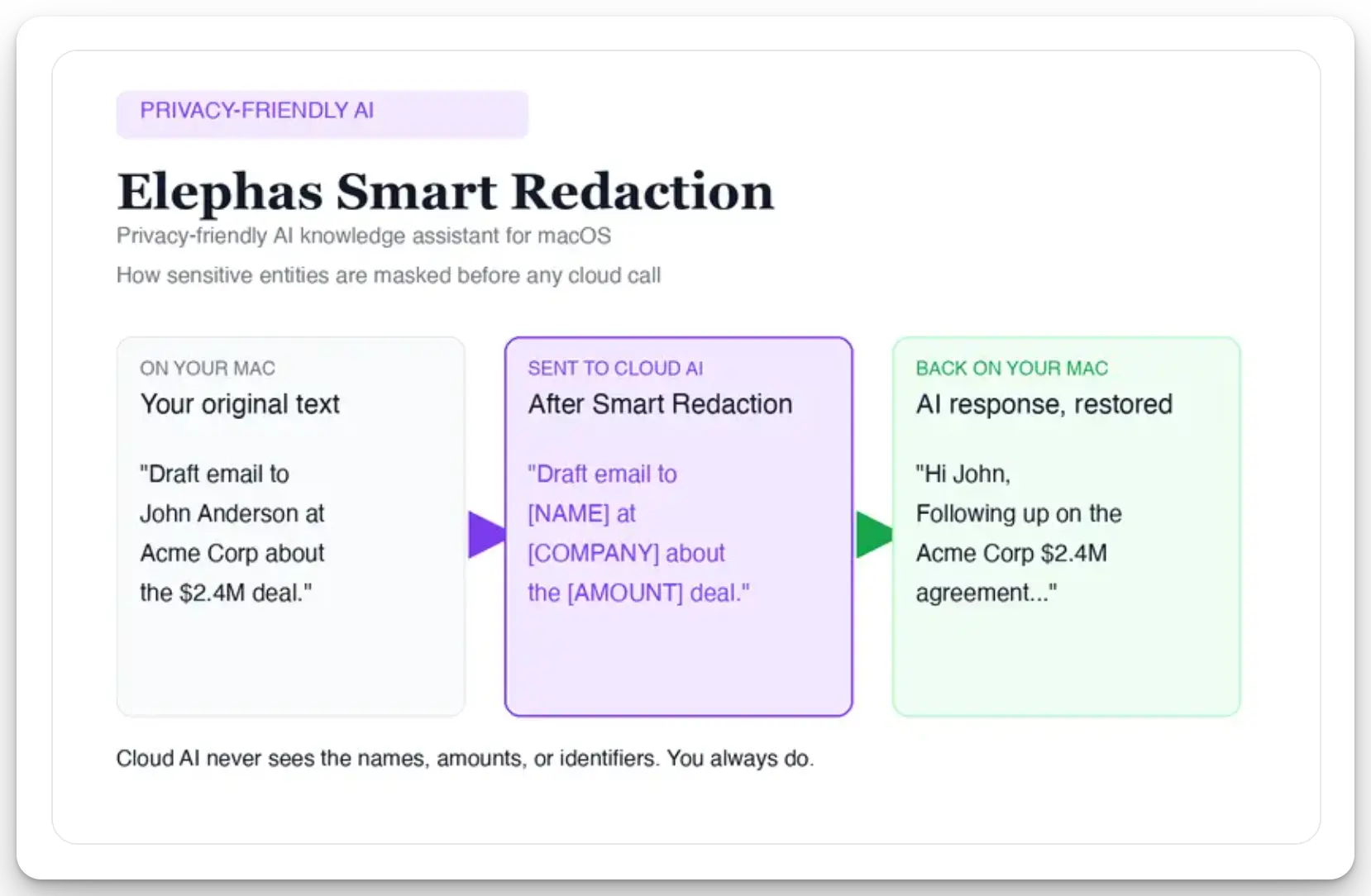
For work that still needs a leading cloud model, Elephas adds automatic PII redaction. Before a prompt is sent to ChatGPT, Claude, Gemini, Grok, Perplexity, or another cloud model, it removes sensitive names, emails, phone numbers, and identifiers on your Mac.
The cloud AI receives sanitized text, then its answer returns and the redacted fields are reassembled locally. Content never trains AI models, never sits on a vendor's server, and never passes through a third-party reviewer's screen. Elephas has a free plan and starts at $19/month. Try Elephas for free.
What to Do After Your First Project Is Set Up
Repeat this pattern for every project: decide memory first, keep files scoped, write instructions once, and test. Use a normal chat for one-off work, a custom GPT for a reusable tool others can use. An r/ChatGPT discussion on everyday habits is worth a read once your Project runs smoothly.
Plenty of teams lean on Projects heavily. OpenAI's enterprise AI report found that weekly users of Custom GPTs and Projects combined grew roughly 19x year-to-date, with about 20% of Enterprise messages now running through a Custom GPT or Project.
The same report found that 75% of the roughly 9,000 surveyed workers reported better speed or quality, saving 40 to 60 minutes per active day, so it's a habit worth building well from the start.
Compare elsewhere: Claude Projects vs ChatGPT, Perplexity Projects, Projects vs NotebookLM. For a Mac-native alternative to a shared Project, try Elephas Super Brain.
Frequently Asked Questions
Is ChatGPT Projects free?
Yes. Projects are available to logged-in users on Free and paid plans, per the Projects guide, with no separate fee. The plan difference is file allowance and tools, not access to the basic feature.
How many files can I add to a Project?
Your plan sets the number: 5 for Free, 40 for Pro, Business, Enterprise, and Edu. Plus has a live documentation conflict, 25 on the Projects page, 20 on the File Uploads FAQ, so treat 20 as the safe ceiling until your account confirms otherwise.
Can I change a Project's memory mode later?
Eligible unshared Projects can switch between default and project-only memory after creation, per OpenAI's August 14, 2026 release notes (the change can take a few hours). This doesn't apply once a Project is shared, so decide carefully before inviting collaborators.
Does sharing a Project change its memory setting?
Yes. Sharing automatically turns on project-only memory, and OpenAI says the Project cannot switch back to default memory even if collaborators are later removed. The concern appears in r/ChatGPTcomplaints, but the rule itself comes from OpenAI's official Projects documentation.
Can I move an existing chat into a Project?
Yes, eligible existing chats can be moved into a Project and inherit its instructions and file context. Temporary Chats and chats created with a custom GPT can't be moved. Move only chats that belong to the workstream, then run a quick test to confirm the files and instructions are used.
Do Projects work with ChatGPT Work mode?
They can, but not in every memory configuration. ChatGPT Work is unavailable inside project-only-memory Projects. This distinction also caused confusion in r/ChatGPTPro. If Work is required, confirm the Project remains eligible for default memory before you share it.
Can I add files to a Project automatically, through Zapier or the API?
No native Zapier or API path exists; manual drag-and-drop in the web UI is the only documented way in. If a big knowledge base makes ChatGPT seem to stop paying attention to files uploaded early, that's the file-count and size caps at work, not a bug, so trim or split the Project.
Keep your AI chats private, on your own Mac
Elephas pairs with the AI model you already use, or runs fully offline with built-in local LLM models, and redacts sensitive data before it ever leaves your Mac.